

What are the functions of the icons on the real-time monitoring interface of the Xiaomi Outdoor Camera BW300?
Open the [Mi Home] APP >> tap [Device Card] >> you will enter the real-time monitoring interface.
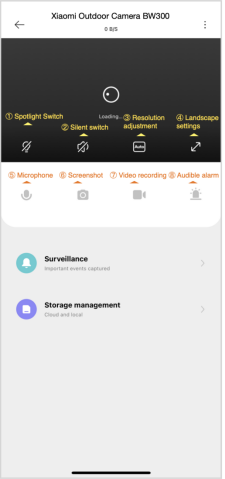
For your reference, here are some function icons as follows:
1. Spotlight Switch:
In the off state, tap the icon and the white light will turn on. In the on state, tap the button and the white light will turn off;
2. Silent switch:
When entering the camera, the video sound is turned off by default and is in the mute state. Tap the icon to turn on the video sound;
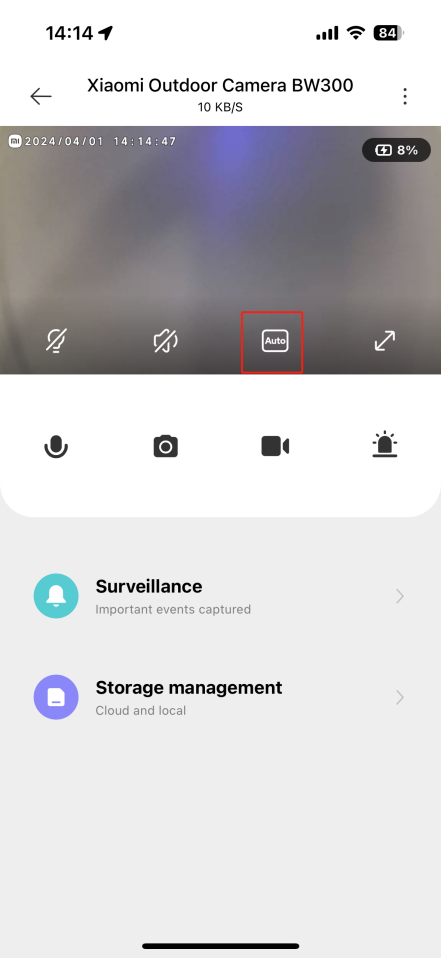
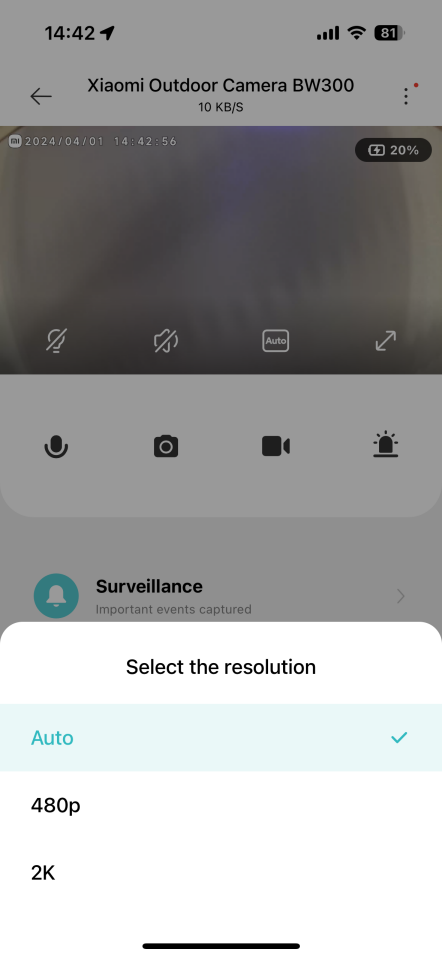
3. Resolution adjustment:
Video resolution can be adjusted independently, with three options: [2K], [480p] and [Auto];
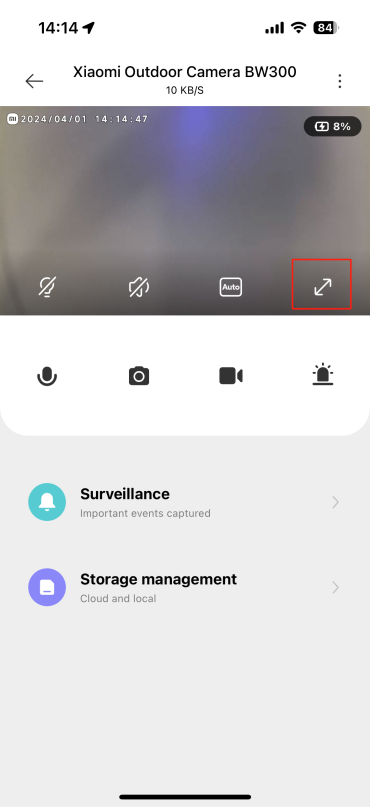
4. Landscape settings:
Tap the Full-screen icon, and the camera monitoring screen will enter the landscape screen;
5. Microphone:
After tapping the icon, you can make a call between your phone and the camera;
6. Screenshot:
You can take a screenshot of the current monitoring screen, and a picture will be generated and saved to the local photo album and Mi Home APP;
7. Video recording:
Tap the screen recording icon to record the current monitoring interface and save the video to the local photo album and Mi Home APP;
8. Audible alarm:
Tap this icon, the sound and light alarm will last for 30 seconds, and the playback can be canceled again during process.
1. Spotlight Switch:
In the off state, tap the icon and the white light will turn on. In the on state, tap the button and the white light will turn off;
2. Silent switch:
When entering the camera, the video sound is turned off by default and is in the mute state. Tap the icon to turn on the video sound;
3. Resolution adjustment:
Video resolution can be adjusted independently, with three options: [2K], [480p] and [Auto];
4. Landscape settings:
Tap the Full-screen icon, and the camera monitoring screen will enter the landscape screen;
5. Microphone:
After tapping the icon, you can make a call between your phone and the camera;
6. Screenshot:
You can take a screenshot of the current monitoring screen, and a picture will be generated and saved to the local photo album and Mi Home APP;
7. Video recording:
Tap the screen recording icon to record the current monitoring interface and save the video to the local photo album and Mi Home APP;
8. Audible alarm:
Tap this icon, the sound and light alarm will last for 30 seconds, and the playback can be canceled again during process.
Does it help?
Yes
No