

How to set up the basic camera settings after binding the Xiaomi Outdoor Camera BW500 to the Mi Home APP?
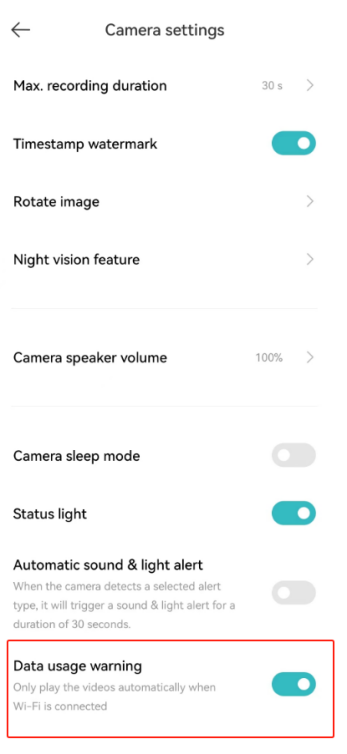
After the Xiaomi Outdoor Camera BW500 is bound to the Mi Home APP in the camera settings, you can set the maximum recording time, timestamp watermark, rotate the screen, night vision feature, camera speaker volume, camera sleep mode, status light, automatic sound and light alert, data usage warning feature and other function settings.
For your reference, here are some details about the basic camera settings:
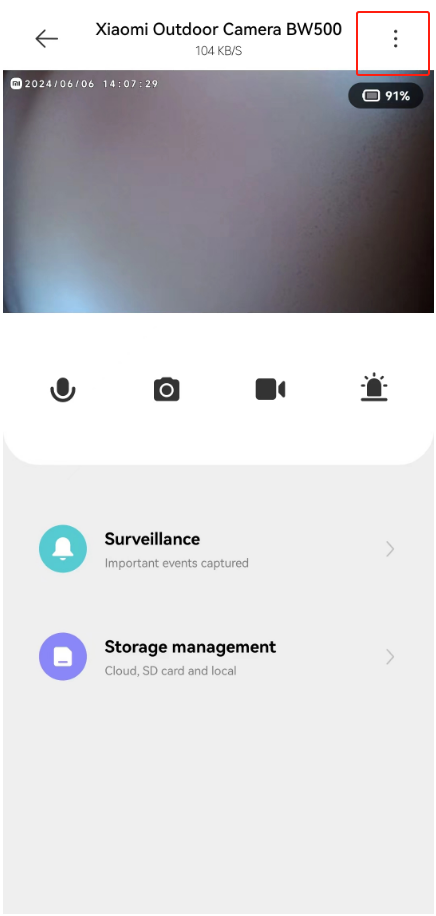
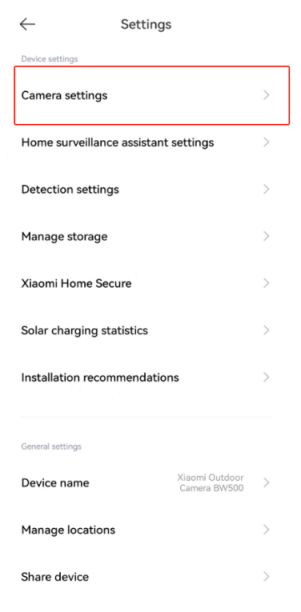
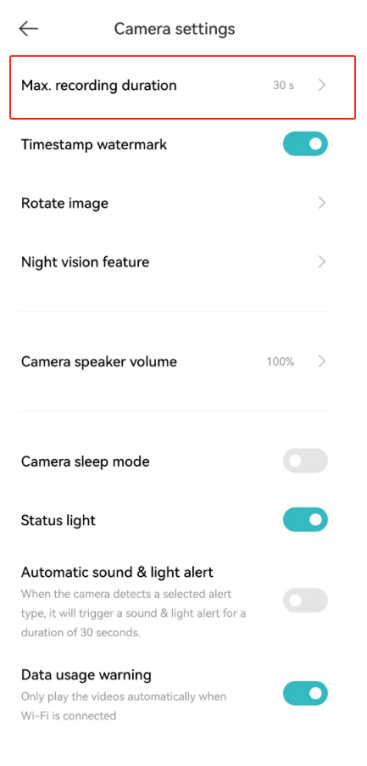
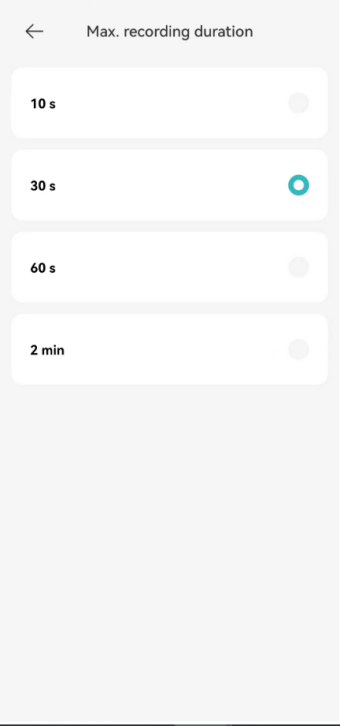
1. The camera has a maximum recording time, and there are four recording time lengths to choose from: 10 seconds, 30 seconds, 60 seconds, and 2 minutes. To set the maximum recording duration, please go to the [Mi Home] APP >> select [Device Card] >> tap the three-dot icon at the upper right corner >> select the camera >> [Camera settings] >> turn on [Max. recording duration] >> select the recording duration;
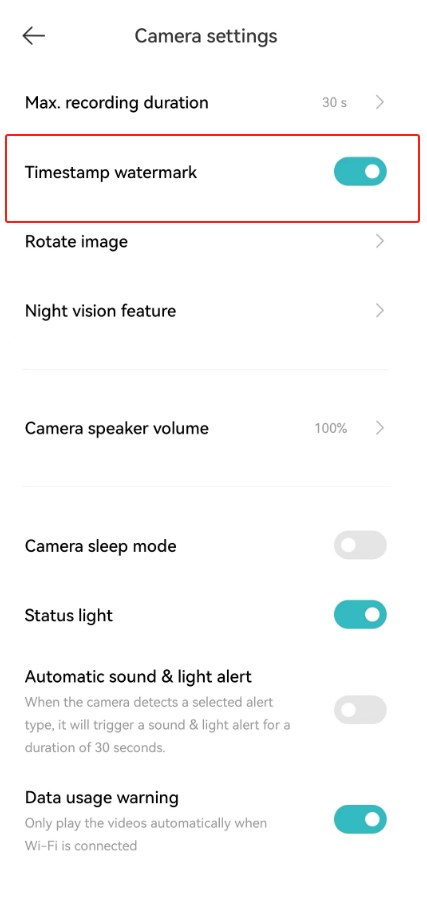
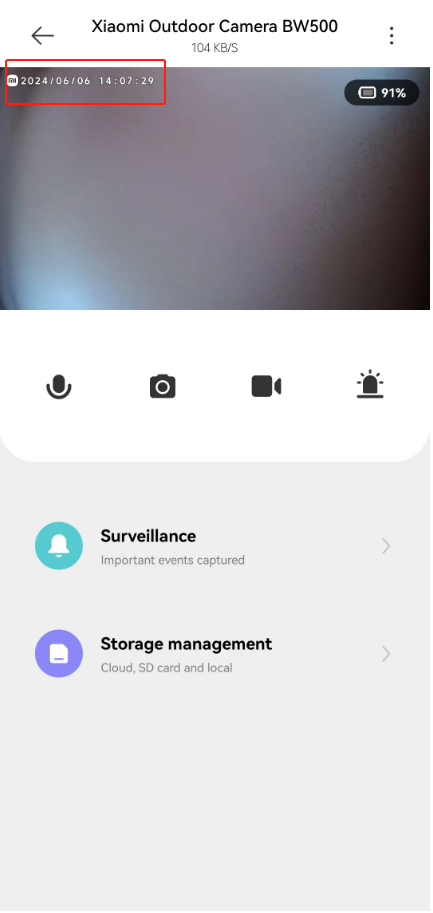
2. After turning off the timestamp watermark, the time will no longer be displayed at the upper left corner of the surveillance video interface. Please open the [Mi Home] APP >> select [Device Card] >> tap the three-dot icon at the upper right corner >> select the camera >> tap [Camera settings] >> you can turn on/off [Timestamp watermark];
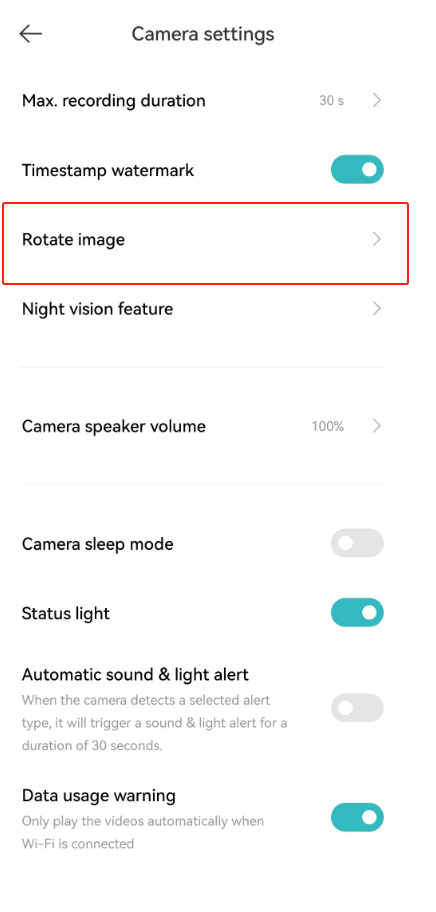
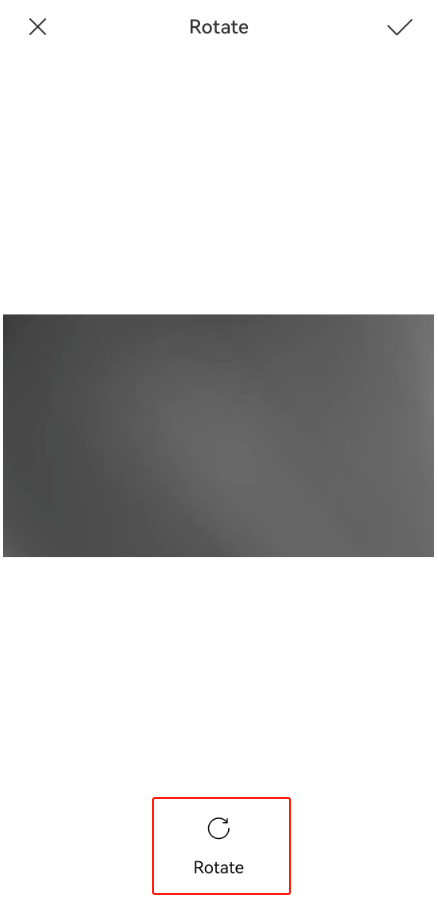
3. After the camera is inverted, the monitoring screen will reverse, and the rotating screen can be viewed normally. To enable the Rotate image function, please open the [Mi Home] App >> select [Device Card] >> tap the three-dot icon at the upper right corner >> select the camera >> [Camera settings] >> [Rotate image] >> tap [Rotate];
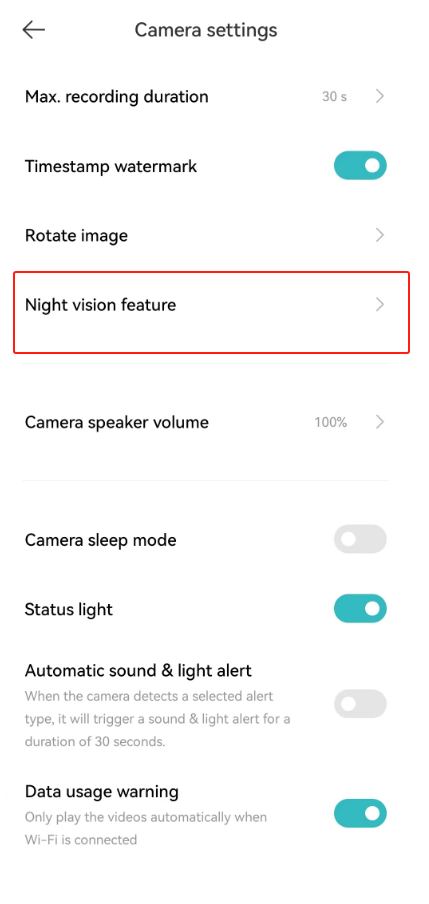
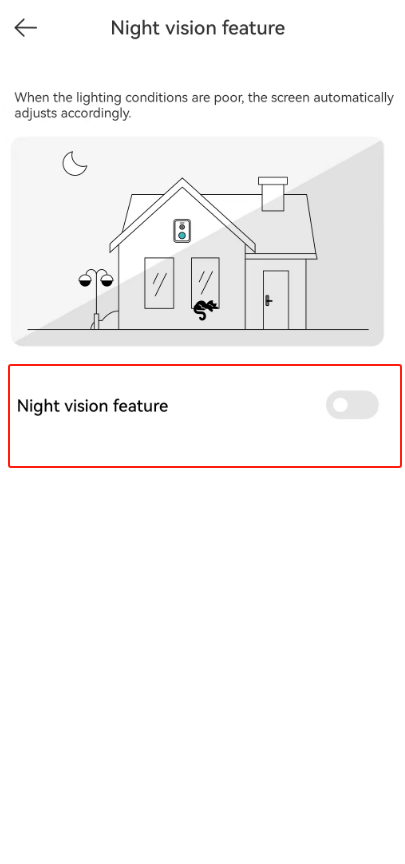
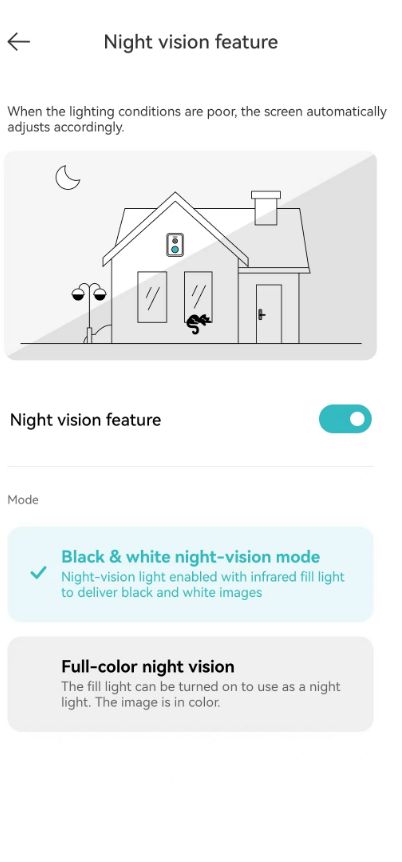
4. After enabling the Night vision feature, the picture will be automatically adjusted when the ambient light is poor. The night-vision light is turned on, an infrared fill-in light is used, and the image is black and white. The fill-in light is turned on and can be used as a night light, and the image is in color. To turn on/off the night vision, please open the [Mi Home] App >> select [Device Card] >> tap the three-dot icon at the upper right corner >> select the camera >> [Camera settings] >> [Night vision feature] >> tap to turn on the [Night vision feature] >> select [Black & white night-vision mode] or [Full-color night vision];
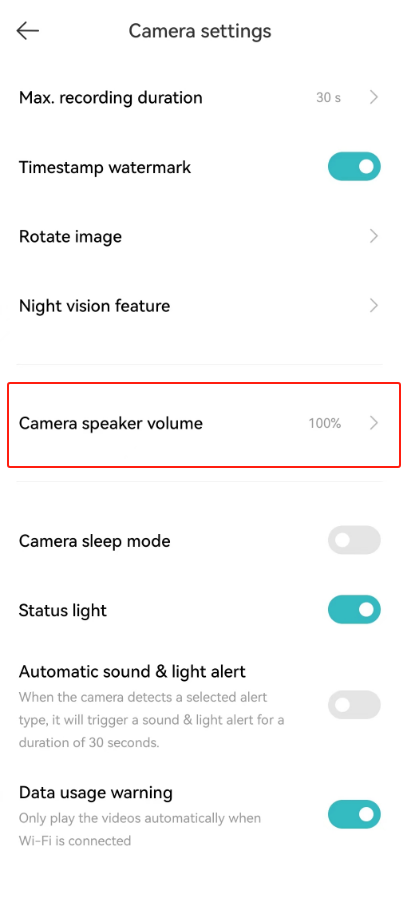
5. The volume percentage can be adjusted to control the camera volume. Please open the [Mi Home] App >> select [Device Card] >> tap the three-dot icon at the upper right corner >> select the camera >> [Camera settings] >> [Camera speaker volume];
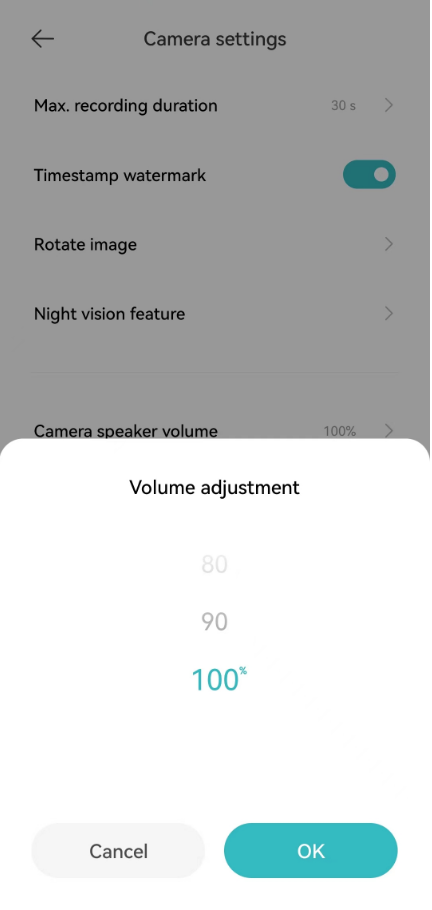
6. The sleep mode allows you to set the camera to start or stop working at a certain time (stop hibernation or start hibernation). To turn on/off the sleep mode, please open the [Mi Home] APP >> select [Device Card] >> tap the three-dot icon at the upper right corner >> select the camera >> [Camera settings] >> [Camera sleep mode];
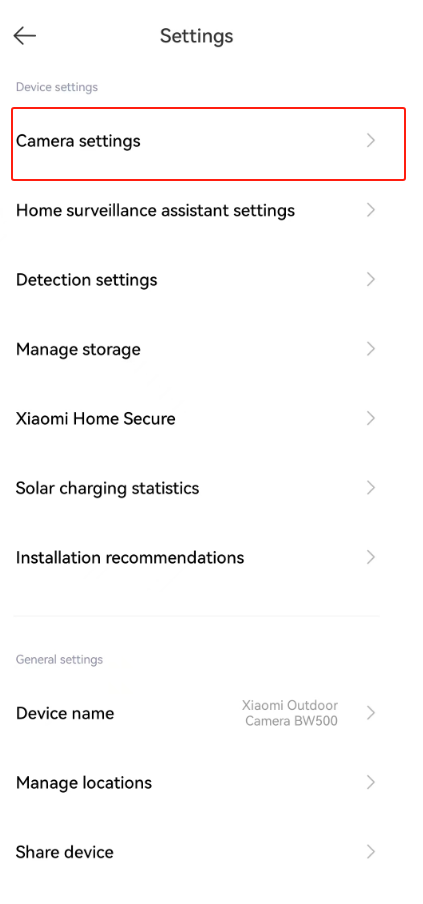
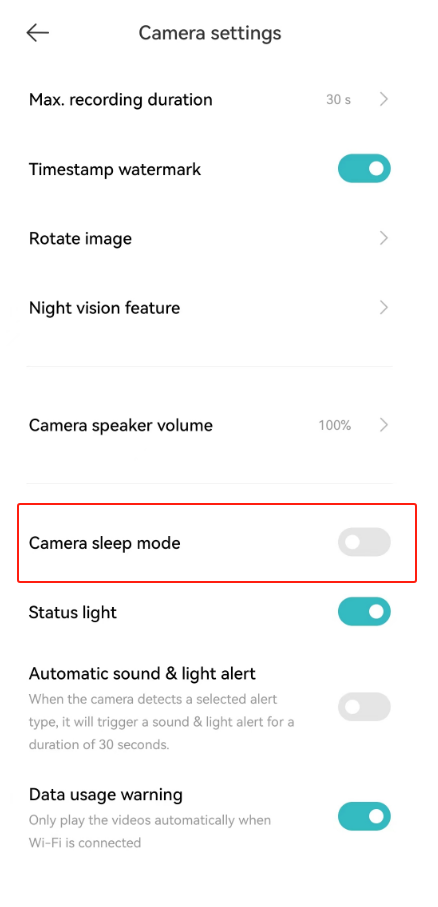
7. The camera has a status indicator that can be turned on or off based on your preferences and environmental needs. To turn on/off the indicator on the camera, please go to the [Mi Home] APP >> select [Device Card] >> tap the three-dot icon at the upper right corner >> select the camera >> [Camera settings] >> [Status light];
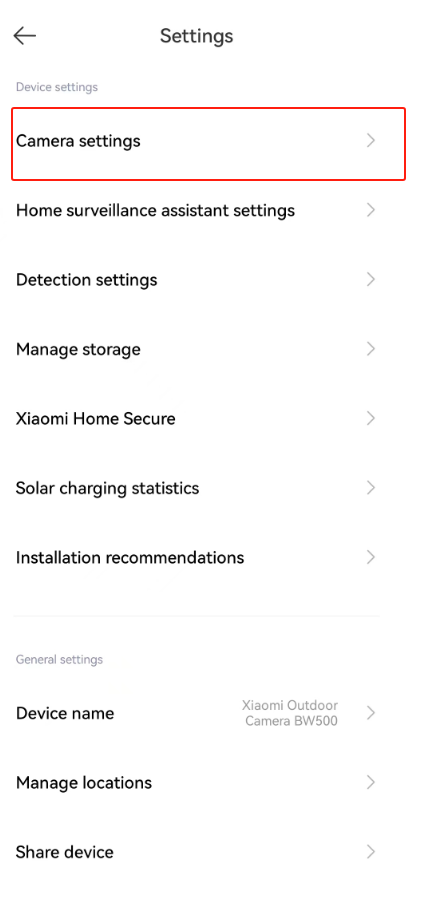
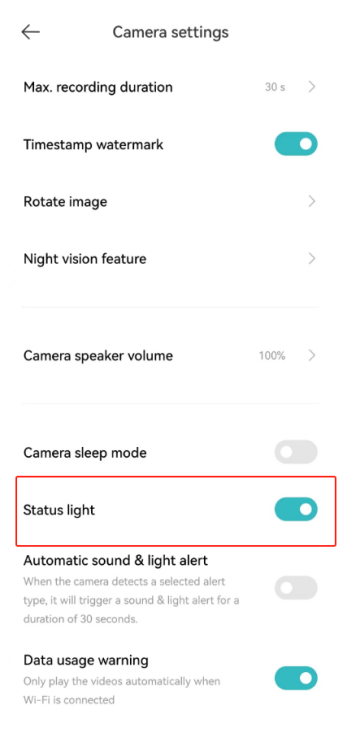
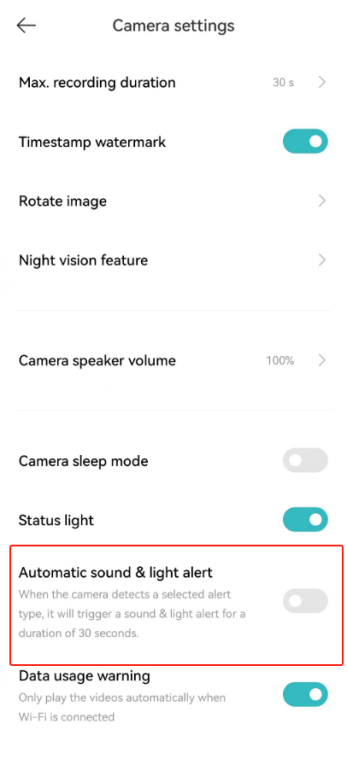
8. When the camera detects a selected alert type, it will trigger a sound and light alert for a duration of 30 seconds. To enable the camera to make alerts when movement is detected, please go to the [Mi Home] APP >> select [Device Card] >> tap the three-dot icon at the upper right corner >> select the camera >> [Camera settings] >> [Automatic sound & light alert];
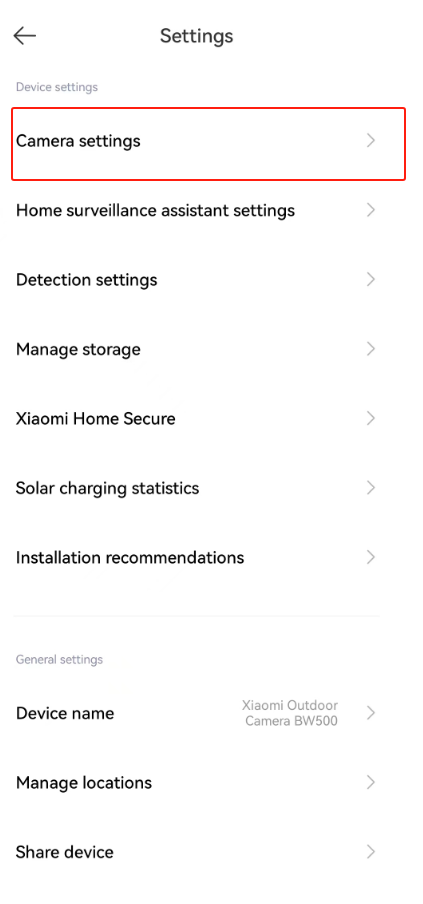
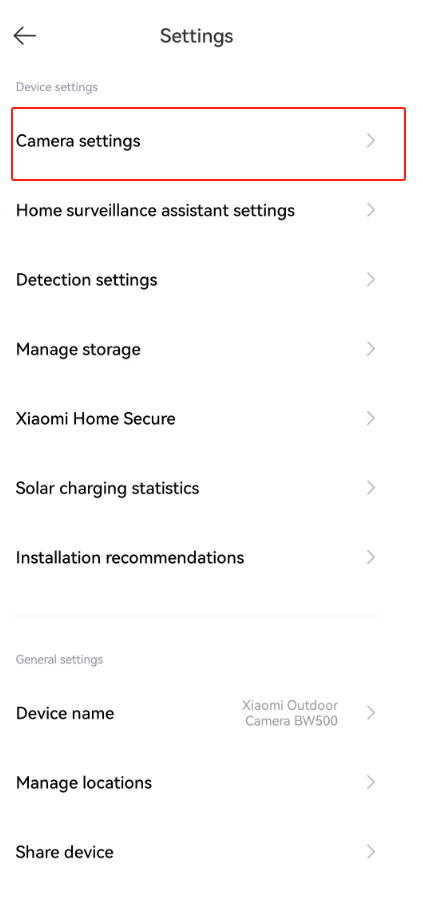
9. The camera has a Data usage warning feature that alerts your data usage and enables the camera to play videos automatically when Wi-Fi is connected. To enable the data usage alert, please go to the [Mi Home] APP >> select [Device Card] >> tap the three-dot icon at the upper right corner >> select the camera >> [Camera settings] >> toggle on [Data usage warning].
For your reference, here are some details about the basic camera settings:
1. The camera has a maximum recording time, and there are four recording time lengths to choose from: 10 seconds, 30 seconds, 60 seconds, and 2 minutes. To set the maximum recording duration, please go to the [Mi Home] APP >> select [Device Card] >> tap the three-dot icon at the upper right corner >> select the camera >> [Camera settings] >> turn on [Max. recording duration] >> select the recording duration;
2. After turning off the timestamp watermark, the time will no longer be displayed at the upper left corner of the surveillance video interface. Please open the [Mi Home] APP >> select [Device Card] >> tap the three-dot icon at the upper right corner >> select the camera >> tap [Camera settings] >> you can turn on/off [Timestamp watermark];
3. After the camera is inverted, the monitoring screen will reverse, and the rotating screen can be viewed normally. To enable the Rotate image function, please open the [Mi Home] App >> select [Device Card] >> tap the three-dot icon at the upper right corner >> select the camera >> [Camera settings] >> [Rotate image] >> tap [Rotate];
4. After enabling the Night vision feature, the picture will be automatically adjusted when the ambient light is poor. The night-vision light is turned on, an infrared fill-in light is used, and the image is black and white. The fill-in light is turned on and can be used as a night light, and the image is in color. To turn on/off the night vision, please open the [Mi Home] App >> select [Device Card] >> tap the three-dot icon at the upper right corner >> select the camera >> [Camera settings] >> [Night vision feature] >> tap to turn on the [Night vision feature] >> select [Black & white night-vision mode] or [Full-color night vision];
5. The volume percentage can be adjusted to control the camera volume. Please open the [Mi Home] App >> select [Device Card] >> tap the three-dot icon at the upper right corner >> select the camera >> [Camera settings] >> [Camera speaker volume];
6. The sleep mode allows you to set the camera to start or stop working at a certain time (stop hibernation or start hibernation). To turn on/off the sleep mode, please open the [Mi Home] APP >> select [Device Card] >> tap the three-dot icon at the upper right corner >> select the camera >> [Camera settings] >> [Camera sleep mode];
7. The camera has a status indicator that can be turned on or off based on your preferences and environmental needs. To turn on/off the indicator on the camera, please go to the [Mi Home] APP >> select [Device Card] >> tap the three-dot icon at the upper right corner >> select the camera >> [Camera settings] >> [Status light];
8. When the camera detects a selected alert type, it will trigger a sound and light alert for a duration of 30 seconds. To enable the camera to make alerts when movement is detected, please go to the [Mi Home] APP >> select [Device Card] >> tap the three-dot icon at the upper right corner >> select the camera >> [Camera settings] >> [Automatic sound & light alert];
9. The camera has a Data usage warning feature that alerts your data usage and enables the camera to play videos automatically when Wi-Fi is connected. To enable the data usage alert, please go to the [Mi Home] APP >> select [Device Card] >> tap the three-dot icon at the upper right corner >> select the camera >> [Camera settings] >> toggle on [Data usage warning].
Does it help?
Yes
No