

Xiaomi Mesh System AC1200 FAQ
About product
1. Q: What is the basic information about the Xiaomi Mesh System AC1200?
A: 1. This product is a router belonging to the Xiaomi brand, with its model number RD13;
2. The device weighs 250g and comes in white, and has dimensions of 89.5 × 89.5 × 153.7mm.
2. Q: What are the key features of the Xiaomi Mesh System AC1200?
A: For your reference, the key features are as follows:
1. Xiaomi’s self-developed Mesh technology supports both wired and wireless, as well as a combination of wired and wireless methods to achieve distributed networking with multiple routers;
2. It supports both 2.4GHz and 5GHz frequency bands, with a wireless speed of up to 1200Mbps, effortlessly meeting everyday internet needs such as streaming, gaming, socializing, and entertainment;
3. Xiaomi Mesh technology enables your electronic devices such as smartphones and tablets to seamlessly and automatically switch to higher-speed Wi-Fi nodes;
4. Seamless connectivity for up to 192 devices for the 3-pack version, and 128 devices for the 2-pack version, power your smart home, work, and play with a robust and stable network experience;
5. Two gigabit WAN/LAN auto-sensing ports, no need to distinguish between WAN and LAN, use freely and unlocking the gigabit experience;
6. Easily connect Xiaomi smart devices to the Mi Home/Xiaomi Home APP, providing a convenient smart home experience.
3. Q: What's the relation between the Xiaomi Mesh System AX3000 NE and the Xiaomi Mesh System AC1200?
A: The Xiaomi Mesh System AX3000 NE is positioned as a mid-to-high-end Wi-Fi 6 Mesh System, while the Xiaomi Mesh System AC1200 is positioned as an entry-level Wi-Fi 5 Mesh System. In terms of product performance and features, the Xiaomi Mesh System AX3000 NE offers superior capabilities.
4. Q: What's the relation between the Xiaomi Mesh System AC1200 and the Xiaomi Router 4A Gigabit (Xiaomi Router AC1200)?
A: The Mesh system is used by those who live in large residential spaces and wish to achieve whole-home Wi-Fi coverage. The Xiaomi Mesh System AC1200 (2-pack) or (3-pack) versions were pre-paired in the factory, offering easy Mesh Networking experiences, and providing real-time, seamless Wi-Fi coverage throughout the entire home with no dead zones.
5. Q: What are the wireless specifications of the Xiaomi Mesh System AC1200?
A: 1. The Xiaomi Mesh System AC1200 supports dual-band Wi-Fi, including 2.4GHz Wi-Fi with a network speed of up to 300Mbps and 5GHz Wi-Fi with a network speed of up to 867Mbps. 2.4GHz band excels at penetrating walls for better coverage. 5GHz band offers higher bandwidth for faster speeds;
2. The protocol standards are IEEE 802.11a/b/g/n/ac and IEEE 802.3/3u/3ab;
3. The Xiaomi Mesh System AC1200 supports Wi-Fi encryption methods of WPA-PSK, WPA2-PSK and WPA3-SAE.
Note:
1. WPA-PSK stands for Wi-Fi Protected Access-Pre-Shared Key. It is a security mechanism used in wireless networks to control access and encrypt data;
2. WPA3-SAE stands for Wi-Fi Protected Access 3-Simultaneous Authentication of Equals. It is a security protocol used in wireless networks to enhance protection against attacks and ensure stronger encryption.
6. Q: What are the hardware specifications of the Xiaomi Mesh System AC1200?
A: A: The Xiaomi Router AC1200 features internal antennas and 3 ports including two 10/100/1000Mbps WAN/LAN auto-sensing ports and 1 power port. It has 1 indicator and 1 mesh/reset button.
7. Q: What are the software specifications of the Xiaomi Mesh System AC1200?
A: The Xiaomi Mesh System AC1200 comes with MiWiFi ROM operating system, and supports connecting to the network via Web Browser and Mi Home/Xiaomi Home APP.
8. Q: What is the operating temperature of the Xiaomi Mesh System AC1200?
A: The operating temperature of the Xiaomi Mesh System AC1200 is 0~40°C.
9. Q: What is the storage temperature of the Xiaomi Mesh System AC1200?
A: The storage temperature of the Xiaomi Mesh System AC1200 is -40~70°C.
10. Q: What are the operating and storage humidity of the Xiaomi Mesh System AC1200?
A: The operating temperature is 10%-90% RH (non-condensing), and the storage humidity is 5%-90% RH (non-condensing).
11. Q: What are the package contents of the Xiaomi Mesh System AC1200?
A: The package contents of the Xiaomi Mesh System AC1200 are as follows:
1. Xiaomi Mesh System AC1200 (1-pack): Router × 1, Power adaptor × 1, Network cable × 1, User manual × 1 and Warranty notice × 1;
2. Xiaomi Mesh System AC1200 (2-pack): Router × 2, Power adaptor × 2, Network cable × 1, User manual × 1 and Warranty notice × 1;
3. Xiaomi Mesh System AC1200 (3-pack): Router × 3, Power adaptor × 3, Network cable × 1, User manual × 1 and Warranty notice × 1.
1. Q: What is the basic information about the Xiaomi Mesh System AC1200?
A: 1. This product is a router belonging to the Xiaomi brand, with its model number RD13;
2. The device weighs 250g and comes in white, and has dimensions of 89.5 × 89.5 × 153.7mm.
2. Q: What are the key features of the Xiaomi Mesh System AC1200?
A: For your reference, the key features are as follows:
1. Xiaomi’s self-developed Mesh technology supports both wired and wireless, as well as a combination of wired and wireless methods to achieve distributed networking with multiple routers;
2. It supports both 2.4GHz and 5GHz frequency bands, with a wireless speed of up to 1200Mbps, effortlessly meeting everyday internet needs such as streaming, gaming, socializing, and entertainment;
3. Xiaomi Mesh technology enables your electronic devices such as smartphones and tablets to seamlessly and automatically switch to higher-speed Wi-Fi nodes;
4. Seamless connectivity for up to 192 devices for the 3-pack version, and 128 devices for the 2-pack version, power your smart home, work, and play with a robust and stable network experience;
5. Two gigabit WAN/LAN auto-sensing ports, no need to distinguish between WAN and LAN, use freely and unlocking the gigabit experience;
6. Easily connect Xiaomi smart devices to the Mi Home/Xiaomi Home APP, providing a convenient smart home experience.
3. Q: What's the relation between the Xiaomi Mesh System AX3000 NE and the Xiaomi Mesh System AC1200?
A: The Xiaomi Mesh System AX3000 NE is positioned as a mid-to-high-end Wi-Fi 6 Mesh System, while the Xiaomi Mesh System AC1200 is positioned as an entry-level Wi-Fi 5 Mesh System. In terms of product performance and features, the Xiaomi Mesh System AX3000 NE offers superior capabilities.
4. Q: What's the relation between the Xiaomi Mesh System AC1200 and the Xiaomi Router 4A Gigabit (Xiaomi Router AC1200)?
A: The Mesh system is used by those who live in large residential spaces and wish to achieve whole-home Wi-Fi coverage. The Xiaomi Mesh System AC1200 (2-pack) or (3-pack) versions were pre-paired in the factory, offering easy Mesh Networking experiences, and providing real-time, seamless Wi-Fi coverage throughout the entire home with no dead zones.
5. Q: What are the wireless specifications of the Xiaomi Mesh System AC1200?
A: 1. The Xiaomi Mesh System AC1200 supports dual-band Wi-Fi, including 2.4GHz Wi-Fi with a network speed of up to 300Mbps and 5GHz Wi-Fi with a network speed of up to 867Mbps. 2.4GHz band excels at penetrating walls for better coverage. 5GHz band offers higher bandwidth for faster speeds;
2. The protocol standards are IEEE 802.11a/b/g/n/ac and IEEE 802.3/3u/3ab;
3. The Xiaomi Mesh System AC1200 supports Wi-Fi encryption methods of WPA-PSK, WPA2-PSK and WPA3-SAE.
Note:
1. WPA-PSK stands for Wi-Fi Protected Access-Pre-Shared Key. It is a security mechanism used in wireless networks to control access and encrypt data;
2. WPA3-SAE stands for Wi-Fi Protected Access 3-Simultaneous Authentication of Equals. It is a security protocol used in wireless networks to enhance protection against attacks and ensure stronger encryption.
6. Q: What are the hardware specifications of the Xiaomi Mesh System AC1200?
A: A: The Xiaomi Router AC1200 features internal antennas and 3 ports including two 10/100/1000Mbps WAN/LAN auto-sensing ports and 1 power port. It has 1 indicator and 1 mesh/reset button.
7. Q: What are the software specifications of the Xiaomi Mesh System AC1200?
A: The Xiaomi Mesh System AC1200 comes with MiWiFi ROM operating system, and supports connecting to the network via Web Browser and Mi Home/Xiaomi Home APP.
8. Q: What is the operating temperature of the Xiaomi Mesh System AC1200?
A: The operating temperature of the Xiaomi Mesh System AC1200 is 0~40°C.
9. Q: What is the storage temperature of the Xiaomi Mesh System AC1200?
A: The storage temperature of the Xiaomi Mesh System AC1200 is -40~70°C.
10. Q: What are the operating and storage humidity of the Xiaomi Mesh System AC1200?
A: The operating temperature is 10%-90% RH (non-condensing), and the storage humidity is 5%-90% RH (non-condensing).
11. Q: What are the package contents of the Xiaomi Mesh System AC1200?
A: The package contents of the Xiaomi Mesh System AC1200 are as follows:
1. Xiaomi Mesh System AC1200 (1-pack): Router × 1, Power adaptor × 1, Network cable × 1, User manual × 1 and Warranty notice × 1;
2. Xiaomi Mesh System AC1200 (2-pack): Router × 2, Power adaptor × 2, Network cable × 1, User manual × 1 and Warranty notice × 1;
3. Xiaomi Mesh System AC1200 (3-pack): Router × 3, Power adaptor × 3, Network cable × 1, User manual × 1 and Warranty notice × 1.
Network Configuration
1. Q: What should do before the network is configured for the Xiaomi Mesh System AC1200?
A: For your reference, here are the preparations before the configuration:
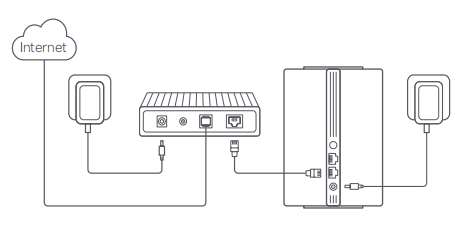
1. Connect the router to power, then the router will automatically turn on;
Note:
For the product of 2-pack or 3-pack version, connect any of the routers as the main router to power. Then the router will automatically turn on.
2. Restart your modem;
Note:
The modem is provided by your Internet service provider.
3. Plug one end of the network cable into either of the router's ports and the other end into the LAN port of the modem.
Note:
If you use the Ethernet wall socket instead of the modem, directly plug the network cable into it.
2. Q: What are the methods for the network configuration of the Xiaomi Mesh System AC1200?
A: For your reference, here are two methods for the network configuration:
Method 1:
1. Scan QR code to download Mi Home/Xiaomi Home APP. Or search for "Mi Home/Xiaomi Home" in the APP store to download and install it;
2. Open Mi Home/Xiaomi Home APP >> tap [+] at the upper right corner >> select [Device card] >> follow the instructions to complete the network configuration.
Note:
1. Please ensure that the APP is updated to the latest version;
2. For the product of 2-pack or 3-pack versions, the routers in the box have been pre-paired when leaving the factory. When the network configuration of one router is completed, just power on the rest of the routers and they will Mesh networking automatically.
Method 2:
1. Check the Wi-Fi name on the label at the bottom of the router and then connect your phone or computer to the Wi-Fi;
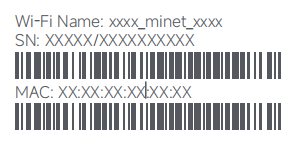
2. Then an automatic redirection will take you to the network setup page. If not, open the web browser and enter miwifi.com or 192.168.31.1;
3. Follow the instructions on the setup page to complete the network configuration;
Note:
Contact your Internet service provider to get the details if you are not familiar with the Internet connection type.
4. After the configuration of the router is completed, the Wi-Fi module will restart. Try to search the Wi-Fi again later.
Note:
1. For the product of 2-pack or 3-pack versions, the routers in the box have been pre-paired when leaving the factory. When the network configuration of one router is completed, just power on the rest of the routers and they will Mesh networking automatically;
2. After completing the network configuration, you can also add the router via the Mi Home/Xiaomi Home APP. Refer to the QR code in the Method 1 to download and install the Mi Home/Xiaomi Home APP;
3. Make sure that the settings of the country or region via the web browser are consistent with the country or region selected in the Mi Home/Xiaomi Home APP, or adding the router will fail.
3. Q: How configure the Mesh networking of the Xiaomi Mesh System AC1200?
A: Xiaomi Mesh networking technology supports Mesh networking of up to 10 routers to achieve broader network coverage.
Note:
Go to www.mi.com to check the product model and version of the routers that support the Xiaomi Mesh networking function.
Please follow the methods below to configure the Mesh networking:
Method 1: Mi Home/Xiaomi Home App
1. Open the Mi Home/Xiaomi Home APP;
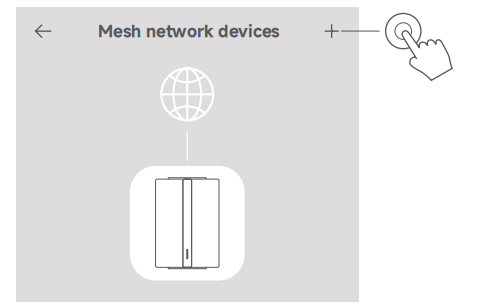
2. Go to the Mesh network devices page of the main router;
3. Tap [+] at the upper right corner of the page;
4. Follow the instructions to complete Mesh networking;
5. When the Mesh networking is completed, the indicator of the satellite
router turns blue.
Method 2: Mesh Button
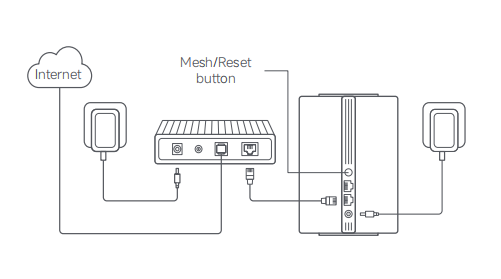
1. Make sure the main router is connected to the network. Connect the satellite router to power and place it near but at least one meter away from the main router. Otherwise, they will interfere with each other and affect the networking;
2. After the satellite router powers on, the main router will automatically discover it, and the indicator of the main router will start breathing blue;
Note:
If the satellite router is already configured, press its reset button to restore it to the factory settings first.
3. Press the mesh button on the main router, and the indicators of the main router and satellite router will start blinking. It will take about 2 minutes to complete the Mesh networking;
4. When the Mesh networking is completed, the indicator of the satellite router turns into blue.
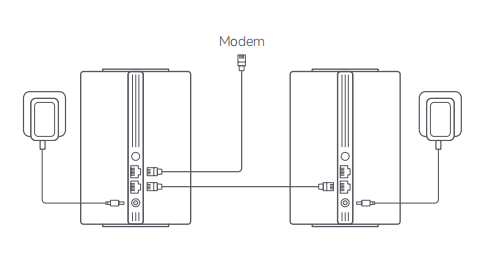
Method 3: Network Cable
1. Make sure the main router is connected to the network. Place the satellite router in the location where you need Wi-Fi coverage and power it on;
2. Connect any port of the satellite router and any port of the main router via a network cable. The indicators of the main router and satellite router will start blinking. It will take about 2 minutes to complete the Mesh networking;
3. When the Mesh networking is completed, the indicator of the satellite router turns into blue.
4. Q: What do the indicator statuses of the Xiaomi Mesh System AC1200 mean?
A: There is one indicator on the front panel of the Xiaomi Mesh System AC1200, which shows the status of the network.
For your reference, the indicator statuses are as follows:
1. When the indicator is off, it means that the router is off or unplugged;
2. When the indicator is orange, it means that the system is starting up or a network connection error occurred;
3. When the indicator is flashing in orange, it means that the newly added satellite router is connecting to the Mesh networking or the system is updating;
4. When the indicator is breathing orange, it means that the router is started and the system is ready for configuration;
5. When the indicator is blue, it means that the router is working properly;
6. When the indicator is breathing blue, it means that a new satellite router has been discovered. The indicator will automatically turn blue if there is no operation for Mesh networking within 2 minutes;
7. When the indicator is flashing in blue, it means that the satellite router is connecting to the main router.
Troubleshooting
1. Q: What to do if the Xiaomi Mesh System AC1200 cannot access the network?
A: For your reference, please troubleshoot the issue by the following steps:
1. Make sure the network cable is plugged into the Ethernet port of the modem. If your modem has multiple Ethernet ports, leave the others unplugged;
2. Turn off your modem and wait for 5 minutes, then turn it on and reset it;
3. You can connect a computer to the modem via a network cable to check if the network is working. If not, contact your network service provider;
4. Log in to the router's web management page, and go to the Network Settings to verify the network IP address. If valid, set your primary DNS to 8.8.8.8, and secondary to 8.8.4.4. If invalid, make sure the hardware connections are connected properly or contact your Internet service provider.
2. Q: What to do if the administrator password or Wi-Fi password of the Xiaomi Mesh System AC1200 is forgotten?
A: You can restore the device to factory settings, and set up a new management password or Wi-Fi password.
3. Q: What to do if the Xiaomi Mesh System AC1200 can't connect to the Mi Home/Xiaomi Home APP?
A: If the device cannot connect to the Mi Home/Xiaomi Home APP, please refer to the following steps to troubleshoot:
1. Check if your phone has connected to the Wi-Fi of the router;
2. Check if the selected product model is correct in the Mi Home/Xiaomi Home APP;
3. If the network configuration of the router was completed via the web browser, make sure that the settings of the country or region via the web browser are consistent with the country or region selected in the Mi Home/Xiaomi Home APP.
1. Q: What should do before the network is configured for the Xiaomi Mesh System AC1200?
A: For your reference, here are the preparations before the configuration:
1. Connect the router to power, then the router will automatically turn on;
Note:
For the product of 2-pack or 3-pack version, connect any of the routers as the main router to power. Then the router will automatically turn on.
2. Restart your modem;
Note:
The modem is provided by your Internet service provider.
3. Plug one end of the network cable into either of the router's ports and the other end into the LAN port of the modem.
Note:
If you use the Ethernet wall socket instead of the modem, directly plug the network cable into it.
2. Q: What are the methods for the network configuration of the Xiaomi Mesh System AC1200?
A: For your reference, here are two methods for the network configuration:
Method 1:
1. Scan QR code to download Mi Home/Xiaomi Home APP. Or search for "Mi Home/Xiaomi Home" in the APP store to download and install it;
2. Open Mi Home/Xiaomi Home APP >> tap [+] at the upper right corner >> select [Device card] >> follow the instructions to complete the network configuration.
Note:
1. Please ensure that the APP is updated to the latest version;
2. For the product of 2-pack or 3-pack versions, the routers in the box have been pre-paired when leaving the factory. When the network configuration of one router is completed, just power on the rest of the routers and they will Mesh networking automatically.
Method 2:
1. Check the Wi-Fi name on the label at the bottom of the router and then connect your phone or computer to the Wi-Fi;
2. Then an automatic redirection will take you to the network setup page. If not, open the web browser and enter miwifi.com or 192.168.31.1;
3. Follow the instructions on the setup page to complete the network configuration;
Note:
Contact your Internet service provider to get the details if you are not familiar with the Internet connection type.
4. After the configuration of the router is completed, the Wi-Fi module will restart. Try to search the Wi-Fi again later.
Note:
1. For the product of 2-pack or 3-pack versions, the routers in the box have been pre-paired when leaving the factory. When the network configuration of one router is completed, just power on the rest of the routers and they will Mesh networking automatically;
2. After completing the network configuration, you can also add the router via the Mi Home/Xiaomi Home APP. Refer to the QR code in the Method 1 to download and install the Mi Home/Xiaomi Home APP;
3. Make sure that the settings of the country or region via the web browser are consistent with the country or region selected in the Mi Home/Xiaomi Home APP, or adding the router will fail.
3. Q: How configure the Mesh networking of the Xiaomi Mesh System AC1200?
A: Xiaomi Mesh networking technology supports Mesh networking of up to 10 routers to achieve broader network coverage.
Note:
Go to www.mi.com to check the product model and version of the routers that support the Xiaomi Mesh networking function.
Please follow the methods below to configure the Mesh networking:
Method 1: Mi Home/Xiaomi Home App
1. Open the Mi Home/Xiaomi Home APP;
2. Go to the Mesh network devices page of the main router;
3. Tap [+] at the upper right corner of the page;
4. Follow the instructions to complete Mesh networking;
5. When the Mesh networking is completed, the indicator of the satellite
router turns blue.
Method 2: Mesh Button
1. Make sure the main router is connected to the network. Connect the satellite router to power and place it near but at least one meter away from the main router. Otherwise, they will interfere with each other and affect the networking;
2. After the satellite router powers on, the main router will automatically discover it, and the indicator of the main router will start breathing blue;
Note:
If the satellite router is already configured, press its reset button to restore it to the factory settings first.
3. Press the mesh button on the main router, and the indicators of the main router and satellite router will start blinking. It will take about 2 minutes to complete the Mesh networking;
4. When the Mesh networking is completed, the indicator of the satellite router turns into blue.
Method 3: Network Cable
1. Make sure the main router is connected to the network. Place the satellite router in the location where you need Wi-Fi coverage and power it on;
2. Connect any port of the satellite router and any port of the main router via a network cable. The indicators of the main router and satellite router will start blinking. It will take about 2 minutes to complete the Mesh networking;
3. When the Mesh networking is completed, the indicator of the satellite router turns into blue.
4. Q: What do the indicator statuses of the Xiaomi Mesh System AC1200 mean?
A: There is one indicator on the front panel of the Xiaomi Mesh System AC1200, which shows the status of the network.
For your reference, the indicator statuses are as follows:
1. When the indicator is off, it means that the router is off or unplugged;
2. When the indicator is orange, it means that the system is starting up or a network connection error occurred;
3. When the indicator is flashing in orange, it means that the newly added satellite router is connecting to the Mesh networking or the system is updating;
4. When the indicator is breathing orange, it means that the router is started and the system is ready for configuration;
5. When the indicator is blue, it means that the router is working properly;
6. When the indicator is breathing blue, it means that a new satellite router has been discovered. The indicator will automatically turn blue if there is no operation for Mesh networking within 2 minutes;
7. When the indicator is flashing in blue, it means that the satellite router is connecting to the main router.
Troubleshooting
1. Q: What to do if the Xiaomi Mesh System AC1200 cannot access the network?
A: For your reference, please troubleshoot the issue by the following steps:
1. Make sure the network cable is plugged into the Ethernet port of the modem. If your modem has multiple Ethernet ports, leave the others unplugged;
2. Turn off your modem and wait for 5 minutes, then turn it on and reset it;
3. You can connect a computer to the modem via a network cable to check if the network is working. If not, contact your network service provider;
4. Log in to the router's web management page, and go to the Network Settings to verify the network IP address. If valid, set your primary DNS to 8.8.8.8, and secondary to 8.8.4.4. If invalid, make sure the hardware connections are connected properly or contact your Internet service provider.
2. Q: What to do if the administrator password or Wi-Fi password of the Xiaomi Mesh System AC1200 is forgotten?
A: You can restore the device to factory settings, and set up a new management password or Wi-Fi password.
3. Q: What to do if the Xiaomi Mesh System AC1200 can't connect to the Mi Home/Xiaomi Home APP?
A: If the device cannot connect to the Mi Home/Xiaomi Home APP, please refer to the following steps to troubleshoot:
1. Check if your phone has connected to the Wi-Fi of the router;
2. Check if the selected product model is correct in the Mi Home/Xiaomi Home APP;
3. If the network configuration of the router was completed via the web browser, make sure that the settings of the country or region via the web browser are consistent with the country or region selected in the Mi Home/Xiaomi Home APP.
Does it help?
Yes
No