

Xiaomi Smart Camera C301 FAQ
Q1: How to guarantee the security and privacy of the Xiaomi Smart Camera C301?
A: 1. The Xiaomi Smart Camera C301 comes with a built-in MJA1 security chipset, effectively ensuring the security of communication and storage, and the whole process of data transmission encryption. The cloud data uses AES128-bit encryption, which can ensure that security and privacy are not compromised.
2. The Xiaomi Smart Camera C301 offers enhanced privacy protection with its physical lens blocking feature. Through the Xiaomi Home App, you can retract the camera lens upward into the body of the device when the camera is not in use.
Q2: What does the Xiaomi Smart Camera C301 include as standard?
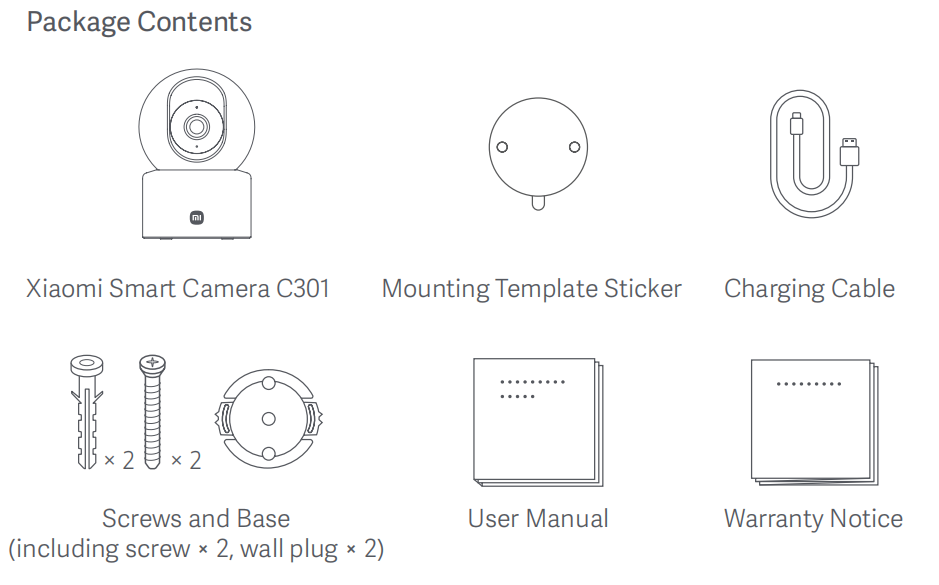
A: The package contents of the Xiaomi Smart Camera C301 are as follows:
The Xiaomi Smart Camera C301 × 1, Mounting Template Sticker × 1, Charging Cable × 1, Screws and Base (Including screw × 2, wall plug × 2), User Manual × 1, and Warranty Notice × 1.
Q3: What is the appearance introduction of the Xiaomi Smart Camera C301?
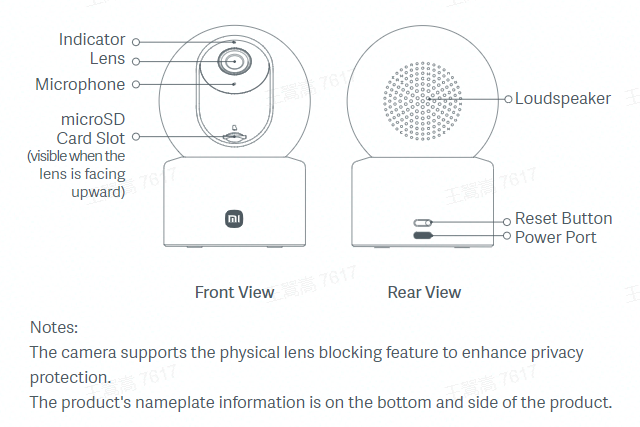
A: The appearance of the Xiaomi Smart Camera C301 is introduced as follows:
1. Front View:
Indicator, Lens, Microphone, microSD Card Slot (It is visible when the lens is facing upwards).
2. Rear View:
Loudspeaker, Reset Button and Power Port.
Note:
1. The camera supports the physical lens blocking feature to enhance privacy protection.
2. The product’s nameplate information is on the bottom and side of the product.
Q4: What are the installation methods of the Xiaomi Smart Camera C301?
A: You can place the camera on a horizontal surface, such as a desk, dining table, or coffee table, you can also mount it on a wall.
Q5: What are the steps for the wall installation of the Xiaomi Smart Camera C301?
A: 1. Stick the mounting template sticker in a proper position on the wall. Drill holes in the wall that align with the holes on the sticker, with a diameter of about 6mm and a depth of about 30mm.
2. Insert the plastic wall plugs into the drilled holes.
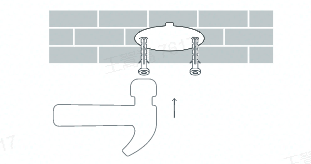
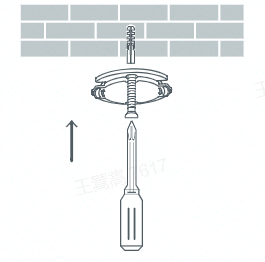
3. Place the side of the base with arrows facing forward, and then align the holes. Insert the screws and then tighten them into the wall plugs with a Phillips screwdriver.
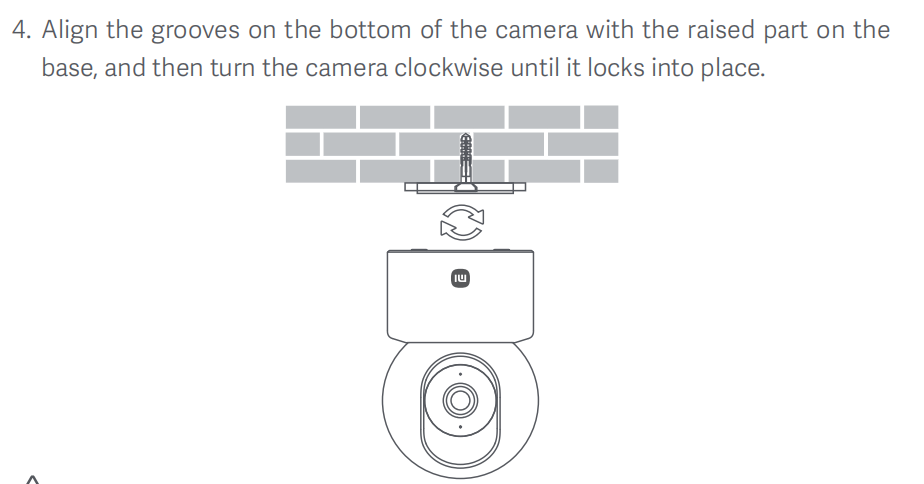
4. Align the grooves on the bottom of the camera with the protruding part on the base, and then turn the camera clockwise until it locks into place.
Note:
1. The wall should be able to support at least three times the total weight of the camera.
2. The camera should be securely fixed to the ceiling or wall according to the installation instructions to prevent possible injury.
3. If you choose to invert the camera, you need to rotate the image 180° in the Xiaomi Home App's screen settings.
Q6: How to turn on the Xiaomi Smart Camera C301?
A: 1. The camera will automatically be turned on when you plug the cable into the power port on the camera and connect to the power supply.
2. The camera has successfully powered on when the indicator remains orange and you hear a voice notification.
Note:
Do not rotate or force the lens to rotate while the camera is operating. If the lens is not positioned correctly, you can calibrate it in the Xiaomi Home App.
Q7: How to install a microSD card in the Xiaomi Smart Camera C301?
A: The microSD card slot of the Xiaomi Smart Camera C301 is under the camera lens. First, make sure the camera is powered off, adjust its lens up until the microSD card slot is exposed, and then insert the microSD card into the slot (The side with the contact should be facing down).
Note:
It is necessary to cut off the camera power supply when installing or removing the microSD memory card. Use the qualified microSD card (It only supports a microSD with FAT 32 format, or you can format the card into FAT 32 format by referring to the steps: Go to Xiaomi Home App >> [Device card] >> [Storage management]). It is recommended that the read/write speed of the microSD card is not lower than U1/10.
MicroSD cards are not included in the package and must be purchased by you. MicroSD cards with a capacity of 8GB to 256GB may need to be formatted with the camera before they can be used.
Q8: How to reset the Xiaomi Smart Camera C301?
A: Press and hold the reset button for about 7 seconds. You will hear a voice prompt after the reset is completed.
Note:
Resetting the camera will not delete any data on the microSD card.
Q9: Where to check the SN number of the Xiaomi Smart Camera C301?
A: The SN number can be checked from the back of the product packaging as well as from the bottom of the camera.
Q10: Where to check the certificate of the Xiaomi Smart Camera C301?
A: The product certificate is printed at the lower right corner of the back of the device package.
Q11: Can the Xiaomi Smart Camera C301 be installed outdoors?
A: No. It is not recommended to install the camera outdoors. The Xiaomi Smart Camera C301 is an indoor camera and is not waterproof or dustproof.
Q12: Does the Xiaomi Smart Camera C301 need to be plugged in or is it battery-powered?
A: The camera does not feature a built-in battery and should be plugged into the power supply.
Q13: Does the Xiaomi Smart Camera C301 support recording the videos continually to a memory card if the network is disconnected but power is maintained?
A: Yes, if the network is disconnected but power is maintained, the camera can continue recording videos to the memory card. This is contingent upon the device having successfully connected to the network at least once before.
However, if the device loses power and then powers back on without reconnecting to the network, it will not be able to record video to the memory card until it reconnects to the network.
In the event of a power or network outage, you can only view the recorded videos on the memory card by removing the card from the device and watching it on a computer. Viewing the recorded videos through the Xiaomi Home App is not supported in such cases.
Q14: Do the videos recorded have sound in Home Surveillance, cloud storage, and microSD card on the Xiaomi Smart Camera C301?
A: Yes, the videos recorded in these formats have sound. However, if you enable fast playback, the video will be played without sound by default, which is normal.
In addition, each time you enter the camera monitoring screen or enter the cloud storage, the playback interface for recordings on the memory card will be muted by default. If you need to play the normal sound, please tap the mute button to restore the sound.
Q15: What are the safety precautions when using the Xiaomi Smart Camera C301?
A: For your reference, here are the safety precautions:
1. The operating temperature range for this camera is -10°C to 45°C. Do not use this camera in environments with temperatures above or below the specified operating range.
2. This camera is a precision electronic product. To ensure normal use, do not use the camera in extremely humid environments or locations that can cause water ingress.
3. To improve the camera's performance, do not place it where its lens faces or is next to a reflective surface, such as glass windows or white walls, as this will cause the image to appear overly bright in areas close to the camera and darker in areas further away, or cause the camera to produce white images.
4. Please ensure that this product is installed within a coverage area with a good Wi-Fi signal.
5. Try to install it as far away from microwave ovens and other places that can affect the signal.
6. When the night vision function is turned on or off, the camera will switch the infrared cut filter, which will be accompanied by a slight "click" sound. This is normal.
7. If the power cable gets damaged, please contact the after-sales service for replacement.
APP related
Q1: How to connect the Xiaomi Smart Camera C301 to the Xiaomi Home App?
A: For your reference, please refer to the following steps:
Go to Xiaomi Home App >> tap on the [+] icon at the upper right corner >> select [Scan] (Scan the QR code at the bottom of the product) >> the device has been reset (Press and hold on the reset button for about 7 seconds. You will hear the voice prompt when the reset successfully) >> follow the prompts >> wait for a while until the connection process is completed.
Q2: Can the monitor screen of the Xiaomi Smart Camera C301 be zoomed in? What is the maximum zoom level supported?
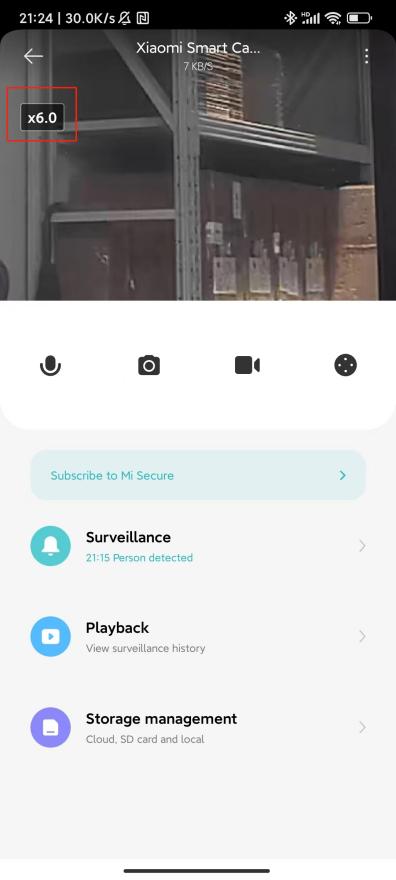
A: Yes, the monitoring screen supports zooming, with a maximum zoom level of 6 times.
To zoom in or out on the camera monitoring interface, you can use a pinch gesture with two fingers. The logo below is the picture magnification.
Q3: How to set Physical lens blocking on the Xiaomi Smart Camera C301?
A: To set Physical lens blocking on the camera, please refer to the following methods:
Method 1:
Enter the camera monitoring screen, tap the physical lens blocking button, and the device will immediately enter the physical lens blocking mode.

Method 2:
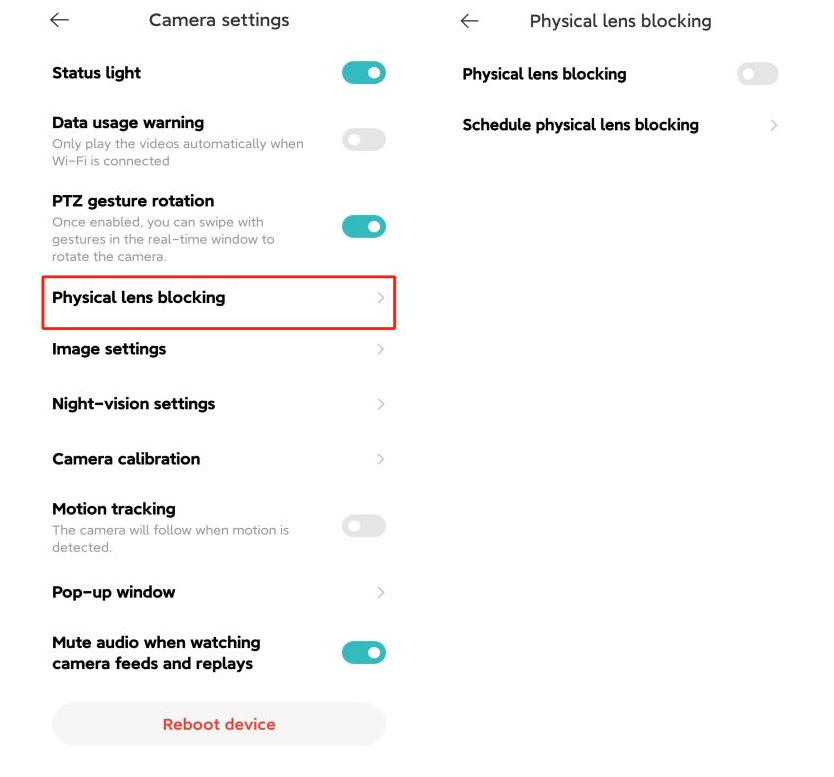
Open Xiaomi Home App >> [Device Card] >> tap the three-dot icon at the upper right corner >> [Camera settings] >> select [Physical lens blocking] >> you can choose [Physical lens blocking] or set the time of Physical lens blocking by tapping [Schedule physical lens blocking].
Q4: How to set up Image settings on the Xiaomi Smart Camera C301?
A: To set up Image settings on your camera, please refer to the following steps:
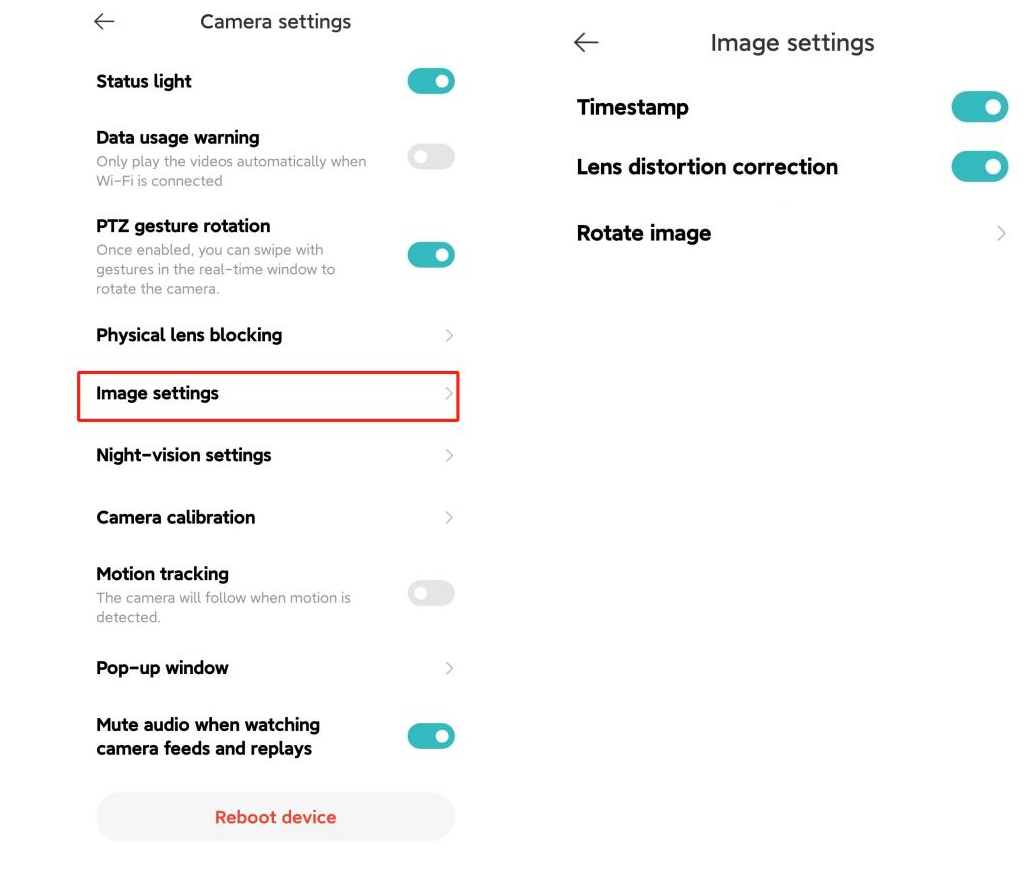
Open Xiaomi Home App>> select [Device Card] >> tap the three-dot icon at the upper right corner >> [Camera settings] >> select [Image settings] >> you can choose [Timestamp], [Lens distortion correction], and [Rotate image] (This setting is required when the camera is inverted).
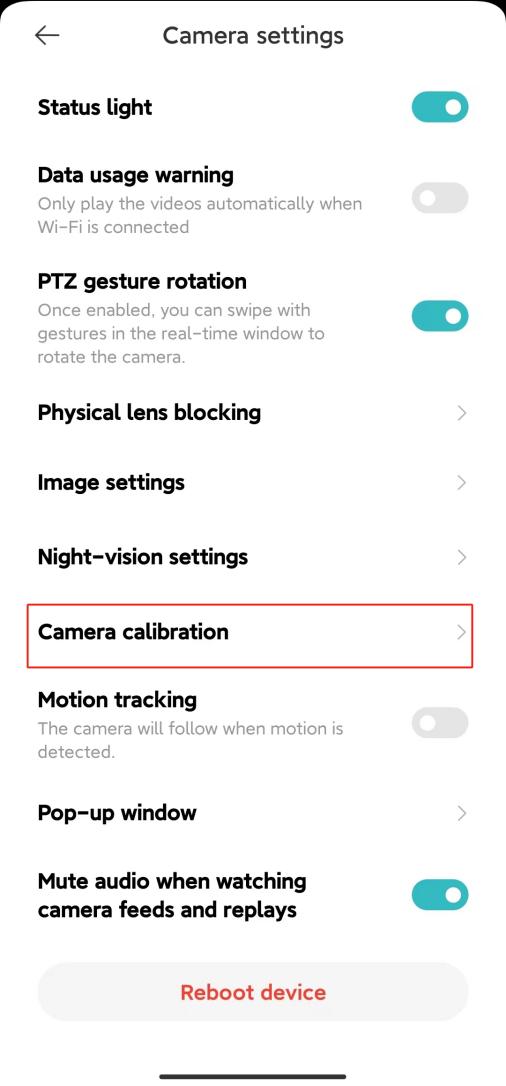
Q5: How to set up Camera calibration on the Xiaomi Smart Camera C301?
A: To set up Camera calibration on your camera, please refer to the following steps:
Open Xiaomi Home App>> select [Device Card] >> tap the three-dot icon at the upper right corner >> [Camera settings] >> select [Camera calibration] >> wait for the device to successfully calibrate.
This operation can be performed when the device is unable to automatically reposition the lens or if the lens monitoring angle cannot be accurately adjusted.
Q6: How to reboot the Xiaomi Smart Camera C301?
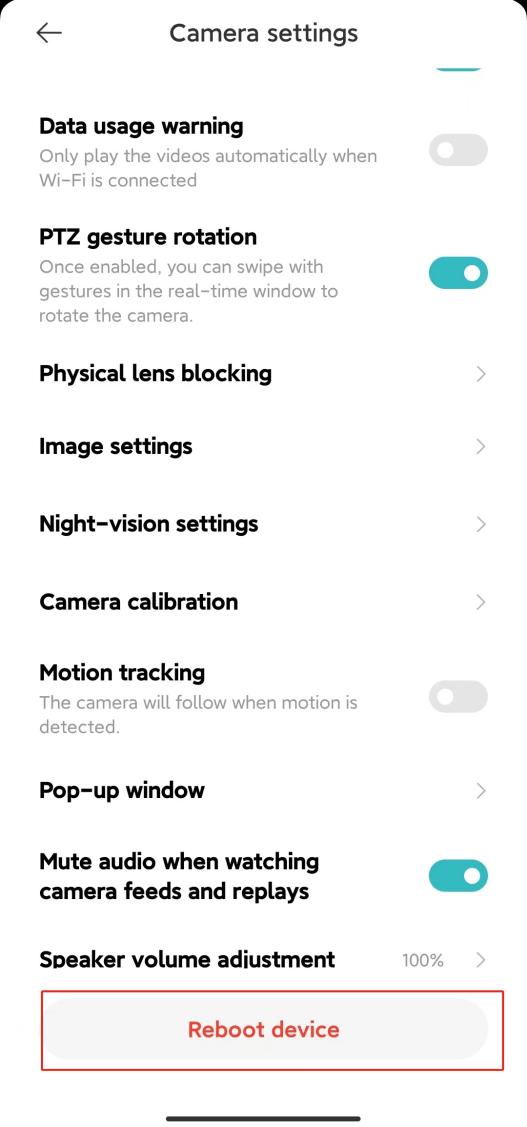
A: To reboot your camera, please refer to the following steps:
Open Xiaomi Home App>> select [Device Card] >> tap the three-dot icon at the upper right corner >> [Camera settings] >> tap [Reboot device].
If the device is unable to record videos or upload the videos to Cloud Storage, or if other features like Home Surveillance are malfunctioning, you can try restarting the device.
Q7: How to set up Night-vision on the Xiaomi Smart Camera C301?
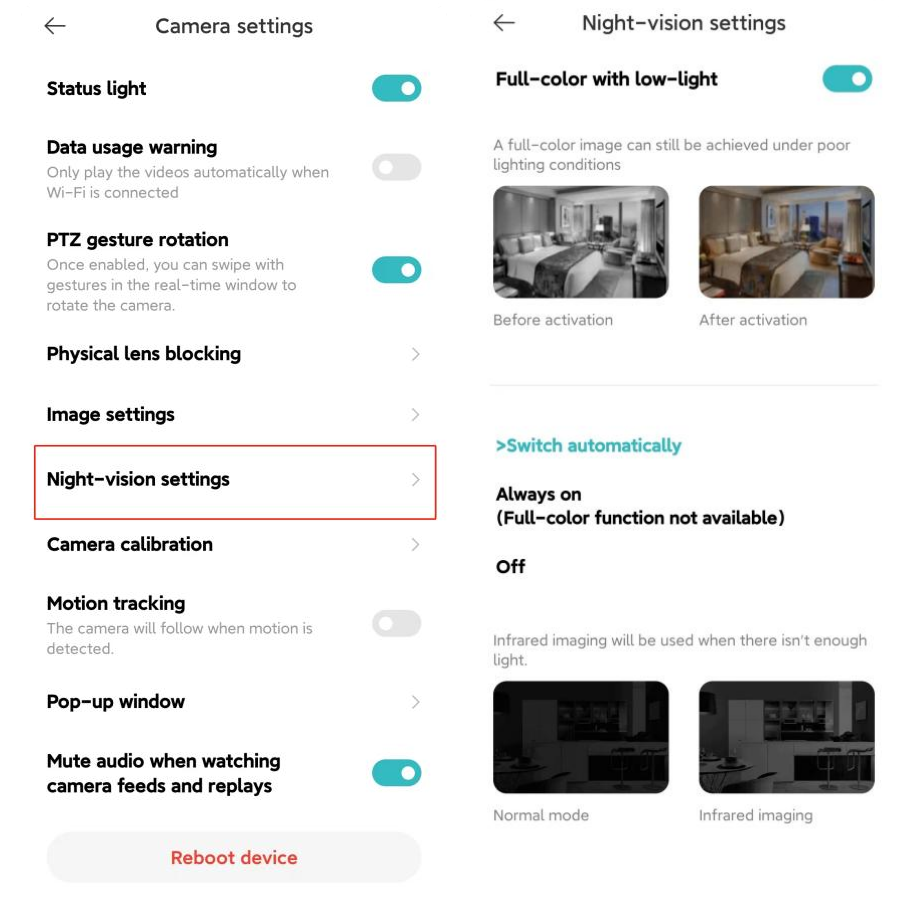
A: To set up Night-vision on the camera, please refer to the following steps:
Open Xiaomi Home App >> select [Device Card] >> tap the three-dot icon at the upper right corner >> [Camera settings] >> tap [Night-vision settings] >> you can choose [Full-color with low-light] or [Switch automatically] ([Always on], [Off]) as your preferences.
It is recommended that you choose the options from Switch automatically.
Q8: How to turn on/off Data usage warning on the Xiaomi Smart Camera C301?
A: To turn on/off Data usage warning on the camera, please refer to the following steps:
Open Xiaomi Home App >> select [Device Card] >> tap the three-dot icon at the upper right corner >> [Camera settings] >> toggle [Data usage warning] as your preference.
Note:
1. After this function is turned on, the camera will play automatically when Wi-Fi connection.
2. The recorded videos in Cloud Storage and microSD card will automatically play and are not restricted by this function.

Q9: What are the functions of the buttons on the real-time monitoring interface of the Xiaomi Smart Camera C301?
A: The buttons on the real-time monitoring interface are shown as follows:
Physical lens blocking, Mute, Definition, and Full-screen, Call, Photography, Picture recording and PTZ. The buttons will appear when you tap the real-time monitoring screen.
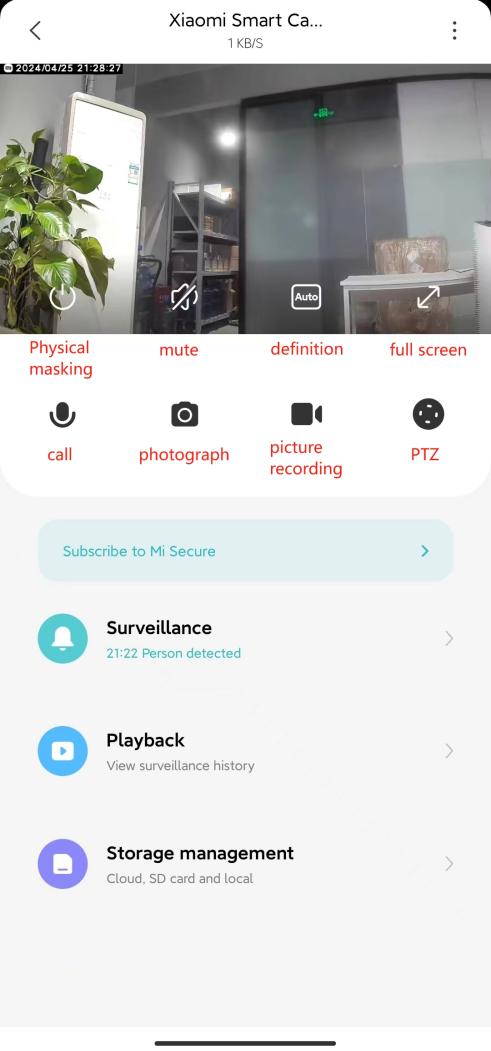
1. Physical lens blocking:
Tap this button, the camera will enter the physical shielding state. After the camera enters the physical shielding state, it can not do any work of monitoring and video recording.
2. Mute:
When entering the camera, the video sound is turned off by default and is in mute state. Tap the button to turn on the video sound if you need.
3. Definition:
Video resolution can be adjusted independently with four options: [Auto], [480p], and [2K HD]. The option of Auto indicates that the camera will automatically adjust the picture definition according to the network environment.
4. Full-screen:
Tap the Full screen button, and the camera monitoring screen will enter the landscape screen.
5. Call:
After tapping the button, you can make a remote call with the camera through the mobile phone Xiaomi Home App.
6. Photography:
You can take a screenshot of the current monitoring screen, and a picture will be generated and saved to the local photo album and Xiaomi Home App.
7. Picture recording:
Tap the recording button to record the current monitoring interface and save the video to the local photo album and Xiaomi Home App.
8. PTZ:
Tapping this button, a gimbal control interface will pop up, allowing you to control the camera's movement.
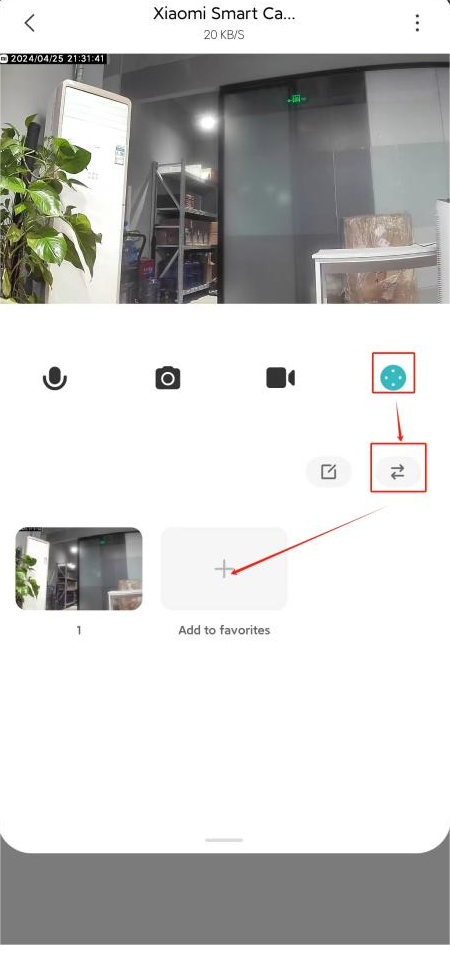
Q10: How to set the Add to favorites function on the Xiaomi Smart Camera C301?
A: To set the Add to favorites function on the camera. Please refer to the steps:
Go to Xiaomi Home App>> select [Device card] >> tap [PTZ] >> tap [⇄] >> add/delete and control the frequently viewed positions.
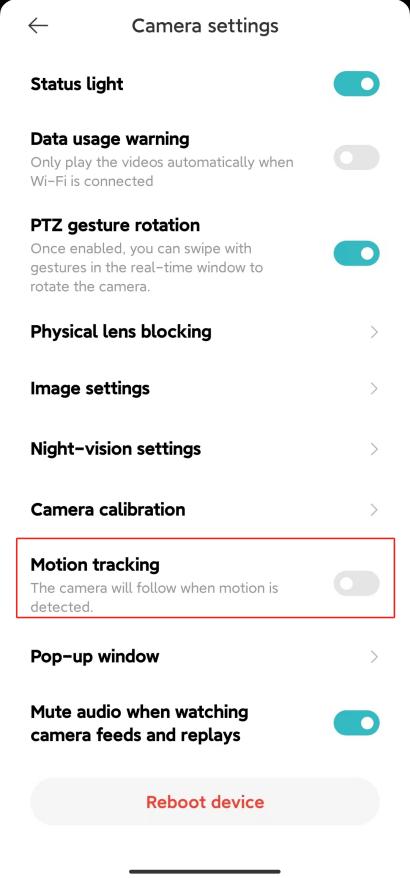
Q11: How to set the Motion tracking of the Xiaomi Smart Camera C301?
A: To set the Motion tracking of the camera, please refer to the following steps:
Go to Xiaomi Home App>> select [Device card] >> tap the three-dot icon at the upper right corner >> [Camera settings] >> enable/disable [Motion tracking].
The camera will not track the object or human movement when this function is disabled.
Q12: How to set Home surveillance on the Xiaomi Smart Camera C301?
A: To set Home surveillance on the camera, please refer to the following steps:
Go to Xiaomi Home App>> select [Device card] >> tap the three-dot icon at the upper right corner >> [Home surveillance settings] >> turn on [Home surveillance].
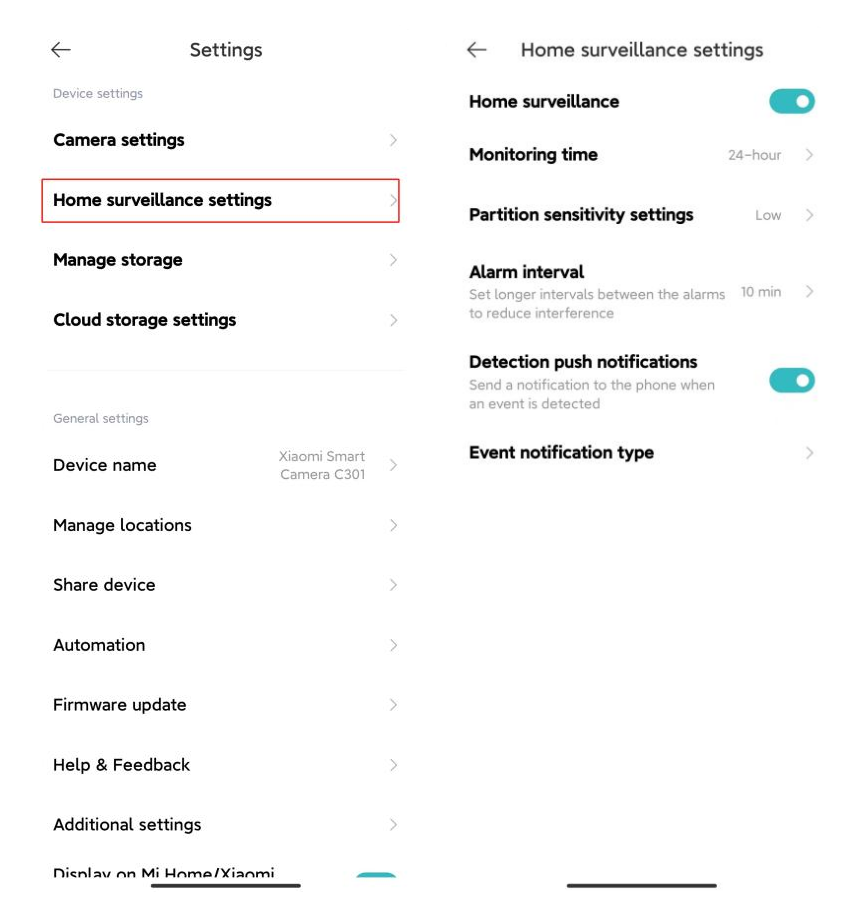
For your reference, here are the functions of each option on the interface of Home surveillance:
1. Monitoring time:
You can set up an all-day monitor or specific periods.
2. Partition sensitivity settings:
You can select [High], [Medium], and [Low].
3. Alarm interval:
There are four options: [3 min], [5 min], [10 min], and [30 min] (You can choose the preset time interval, which cannot be customized).
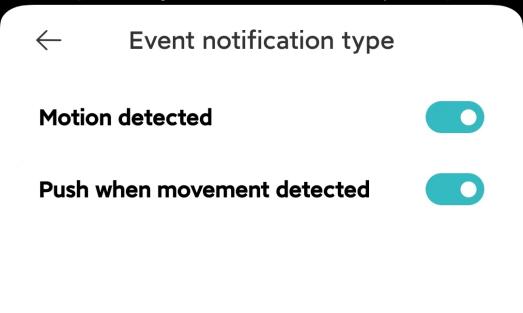
4. Detection push notifications:
Push events are divided into two types: [Motion detected] and [Push when movement detected]. If this push event is turned off, no relevant push message will be received.
Note:
The videos in the Home surveillance can not be deleted in batches.
Q13: How to playback the videos in the memory card of the Xiaomi Smart Camera C301?
A: To playback the videos in the memory card of the camera, please refer to the following steps:
Go to Xiaomi Home App>> select [Device card >> tap [Playback] >> select [SD card] >> you can view the video as needed.
When the camera is disconnected or powered off, you cannot view the videos in the memory card in the Xiaomi Home App. You can also take out the memory card and view the videos in the memory card in the computer through the card reader.

Different colors below represent different recording events, so you can drag the timeline directly to the color position according to your needs. Gray indicates that no event has occurred during this period.
Each video in the memory card is 1 minute, which can be selected and deleted in batches.
The functions of the buttons are as below:
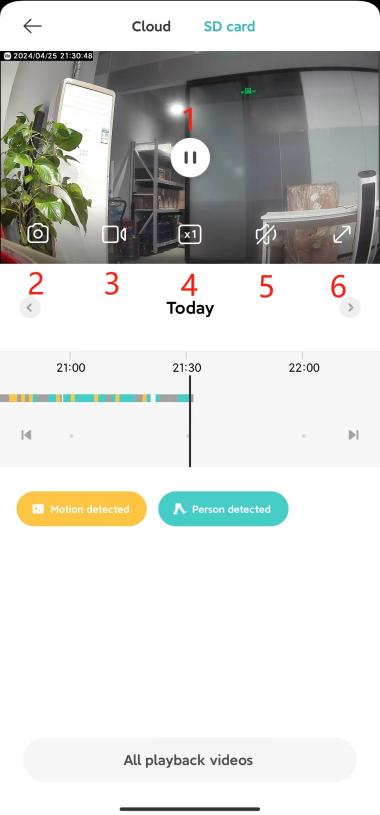
1. Play/pause button:
You can pause and continue to play the videos on the memory card. The button will appear only when you tap the screen.
2. Screenshot:
You can take a screenshot of the current monitoring screen, and a picture will be generated and saved to the local photo album and Xiaomi Home App.
3. Video recording:
Tap the screen recording button to record the current monitoring interface and save the video to the local photo album and Xiaomi Home App.
4. Double speed playback:
The videos in the memory card supports 1 time, 4 times and 16 times speed playback in the camera. Select the default silent play at double speed.
5. Mute:
When entering the camera, the video sound is turned off by default and is in mute state. Tap the button to turn on the video sound.
6. Full-screen:
Tap the Full-screen button, and the camera monitoring screen will enter the landscape screen.
Q14: How to format the memory card on the Xiaomi Smart Camera C301?
A: To format the memory card on the camera, please refer to the following steps:
Open Xiaomi Home App>> select [Device Card] >> tap the three-dot icon at the upper right corner >> select [Camera settings] >> tap [Manage storage] >> [SD card status] >> turn on [Storage on/off] then select [Format SD card].
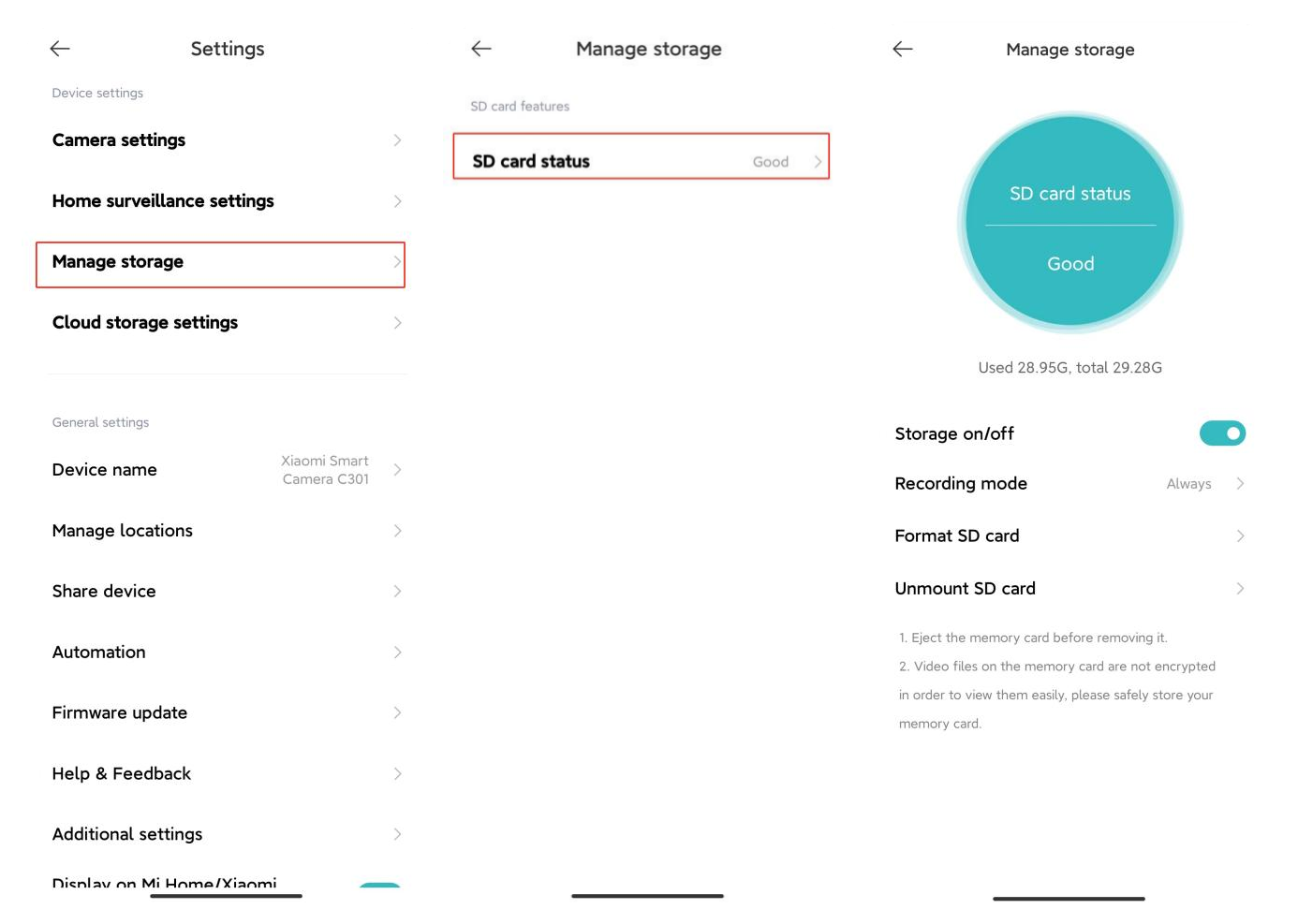
Note:
The formatted memory card will clear all the videos in the memory card, please be sure to save the videos first.
Q15: How to update the firmware on the Xiaomi Smart Camera C301?
A: To update the firmware on your camera, please refer to the following steps:
Go to the Xiaomi Home App>> select [Device Card] >> tap the three-dot icon at the upper right corner >> [Firmware update] >> check if the firmware of the camera is up to date.
Q16: What are the execution and trigger conditions for creating smart scenes with the Xiaomi Smart Camera C301?
A: The trigger conditions are shown below:
[Physical lens blocking], [Wake], [Disable home surveillance assistant], [Enable home surveillance assistant], [Restart camera], [Rotate to the preset position], [Set night vision to always on], [Set night vision to always off], and [Set night vision auto switching].
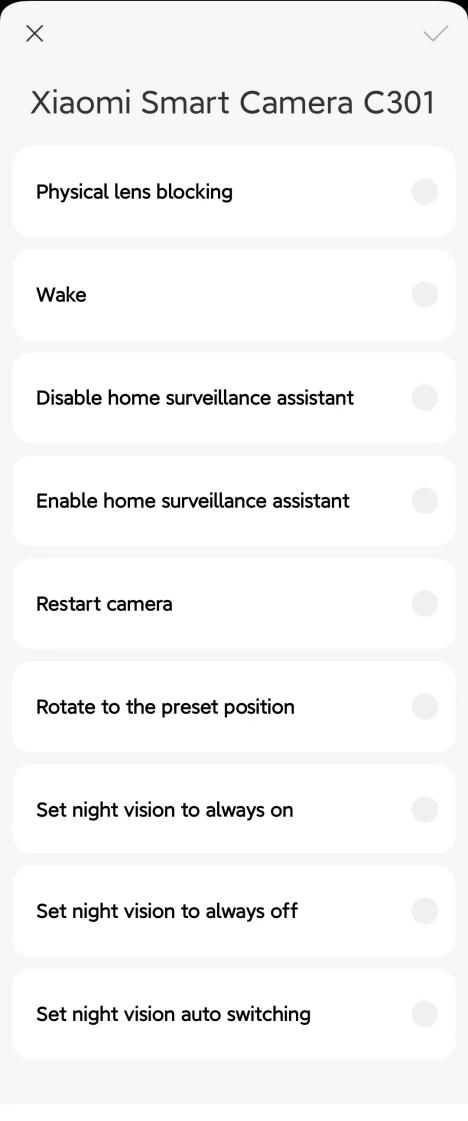
The execution conditions are as shown:
[Turn on night vision mode], [Turn off night vision mode], [Motion detected], and [Person detected].
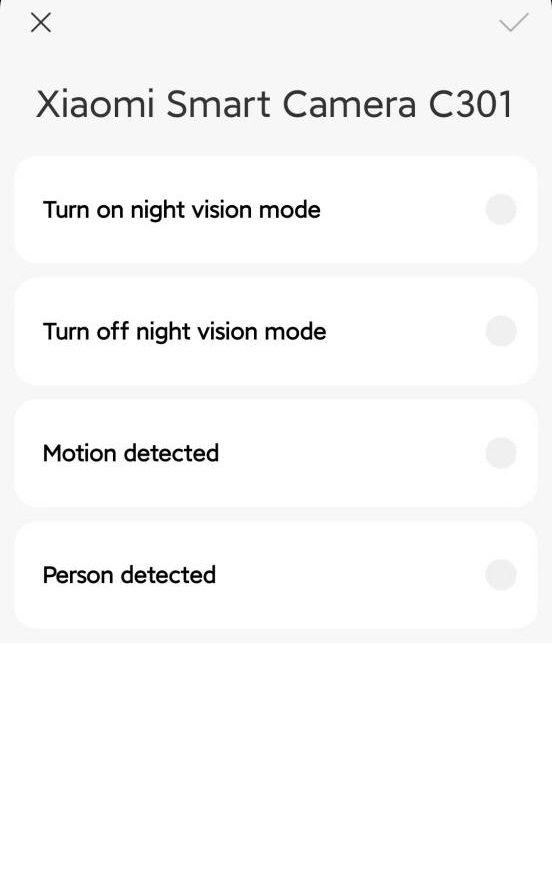
Q17: Does the Xiaomi Smart Camera C301 support access to HomeKit?
A: No, the Xiaomi Smart Camera C301 does not support access to HomeKit.
Q18: How to buy the Xiaomi Smart Camera C301 for Cloud Storage?
A: Please open the Xiaomi Home App to enter the [Camera], tap the "..." icon at the upper right corner, find [Cloud storage settings] and select the package you want to purchase.

Q19: How to view the Cloud Storage Surveillance videos using the Xiaomi Smart Camera C301?
A: The Cloud Storage needs to be purchased to use. Please open the Xiaomi Home App to enter the [Camera], tap [Playback] >> [Cloud ] to view the video according to the demand.
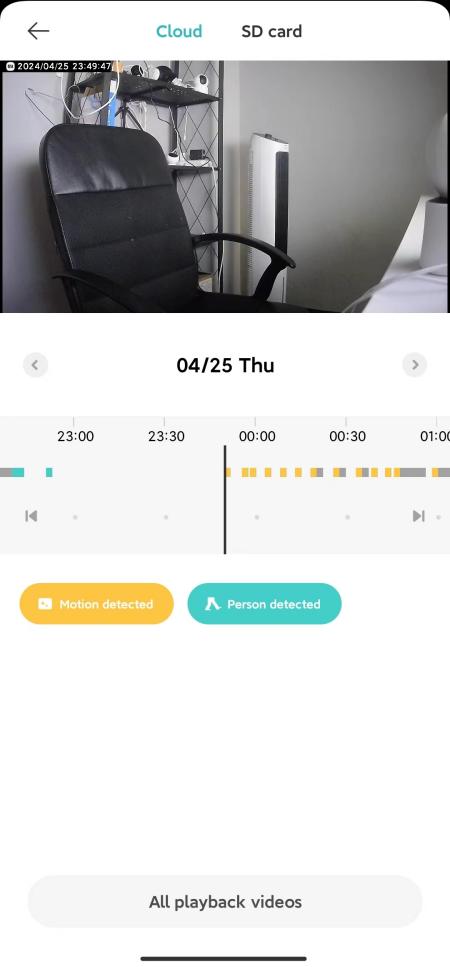
Note:
Different colors below represent different recording events. You can drag the timeline directly to the colored section according to your needs.
Q20: Does the Xiaomi Smart Camera C301 support the panoramic drawing function?
A: The Xiaomi Smart Camera C301 does not support the panoramic drawing function.
Q21: Can the volume of the Xiaomi Smart Camera C301 be adjusted when making voice calls?
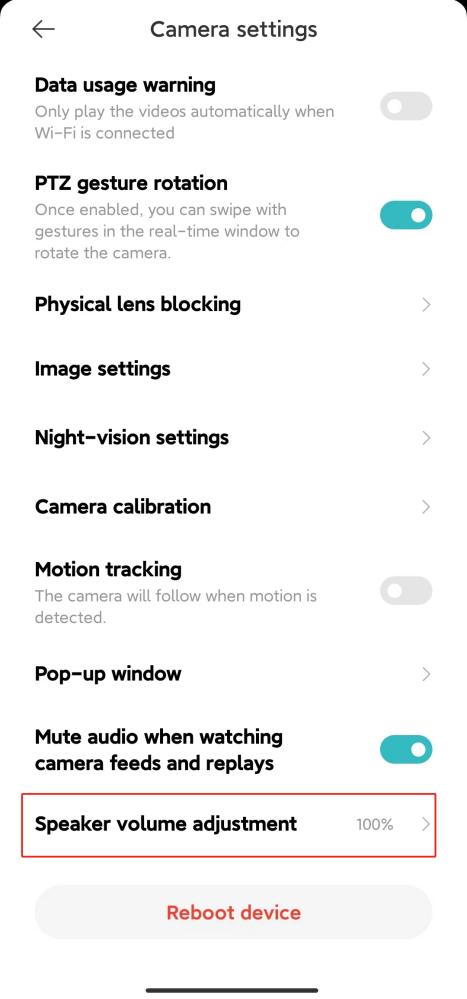
A: Yes, you can adjust the sound of both the phone and the camera by adjusting the volume on your phone during voice calls. To adjust the volume, please open the Xiaomi Home App >> select the device >> tap the "..." icon at the upper right corner >> navigate to [Camera settings] >> adjust the volume under [Speaker volume adjustment].
Q22: What if the phone fails to receive the alarm notification or other messages from the home assistant of the Xiaomi Smart Camera C301?
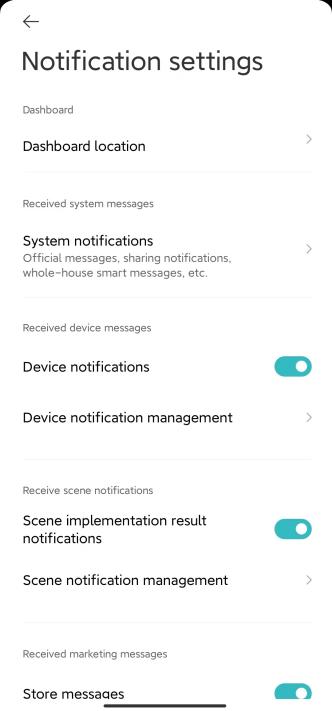
A: 1. Please go to [Settings] on your phone >> access [APP notifications] >> open the notification permission of the Xiaomi Home App.
2. In the Xiaomi Home App, navigate to [Profile] >> [Settings] >> [Message settings] >> to keep the switch in the notification settings center open.
Q23: Why does the Xiaomi Smart Camera C301 have alarm video but no notification message?
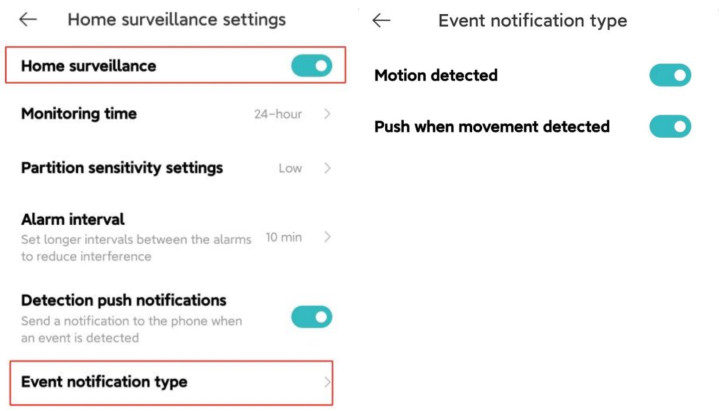
A: Please open the Xiaomi Home App >> select the [Device] card >> tap the "..." icon at the upper right corner >> verify if [Home surveillance] and [Event notification type] are turned on.
Q24: How to share the Xiaomi Smart Camera C301 with other people?
A: 1. Go to Xiaomi Home App >> press and hold the camera icon until a shortcut menu pops up at the bottom of the page >> select [Share] >> follow the prompts to share with others.
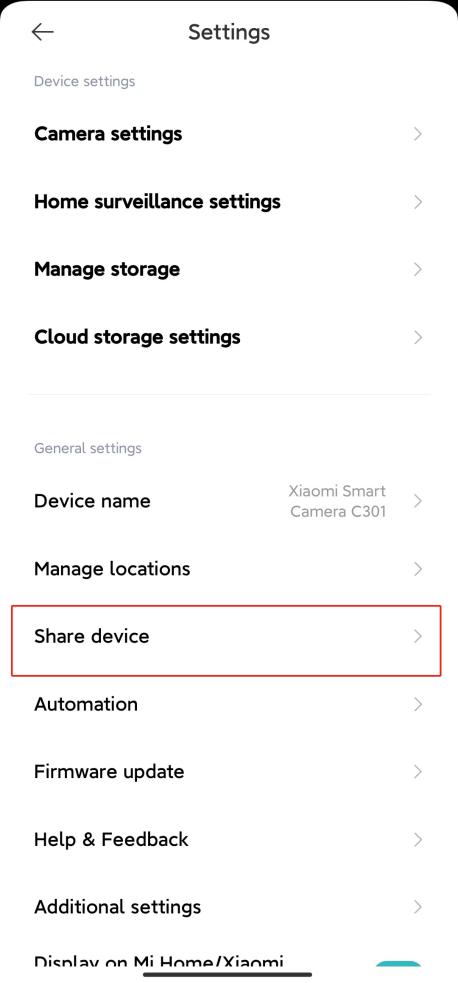
2. Alternatively, open the Xiaomi Home App >> select the device >> tap the "..." icon at the upper right corner >> navigate to [Share device] and follow the prompts to share with others.
Q25: Why does the Xiaomi Smart Camera C301 send notifications of movement when there is no one moving in the camera's view?
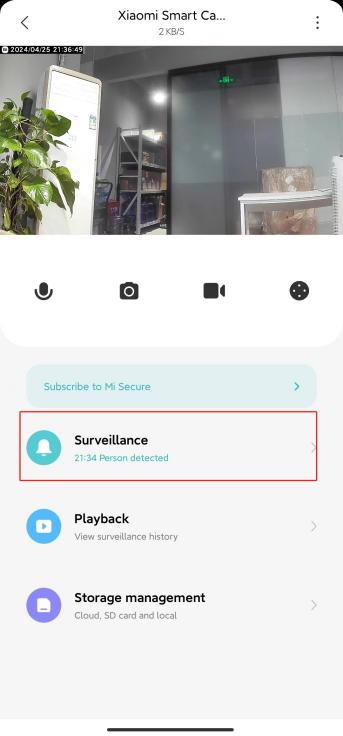
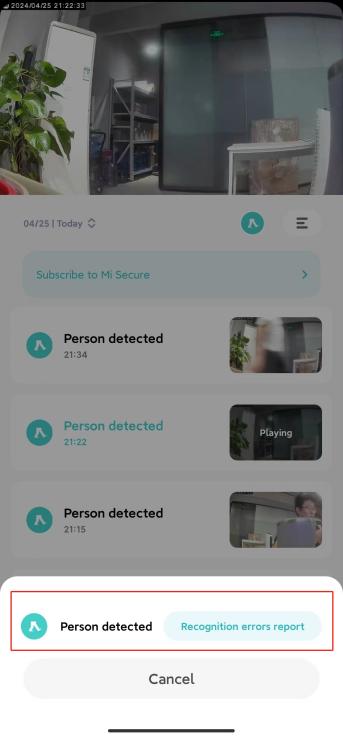
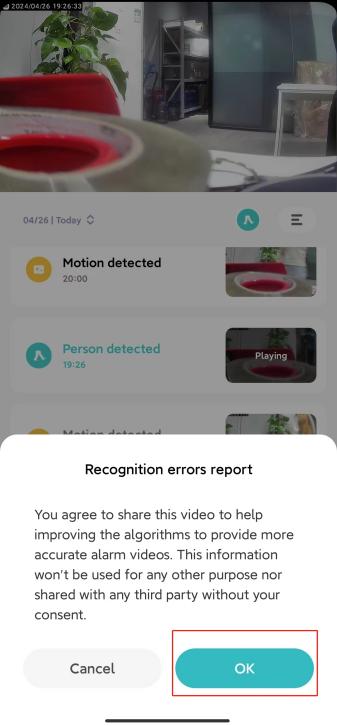
A: We are continuously working to optimize this issue. You can go to the Xiaomi Home App >> select the device >> access the alarm video >> navigate to [Recognition errors report] >> provide feedback by tapping [OK].

Troubleshooting
Q1: Why doesn't the Xiaomi Smart Camera C301 capture sound or ambient noise when watching real-time footage?
A: For your reference, here are some solutions to this issue:
1. The Xiaomi Home App turns off the volume of real-time video by default. You can enable the volume button in the Xiaomi Home App's video window by tapping [Mute] icon. If the volume is low, adjust it higher on your phone.
2. If there is noise in the real-time video, please keep your phone away from the camera and avoid placing the camera near refrigerators, microwave ovens, or other electronic devices.
3. If the camera is placed at a high position or the lens is facing downward, it causes the microphone to be buried and pick up echoes from surrounding surfaces. In this case, the device's microphone should be removed from the cavity.
Q2: What to do if the video lags or the video and audio are not synchronized when watching real-time footage on the Xiaomi Smart Camera C301?
A: To resolve these issues, please refer to the following steps:
1. If the video freezes or buffers frequently, switch the video quality to automatic or smooth mode.
2. If there's a synchronization issue between the video and audio, check the camera's network connection. If the delay is significant, try exiting the video and re-entering.
Q3: What to do if no sound can be heard on the camera side during a voice call from the Xiaomi Smart Camera C301?
A: Open the APP permission setting page of your phone to enable sound recording permissions for the Xiaomi Home App.
Q4: What should be done if watching historical videos are not continuous or smooth on the Xiaomi Smart Camera C301?
A: For your reference, here are some solutions to this issue:
2. Cloud Storage videos also record only when there is motion and not continuously for 24 hours.
3. If the video is buffering, it's because of network issues. Check if there are too many devices connected to the camera's network or if other devices are streaming video simultaneously.
Q5: How to deal with the abnormal memory card usage of the Xiaomi Smart Camera C301?
A: To deal with this issue, please refer to the following steps:
1. Please use a high-speed memory card formatted in FAT32, produced by the regular manufacturer for the camera.
2. Ensure that the required memory card is installed in the camera. Without a memory card, the camera cannot store or playback recorded videos.
3. If the memory card fails to record videos or does not automatically delete files, format the memory card using the camera's storage settings within the Xiaomi Home App.
4. If the memory card cannot be formatted in the Xiaomi Home App, it can be formed on the computer through the card reader. After formatting, power off the camera and reinsert the memory card.
Note:
Formatting the memory card will delete all files stored on it.
Q6: What to do when the Xiaomi Smart Camera C301's status light blinks blue, and the Xiaomi Home App shows that the device is offline?
A: There are two ways to address this issue:
1. Check if the network connection is working properly. If you have changed the Wi-Fi name, password, or connection location, please reset the camera and reconnect it to the network.
2. Restart the router and try placing the camera as close to the router as possible.
Q7: Why does the Xiaomi Smart Camera C301 produce noise during voice calls?
A: For your reference, please check for the following conditions:
1. When talking, avoid placing the mobile phone and the device in the same space. Maintain a distance of more than 10 meters from the device to prevent echo, which is normal for close calls.
2. If there are many electronic devices near the camera, it will cause electromagnetic interference, resulting in howling, noise, and other issues during voice calls.
Q8: How to handle blurred images or no image capture when using the night-vision on the Xiaomi Smart Camera C301?
A: To resolve this issue, please check for the following conditions:
1. Please ensure that the camera lens is clean and dust-free.
2. Please check whether debris is blocking the lens. If obstructed, adjust the camera's position or angle to move the lens out of the blocked range.
Q9: What to do if the indicator of the Xiaomi Smart Camera C301 does not turn on?
A: For your reference, here are some solutions you can try:
1. Check if the camera is powered on and ensure you are using the original charging cable.
2. Please open the Xiaomi Home App, enter the homepage of the real-time footage, tap the "..." icon at the upper right corner and navigate to [Camera settings] to enable [Status light] switch.
Q10: Why is there sound on the Xiaomi Smart Camera C301 when playing the video from the memory card on the phone but not on the computer?
A: This issue arises from the video playback software's compatibility with the computer. Try using a different player to resolve it.
Q11: What to do if the video lags or the video and audio are not synchronized when watching real-time footage on the Xiaomi Smart Camera C301?
A: To resolve the issue, please follow these steps:
1. Video lag results from insufficient network bandwidth. To improve this, tap the "2K" icon on the preview screen and choose "Auto" for the "Select video quality" option.
2. If there's a synchronization issue between the picture and sound, check the camera's network connection and try exiting and reopening the Xiaomi Home App.
Q12: What happens if the Xiaomi Smart Camera C301 does not recognize the memory card?
A: For your reference, here are some solutions to the issue:
1. Restart the camera.
2. Check if the camera firmware version and Xiaomi Home App need updating.
3. Clear the Xiaomi Home App data, this will delete downloaded Cloud Storage videos.
4. Change the memory card to check if the issue still persists.
Note:
Memory cards have a limited lifespan. If a card has been used extensively, it needs to be replaced with a new memory card.
Q13: What to do if the Xiaomi Smart Camera C301 is stuck?
A: Here are steps to resolve the issue:
1. Power off and restart the device.
2. Please open the Xiaomi Home App >> navigate to [Camera] >> tap the "..." icon at the upper right corner >> go to [Camera settings] >> select [Restart the device].
3. If the camera head cannot rotate, please contact customer support for further assistance.
Q14: How to handle a failed firmware upgrade on the Xiaomi Smart Camera C301?
A: If the firmware upgrade fails, it is due to network issues or server abnormalities, please change the network environment before trying. If the network is stable, change the time period and attempt the upgrade again.
Q15: What to do if the Xiaomi Smart Camera C301 with a MicroSD card cannot playback, record, delete footage for loop recording, or format the card?
A: Here are the steps to resolve the issue:
1. Ensure a memory card is properly installed in the camera.
2. If the camera indicates that the MicroSD card is not enabled, format it using the Xiaomi Home App.
3. If formatting through the APP fails or issues persist, consider purchasing a dedicated camera memory card from a qualified brand.
Q16: What to do if the Xiaomi Smart Camera C301 always turns by itself?
A: To disable the motion tracking function in the APP, please follow the steps below:
Open the Xiaomi Home App >> press and hold the device >> tap the "..." at the upper right corner >> navigate to [Camera settings] >> turn on [Motion tracking]. When enabled, the motion tracking function allows the camera to follow the detected movement. After tracking, it returns to its original position for ongoing monitoring.
Q17: What to do if the Xiaomi Smart Camera C301 fails to connect to the network or the network connection times out?
A: To resolve the issue, please follow these steps:
1. Verify that your phone has a stable network connection.
2. Restart your router.
3. Reset the camera and attempt to reconnect.
4. Test the camera's connection using your phone's hotspot. If successful, contact your internet service provider for assistance.
Q18: What to do if the position of the Xiaomi Smart Camera C301 head is offset?
A: If the lens positioning is inaccurate, avoid forcibly rotating the camera head. Instead, use the Xiaomi Home App for calibration. Regular calibration is recommended to prevent displacement caused by prolonged rotation of the camera head.
Q19: What to do if the Xiaomi Smart Camera C301 cannot be powered on?
A: For your reference, here are some solutions you can try:
1. Ensure you are using the original charging cable and the camera is powered.
2. Press and hold the reset button for 7 seconds to reset the camera, then attempt to reconnect.
Q20: What to do if the Xiaomi Smart Camera C301 does not work after changing its connection location, Wi-Fi name, or password?
A: To deal with this issue, please refer to the following steps:
1. Press and hold the reset button for about 7 seconds to reset the camera. Once reset, reconnect it to the Xiaomi Home App.
2. Position the camera as close to the router as possible to ensure network stability.
Q21: What to do if the Xiaomi Home App shows the Xiaomi Smart Camera C301 is offline?
A: Here are the steps to resolve the issue:
1. Ensure the camera is powered properly and verify you are using the original charging cable.
2. When the light blinks blue, it indicates the Xiaomi Smart Camera C301 is attempting to connect to the network. Please verify your network connectivity.
3. When the light is steady orange, it indicates the Xiaomi Smart Camera C301 is starting up or awaiting connection after reset. Rebind the camera if necessary. The camera appears offline during these states.
4. Restart the router and position the camera closer to it for better connectivity.
Does it help?