

Xiaomi Outdoor Camera BW300 FAQ
1. Q: What are the characteristics of Xiaomi Outdoor Camera BW300?
A: For your reference, here are some characteristics of Xiaomi Outdoor Camera BW300:
1. It can provide a 2K delicate image and better picture quality;
2. With an FOV130°, it can provide a widening the field of view to detect all errors and reduce blind spots;
3. It features intelligent full-color night vision so that the dark light at night is clearly visible;
4. With a 4900mAh super large battery capacity, it has a long-lasting battery life, and worry-free access;
5. IP67 is professionally dustproof and waterproof, and can easily cope with outdoor storms;
6. AI dynamic capture and tracking can follow the shadow clearly and flexibly;
7. Two-way voice call offers clear sound quality in a noisy environment;
8. Sound and light deterrent warning proactively drive away uninvited guests;
9. Abnormal information will be copied in seconds, and the status of your home will be known in real-time;
10. The entire video transmission process is encrypted, and privacy and security cannot be violated;
11. Google Home and Alexa multi-platform intelligent linkage.
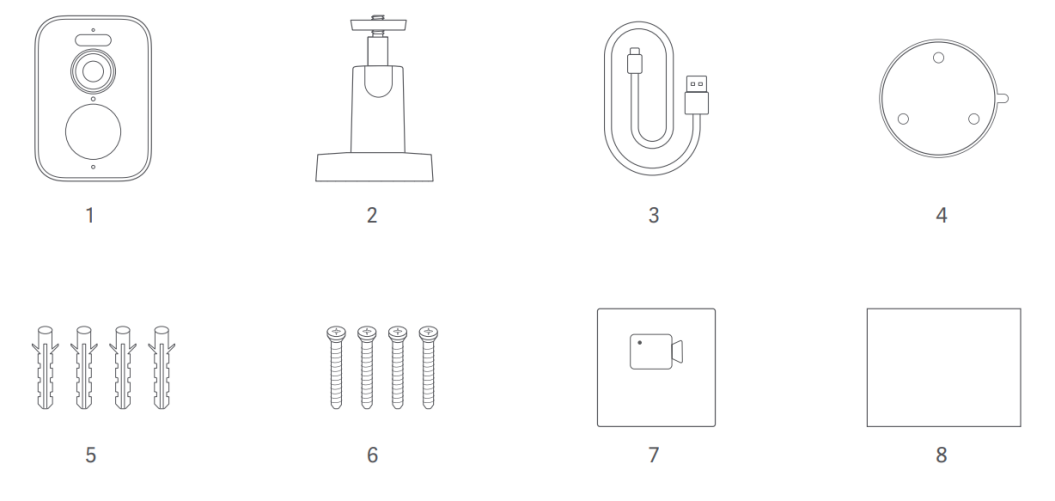
2. Q: What does the Xiaomi Outdoor Camera BW300 include as standard?
A: The standard configuration of Xiaomi Outdoor Camera BW300 includes: camera body (including battery) × 1, base × 1, power cord × 1, installation template sticker × 1, wall socket × 4, screws × 4, attention sticker × 1, user Manual × 1.
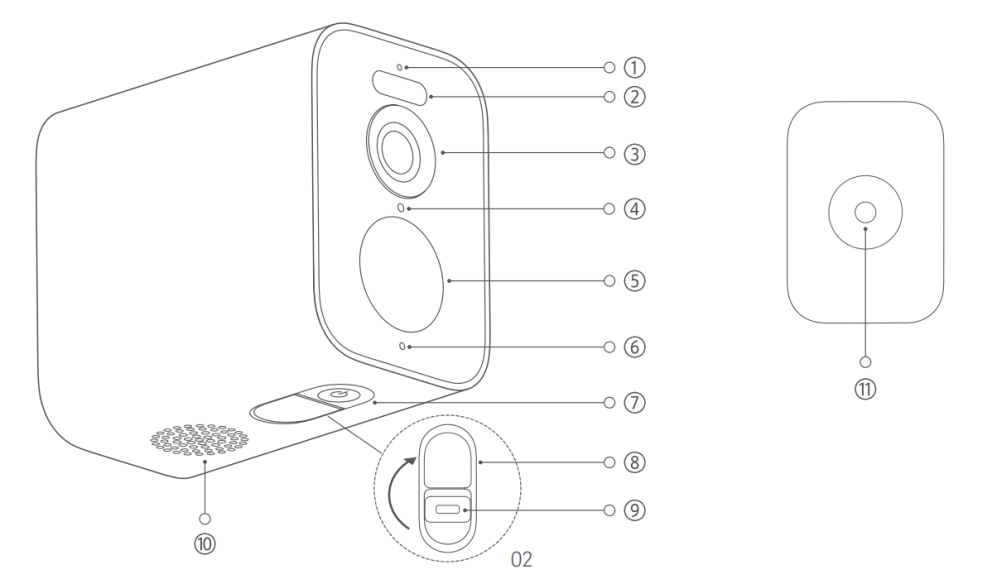
3. Q: What is the appearance introduction of Xiaomi Outdoor Camera BW300?
A: The appearance of Xiaomi Outdoor Camera BW300 is introduced as follows:
① Indicator;
② Spotlight;
③ Lens;
④ Photosensitive sensor;
⑤ Thermal sensor;
⑥ Microphone;
⑦ Configuration key;
⑧ Protective cover;
⑨ Type-C power interface;
⑩ Speaker;
⑪ Camera base mounting hole.
4. Q: What is the power supply method of Xiaomi Outdoor Camera BW300?
A: Xiaomi Outdoor Camera BW300 has a built-in battery, so it does not need to be powered on for a long time. It can be used normally after being fully charged. When charging, please use the charging cable included in the package and a qualified power adapter that meets safety standards (output is 5v-2a). Charging should be done indoors in a well-ventilated environment.
5. Q: What are the steps to install the Xiaomi Outdoor Camera BW300?
A: To install the Xiaomi Outdoor Camera BW300, you can refer to the following steps:
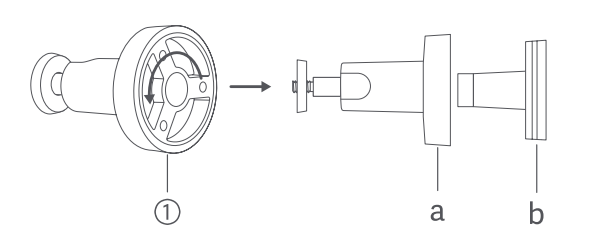
1. Rotate the camera mount counterclockwise to remove the base;
a. Locking cap;
b. Base;
2. Choose a suitable installation location (it is recommended to be 7-10 feet (2-3 meters) above the ground, without buildings or trees blocking the installation wall), and then paste the installation template on the flat wall;
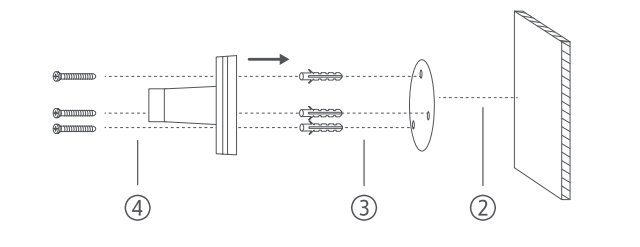
3. Drill holes (each hole has a diameter of 6mm and a depth of 30mm) and install the wall plug;
4. Use screws to fix the base to the wall;
5. Fix the lock cap on the base;
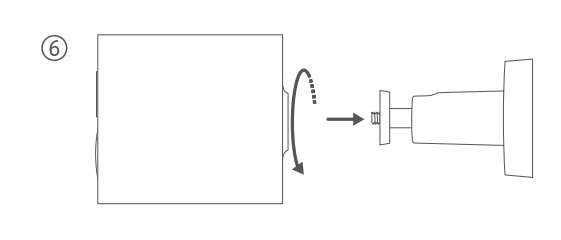
6. Hold the camera with your hands and fix it on the camera stand
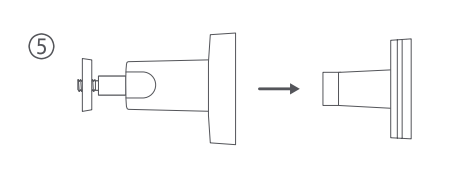 |
;
7. Adjust the angle of the camera and tighten the locking cap.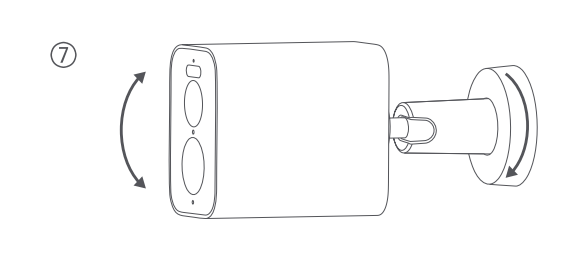
Note:
Please install the camera with the power port facing downwards. When the power supply is not in use, please cover it with a protective cover to prevent water from entering.
6. Q: How to turn on/turn off the Xiaomi Outdoor Camera BW300?
A: 1. Press and hold the power button for 3 seconds in the power-on state and release the button to turn it off;
2. In the off-state, press and hold the button for 3 seconds to turn it on.
7. Q: What status indicators does the Xiaomi Outdoor Camera BW300 have? What do they mean?
A: For your reference, here are five indicator status as below:
1. When the device is waiting for connection, the indicator flashes in orange;
2. When the device is connecting with the Mi Home APP, the indicator flashes in blue;
3. When the connection is successful, the indicator is blue;
4. When the device is charging, the indicator flashes in orange slowly;
5. When the device is fully charged, the indicator turns off.
8. Q: How many storage methods does the Xiaomi Outdoor Camera BW300 have to store recorded videos?
A: Xiaomi Outdoor Camera BW300 supports two video storage methods:
The device supports SD card/cloud storage.
Note:
After connecting to the base station, it supports storing videos on the base station SD card.
9. Q: How to rebind Xiaomi Outdoor Camera BW300 with the Mi Home APP?
A: If you need to change the network or the Mi Account of the Mi Home App that the camera is connected to, you need to press and hold down the reset button for about 7s to restore the camera to the factory settings, and then reconnect to Mi Home App.
10. Q: How to set up night vision related functions for Xiaomi Outdoor Camera CW300?
A: Xiaomi Outdoor Camera BW300 supports infrared night vision and full-color night vision. It can automatically switch to night vision mode for shooting in dark light according to the changes in surrounding light. Intelligent full-color night vision makes dark light clearly visible at night.
The camera is set to automatically switch to infrared night vision by default, you can adjust it independently by referring to the following steps:
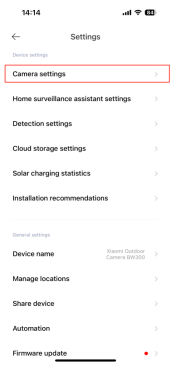
Open the [Mi Home] APP >> [Device Card] >> tap the three-dot icon at the upper right corner >> [Camera settings] >> scroll down and select [Night-vision settings] >> select [On] to turn it on.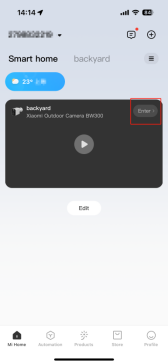
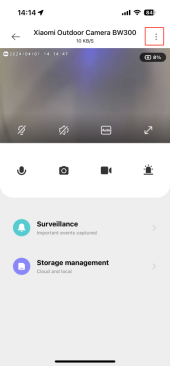
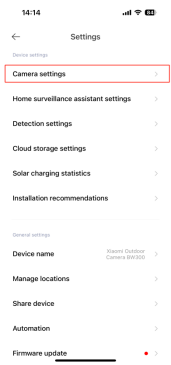
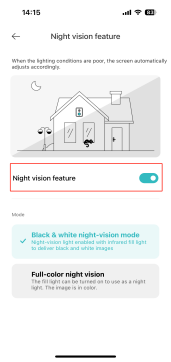
11. Q: Does Xiaomi Outdoor Camera BW300 support the NAS transfer function?
A: Not support.
12. Q: Where can I check the SN number of the Xiaomi Outdoor Camera BW300?
A: The SN number can be viewed from the back of product packaging as well as from the bottom of the camera.
13. Q: What is the introduction to the relevant parameters of the Xiaomi Outdoor Camera CW300 lens?
A: For your reference, here is some information below:
1. Xiaomi Outdoor Camera BW300 uses 15fps (3 million) high-definition pixels and a resolution of up to 2304 × 1296p to ensure true and clear images;
2. F1.6 large aperture lens significantly increases the amount of light entering, allowing you to capture picture details even in a weak light;
3. Xiaomi Outdoor Camera BW300 supports digital zoom.
14. Q: What is the waterproof level of the Xiaomi Outdoor Camera BW300?
A: The camera supports IP67 waterproofing and can be used outdoors after the rubber plug is closed to avoid the risk of water seepage. Do not use this product in an excessively humid or water-filled environment to avoid affecting normal use.
15. Q: Does Xiaomi Outdoor Camera BW300 support two-way voice calls?
A: Support. Xiaomi Outdoor Camera BW300 has a built-in microphone, which enables two-way communication between the mobile phone and the camera.
16. Q: Does Xiaomi Outdoor Camera BW300 support Bluetooth gateway?
A: Not support.
17. Q: Does the Xiaomi Outdoor Camera BW300 support continuous recording and saving of videos even when the network is disconnected and the power supply is uninterrupted?
A: Not support.
18. Q: What is the battery life of Xiaomi Outdoor Camera BW300? How long does it take to charge?
A: For your reference, here is some detailed information as below:
The outdoor camera has a built-in 4900mA rechargeable battery.
1. Achieving 120 days of long-term battery life under typical usage mode.
Test conditions:
Turn on night vision function, default black and white night vision; sensitivity trigger during motion detection; record 20 times per day during the day and night; live broadcast once per day during the day (30 seconds/ times); night live broadcast twice a week (30 seconds/time); two-way calls: twice a week (30 seconds/time); sound and light alarm: twice a week (30 seconds/time);
2. Long-term battery life of 180 days can be achieved in low-frequency use mode.
Test conditions:
Turn on night vision function, default black and white night vision; low sensitivity trigger of motion detection; record 10 times per day during the day and night; live broadcast once per day during the day (30 seconds /time); night live broadcast twice a week (30 seconds/time); two-way calls: twice a week (30 seconds/time); sound and light alarm: twice a week (30 seconds/time).
Note:
1. The battery life test data are all from Qishimai Laboratory. In actual use, battery life is related to various factors such as settings, operation and usage environment, and may differ from the laboratory data;
2. Battery usage is related to the frequency of triggering recording. Personalized settings such as sensitivity, shooting duration, and alarm intervals can be made in the Mi Home APP as needed to adapt to the needs of different scenarios;
3. A single charge of the outdoor camera takes about 3.5-4 hours and supports external power supply devices (such as power cords, power banks, etc., but the mobile power output needs to reach 5V-2A);
4. Please be sure to use a regulated and safe power adapter.
19. Q: How to install solar panels on Xiaomi Outdoor Camera BW300?
A: For your reference, you can refer to the following steps:
1. Rotate counterclockwise to remove the base;
(1). Locking cap;
(2). Base.
2. Select a suitable installation location (no buildings or trees blocking the installation wall), and then paste the installation template on the flat wall;
3. Drill holes (each hole has a diameter of 6mm and a depth of 30mm) and install the wall plug;
4. Fix the base to the wall with screws;
5. Fix the lock cap on the base;
6. Fix the solar panel on the bracket and adjust the angle to maximize direct sunlight. Then tighten the locking cap;
7. Fully insert the charging connector and waterproof gasket into the camera's Type-C power interface.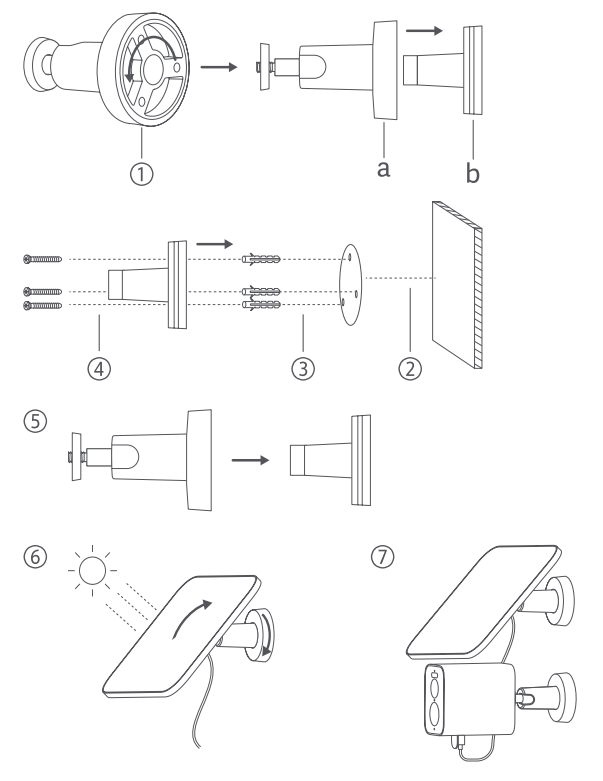
Note:
This product is compatible with some models of Xiaomi BW series outdoor cameras.
20. Q: Is the solar panel of the Xiaomi Outdoor Camera BW300 charging waterproof?
A: The solar panel is a precision electronic product with IP66 dust-proof sealing and waterproof rating. To prevent failure, do not install solar panels in extremely humid environments or locations where water may enter. In addition, when using the solar panel with a camera, please ensure that the Type-C plug is fully inserted into the camera's Type-C power interface to prevent it from becoming loose.
21. Q: How to check the charging status of solar panels on the Xiaomi Outdoor Camera BW300?
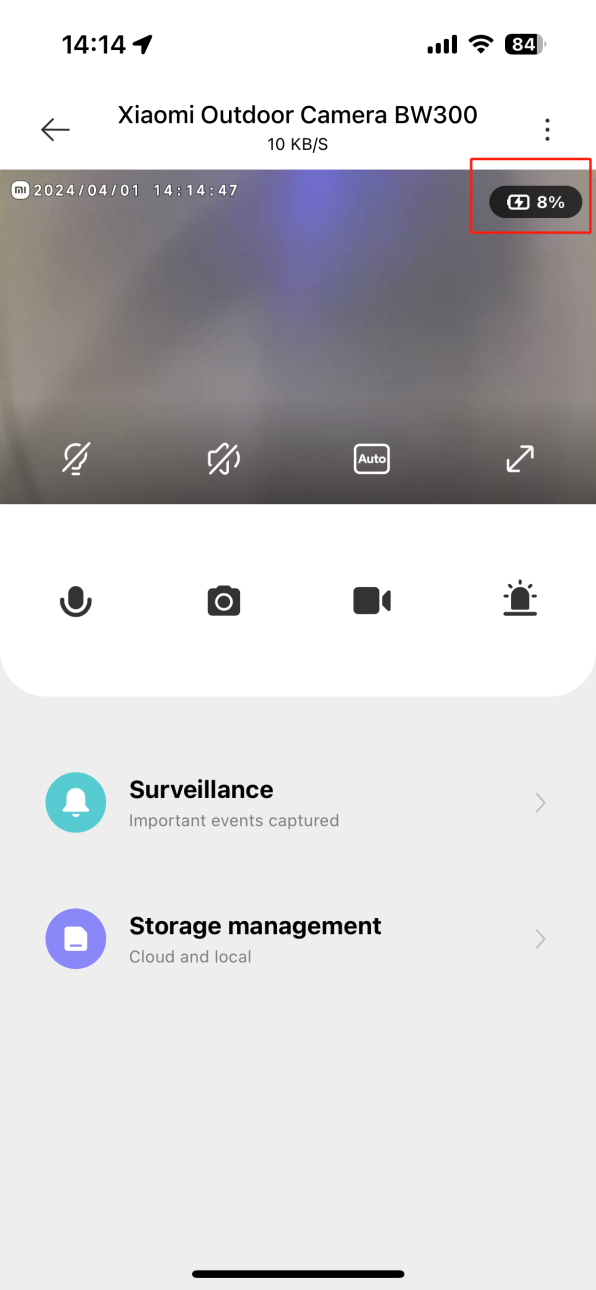
A: Open [Mi Home] APP >> [Device Card] >> tap [Enter] at the upper right corner to switch to camera live broadcast. The upper right corner of the screen will display the charging status and power of the solar panel.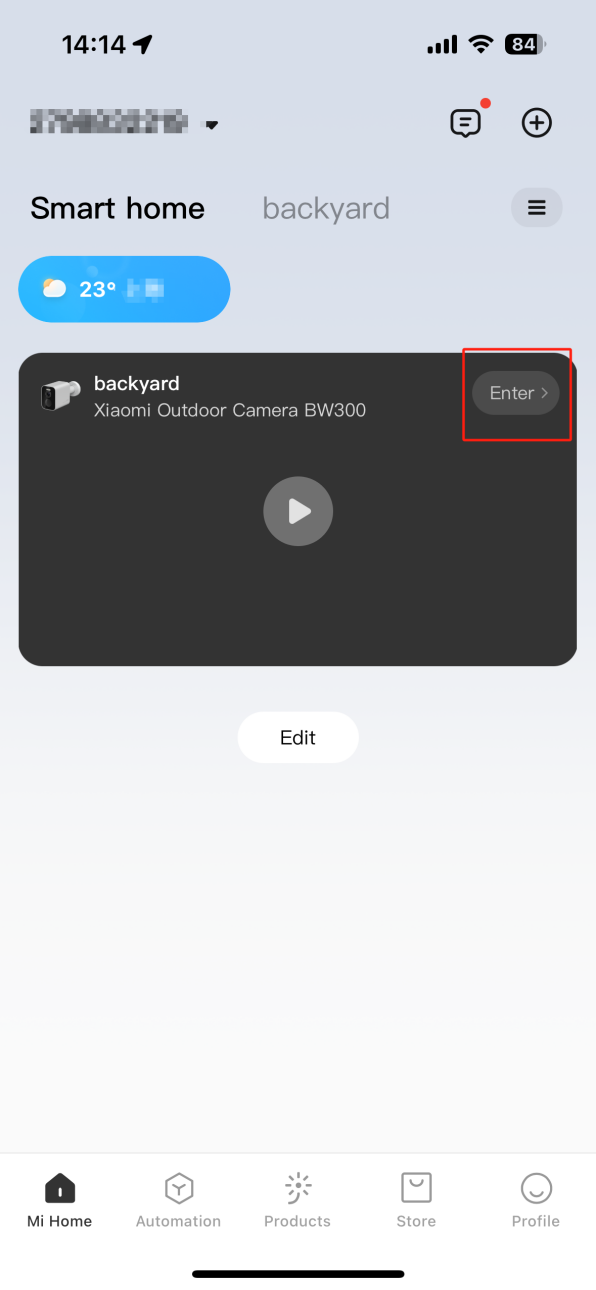
22. Q: What are the things that need to be paid attention to when using the Xiaomi Outdoor Camera BW300?
A: For your reference, here are the safety precautions:
1. The applicable working temperature of this product is -20℃ to 55℃. Do not use this camera in environments with temperatures above or below the specified operating range;
2. This camera is a precision electronic product that has an IP67 dust-tight and water-resistant rating. To ensure normal use, do not use the camera in extremely humid environments or locations that may cause water ingress;
3. The charging cable that comes along with this product is not waterproof and is only for indoor use. Do not use the power adapter in extremely humid environments or locations that will cause water ingress. The operating temperature range for the power adapter is -30°C to 45°C. Do not use the camera in environments with temperatures above or below the specified range;
3. The outdoor camera contains batteries. Please do not expose the outdoor camera to direct sunlight, fire, or other heat sources;
4. In order to better use this product, the front and side of the lens should be kept away from glass, white walls, and other reflective objects, so as not to cause the picture to be bright near and dark or white in the distance;
5. Please ensure that this product is installed within a coverage area with a good Wi-Fi signal;
6. Try to install it as far away from microwave ovens and other places that may affect the signal;
7. When the night vision function is turned on or off, the outdoor camera will switch the infrared cut filter, which may be accompanied by a slight "click" sound. This is normal;
8. Please do not disassemble or replace the outdoor camera battery without permission. Improper operation may cause the risk of explosion;
9. Use in low low-temperature environment or charging state will affect the standby time of this product. Please do not use the real-time screen preview function for a long time while charging to avoid loss of battery life. The actual standby time is related to the usage environment and usage habits.
The 10.7-meter security distance was tested by the 70mai artificial intelligence laboratory. The machine sensitivity was set to high, and the measured PIR sensing distance was up to 7 meters.
23. Q: Why doesn't the Xiaomi Outdoor Camera BW300 support 24 hours recording?
A: In order to extend battery life and avoid frequent charging, the camera will automatically wake up and record and save video only when the human figure is detected or the environment picture changes.
If no human figure moves and the screen does not change, it enters the sleep state.
24. Q: Is the Xiaomi Outdoor Camera BW300 used without network coverage?
A: The new product must be connected to the Mi Home APP through the network before it can be used; otherwise, it cannot be used.
Products that have been connected to the Mi Home APP but the network is disconnected can view videos through the files stored in the microSD card if the microSD card has been installed; if the microSD card has not been installed, you will not be able to view the videos or use the functions related to the Mi Home APP, such as you will not be able to browse the real-time videos, or receive the message alerts, etc.
APP related
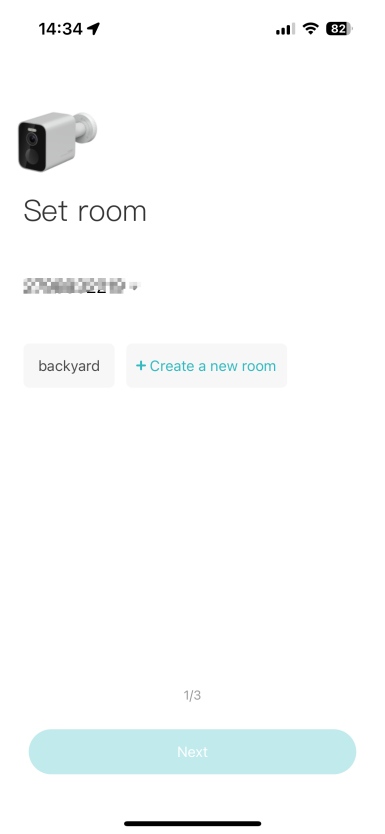
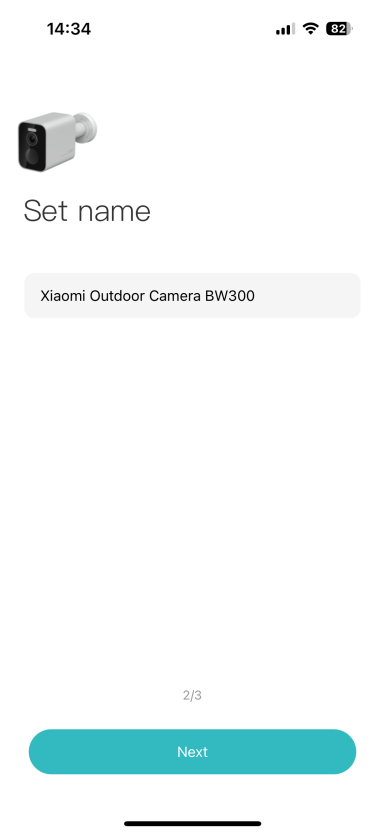
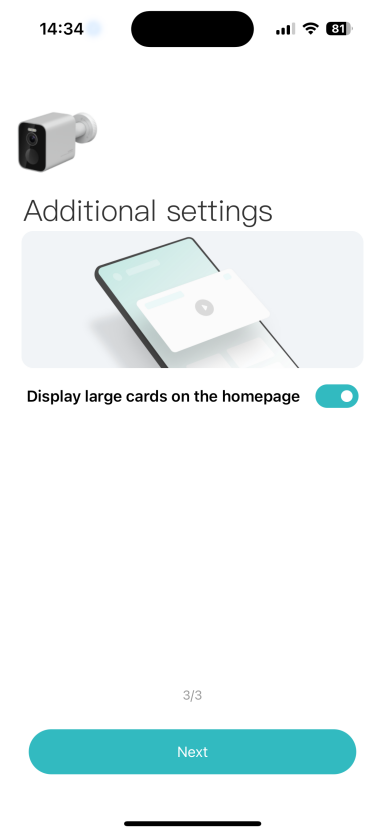
1. Q: How to connect Xiaomi Outdoor Camera BW300 to Mi Home APP?
A: For your reference, please refer to the following steps:
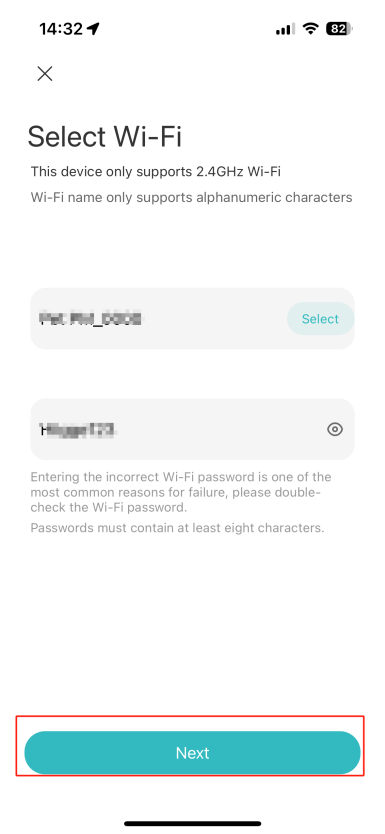
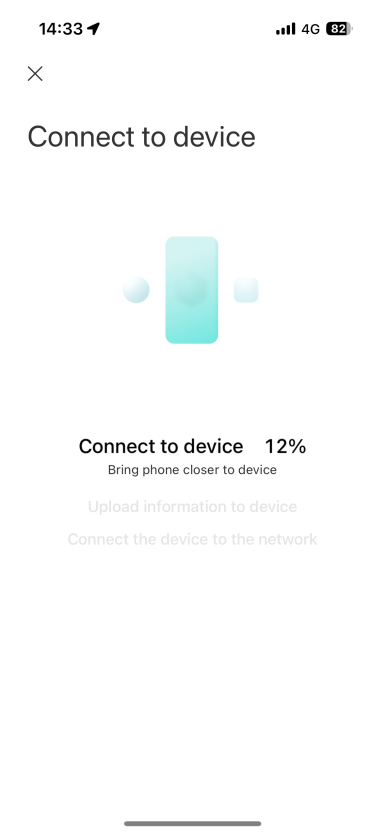
Go to [Mi Home] APP >> tap on the [+] icon at the upper right corner >> tap [Add Device] >> If no nearby device is found, select [Scan] button at the upper right corner >> Follow the prompts >> wait for a while until the connection process is completed.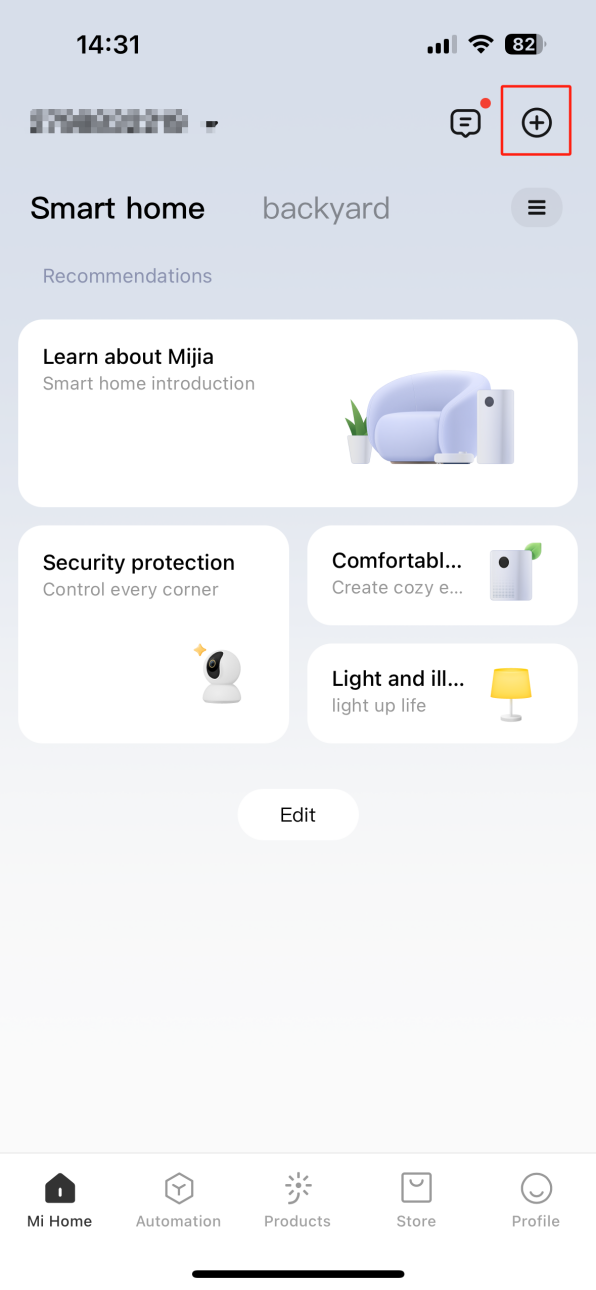
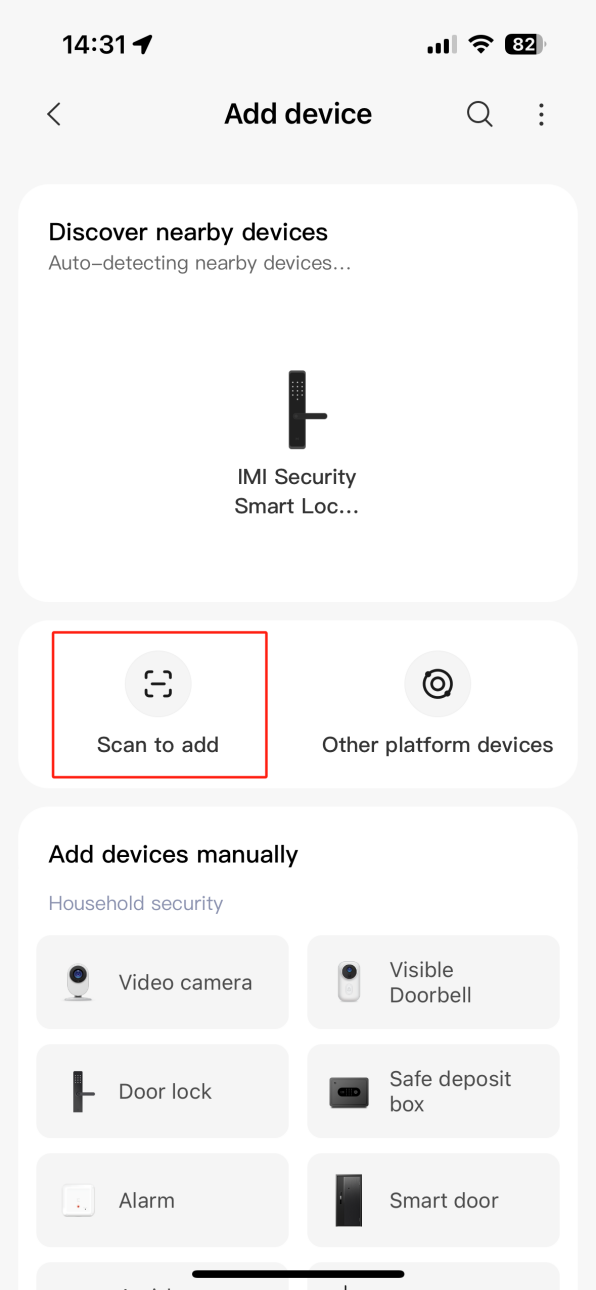
Note:
1. Xiaomi Outdoor Camera BW300 only supports the connection to 2.4GHz WiFi;
2. Due to the upgrade and update of Mi Home APP, the actual operation may be slightly different from the above description. Please follow the current instructions in Mi Home APP.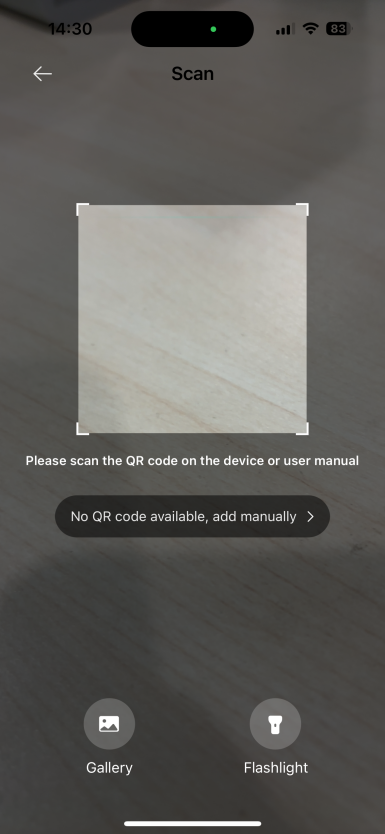
2. Q: What are the functions of the buttons on the real-time monitoring interface of Xiaomi Outdoor Camera BW300?
A: Open [Mi Home] APP >> select the [Device Card] >> tap on the upper right corner of the interface to enter and you can view the camera footage >> tap the full screen icon to view the camera footage in full screen.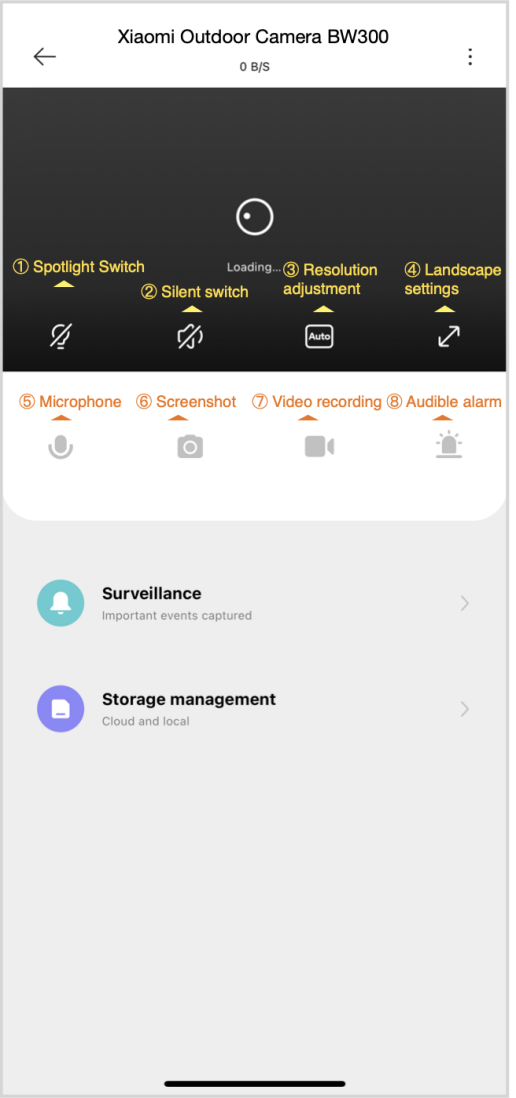
For your reference, here are some function icons as follows:
1. Spotlight Switch:
In the off state, click the button and the white light will turn on. In the on state, click the button and the white light will turn off;
2. Silent switch:
When entering the camera, the picture sound is turned off by default and is in a mute state. Tap the button to turn on the picture sound;
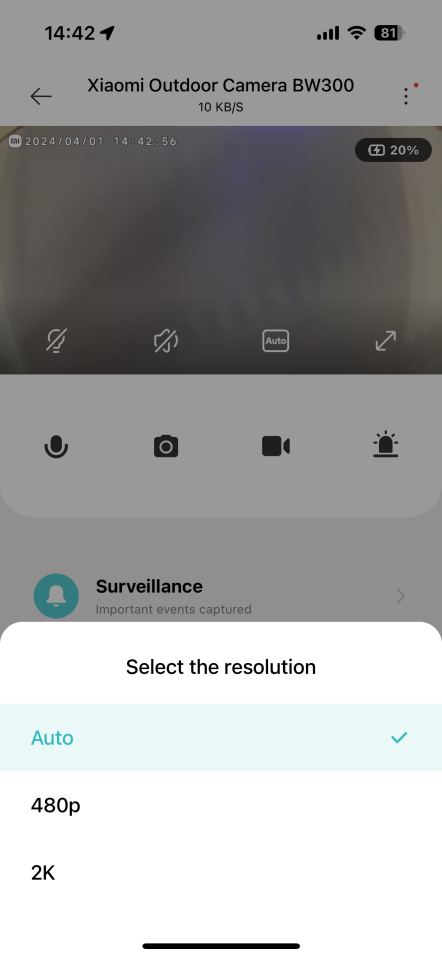
3. Resolution adjustment:
Video resolution can be adjusted independently, with three options: 2K/480p/auto;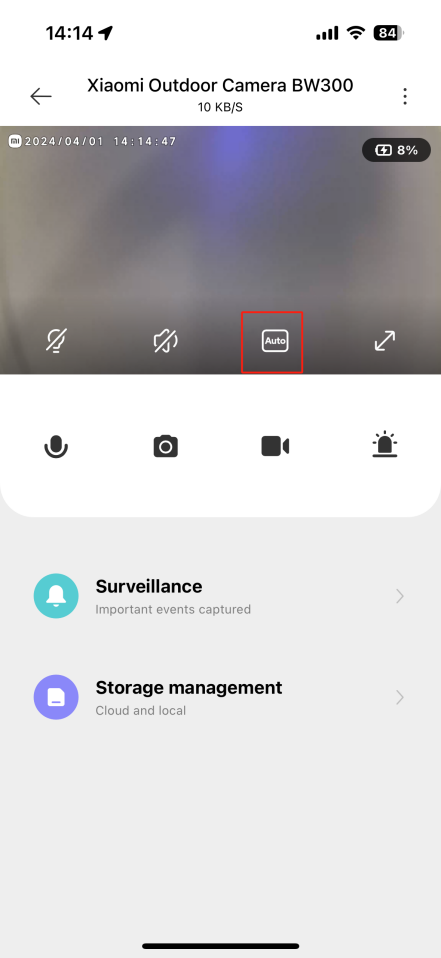
4. Landscape settings:
Click the Full screen button, and the camera monitoring screen will enter the landscape screen;
5. Microphone:
After tapping the button, the sound of the mobile phone can be transmitted to the camera side for conversation;
6. Screenshot:
You can take a screenshot of the current monitoring screen, and a picture will be generated and saved to the local photo album and Mi Home APP;
7. Video recording:
Tap the screen recording button to record the current monitoring interface and save the video to the local photo album and Mi Home APP;
8. Audible alarm:
Tap this button, the sound and light alarm will last for 30 seconds, and the playback can be canceled again during playback.
3. Q: How to set up the basic camera settings after binding Xiaomi Outdoor Camera BW300 to the Mi Home APP?
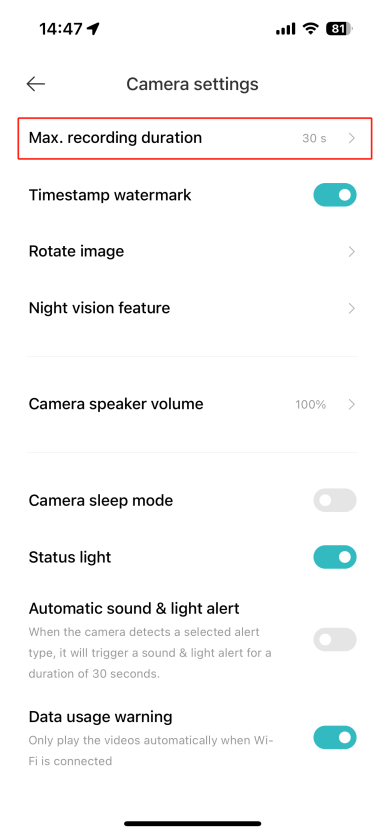
A: After the camera is bound to the Mi Home APP in the camera settings, you can set the maximum shooting time/time watermark/rotate the screen/night vision function/camera external volume/camera sleep/status light/automatic sound and light alarm/traffic protection and other function settings.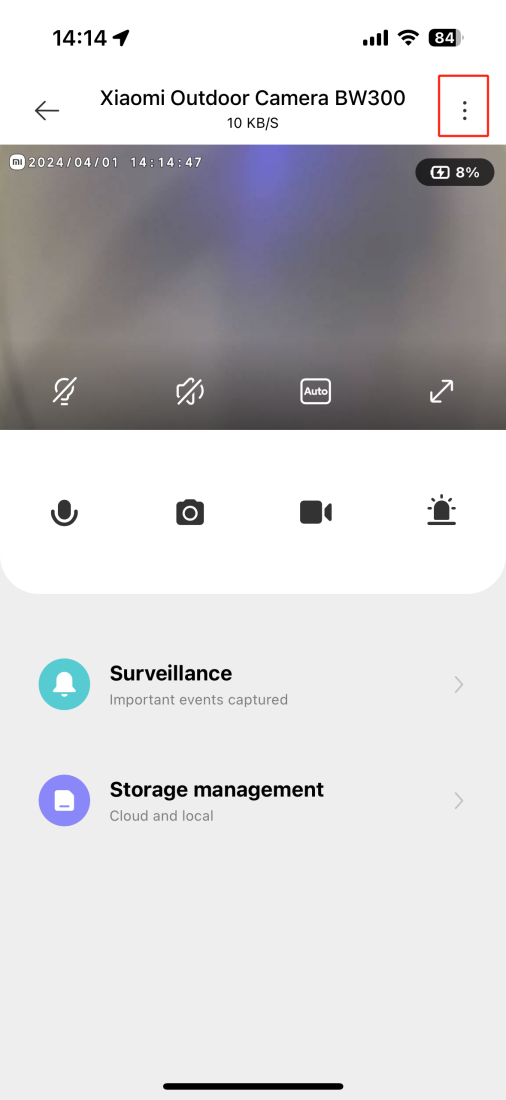
1. Timestamp watermark:
After turning off the option, the time will no longer be displayed in the upper left corner of the surveillance video interface.
For your reference, please refer to the following path:
Open [Mi Home] App >> select the [Device Card] >> tap the three-dot icon at the upper right corner >> Camera >> [Camera settings] >> [Timestamp watermark];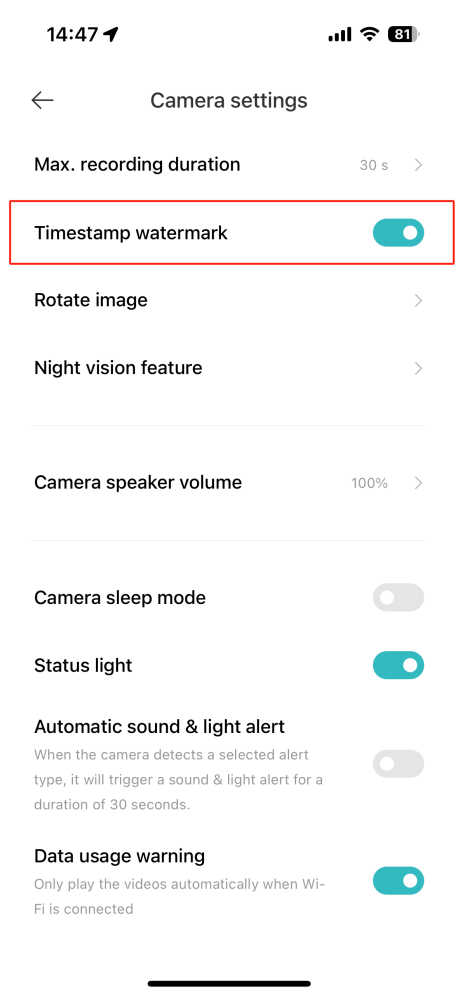
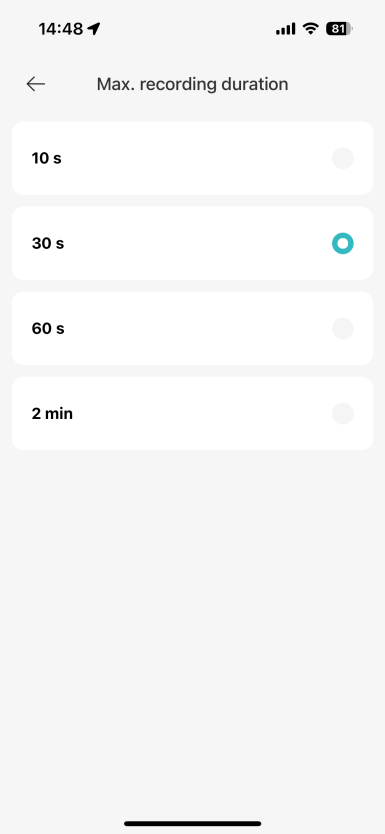
2. Max. recording duration:
Refers to the length of time for camera video shooting. There are four video recording time lengths to choose from: 10s, 30s, 60s and 2min.
To enable the function, please refer to the following path:
Go to [Mi Home] APP >> Select the [Device Card] >> tap the three-dot icon at the upper right corner >> Camera >> [Camera settings] >> [Max. recording duration];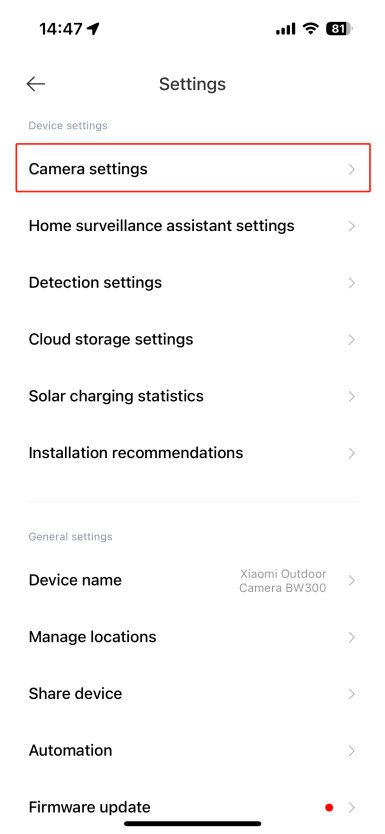
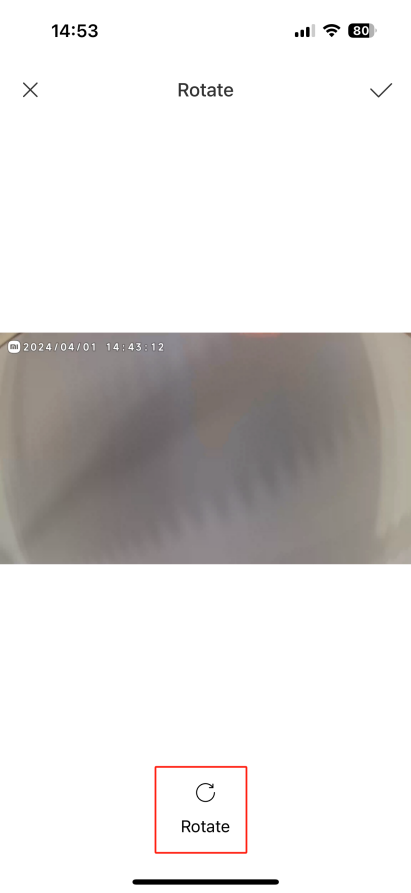
3. Rotate image:
After the camera is inverted, the monitoring screen will reverse, and the rotating screen can be viewed normally.
To enable the Rotate image function, please refer to the following path:
Open [Mi Home] App >> select the [Device Card] >> tap the three-dot icon at the upper right corner >> Camera >> [Camera settings] >> [Rotate image];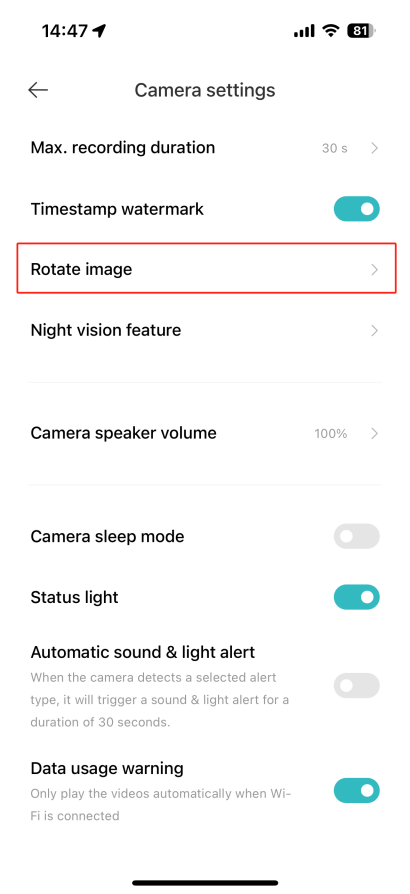
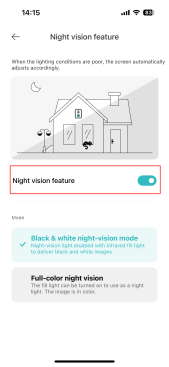
4. Night vision feature:
After enabling the function, the picture will automatically adjust when the ambient light is poor.
(1). Black & white night-vision mode:
The night-vision light is turned on, infrared fill-in light is used, and the image is black and white;
(2). Full-color night vision:
The fill light is turned on and can be used as a night light, and the image is in color.
To enable the Night vision feature function, please refer to the following path:
Open [Mi Home] App >> select the [Device Card] >> tap the three-dot icon at the upper right corner >> Camera >> [Camera settings] >> [Night vision feature] >> select [Black & white night-vision mode]/[Full-color night vision] as your preference;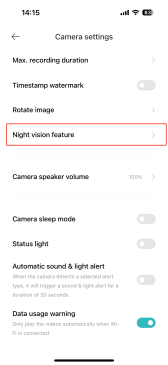
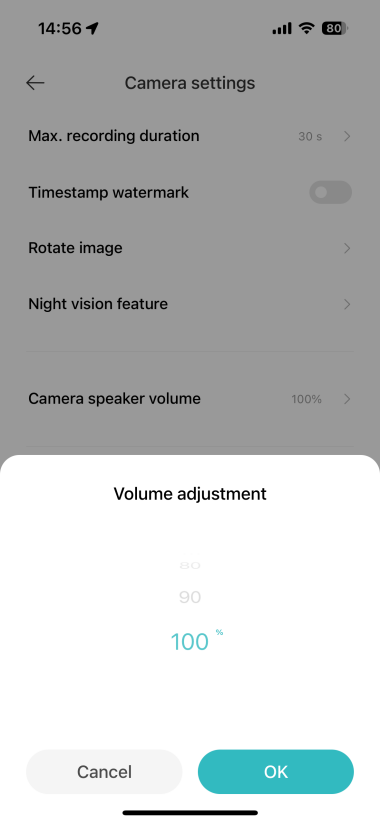
5. Camera speaker volume:
The volume percentage can be adjusted to control the camera volume.
To adjust the camera speaker volume, please refer to the following path:
Open [Mi Home] App >> select the [Device Card] >> tap the three-dot icon at the upper right corner >> Camera >> [Camera settings] >> [Camera speaker volume];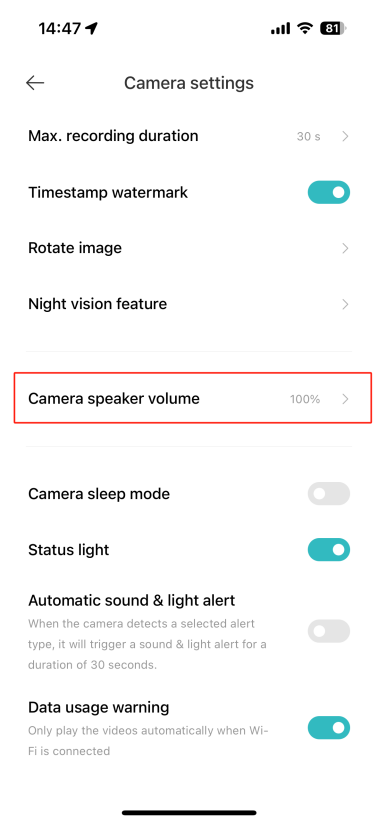
6. Sleep mode:
The sleep mode allows you to set the camera to start or stop working at a certain time (stop hibernation or start hibernation).
To turn on/off the sleep mode, please refer to the following setting paths:
Open [Mi Home] APP >> select the [Device Card] >> tap the three-dot icon at the upper right corner >> Camera >> [Camera settings] >> [Sleep mode];
7. Status light:
Xiaomi Outdoor Camera BW300 has a status indicator that can be turned on or turned off based on your preferences and environmental needs.
To turn on/off the indicator on the camera, please refer to the following steps:
Go to [Mi Home] APP >> select the [Device Card] >> tap the three-dot icon at the upper right corner >> Camera >> [Camera settings] >> [Status light];
8. Automatic sound & light alert:
Xiaomi Outdoor Camera BW300 comes with the movement detection feature. After you turn on this feature, sound and light alerts will be activated whenever movement is detected.
To enable the camera to make alerts when movement is detected, please refer to the following steps:
Go to [Mi Home] APP >> select the [Device Card] >> tap the three-dot icon at the upper right corner >> Camera >> [Camera settings] >> [Automatic sound & light alert];
9. Data usage protection:
Xiaomi Outdoor Camera BW300 comes with a data usage warning feature that alerts your data usage, enabling you to control your consumption and avoid additional charges.
To enable the data usage alert, please refer to the following steps:
Go to [Mi Home] APP >> select the [Device Card] >> tap the three-dot icon at the upper right corner >> Camera >> [Camera settings] >> toggle [Data usage protection] as your preference.
4. Q: How to adjust the sensitivity level of motion detection for the Xiaomi Outdoor Camera BW300?
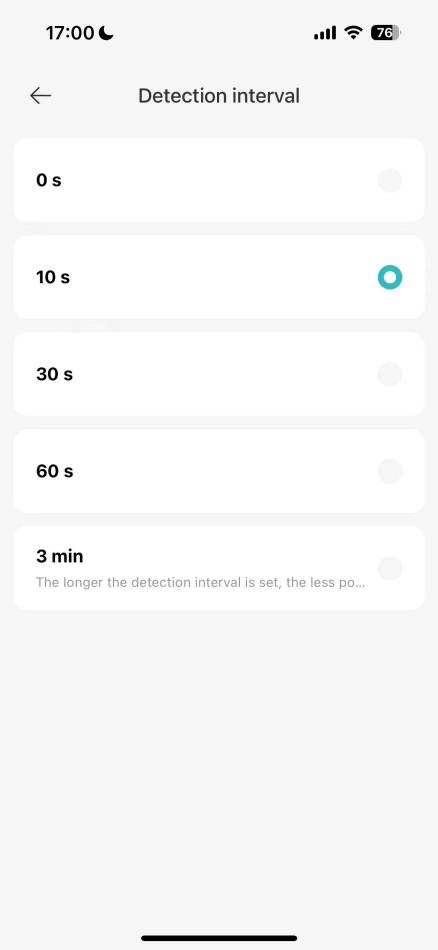
A: Xiaomi Outdoor Camera BW300 can set the Home surveillance time period/ sensitivity level/ Alarm interval of motion detection after binding the Mi Home APP.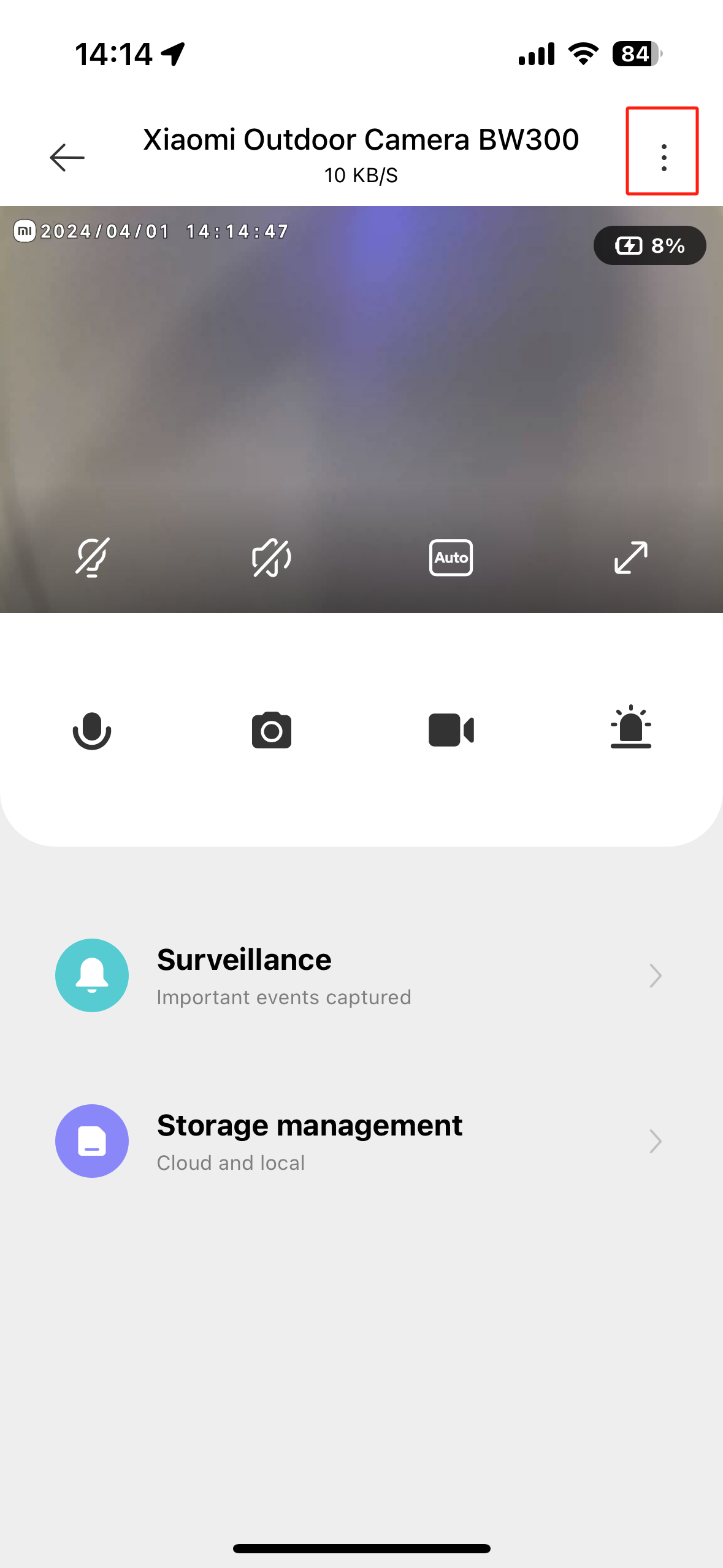
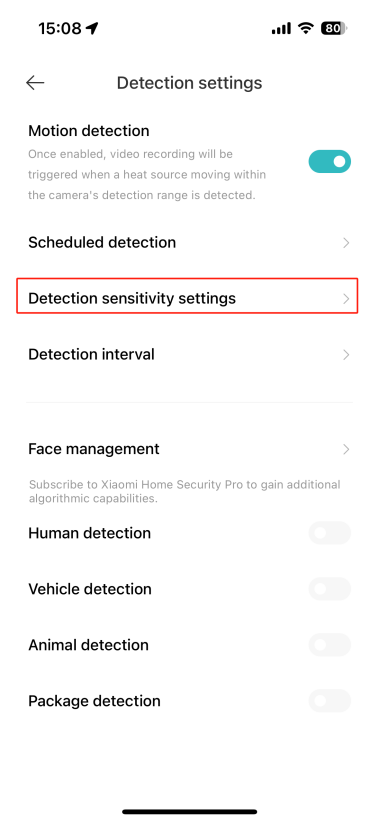
1. Alarm interval:
Specify the camera to detect during a specific period of time.
To set the alarm interval, please refer to the following steps:
Go to [Mi Home] APP >> select the [Device Card] >> tap the three-dot icon at the upper right corner >> Camera >> [Camera settings] >> [Detection sensitivity settings]; 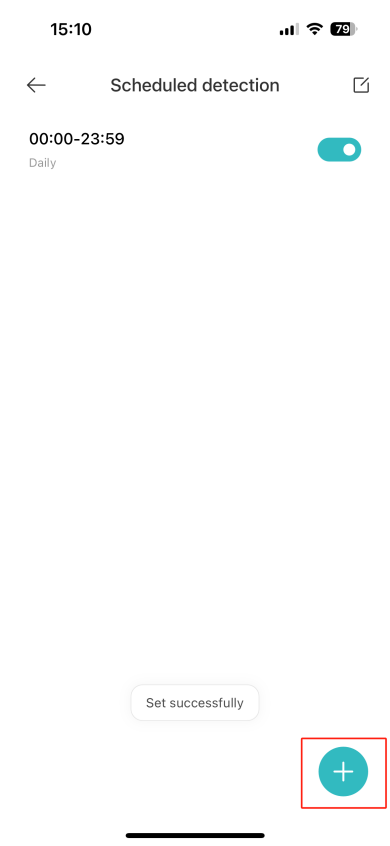
2. Partition sensitivity:
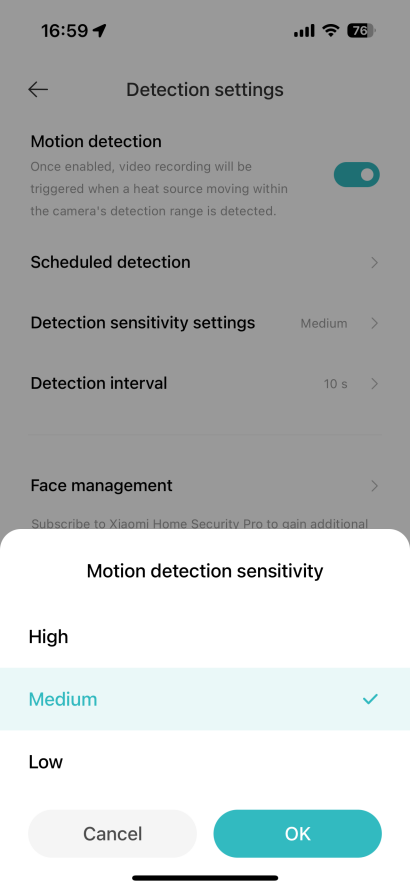
Divided into high sensitivity, medium sensitivity, and low sensitivity; (set to high: the screen changes little and can be recognized; Set to low: the screen changes greatly and can be recognized;)
To adjust the sensitivity level of motion detection, please refer to the following steps:
Go to [Mi Home] APP >> select the [Device Card] >> tap the three-dot icon at the upper right corner >> Camera >> [Camera settings] >> [Home monitoring] >> [Partition sensitivity settings] >> Select among [High], [Medium], and [Low] according to your needs;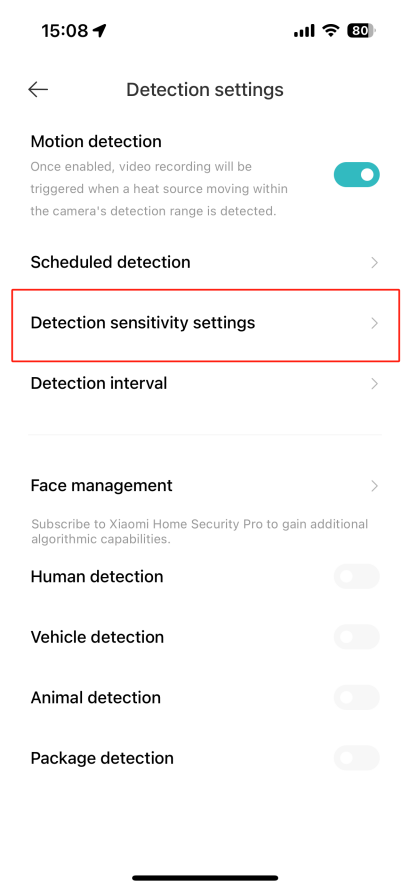
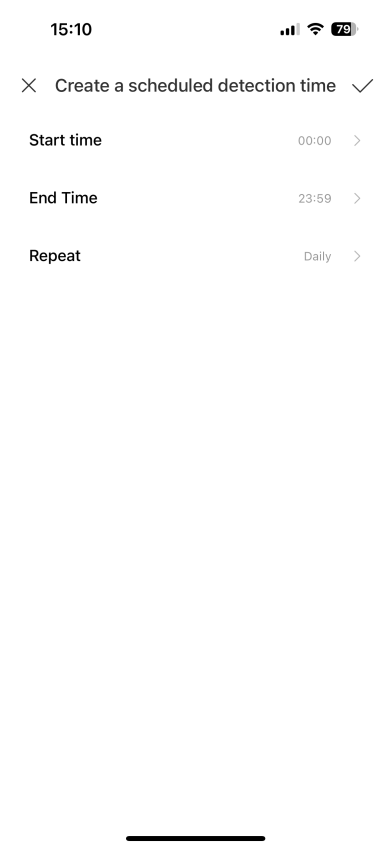
3. Home surveillance time period:
You can set up full-day care or set up time-based care.
To set a schedule for when the camera should start monitoring events, please refer to the following steps:
Go to [Mi Home] APP >> select the [Device Card] >> tap the three-dot icon at the upper right corner >> select your camera >> [Camera settings] >> [Home monitoring] >> [Home surveillance time period] >> Select among [0s], [30s], [60s] and [3min] according to your needs.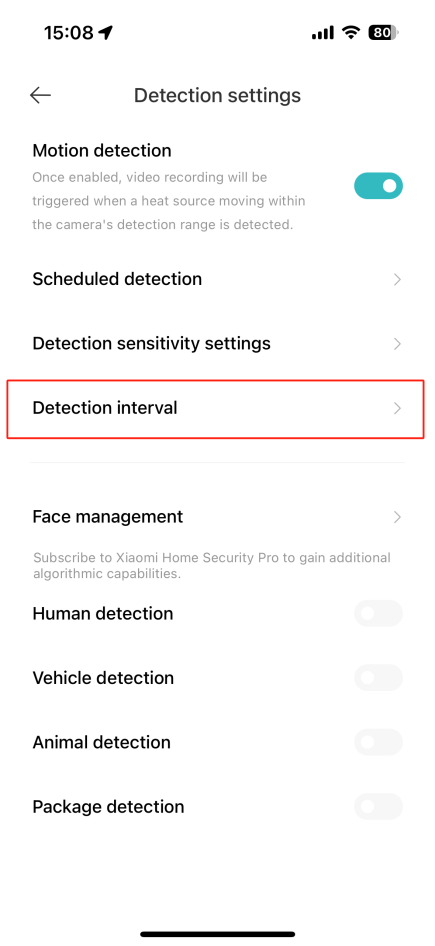
5. Q: How to set up the Home monitoring for the Xiaomi outdoor camera BW300?
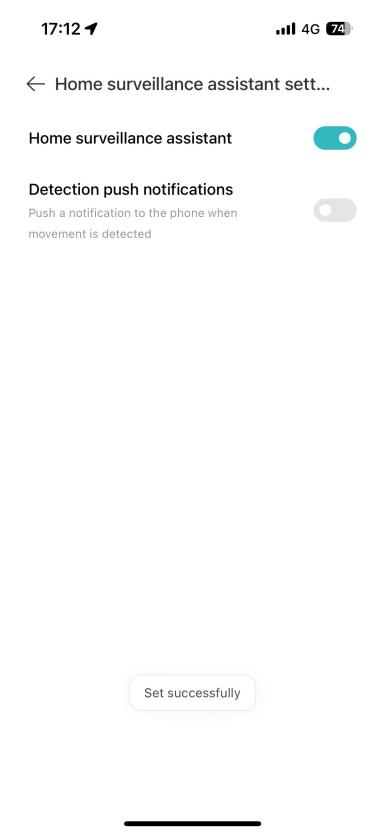
A: After the camera is bound to the Mi Home APP, you can set the Detection push notifications/Event notification type of the Home surveillance assistant to watch the important events captured.
1. Home surveillance assistant:
When a scene change is detected, a message will be pushed to the mobile phone.
To customize notifications, please refer to the following path:
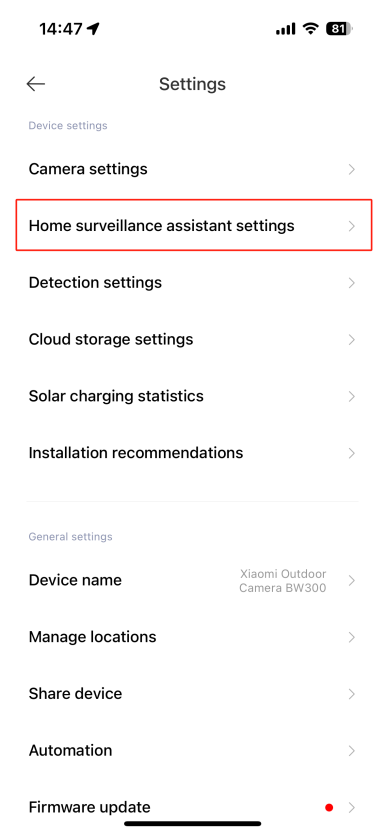
Go to [Mi Home] APP >> select the [Device Card] >> tap the three-dot icon at the upper right corner >> Camera >> [Camera settings] >> [Home surveillance assistant] >>[Detection push notifications]; 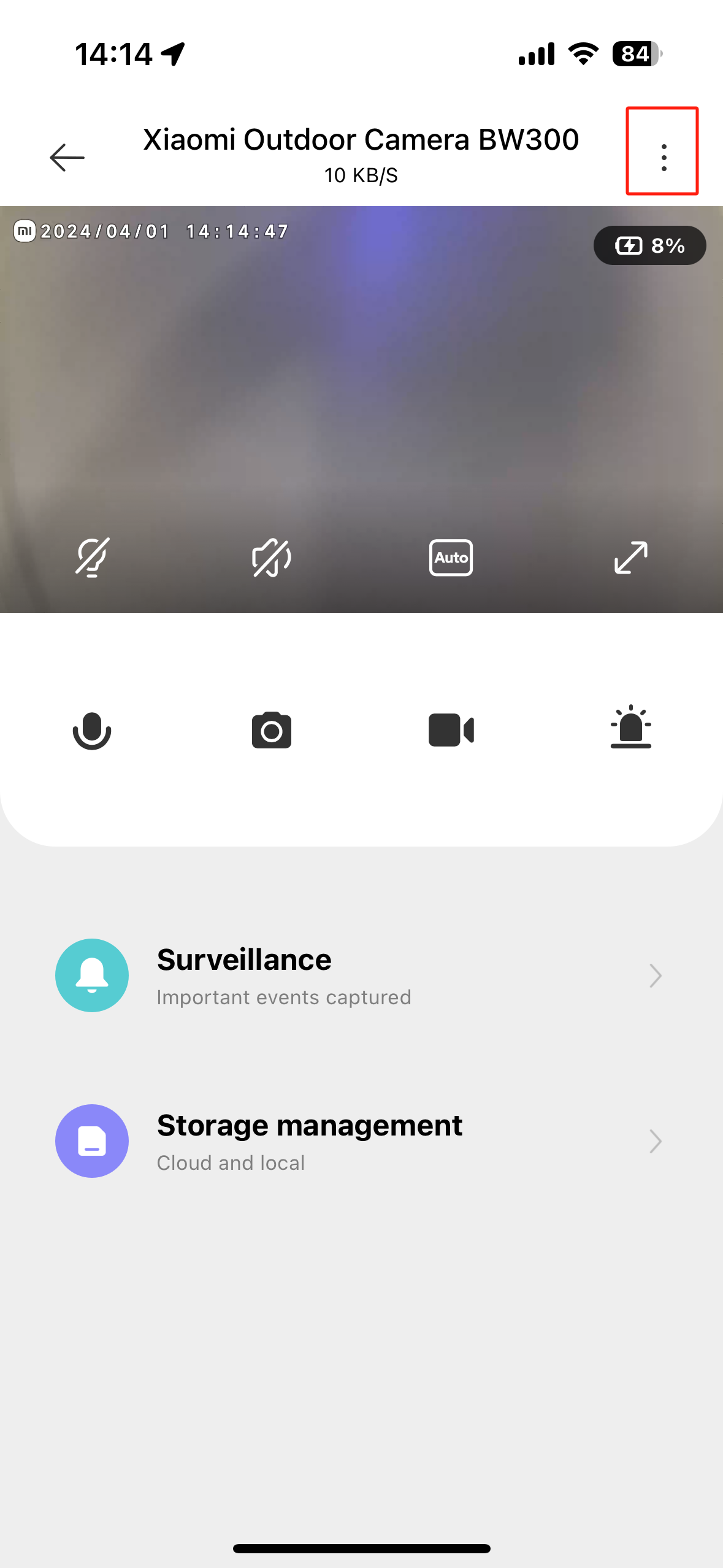
2. Event notification type:
The type of push event is managed and can be set for motion detection/person moving/vehicle moving/animal detection/package detection.
To customize the Event notification type, please refer to the following steps:
Go to [Mi Home] APP >> select the [Device Card] >> tap the three-dot icon at the upper right corner >> Camera >> [Camera settings] >> [Home surveillance assistant] >> [Event notification type].
6. Q: How to manage the storage of Xiaomi Outdoor Camera BW300?
A: To manage the storage of Xiaomi Outdoor Camera BW300, please refer to the following steps:
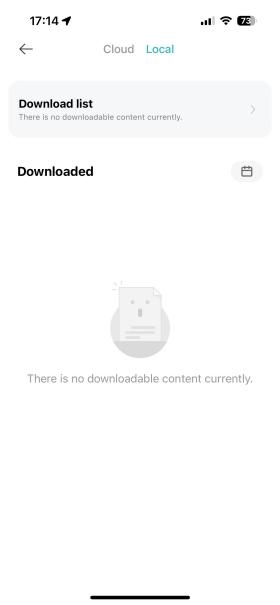
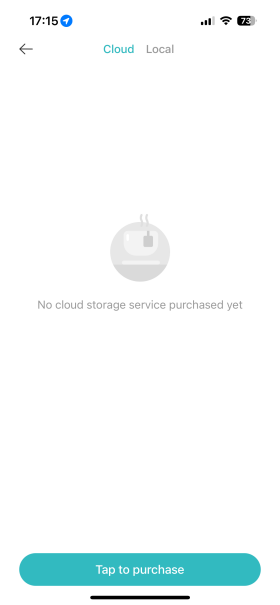
Go to [Mi Home] APP >> select the [Device Card] >> tap the three-dot icon at the upper right corner >> [Storage management] >> you can set the video storage in cloud storage/local.
1. Local:
When you download videos or pictures to the phone locally, you can view the screenshots saved in the Xiaomi Home APP as well as the recorded videos;
2. Cloud Storage:
The cloud storage function of this product means that the alarm message video pushed by the camera when it detects a change in the picture will be saved in the cloud for 3 days free of charge, and relevant Settings can be made in the Mi Home APP.
After connecting the Mi Home APP, the alarm message push is enabled by default. If the function is turned off, there is no video push and storage;
3. SD card:
When the camera uses the SD card of the base station for storage, you can go to the associated base station page to view and manage the storage content.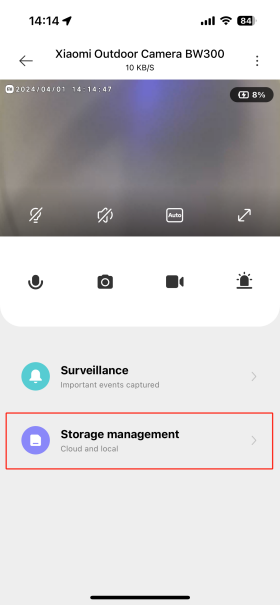

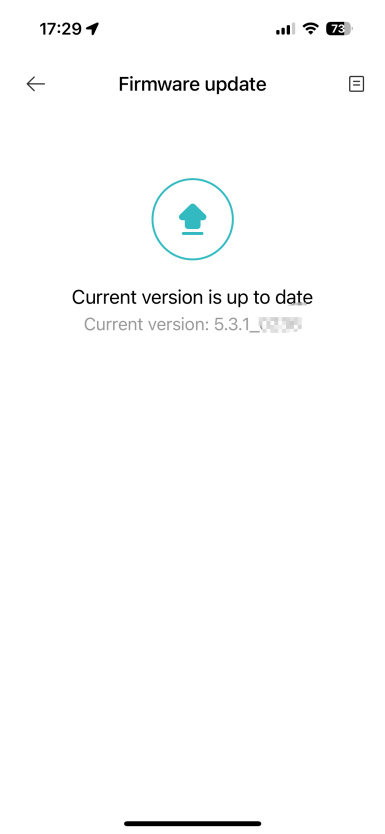
7. Q: How to update the firmware on the Xiaomi Outdoor Camera BW300?
A: To update the firmware on your camera, please refer to the following steps:
Go to the [Mi Home] APP >> select [Device Card] >> tap the three-dot icon at the upper right corner >> [Firmware update] >> check if the firmware of the camera is up to date.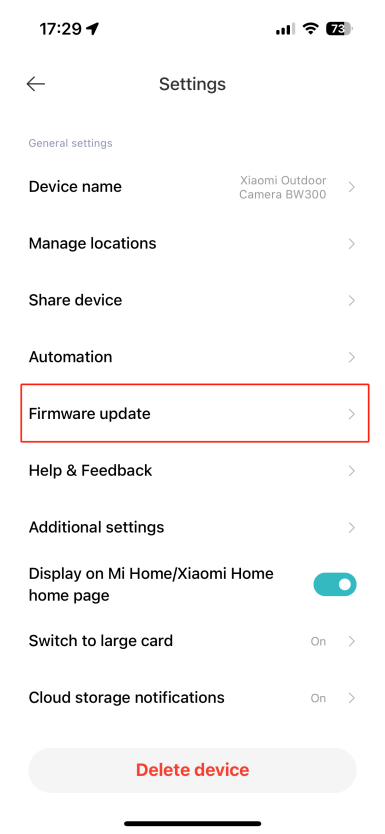
8. Q: How to check Motion detected Surveillance on Xiaomi Outdoor Camera BW300?
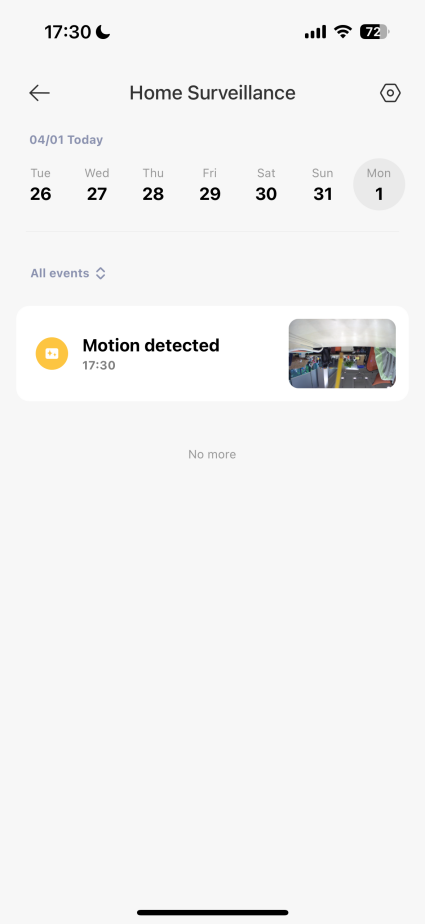
A: To check Motion detected Surveillance on Xiaomi Outdoor Camera BW300, please refer to the following steps:
Go to the [Mi Home] APP >> select [Device Card] >> [Surveillance] >> select the date/video type you want to view.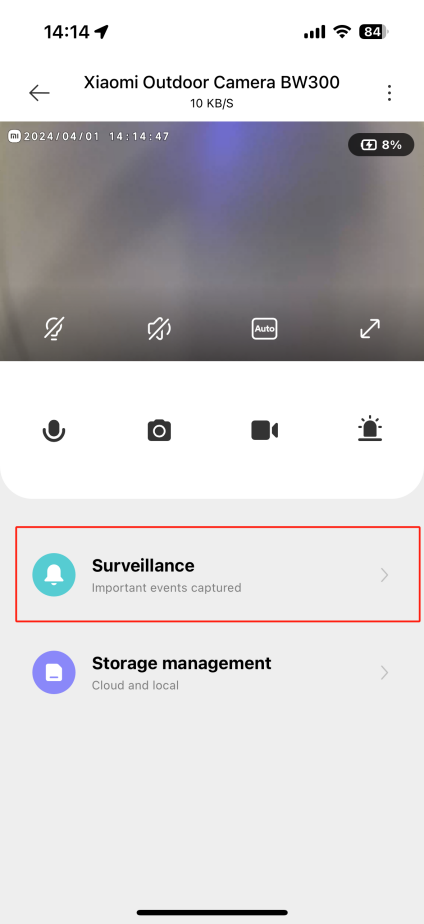
Note:
1. Video Sharing:
You can share the recording alarm video directly with others through Facebook and so on;
2. Video Download:
Tap the video download can directly download the video to the local album of your cell phone;
3. Video Delete:
Tap the button, the video can be deleted.
9. Q: How to purchase cloud storage for the Xiaomi Outdoor Camera BW300?
A: To purchase cloud storage for your Xiaomi Outdoor Camera BW300, please refer to the following steps:
Go to the [Mi Home] APP >> select [Device Card] >> tap the three dot icon at the upper right corner >> [Storage management] >> [Cloud] >> [Purchase].
10. Q: What are the execution and trigger conditions for creating smart scenes with Xiaomi Outdoor Camera BW300?
A: Xiaomi Outdoor Camera BW300 supports the creation of smart scenes with the following trigger conditions, such as: [Device sleep], [The battery level is less than 10%, please charge it in time] and [Device wake up].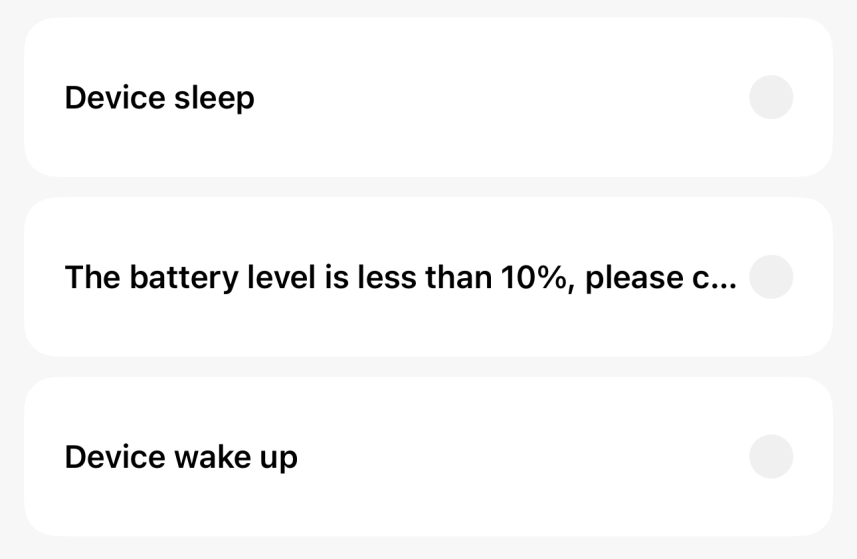
11. Q: Does Xiaomi Outdoor Camera BW300 support access to HomeKit?
A: No.
12. Q: What systems version of the phone can Xiaomi Outdoor Camera BW300 support?
A: Android 6.0 or iOS10 and above, and the too low version will not work properly.
13. Q: How can the Xiaomi Outdoor Camera BW300 use Google, Alexa voice assistant function?
A: To select Google/Alexa voice assistant, please refer to the following path:
Go to the [Mi Home] APP >> [Profile] >> [Voice assistant] >> select Google/Alexa Account you prefer.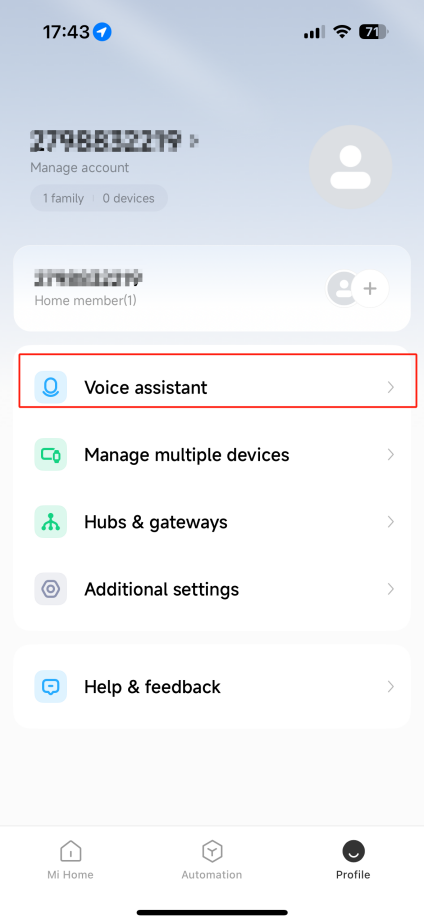
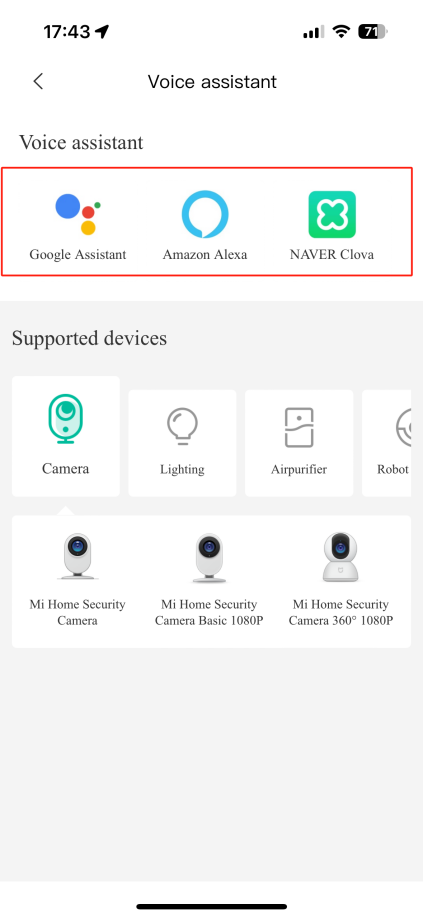
Functions:
1. Disconnect the device from the Google Home or Amazon Alexa APP;
2. Please try some commands and use the camera name you created when setting up your system;
For example:
(1). “Google/Alexa, show me btv’s front yard”;
(2). “Google/Alexa, show me the garage camera on the living room TV”;
(3). “Google/Alexa, stop”.
3. Discover new smart devices through the Smart Home menu in the Google Home app or through Google Voice Control. Once you've found the device, you can use the following voice commands to view the camera's live stream.
(1). “Google/Alexa, show me [Device name]”;
(2). "Google/Alexa, show [Device name]".
Troubleshooting
1. Q: What should I do if I can't hear the sound or murmur when viewing the real-time surveillance of Xiaomi Outdoor Camera BW300?
A: To troubleshoot the sound issue, please refer to the following steps:
1. The default of the Mi Home APP is to turn off the volume of the live video. You can open the volume button in the video window of the Mi Home APP. If the volume is small, you can turn up the volume of your phone;
2. Check whether the camera microphone hole is blocked;
3. If there is noise in the live video, keep your phone away from the camera and avoid placing the camera next to electronic devices such as refrigerators and microwaves.
2. Q: What should I do if the video stutters or the picture is not synchronized with the sound when viewing the camera screen on Xiaomi Outdoor Camera BW300?
A: To troubleshoot the issue, please refer to the following steps:
1. When the video stutters or displays loading frequently, please switch the sharpness of the video to Auto or Smooth mode;
2. When the picture is not synchronized with the sound, please check whether the network that the camera is connected to is normal or not. If the delay is too large, try to exit the video and re-enter.
3. Q: What to do if Xiaomi Outdoor Camera BW300 can't hear the sound on the camera side during a call?
A: Please refer to the following troubleshooting steps:
1. Check whether the sound on the cell phone side is adjusted too low, resulting in no sound;
2. Check whether the Mi Home APP has obtained permission to use the microphone (recording) of the phone. If not, please open the relevant permission in the phone settings.
4. Q: How to deal with the abnormal use of the memory card of Xiaomi Outdoor Camera BW300? (Base station)
A: Please refer to the following troubleshooting steps:
1. Please use the special memory card produced by the regular manufacturer for the car recorder or camera;
2. Please make sure that the camera has been installed in the camera to meet the requirements of the memory card. No memory card installed in the camera can not store video recording and look back at the history of the video;
3. If the memory card doesn't record video or the memory card can't delete files automatically and cyclically, you can format the memory card in the storage settings of the camera APP plug-in;
4. If you can't format the memory card in THE APP, you can format the memory card on your computer through a card reader. After finishing formatting, power off the camcorder and reload the memory card.
Note:
The files in the memory card will be deleted after formatting.
5. Q: What should I do if the orange light is always on and the Xiaomi Outdoor Camera BW30 can't be used normally?
1. If the orange light is always on when connecting to the APP, it means the camera can't connect to the network or can't be bound to the account. Please check if the account password is correct and the network meets the camera's requirements;
2. If you have successfully connected to the APP and suddenly the orange light is always on and cannot be used, please check whether the network is normal. If it still can't be used, you can reset the device to re-allocate the network.
6. Q: What should I do if I forgot the password in the security settings of the Xiaomi Outdoor Camera BW300?
A: Delete the device in the Mi Home APP, then reset the camera. Hold it for about 5 seconds, and then add the camera to the Mi Home APP again.
7. Q: Why does Xiaomi Outdoor Camera BW300 whistle during a voice call?
A: During a voice call, please try your best not to place the phone and the device in the same space, and stay away from the device for more than 10 meters, the echo whistling generated by the close call is a normal phenomenon.
8. Q: How to deal with the blurred shooting picture and no shooting picture when the Xiaomi Outdoor Camera BW300 is in night vision?
A: 1. Please make sure the camera's lens is clean and dust-free;
2. Please check whether the lens enters into the range that can't be shot (lens angle is blocked). If so, move the lens out of the blocking range.
9. Q: What should I do if the indicator of Xiaomi Outdoor Camera BW300 does not light up?
A: Enter the main interface of the camera's real-time surveillance from the Mi Home APP, tap the three-dot icon at the upper right corner to enter the camera settings, tap the status light button and turn the status light on.
10. Q: What should I do if the video of Xiaomi Outdoor Camera BW300 in the memory card has sound when I watch it on my phone, but there is no sound when I watch it on my computer?
A: This problem is caused by the incompatibility of video playback software on the computer. You can replace the computer player to try. You can try to change the computer player, such as the VLC player.
11. Q: What to do when viewing the Xiaomi Outdoor Camera BW300 real-time monitoring, the video is stuck and the picture is not synchronized with the sound?
A: To resolve the issue, please refer to the following troubleshooting steps:
1. Restart the device to see if it will return to normal;
2. Whether the memory card is often hot plugging and unplugging, plugging and unplugging the memory card needs to be operated in the case of camera power failure. Often hot plugging and unplugging will cause the performance of the memory card to degrade, resulting in abnormal problems in the recorded video;
3. Whether the memory card reading rate is too low, it is recommended to use U3 type memory card;
4. Replace the memory card.
12. Q: What to do if the Xiaomi Outdoor Camera BW300 cannot recognize the memory card?
A: To solve the issue, please refer to the steps as below:
1. Reboot the device;
2. Check whether the camera firmware version and the Mi Home APP version need to be updated;
3. Clear the Mi Home APP data;
4. Replace the memory card.
Note:
Memory cards have a lifetime of service. If you use a card for a long period of time, it may cause the memory card to be erased multiple times and never used again. In this case, it is recommended that you replace the memory card with a different brand.
13. Q: What to do if Xiaomi Outdoor Camera BW300 cannot be turned on?
A: The battery may be exhausted. Please fully charge it before use and then turn it on.
If it still cannot be turned on, please contact after-sales service.
14. Q: Why my Xiaomi Outdoor Camera BW300 can't connect to the Mi Home APP?
A: 1. Check the Mi Home APP version, which requires Android 6.5.701/iOS: V6.5.202.1 and above (too low can directly delete the APP and re-download);
2. Check the Mi Home APP permissions;
Note:
Navigation, location, and Bluetooth features must be turned on.
3. After connecting the camera for the first time and powering on, wait 4 or 5 seconds for the indicator to flash in yellow before proceeding to the next step;
4. Connect through Wi-Fi: The phone is required to connect only 2.4G network (be sure to carefully read the APP operation step reminders);
5. Try to reconnect the camera to the network. You need to press and hold the power button for more than 7 seconds and then start the next step after you hear "Reset Successful", and follow the binding process prompted by the APP to operate after the reset is successful.
15. Q: Do I need to unbind Xiaomi Outdoor Camera BW300 to change my Xiaomi account?
A: If you need to change your Xiaomi account to bind the Xiaomi Outdoor Camera BW300, you need to do the following two steps:
1. Unbind by pressing and holding the device card on the homepage of the Mi Home APP and selecting [Delete] or enter the device settings of the device plug-in and select [Delete Device] to unbind;
2. Press and hold the camera button for 7s to reset the device.
16. Q: What is the reason that the Xiaomi Outdoor Camera BW300 is not sensitive to human detection, lacks recording content and fails to capture people?
A: It may be caused by the low sensitivity in the camera detection settings and customize the settings in Mi Home app to adjust the sensitivity.
1. High sensitivity: the coverage is about 7 meters;
2. Medium sensitivity: about 5 meters or so;
3. Low sensitivity: about 3 meters.
At the same time, the camera will detect the alarm video after a period of time after recording. In order to reduce the frequency of video push (to prevent disturbances), you can also choose a different interval time. Mainly because the camera uses lithium battery as energy supply, hope you can use it for a longer time after one charge, and also can meet the basic security needs before setting the interval time.
17. Q: Can the recording time be adjusted on the Xiaomi Outdoor Camera BW300?
A: Currently the device supports 10 seconds, 30 seconds, 60 seconds and 2 minutes of video recording.
18. Q: What is the situation that the Xiaomi Outdoor Camera BW300 has unclear picture and halo in night vision?
A: The product factory default will recognize the strength of the ambient light to switch between daytime and night vision monitoring modes. The camera installation location will also affect the video shooting effect, such as the installation of night light location will not open the night vision mode (next to the lighting, reflective objects, etc.), or the phenomenon of halo, and do not cover the circular area below the camera. The lens should avoid the front and side near the glass, white walls and other reflective objects, so as not to cause the screen near the bright, dark or white phenomenon in the distance. Please install it away from infrared reflective objects such as walls. It is recommended to install the camera in the air without walls within 40cm above, below, left and right.
The lower right corner of the picture below is the reflected light from the wall under infrared rays, which affects the picture in the actual shooting area (center point).
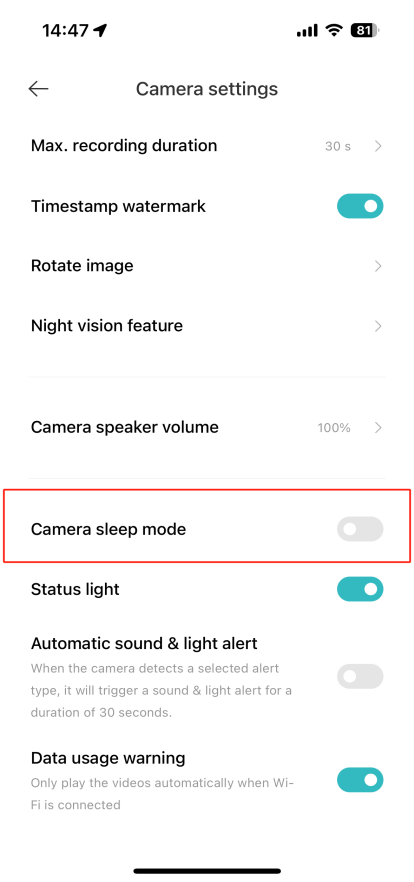
19. How to adjust the Camera sleep mode of Xiaomi Outdoor Camera BW300?
A: Camera sleep mode: you can set the camera to start working or stop working at regular intervals (enable/disable Sleep mode).
To adjust the sleep mode, please refer to the following path:
Go to the [Mi Home] APP >> select [Device Card] >> tap the three-dot icon at the upper right corner >> [Camera] >> [Camera settings] >> [Camera sleep mode].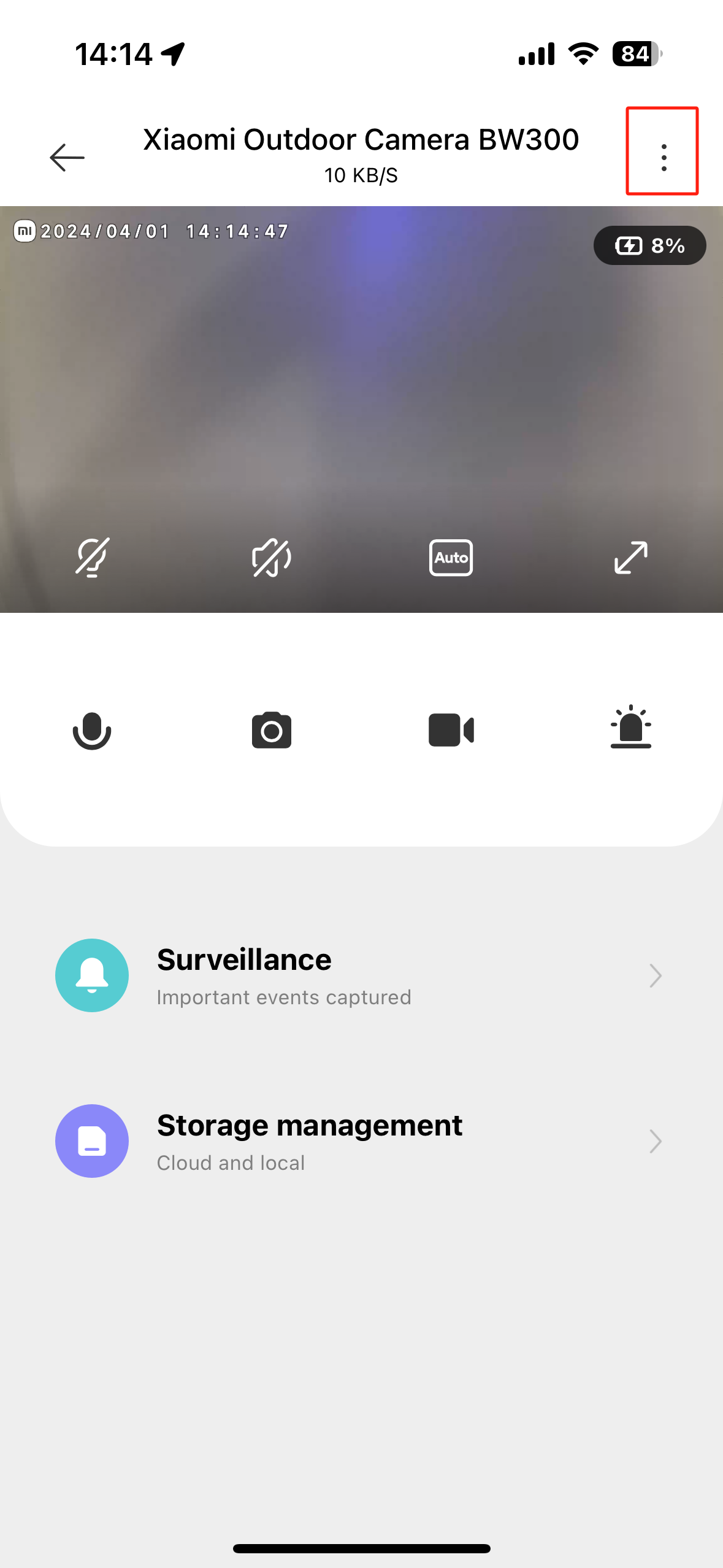
20. Q: If it is inconvenient to drill holes when installing the Xiaomi Outdoor Camera BW300, can I use double-sided tape to stick it on?
A: Xiaomi Outdoor Camera BW300 is recommended to use expansion screws to fix. Because double-sided tape is not guaranteed for long-term use. To avoid damage caused by the outdoor camera falling, it is not recommended to use double-sided tape to fix it.
21. Q: What to do if the QR code is damaged and cannot be scanned on the Xiaomi Outdoor Camera BW300?
A: Camera binding process:
1. Please make sure the camera is fully charged or in a powered state;
2. Open the [Mi Home] APP >> Tap [+] at the upper right corner >> select [Add device] >> enter the device model number "BW300" to search >> [Device reset] >> select [Wi-Fi] >> [Connect to the device's Wi-Fi] >> [Connect manually] >> enter the 4-digit number broadcast by the camera >> wait for the binding to be successful.
22. Q: What to do if Xiaomi Outdoor Camera BW300 drains fast?
A: Please refer to the following troubleshooting steps:
1. Xiaomi Outdoor Camera BW300 has a built-in 4900mAh high-capacity rechargeable battery. Typical use mode can realize 120 day long life. Test conditions: Open night vision function, the default black and white night vision; motion detection in the sensitivity of the trigger; daytime plus night recording 20 times a day; daily daytime live broadcasting 1 time (30 seconds / time); night live broadcasting 2 times a week (30 seconds / time); two-way Call: 2 times a week (30 seconds / time); sound and light alarm: 2 times a week (30 seconds / time);
2. The duration may be caused by the following reasons:
Use the full-color night vision function, the surrounding environment triggers the frequency of events, frequently view the live video, try to switch the night vision mode in the APP, adjust the detection sensitivity and detection interval, reduce the frequency of viewing to observe whether there is an improvement. It is recommended to use with solar panels;
3. When you receive a new device, please bind the Mi Home APP first, update the firmware and then use it fully charged;
4. Cameras installed in indoor or heavy traffic, frequent triggering of the camera video, will significantly reduce the battery life;
5. Outdoor camera single charge takes about 3 hours, support for external power supply equipment power supply (such as power cord, charging treasure, etc.);
6. Low temperature environment or charging state use of this product will affect the standby time. Please do not use the live screen preview function for a long time in the charging situation, so as not to lose battery life.
Note:
1. Please make sure to use a standardized and safe charger (5V-2A);
2. Please note that the battery life of each camera may vary depending on the number of motions detected, recording duration, and ambient temperature.
Here are some tips to reduce your power consumption:
1. Reduce the working time of the camera under too high or too low-temperature conditions, and the camera supports working in the environment of -20℃~55℃;
2. Ensure that the signal strength between the camera and the indoor unit is strong. Also, check the Wi-Fi signal;
3. In the detection settings, select only humanoid detection instead of all detection types, and reduce the detection sensitivity by going to [Function Settings] >> [Motion Detection].
23. Q: What to do if the Mi Home app prompts that the Xiaomi Outdoor Camera BW300 is offline?
A: Tap [Help] for quick self-examination of common problems.
1. Check whether the device is powered off or has a power loss;
2. Try to reboot the router that the camera is connected to;
3. Check the status of the camera's indicators;
(1). Blue light blinking:
The camera is networking or being upgraded;
(2). Orange light is always on:
The camera networking timeout. Please try to rewire the network;
(3). Orange light is blinking:
The camera has been reset. Please try to reconnect the network.
4. Please try to place the device as close as possible to the router;
(1). Reduce obstacles such as walls and doors;
(2). The larger the RSSI value of the device network, the stronger the signal theoretically;
(3). Recommended RSSI value is greater than -50 (recent RSSI value is -72).
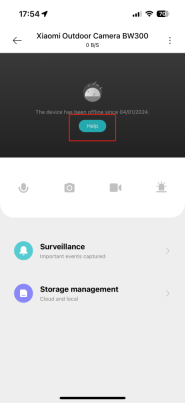
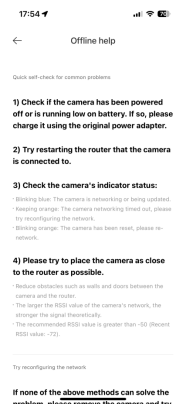
5. If none of the above methods solve your problem, please remove the camera and try repairing the network;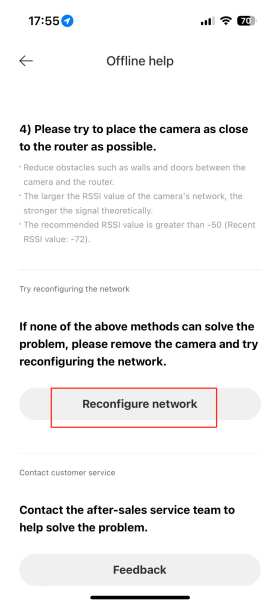
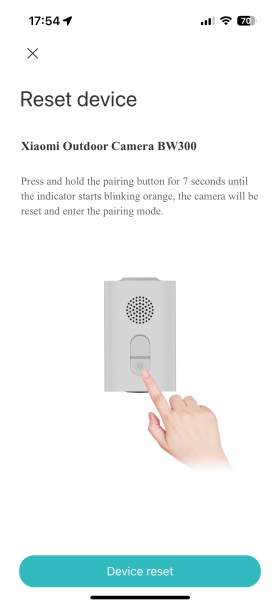
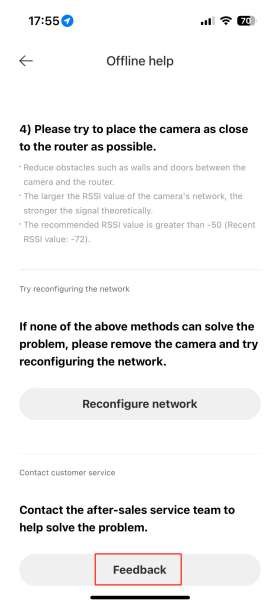
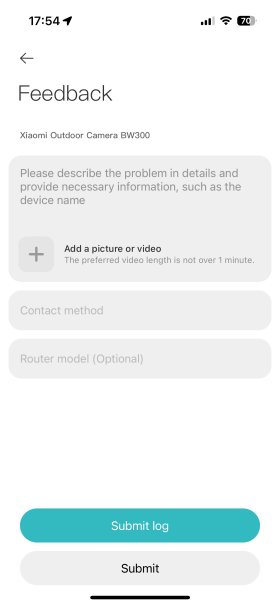
6. Contact after-sales service to help solve the problem and submit user feedback.
24. Q: What should I do if the Xiaomi Outdoor Camera BW300 phone can't receive alarm notifications or other messages?
A: To troubleshoot the message issue, please refer to the following steps:
1. Detect the firmware update the latest version;
2. If the live video opens normally, judge whether the network is normal;
3. If the live video opens normally, you can re-switch the indoor/outdoor camera to see if there are event messages.
25. Q: What to do if I cannot hear the sound on the camera side during a call on the Xiaomi Outdoor Camera BW300?
A: 1. Check if the Mi Home APP has obtained permission to use the microphone (recording) of the mobile phone. If you have not obtained the permission, please turn on the relevant permissions in the settings of the mobile phone.
iOS device:
In the system settings, enable the microphone permission of the Mi Home APP;
Android device:
In the application permission management of the system settings, enable the microphone or recording permission of the Mi Home APP.
2. Check if the sound on the mobile phone is turned down too low resulting in no sound.
26. Q: What should I do if the video picture is unclear or dirty on the Xiaomi Outdoor Camera BW300?
A: 1. Tear off the lens protective film before use;
2. Wipe the lens with a soft cloth to keep it clean.
27. Q: How to check the camera battery level on the Xiaomi Outdoor Camera BW300?
A: View the battery level icon in the upper right corner of the camera preview screen in the Mi Home App plugin for the camera.
28. Q: Why is the picture distorted on the Xiaomi Outdoor Camera BW300?
A: The camera uses a large wide-angle lens, so it is a normal phenomenon that the edges of the screen may be distorted.
29. Q: What should I do if my Xiaomi Outdoor Camera BW300 is often offline and cannot watch real-time surveillance or receive notification?
A: To troubleshoot the issue, please refer to the following troubleshooting steps:
1. Check the camera status and the message video pushed by the Mi Home APP in time to rule out abnormalities such as lost or blocked cameras;
2. Ensure that the indoor unit is normally turned on and the network connection is stable;
3. Ensure that the camera is normally turned on, and the network connection is stable, and it is within the effective communication distance with the indoor unit.
Does it help?