

Xiaomi Smart Camera C400 FAQ
Features
1.Q: What are the features of the Xiaomi Smart Camera C400?A:1.Updated to a 4MP camera with a resolution of 2560x1440, Xiaomi Smart Camera C400 can deliver amazing 2.5K videos with all the subtle details that are true to life.
2.Combined with the 6P lens, the camera effectively reduces light refraction. As a result, the images are so clear as if you are on the spot and seeing them for yourself.
3.Night vision with no visible red glow for clearer and safer monitoring
4.360° rotation for full coverage
2.Q: How is the security and privacy of the Xiaomi Smart Camera C400 guaranteed?
A: Xiaomi Smart Camera C400 has a built-in Mi Home security chip, which effectively guarantees the security of communication and storage. The whole process of data transmission is encrypted, and the data in the cloud is encrypted with AES128 bits to ensure security and privacy.
3. Q : What does the standard configuration of Xiaomi Smart Camera C400 include?
A: Xiaomi Smart Camera C400 ×1 , User manual ×1 , Power cable ×1 , Wall mount accessories package ×1.
4. Q : What is the power supply method of Xiaomi Smart Camera C400 ?
A: 5V2A adapter power supply, in order to ensure the normal use of the function, be sure to use the original adapter. This camera does not have a built-in power supply and needs to be powered for a long time.
Note: Xiaomi Smart Camera C400 is a Type-C power supply interface, it is recommended to use the original power cord when using the device and adapters.
5. Q : What is the specification of the Xiaomi Smart Camera C400 power cord?
A:The Xiaomi Smart Camera C400 power cable is 2m long and the use of an extension cable is not recommended as it may cause the device to This may lead to abnormal use of the device.
6. Q : What are the installation methods for Xiaomi Smart Camera C400 ?
A: Xiaomi Smart Camera C400 can be placed and installed in a variety of ways. It can be placed on flat objects such as desks, dining tables, coffee tables, etc., or the camera can be fixed on the wall.
7. Q : What are the steps to install Xiaomi Smart Camera C400 on the wall?
A: 1. According to the hole distance of the base, use a drilling tool to make two holes on the wall. It is recommended to use a pencil to make a good job on the wall before drilling
Mark and punch holes. The drilling diameter is about 6mm, and the hole depth is about 30mm;

2. Nail two plastic expansion nuts into the wall;
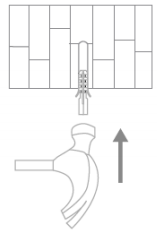
3. Put the side of the base marked with the arrow upwards, align the hole of the base with the hole on the wall, put the screw through the hole of the base, and use the Phillips screw. The knife is screwed into the expansion nut on the wall.
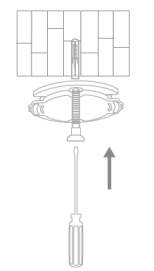
4. Align the groove at the bottom of the camera with the raised part on the base, and after the buckle is installed, turn it clockwise until it is locked in place
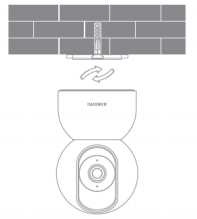
Note:
1. The installation wall needs to withstand more than 3 times the total weight of the camera;
2. In order to prevent injury, the device must be firmly fixed on the floor/wall according to the installation instructions;
3. After installing upside down the camera , you need to rotate the screen settings in the screen settings by 180° in the Mi Home App ;
8. Q : How to turn on Xiaomi Smart Camera C400 ?
A: Plug the power cord of the camera into the type-C power jack on the rear of the camera, plug the power cord into the adapter and turn on the power, and the camera will automatically turn on. To shut down the camera, you need to cut off the power.
1. The orange light of the indicator light flashes to indicate that the boot is successful. If the indicator light is not blinking orange, press and hold the reset button to restart.
2. Do not twist the head of the camera to force it to rotate after turning on the camera. If the lens positioning is not accurate, it can be calibrated through the Mi Home App .
9. Q : What status indicators does Xiaomi Smart Camera C400 have? What do they mean?
A: There is an indicator light, which will display blue or yellow;
Steady blue: successful connection/normal status; flashing blue: abnormal network;
Fast flashing orange : Waiting for connection; Slow flashing orange: Upgrading in progress.
10. Q : How to install Micro SD card in Xiaomi Smart Camera C400 ?
A: The MicroSD card slot of Xiaomi Smart Camera C400 is under the camera lens. First, make sure that the camera is powered off, and turn the lens upward to expose the MicroSD card slot. Insert the MicroSD card with the contact side facing down into the card slot. Can.
Note: When installing or taking out the MicroSD memory card, it is necessary to cut off the power of the camera before operating.
11. Q : What type of Micro SD card should I use for Xiaomi Smart Camera C400 ?
A: Xiaomi Smart Camera C400 should use a MicroSD card produced by a regular manufacturer, preferably a special card for security monitoring. MicroSD card supports a maximum capacity of 256GB (256GB, MicroSD card in exFAT format needs to enter Mi Home
The camera plug-in page in the APP can only be used after being formatted into FAT32 format in Settings->Storage Settings)), it is recommended that the read and write speed of the memory card should not be lower than U1/Class10.
12. Q : How long can the memory card store video?
A: A 256GB memory card is expected to store about 28 days of video time.
A 128GB memory card is expected to store about 14 days of video.
A 64GB memory card is expected to store about 7 days of video time.
A 32GB memory card is expected to store about 3 days of video.
A 16GB memory card is expected to store about 36 hours of video.
The video quality recorded into the memory card is 2.5K (1440P) quality.
13. Q : How to reset Xiaomi Smart Camera C400 to factory settings?
A: If you need to change the network connected to the camera or bind the Mi Home App , you need to press the reset button above the power jack for 5 seconds to restore the camera to factory settings when the camera is powered on, and then reconnect to the APP.
A factory reset will not delete the contents of the MicroSD memory card.
14. Q : Does Xiaomi Smart Camera C400 support infrared night vision function?
A: Support. Xiaomi Smart Camera C400 can automatically switch to night vision mode at night according to the change of surrounding light.
The camera has an infrared night vision light, the night vision distance can reach 10 meters, and it can shoot clearly in the dark.
15. Q : Can Xiaomi Smart Camera C400 rotate 360 °?
A: No. Xiaomi Smart Camera C400 supports 360° panoramic viewing angle, only the lens can rotate the shooting angle to 360°, not the body can rotate 360°. The up and down rotation angle is 60°, and the left and right rotation angle is 355°
Note: The camera adopts a dual-motor gimbal design, which supports 360° horizontal viewing angle and 106° vertical viewing angle.
16. Q : Can Xiaomi Smart Camera C400 be used in other regions ?
A: No. Due to the differences in the voltage environment and network in different regions, it may not be available or the use effect may not be ideal when used in other regions . So it is not recommended to use in other regions .
17. Q : Does Xiaomi Smart Camera C400 support NAS dump function?
A: Not supported.
18 .Q : Where can I check the SN number of Xiaomi Smart Camera C400 ?
A: The SN number can be viewed from the back of the product package and the bottom of the camera.
19. Q : What is the lens of Xiaomi Smart Camera C400 like?
A: 1. Xiaomi Smart Camera C400 adopts a 4 million high-definition pixel lens with a resolution of up to 2560×1440;
2. The F1.4 large aperture lens can capture the details of the picture even in weak light.
20. Q : Can Xiaomi Smart Camera C400 be installed outdoors ?
A: It is not recommended for outdoor installation. Xiaomi Smart Camera C400 is an indoor camera, not waterproof and dustproof. If it is used outside, please make sure that it will not be exposed to rain. If water enters in rainy days, it will damage the camera.
21.Q : Does the Xiaomi Smart Camera C400 need to be plugged into a power source? Or is it battery powered?
A: It needs to be connected to the power supply. The camera does not contain batteries and must be plugged in for use. Please be sure to use the original 5V2A adapter.
22.Q : Does Xiaomi Smart Camera C400 support two-way voice calls?
A: Support. Xiaomi Smart Camera C400 has built-in dual microphones and uses active noise reduction technology to eliminate speaker echo and effectively improve the call experience.
23.Q : Does the Xiaomi Smart Camera C400 support continuous shooting of videos to the memory card even when the network is disconnected?
A: Yes, it can continuously record videos to the memory card when the network is disconnected. The premise is that the device has been successfully connected to the Internet once. When the device is powered off or disconnected from the network, the memory card video review only supports taking out the memory card from the device and viewing it on the computer, not in the Mi Home App .
24.Q : Does the Home Surveillance , cloud storage, and MicroSD card videos recorded by Xiaomi Smart Camera C400 have sound?
A: The videos recorded in these recording formats all have sound. However, if double-speed playback is enabled, it will play silently by default, which is normal.
In addition, every time you enter the camera monitoring screen or enter the cloud storage, memory card video playback interface, it will be played silently by default. If you want to play the sound normally, please click the mute button to restore the sound.
25. Q : When using Xiaomi Smart Camera C400 , what should be paid attention to?
A: 1. The applicable working temperature of this product is -10°C~50°C, please do not use this product in an environment where the temperature is too high or too low;
2. This product is a precision electronic product. Please do not use this product in an environment that is excessively humid or may cause water to enter the product.
not affect the normal use;
3. For your better use of this product, avoid the front and side of the lens close to reflective objects such as glass and white walls, so as to avoid the phenomenon that the near part of the picture is bright, and the far part is dark or whitish;
4. Please make sure that this product is installed within the coverage of WiFi signal, and place it in a location with better WiFi signal as much as possible. Try to install it away from metal and microwave ovens that may affect the signal;
5. This device supports 2.4GHz/5GHz WiF connection. Make sure the router is closer to the device, and do not use Chinese or special characters in the home WiFi name and password, otherwise it will fail to connect or disconnect.
APP related
1. Q : How to connect Xiaomi Smart Camera C400 to Mi Home App ?
A: On the ios side: Mi Home App -> "+" in the upper right corner -> select scan -> operate according to the prompts on the page (press and hold the reset button for 3 seconds until the indicator light flashes orange) -> wait for binding Just succeed. It is recommended to use the "scan" method for binding on the ios side.
Android: Open the Mi Home App -> Press and hold the reset button on the device body for 3 seconds until the indicator light flashes orange -> "+" in the upper right corner -> select "Add Device", -> wait for Mi Home to automatically Just search for nearby devices -> wait for the binding to succeed.
2. Q : Can the monitoring screen of Xiaomi Smart Camera C400 be zoomed in, and how many times can it be zoomed in?
A: The monitoring screen supports magnification, up to 6 times of screen magnification.
On the camera monitoring interface, pinch two fingers to zoom in and out. The mark below is the magnification of the screen.
3. Q : How to set sleep mode for Xiaomi Smart Camera C400 ?
A: 1. Enter the camera monitoring screen, click the sleep button, and the device will immediately enter the sleep state.
2. Mi Home App -> select the camera -> "..." in the upper right corner -> camera settings -> sleep settings -> you can directly turn on sleep or set a scheduled sleep.
Clicking directly on the sleep device will immediately enter the sleep state. If you want to set a time period to sleep, you can first set the time to automatically sleep without clicking sleep.
4. Q : How to configure screen settings for Xiaomi Smart Camera C400 ?
A: Mi Home App -> select the camera -> click "..." in the upper right corner -> camera settings -> screen settings -> you can choose to turn on/off the time watermark on the monitoring screen, turn on lens distortion correction, turn on/off Wide dynamic range mode, rotate the monitoring screen 180°(This setting is required when the camera is installed upside down).
1. Time watermark, lens distortion correction
2. Wide dynamic range display
3. Screen rotation
5. Q : How to calibrate the gimbal of Xiaomi Smart Camera C400 ?
A: Mi Home App -> select the device -> click "..." in the upper right corner -> camera settings -> calibration, wait for the device to be calibrated successfully.
This operation can be performed when the device cannot automatically return the lens or the lens monitoring angle cannot be adjusted accurately.
6. Q : How to restart Xiaomi Smart Camera C400 ?
A: Mi Home App -> select the device -> click "..." in the upper right corner -> camera settings -> restart the device.
When the device fails to record video, cloud storage does not upload video, Home Surveillance and other abnormal functions, you can choose to restart the device.
7. Q : How to set the night vision related functions of Xiaomi Smart Camera C400 ?
A: Mi Home App -> select the device -> click "..." in the upper right corner -> camera settings -> night vision function settings -> select the switch micro
Light full color, night vision function automatically switch/always on/always off.
If the night vision function is always turned on, the low-light full-color function will not take effect and the screen will always be in black and white or black.
It is recommended that users choose to switch automatically.
8. Q : How to enable the traffic protection function of Xiaomi Smart Camera C400 ?
A: Mi Home App -> select the device -> click "..." in the upper right corner -> camera settings -> turn on/off traffic protection function.
After this function is enabled, the monitoring screen will not be played automatically under the mobile network.
Note: Videos recorded in cloud storage and memory cards will be played automatically, and are not limited by the traffic protection function.
9. Q : What are the functions of the buttons on the real-time monitoring interface of Xiaomi Smart Camera C400 ?
A: The real-time interface buttons are as shown in the figure below: the sleep, mute, image quality adjustment, and full-screen buttons need to be clicked on the real-time monitoring screen to appear.
1. Dormancy: Click this button and the camera can directly enter the dormancy state. After the camera enters the dormant state, it cannot be monitored any more.
And any work such as video recording.
When you don’t need to shoot, you can click “ ” on the control interface
 of Xiaomi Smart Camera C400 in Mi Home App to enter sleep.
2. Mute button: Every time you enter the camera, the default monitoring interface is the mute interface. If you want to have sound when viewing the monitoring screen,
Click the mute button to turn on the sound.
3. Sharpness: You can adjust the sharpness of the monitoring picture here, optional: 480P, 2.5K, automatic (auto means that the camera will
Automatically adjust the picture definition in the network environment).
4. Full screen: Click this button, the camera monitoring screen will enter the horizontal screen interface.
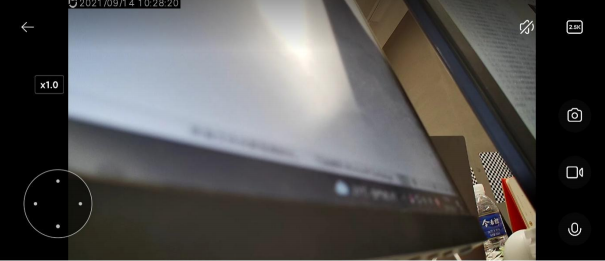
5. Voice call: Click the microphone button to make a remote call with the camera through the Mi Home App on the mobile phone.
6. Screenshot: You can take a screenshot of the current monitoring screen, and a picture will be generated and saved to the local album and Mi Home App .
7. Screen recording: Click the screen recording button to record the current monitoring interface and save the video to the local photo album and Mi Home App middle.
8. PTZ control; click this button, the PTZ control interface will pop up, which can control the camera to turn up, down, left, and right.
10. Q : What is the AI function setting of Xiaomi Smart Camera C400 ?
A: The AI function of Xiaomi Smart Camera C400 is to create a face recognition function, which needs to be paid to open cloud storage to use. After activation, if someone moves in front of the camera lens and recognizes the face that has been created, a message will be sent to the mobile phone "*** appeared". If the face in the face recognition note is "Mom", the message "Mom has appeared" will be pushed.
11. Q : How does Xiaomi Smart Camera C400 perform humanoid tracking settings?
A: Mi Home App -> Camera -> "..." in the upper right corner -> Camera Settings -> Humanoid Tracking ON/OFF.
12. Q : How to set Home Surveillance for Xiaomi Smart Camera C400 ?
A: Mi Home -> Camera -> Home Surveillance -> Settings in the upper right corner -> You can set Home Surveillance on/off -> Home Surveillance time period, sensitivity setting, alarm time interval, alarm message push on/off, push event.
1. Time period for housekeeping: You can set up all-day care or time-divided care;
2. Partition sensitivity setting: divided into high sensitivity and low sensitivity selection;
3. Alarm time interval: The alarm time interval can be divided into 3/5/10/30 minutes for selection; (you can choose the system preset time period interval by yourself, and you cannot customize the interval time)
4. Push event: push event is divided into three types for selection, screen change push/care area someone moves push/smart scene trigger push. If you close this push event, you will no longer receive related push messages.
Home Surveillance is turned on , each mobile video can be recorded for about 9 seconds and stored in the cloud. The videos in Home Surveillance will be rolled over every 7 days.
Note: Videos in Home Surveillance cannot be deleted in batches;
You can also use Home Surveillance without purchasing a memory card/cloud storage .
13. Q : How does Xiaomi Smart Camera C400 review the video in the memory card?
A: Mi Home App -> select the camera -> watch back -> select SD card -> view the video according to your needs.
When the camera is disconnected from the network/power, the video in the memory card cannot be viewed in the Mi Home App . You can take out the memory card and view the video in the memory card on the computer through a card reader.
Different colors below represent different recording events, you can directly drag the time axis to the position of the color according to your needs to watch the recording control events. Gray indicates that no events occurred during this time period.
Each video in the memory card is 1 minute long and can be deleted in batches.
14. Q : How to format the memory card of Xiaomi Smart Camera C400 ?
A: Mi Home App -> Camera -> "..." in the upper right corner -> Storage Settings -> Memory Card Status -> Format Memory Card.
Formatting the memory card will clear all the videos in the memory card, please save the video first.
15. Q : Xiaomi Smart Camera C400 about MicroSD card video download, cloud storage download, storage path, what is the format after downloading?
A: The video downloaded from the MicroSD card is an mp4 file under DCIM—*a folder named after did*.
Cloud storage video download Android in the local path in the -data-com.xiaomi.smarthhomoe-files-*did*-*cloud storage number* folder, store videos in ts format, and generate m3u8 files for control play. The iOS side does not currently support saving cloud storage videos directly to the local.
16. Q : How to update the firmware of Xiaomi Smart Camera C400 ?
A: Mi Home App -> Camera -> "..." in the upper right corner -> Firmware Upgrade -> If there is an update, please update the firmware in time.
17. Q : Does Xiaomi Smart Camera C400 support access to HomeKit ?
A: Not supported.
18.Q : How does Xiaomi Smart Camera C400 view cloud storage video surveillance video?
A: Mi Home App -> find the camera -> directly click the cloud storage button, sometimes the cloud storage button is blocked by the gimbal button, click the PTZ button to see the cloud storage button.
19. Q : Does Xiaomi Smart Camera C400 support panoramic drawing function?
A: Not supported.
20.Q : Is the volume adjustable when the Xiaomi Smart Camera C400 is making a voice call?
A: No. During a voice call, only the volume on the phone can be adjusted to adjust the sound on the phone, and the sound on the camera cannot be adjusted.
Troubleshooting
1. Q : What should I do if the Xiaomi Smart Camera C400 cannot hear the sound or there is noise when viewing the real-time video?
A: 1. Mi Home App turns off the volume of real-time video by default, you can turn on the volume button in the video window of Mi Home App ; if the volume is low, you can increase the volume of the phone;
2. If there is noise in the real-time video, please keep the mobile phone away from the camera, and avoid placing the camera in electronic devices such as refrigerators and microwave ovens next to equipment;
3. If the device is placed on a high place or the lens is facing down, the mic will be buried in the cavity, and the sound of the speaker will be received, forming an echo. At this time, the user needs to move the device mic out of the cavity.
2. Q : What should I do if the video freezes or the picture and sound are out of sync when viewing the camera screen on Xiaomi Smart Camera C400 ?
A: 1. When the video freezes or displays loading frequently, please switch the video definition to automatic or smooth mode;
2. When the picture and sound are not synchronized, please check whether the network connected to the camera is normal. If the delay is too large, try to exit the video
re-enter frequently.
3. Q : What should I do if the Xiaomi Smart Camera C400 cannot hear the sound on the camera side during a call?
A: 1. Check whether the sound on the mobile phone is too small to cause no sound;
2. Check whether the Mi Home App has obtained the permission to use the microphone (recording) of the mobile phone. If not, please open the relevant permission in the phone settings.
4. Q : What should I do if the history video of Xiaomi Smart Camera C400 is not continuous or smooth?
A: 1. If the video in the memory card is not continuous, it may be that only recording moving pictures is enabled. After this function is turned on, the camera will only record when the picture changes; (if the cloud storage video is not continuous, it is normal, and the cloud storage video Only recording moving pictures, not 24 hours recording)
2. If the video freezes, it may be caused by the network. Check whether there are too many devices connected to the network connected to the camera, or whether there are other devices playing video at the same time.
5. Q : What should I do if the memory card of Xiaomi Smart Camera C400 is abnormal?
A: 1. Please use a special high-speed memory card in FAT32 format produced by a regular manufacturer for driving recorders or cameras.
2. Please confirm that a memory card that meets the requirements has been installed in the camera. A camera without a memory card cannot store video and review historical video.
3. If the memory card does not record, or the memory card cannot automatically delete files, you can format the memory card in the storage settings of the camera APP plug-in.
4. If the memory card cannot be formatted in the APP, you can format the memory card on the computer through a card reader. After formatting, power off the camera and reinsert the memory card.
Note: After formatting, the files in the memory card will be deleted.
6. Q : Mi Home App What should I do if the message "device is offline / frequently offline" is displayed?
A: 1. Please check whether the camera is powered off, and make sure you are using the original adapter;
2. Please try to restart the router;
3. If the power supply of the device is normal and the network is normal, please check the indicator light of the device:
Blinking blue light: the camera is connecting to the network, if the WiFi name or password has been modified, please reset the camera and reconnect;
Yellow light flashes quickly: the camera has been reset, please reconnect;
Steady yellow light: The camera needs to be refreshed.
4. Confirm whether the camera is inserted into the memory card, pull out the memory card to see if it is still offline, because some memory cards with poor quality will
Causing the camera to go offline.
7. Q : What should I do if the blue light of Xiaomi Smart Camera C400 flashes and cannot be used normally?
A: 1. If the blue light flashes when connecting to the APP, it means that the camera cannot connect to the network, or cannot be bound to the account. Please check whether the account password is correct and whether the network meets the requirements of the camera;
2. If you have successfully connected to the APP, but suddenly the blue light flashes and cannot be used, please check whether the network is normal.
8. Q : Why does the Xiaomi Smart Camera C400 whistle when making a voice call?
A: 1. When calling, please try not to place the mobile phone and the device in the same space, and keep them away from the device by more than 10 meters. The echo and howling caused by close-range calls is a normal phenomenon;
2. If there are many electronic products near the device, electromagnetic interference will be generated, which may cause howling and noise during voice calls.
9. Q : What should I do if the shooting picture of Xiaomi Smart Camera C400 night vision is blurred or there is no shooting picture?
A: 1. Please ensure that the lens of the camera is clean and dust-free;
2. Please check whether the lens is blocked by debris. If so, please turn the gimbal or move the camera position in the Mi Home App to move the lens out of the blocked area.
10. Q : What should I do if the indicator light of Xiaomi Smart Camera C400 is not on?
A: From the Mi Home App , enter the camera's real-time video main interface, click "..." in the upper right corner, enter the camera settings, click the status light button, and turn on the status light.
11. Q : Why does the video in the memory card have sound when viewed on the mobile phone, but silent when viewed on the computer?
A: This problem is caused by the incompatibility of the video playback software on the computer. You can try to replace the computer player.
12. Q : What should I do if the video recorded in the memory card is incoherent, and the picture and sound are out of sync?
A: 1. Restart the device to see if it will return to normal;
2. Whether the memory card is inserted and removed frequently . Plugging and unplugging the memory card needs to be done when the camera is powered off. Frequent plugging and unplugging will cause the performance of the memory card to decline, resulting in abnormal problems in the recorded video;
3. Whether the reading rate of the memory card is too low;
4. Replace the memory card (the memory card is recommended to use a memory card that meets the requirements , otherwise there will be many problems, such as incoherent recording, always prompting memory abnormalities, etc.) .
13. Q : What should I do if the camera cannot recognize the memory card?
A: 1. Restart the device;
2. Check whether the camera firmware version and the Mi Home App version need to be updated;
3. Clear the Mi Home App data (clearing the data will cause the cloud storage videos downloaded by the user to be cleared);
4. Replace the memory card.
Note: Memory cards have a service life. If a card is used for a long time, it may cause the memory card to be erased many times and cannot be used again . Be sure to ask the user to replace the brand memory card.
14. Q : What should I do if the Xiaomi Smart Camera C400 is stuck and does not turn?
A: 1. Power off and restart the device;
2. Mi Home App ->Camera->Click on the upper right corner...->Settings->Restart the device . The camera still cannot be turned, please apply for after- sales service.
15. Q : What should I do if the firmware upgrade of Xiaomi Smart Camera C400 fails?
A: The upgrade failure is generally due to poor network or abnormal server , please try again in another network environment; if the network is unblocked , just change the time zone and try again.
16. Q : What should I do if the memory card does not record video or the video in the card cannot be deleted cyclically?
A: 1. Check whether the camera firmware and Mi Home App version need to be updated;
2. Enter Mi Home App -> Camera -> "..." in the upper right corner -> Storage Management -> Check whether the storage switch is turned off or turned on to record only when motion is detected;
3. Format the memory card in the Mi Home App (formatting the memory card will clear the video, and the video can be backed up before formatting);
4. If the memory card cannot be formatted in the Mi Home App , you can format the memory card on the computer through a card reader. After formatting, power off the camera and reinstall the memory card;
5. The failure of the memory card to record video is mostly related to the memory card itself. You can replace the memory card to see if the problem recurs.
17. Q : Xiaomi Smart Camera C400 always rotates by itself, what should I do?
A: In the Mi Home App -> select the camera -> click "..." in the upper right corner -> camera settings, turn off the humanoid tracking function. After the humanoid tracking function is turned on, the camera will rotate with the screen when it detects movement, and will return to its original position to continue monitoring after the rotation is completed.
18. Q : What should I do if the Xiaomi Smart Camera C400 freezes while watching high-definition video on iPhone 6/6S ?
A: This camera is 4 million pixel high-definition video recording . Due to the limited CPU computing power of iPhone6/6S series models, it will cause freezes when watching high-definition videos. It is recommended to switch to smooth mode to watch.
Does it help?
Yes
No