

The picture does not match with the screen of the Xiaomi TV Box S (2nd Gen).
If the picture on your Xiaomi TV Box S (2nd Gen) does not match the screen, you can try the following troubleshooting steps:
Scenario 1:
If the issue only occurs when you are using a specific app, please refer to the following methods:
1. Ensure that the HDMI cable is firmly connected to both the Xiaomi TV Box S (2nd Gen) and the TV screen. If possible, use a different cable to eliminate the possibility of a faulty cable;
2. Turn off both your Xiaomi TV Box S (2nd Gen) and your TV, unplug them from the power source, wait for a minute, and then plug them back in and power them on;
3. If possible, connect the Xiaomi TV Box S (2nd Gen) to another TV to see if the issue persists. This can help determine whether the problem is with the Xiaomi TV Box S (2nd Gen) or the TV screen;
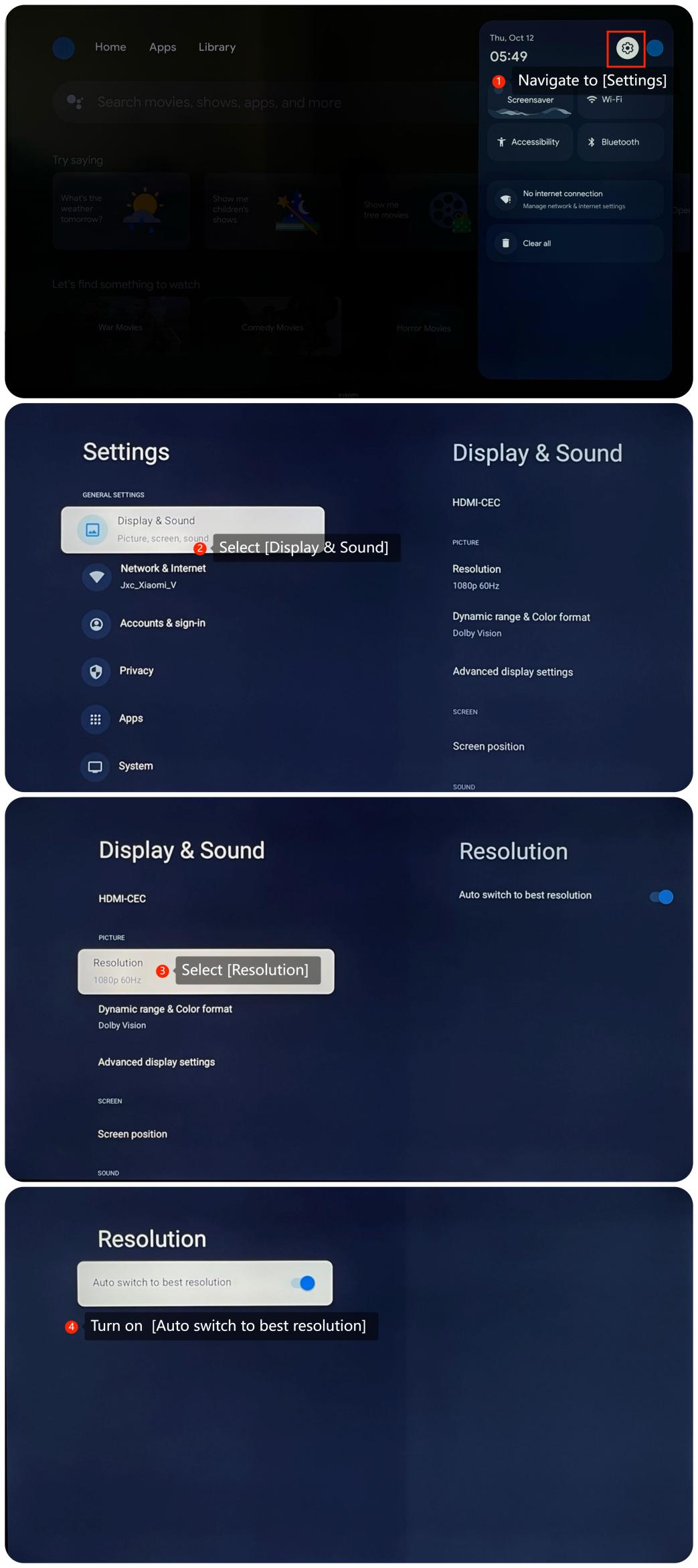
4. Ensure that the resolution settings on your Xiaomi TV Box S (2nd Gen) are compatible with your TV. You may need to adjust the resolution by navigating to [Settings] >> [Display & Sound] >> [Resolution] >> [Auto switch to best resolution];
5. Check for updates for the app. An outdated app can cause issues;
6. If the issue persists, you can consider uninstalling and reinstalling the specific app;
7. Sometimes, system updates may resolve relative issues. You can check for system updates by going to [Settings] >> [System] >> [About] >> [System update]. If it is the latest version, a message will appear on the screen indicating that your system is up to date;
8. As a last resort, you can try performing a factory reset by going to [Settings] >> [System] >> [About] >> [Reset]. Please note that the operation will erase all the data, so be sure to back up important information before proceeding.
Scenario 2:
If the issue occurs when you connect other storage devices to the Xiaomi TV Box S (2nd Gen) using the USB port and watch the contents inside, please refer to the following methods:
1. Ensure that the storage device is firmly connected to the Xiaomi TV Box S (2nd Gen). Check for physical damage on the USB port. If possible, use another storage device to see if the issue persists;
2. Unplug the storage device, wait for a minute, and then plug it back in;
3. Confirm that the external device and its settings are compatible with your Xiaomi TV Box S (2nd Gen);
4. Check if the content you’re watching has any specific picture settings. You can try to play other content in this storage device to confirm the origin of the problem.
Scenario 3:
If the issue occurs when you are using casting on your Xiaomi TV Box S (2nd Gen), please refer to the following methods:
1. Make sure that both your casting device and the TV are connected to the same Wi-Fi network;
2. On your casting device, check the screen mirroring or casting settings. Make sure you have selected the correct casting device and the settings are correct;
3. Ensure that the content being played from the casting device doesn't have display issues from their source or affected during downloading or copying.
If the above troubleshooting methods can’t resolve the issue, please contact our local official service center or your seller for further assistance. They will help you in this regard.
Scenario 1:
If the issue only occurs when you are using a specific app, please refer to the following methods:
1. Ensure that the HDMI cable is firmly connected to both the Xiaomi TV Box S (2nd Gen) and the TV screen. If possible, use a different cable to eliminate the possibility of a faulty cable;
2. Turn off both your Xiaomi TV Box S (2nd Gen) and your TV, unplug them from the power source, wait for a minute, and then plug them back in and power them on;
3. If possible, connect the Xiaomi TV Box S (2nd Gen) to another TV to see if the issue persists. This can help determine whether the problem is with the Xiaomi TV Box S (2nd Gen) or the TV screen;
4. Ensure that the resolution settings on your Xiaomi TV Box S (2nd Gen) are compatible with your TV. You may need to adjust the resolution by navigating to [Settings] >> [Display & Sound] >> [Resolution] >> [Auto switch to best resolution];
5. Check for updates for the app. An outdated app can cause issues;
6. If the issue persists, you can consider uninstalling and reinstalling the specific app;
7. Sometimes, system updates may resolve relative issues. You can check for system updates by going to [Settings] >> [System] >> [About] >> [System update]. If it is the latest version, a message will appear on the screen indicating that your system is up to date;
8. As a last resort, you can try performing a factory reset by going to [Settings] >> [System] >> [About] >> [Reset]. Please note that the operation will erase all the data, so be sure to back up important information before proceeding.
Scenario 2:
If the issue occurs when you connect other storage devices to the Xiaomi TV Box S (2nd Gen) using the USB port and watch the contents inside, please refer to the following methods:
1. Ensure that the storage device is firmly connected to the Xiaomi TV Box S (2nd Gen). Check for physical damage on the USB port. If possible, use another storage device to see if the issue persists;
2. Unplug the storage device, wait for a minute, and then plug it back in;
3. Confirm that the external device and its settings are compatible with your Xiaomi TV Box S (2nd Gen);
4. Check if the content you’re watching has any specific picture settings. You can try to play other content in this storage device to confirm the origin of the problem.
Scenario 3:
If the issue occurs when you are using casting on your Xiaomi TV Box S (2nd Gen), please refer to the following methods:
1. Make sure that both your casting device and the TV are connected to the same Wi-Fi network;
2. On your casting device, check the screen mirroring or casting settings. Make sure you have selected the correct casting device and the settings are correct;
3. Ensure that the content being played from the casting device doesn't have display issues from their source or affected during downloading or copying.
If the above troubleshooting methods can’t resolve the issue, please contact our local official service center or your seller for further assistance. They will help you in this regard.
Does it help?
Yes
No