

Cannot watch online videos smoothly or the content buffers for too long on the the Xiaomi TV Box S (2nd Gen) .
If you experience issues with online video playback on your the Xiaomi TV Box S (2nd Gen), such as videos not playing smoothly or buffering for extended periods, please refer to the following scenarios and steps:
Scenario 1:
If the issue only occurs when you are using a specific app, please refer to the following methods:
1. Make sure your Xiaomi TV Box S (2nd Gen) is connected to a high-speed and stable Wi-Fi network;
2. Try playing different types of content (like movies, music, or TV shows) to see if the issue persists. This can help determine if the problem is content-specific;
3. Power cycle your TV and the Xiaomi TV Box S (2nd Gen) by turning them off and unplugging them for a minute. Then, plug them back in and turn them on. This can refresh the network connection and resolve temporary issues;
4. If possible, connect the Xiaomi TV Box S (2nd Gen) to another TV to see if the issue persists. This can help determine whether the problem is with the Xiaomi TV Box S (2nd Gen) or the TV;
5. If the video streaming app allows it, manually select a lower video quality (e.g., 720p) rather than the highest available quality (e.g., 4K) if you're experiencing buffering issues;
6. Check for updates for the apps installed on the device. An outdated app can cause issues. If the issue persists, you can consider uninstalling and reinstalling the app;
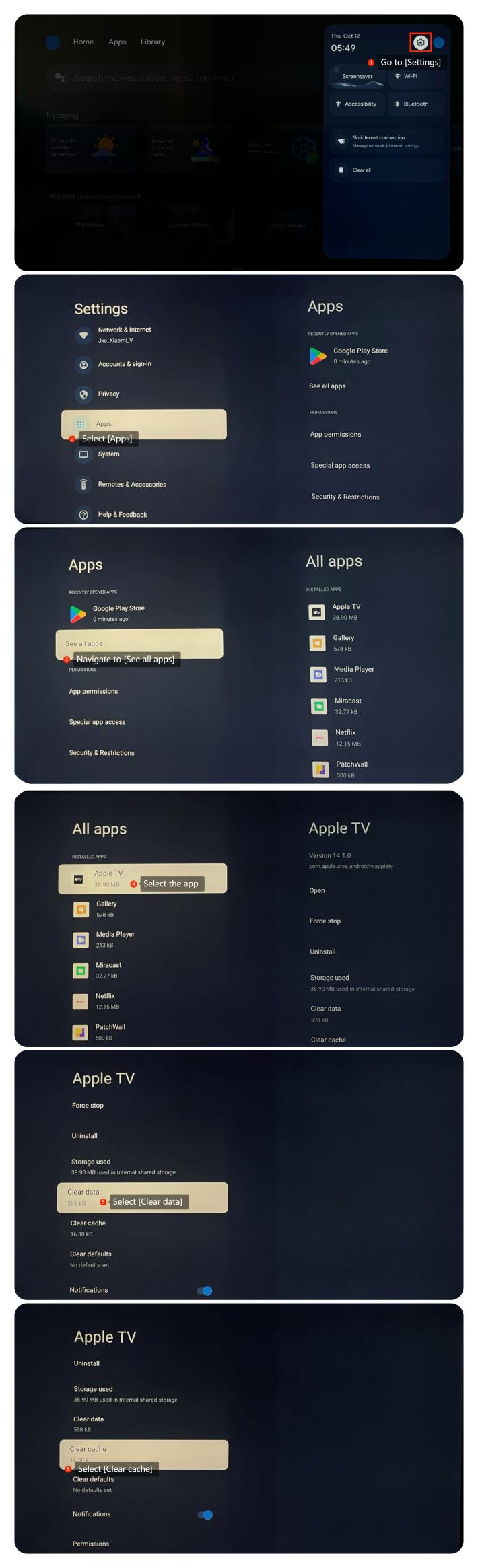
7. You can clear the cache and data for specific streaming apps. This can help resolve issues related to app performance. Go to [Settings] >> [Apps] >> [See all Apps] >> select the specific app for which you want to clear the cache and data >> [Clear Cache] or [Clear Data];
8. Sometimes, system updates may resolve relative issues. You can check for system updates by going to [Settings] >> [System] >> [About] >> [System update]. If it is the latest version, a message will appear on the screen indicating that your system is up to date;
9. As a last resort, you can try performing a factory reset by going to [Settings] >> [System] >> [About] >> [Reset]. Please note that the operation will erase all the data, so be sure to back up important information before proceeding.
Scenario 2:
If the issue occurs when you are using casting on your Xiaomi TV Box S (2nd Gen), please refer to the following methods:
1. Make sure that both your casting device and the TV are connected to the same Wi-Fi network;
2. On your casting device, check the screen mirroring or casting settings. Make sure you have selected the correct casting device and the settings are correct.
If the above troubleshooting methods can’t resolve the issue, please contact our local official service center or your seller for further assistance. They will help you in this regard.
Friendly Tips:
The recommended bit rates of the video stream are shown as below:
1. The 4K UHD video stream requires 10Mbps;
2. The 2K video stream requires 5Mbps;
3. The 720p video stream requires 2.5Mbps;
Scenario 1:
If the issue only occurs when you are using a specific app, please refer to the following methods:
1. Make sure your Xiaomi TV Box S (2nd Gen) is connected to a high-speed and stable Wi-Fi network;
2. Try playing different types of content (like movies, music, or TV shows) to see if the issue persists. This can help determine if the problem is content-specific;
3. Power cycle your TV and the Xiaomi TV Box S (2nd Gen) by turning them off and unplugging them for a minute. Then, plug them back in and turn them on. This can refresh the network connection and resolve temporary issues;
4. If possible, connect the Xiaomi TV Box S (2nd Gen) to another TV to see if the issue persists. This can help determine whether the problem is with the Xiaomi TV Box S (2nd Gen) or the TV;
5. If the video streaming app allows it, manually select a lower video quality (e.g., 720p) rather than the highest available quality (e.g., 4K) if you're experiencing buffering issues;
6. Check for updates for the apps installed on the device. An outdated app can cause issues. If the issue persists, you can consider uninstalling and reinstalling the app;
7. You can clear the cache and data for specific streaming apps. This can help resolve issues related to app performance. Go to [Settings] >> [Apps] >> [See all Apps] >> select the specific app for which you want to clear the cache and data >> [Clear Cache] or [Clear Data];
8. Sometimes, system updates may resolve relative issues. You can check for system updates by going to [Settings] >> [System] >> [About] >> [System update]. If it is the latest version, a message will appear on the screen indicating that your system is up to date;
9. As a last resort, you can try performing a factory reset by going to [Settings] >> [System] >> [About] >> [Reset]. Please note that the operation will erase all the data, so be sure to back up important information before proceeding.
Scenario 2:
If the issue occurs when you are using casting on your Xiaomi TV Box S (2nd Gen), please refer to the following methods:
1. Make sure that both your casting device and the TV are connected to the same Wi-Fi network;
2. On your casting device, check the screen mirroring or casting settings. Make sure you have selected the correct casting device and the settings are correct.
If the above troubleshooting methods can’t resolve the issue, please contact our local official service center or your seller for further assistance. They will help you in this regard.
Friendly Tips:
The recommended bit rates of the video stream are shown as below:
1. The 4K UHD video stream requires 10Mbps;
2. The 2K video stream requires 5Mbps;
3. The 720p video stream requires 2.5Mbps;
Does it help?
Yes
No