

Fail to cast the computer to the Xiaomi TV Box S (2nd Gen).
If you're having trouble casting your computer to the Xiaomi TV Box S (2nd Gen), here are some general steps you can follow to troubleshoot the issue:
1. Ensure that both your Xiaomi TV Box S (2nd Gen) and computer are connected to the same stable Wi-Fi network;
2. Sometimes, a simple reboot can resolve the issue. Restart both your Xiaomi TV Box S (2nd Gen) and computer;
3. Ensure that the computer is compatible with casting. Some older computers may not support casting features;
4. The Xiaomi TV Box S (2nd Gen) often supports casting through various methods, such as Miracast or AirPlay. Make sure you're using a casting method that's compatible with your computer's operating system;
5. Temporarily disable your computer's firewall or antivirus software, as they may block the casting connection;
6. If you have another compatible computer, try casting it to the Xiaomi TV Box S (2nd Gen) to determine if the issue is specific to one device;
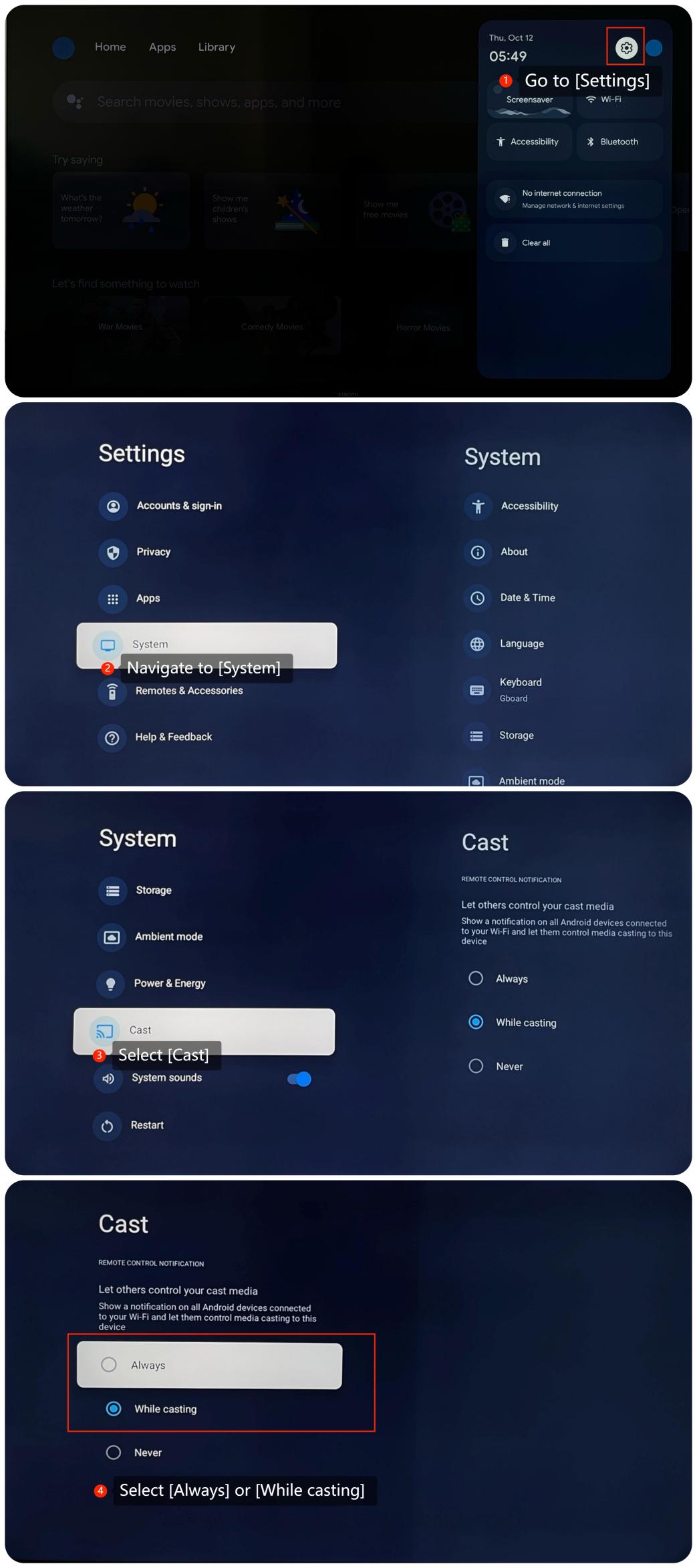
7. Check if you correctly set the Cast settings by going to [Settings] >> [System] >> [Cast] >> select [Always] or [While casting];
8. Ensure that the firmware of your Xiaomi TV Box S (2nd Gen) is up to date. You can check for updates in its settings menu by navigating to [Settings] >> [System] >> [About] >> [System update];
9. If other troubleshooting steps do not resolve the issue, you can consider performing a factory reset. Please go to [Settings] >> [System] >> [About] >> [Reset]. Please note that the operation will erase all data, so be sure to back up important information before proceeding.
We hope the above methods can resolve the issue. If the issue still persists, you could submit your feedback on your Xiaomi TV Box S (2nd Gen) by going to [Settings] >> [Help & Feedback] >> [Send feedback], you can upload logs with your feedback.
1. Ensure that both your Xiaomi TV Box S (2nd Gen) and computer are connected to the same stable Wi-Fi network;
2. Sometimes, a simple reboot can resolve the issue. Restart both your Xiaomi TV Box S (2nd Gen) and computer;
3. Ensure that the computer is compatible with casting. Some older computers may not support casting features;
4. The Xiaomi TV Box S (2nd Gen) often supports casting through various methods, such as Miracast or AirPlay. Make sure you're using a casting method that's compatible with your computer's operating system;
5. Temporarily disable your computer's firewall or antivirus software, as they may block the casting connection;
6. If you have another compatible computer, try casting it to the Xiaomi TV Box S (2nd Gen) to determine if the issue is specific to one device;
7. Check if you correctly set the Cast settings by going to [Settings] >> [System] >> [Cast] >> select [Always] or [While casting];
8. Ensure that the firmware of your Xiaomi TV Box S (2nd Gen) is up to date. You can check for updates in its settings menu by navigating to [Settings] >> [System] >> [About] >> [System update];
9. If other troubleshooting steps do not resolve the issue, you can consider performing a factory reset. Please go to [Settings] >> [System] >> [About] >> [Reset]. Please note that the operation will erase all data, so be sure to back up important information before proceeding.
We hope the above methods can resolve the issue. If the issue still persists, you could submit your feedback on your Xiaomi TV Box S (2nd Gen) by going to [Settings] >> [Help & Feedback] >> [Send feedback], you can upload logs with your feedback.
Does it help?
Yes
No