

Xiaomi Outdoor Camera CW300 FAQ
1. Q: What are the upgrades of the Xiaomi Outdoor Camera CW300 compared to the Xiaomi Outdoor Camera AW300?
A: 1. The Xiaomi Outdoor Camera CW300 supports gimbal operation and gimbal gesture rotation;
2. The Xiaomi Outdoor Camera CW300 adds a camera sleep setting to protect privacy and make it safer;
3. The Xiaomi Outdoor Camera CW300 supports gimbal humanoid tracking settings;
4. The Xiaomi Outdoor Camera CW300 can choose to turn off the infrared night vision function.
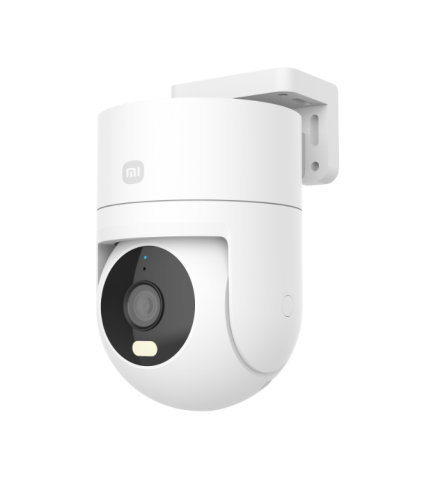
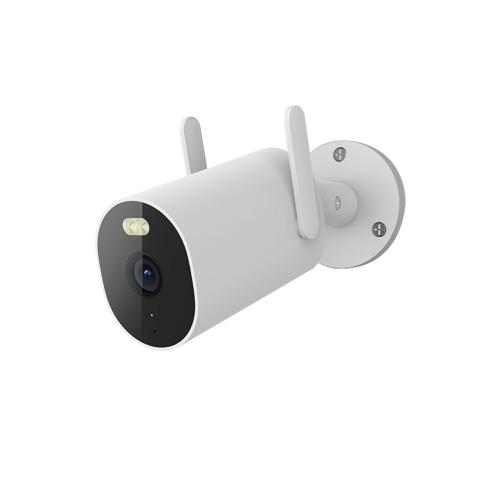
Xiaomi outdoor camera CW300 Xiaomi outdoor camera AW300
2. Q: How is the security and privacy of the Xiaomi Outdoor Camera CW300 guaranteed?
A: 1. Xiaomi Outdoor Camera CW300 has a built-in Mi Home security chip, which effectively ensures the security of communication and storage, the whole process of data transmission is encrypted, and the cloud data adopts AES128-bit encryption, which can ensure that security and privacy are not leaked;
2. Xiaomi Outdoor Camera CW300 supports sleep setting when the camera is not used, the camera can be set to sleep through Mi Home, and privacy is guaranteed at the source;
3. Xiaomi Outdoor Camera CW300 supports setting a security password, which Mi Home can set on your mobile phone, and you need to enter the password when binding an account and sharing an account to view the camera.
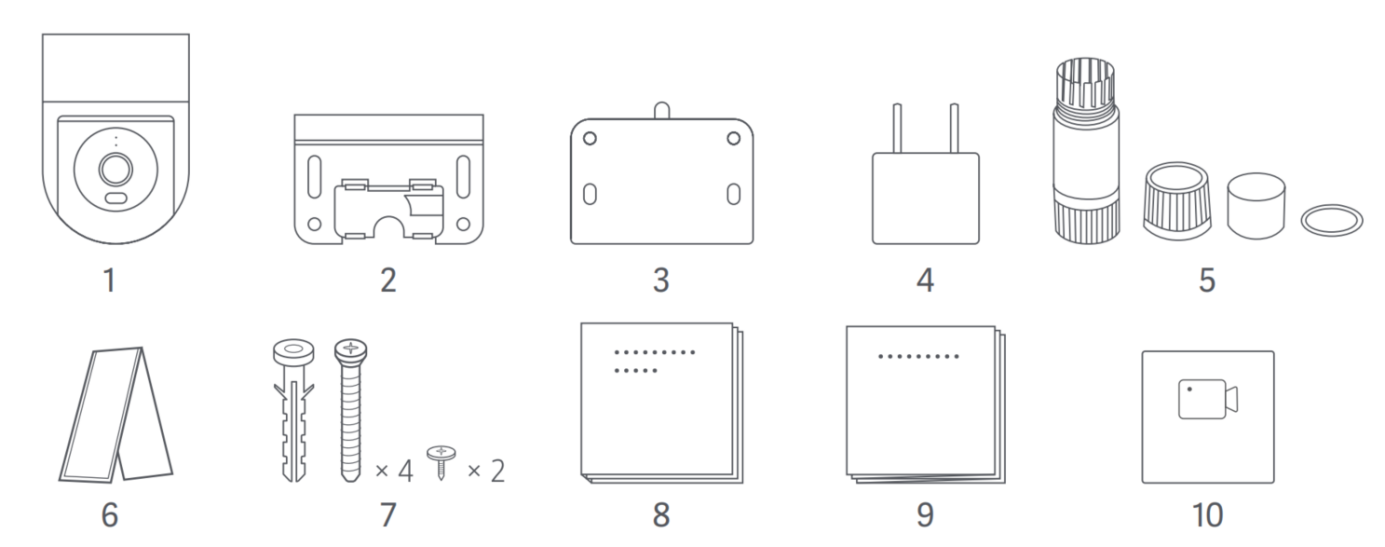
3. Q: What does the Xiaomi Outdoor Camera CW300 come with as standard?
A: 1. Xiaomi Outdoor Camera CW300;
2. Wall Mount;
3. Mounting Template Sticker;
4. Power Adapter;
5. Waterproof Network Port Accessories;
6. Waterproof Tape;
7. Mounting Screws;
8. User Manual;
9. Warranty Notice;
10. Attention Sticker.
4. Q: What is included in the standard screw package of Xiaomi Outdoor Camera CW300?
A: 1. The installation screw package includes: wall screws*4, plastic expansion pipes*4, and self-tapping screws*2;
2. Screw size: wall screw (tooth length 30mm, head diameter 7mm), self-tapping screw - wall bracket side (tooth length 15mm, head diameter 8mm).
5. Q: What are the screwdriver models that can be used with Xiaomi Outdoor Camera CW300?
A: PH1 or PH2 type screwdriver is recommended.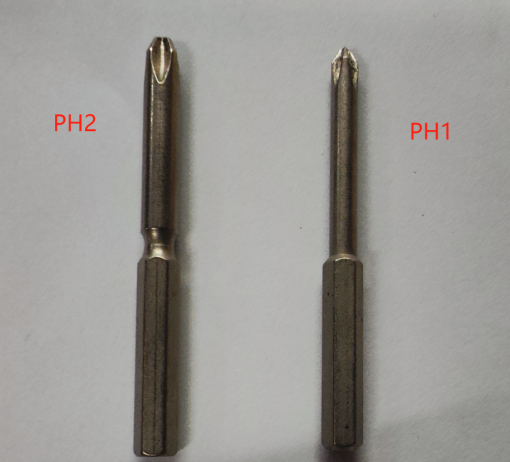
6. Q: Does the Xiaomi Outdoor Camera CW300 support the use of extension cables?
A: In the tank. The standard power adapter comes with a 3-meter power cord.
The device supports a 12V/1A DC power cord extension cord, which you need to purchase by yourself.
Other specifications: socket diameter 5.5mm*2.1mm, socket length 10mm, socket diameter 5.5mm*2.1mm, socket diameter 9mm. Please choose the production wire of a regular brand, otherwise, it may cause the equipment function to be unable to be used normally. In addition, after installing the extension power cord, you also need to do a good job of waterproofing, be sure to use waterproof tape to wrap the power connector to prevent water from entering the interface.
7. Q: Xiaomi Outdoor Camera CW300 Appearance Introduction
A:1. Power Port;
2. Network Cable Port;
3. Indicator;
4. Microphone;
5. Lens;
6. Spotlight;
7. Waterproof Cover;
8. Reset Button;
9. MicroSD Card Slot.
Installing a microSD card: Make sure the camera is unplugged. Remove the waterproof cover from over the microSD card slot and insert a microSD card with its contact side facing up. (Fig. C-1)
Plug the power adapter cable into the power port on the camera, and the camera will automatically turn on. (Fig. C-2)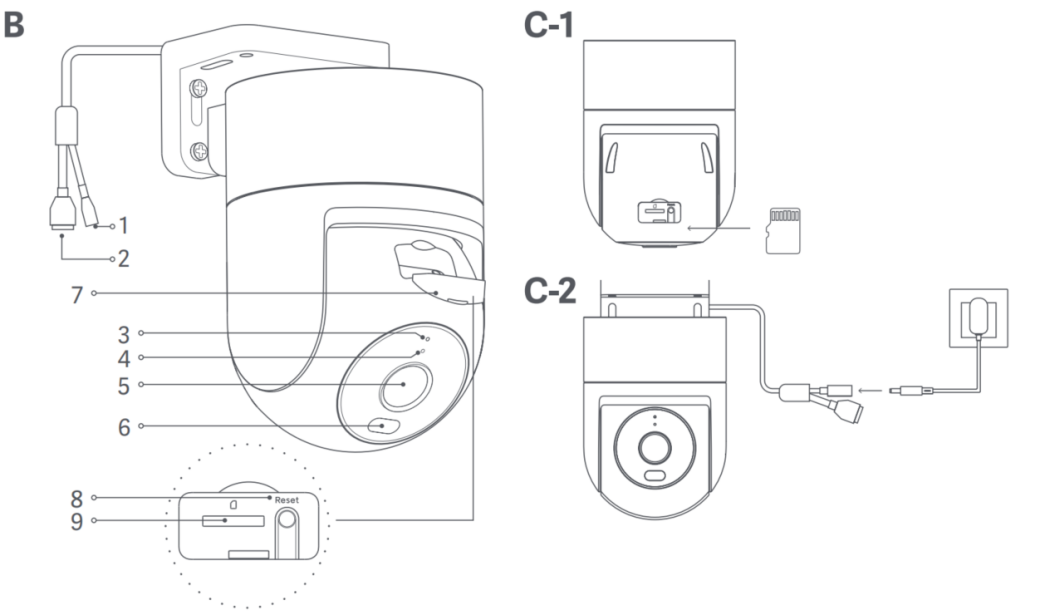
8. Q: Xiaomi Outdoor Camera CW300 specifications and dimensions introduction
A: 1. Dimensions and weight of the main engine: the size of the main engine is: 123 x 100 x 168mm, and the weight of the main engine (excluding the mounting bracket) is 487g.
9. Q: Introduction to the relevant parameters of the Xiaomi Outdoor Camera CW300 lens
A: Lens aperture: F1.6;
Effective Focal Length (EFL): 4mm;
Lens field of view FOV(D*H*V): 110°*92.5°* 49.3°.
10. Q: Introduction to the relevant parameters of the Xiaomi Outdoor Camera CW300 gimbal
A: 1. The physical rotation angle of the gimbal: horizontal 350°, vertical 106°;
2. The visual range of gimbal rotation: horizontal 360°, vertical 140°.
11. Q: What are the installation methods for Xiaomi Outdoor Camera CW300?
A: 1. Xiaomi outdoor camera CW300 has a variety of installation methods, which can be wall-mounted;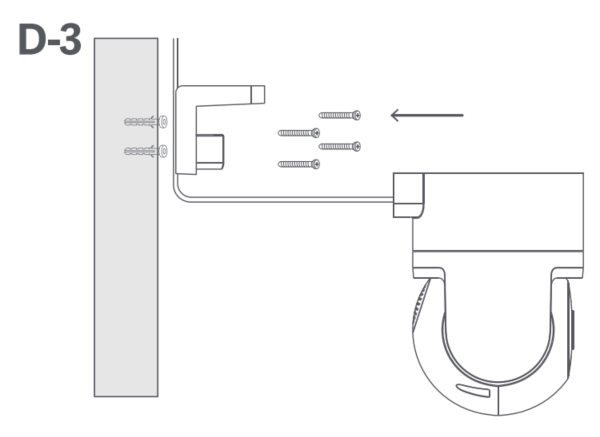
2. The Xiaomi outdoor camera CW300 has a variety of installation methods, which can be installed on the ceiling;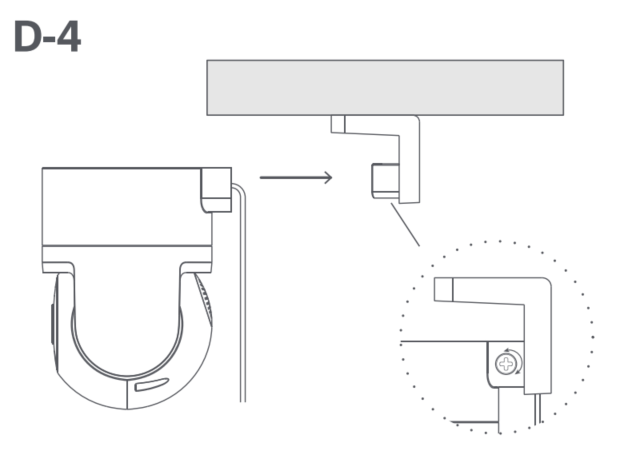
3. The Xiaomi Outdoor Camera CW300 has a variety of installation methods, which can be mounted with a pole;
If you choose to install the pole, you can use a 12mm hoop, which needs to be purchased separately, you can search for the hoop bracket and select the appropriate size to purchase.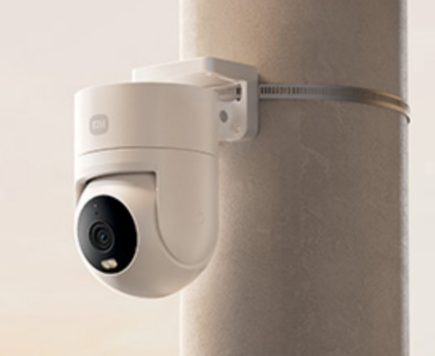
12. Q: What is the recommended installation height of Xiaomi Outdoor Camera CW300?
A: It is recommended to install the horizontal height of 2.5 meters to 3 meters and confirm the appropriate angle through the mobile phone before installation.
13. Q: What are the steps for installing the Xiaomi Outdoor Camera CW300?
A: 1. Stick the mounting template sticker in the correct position on the wall, making sure the right side of the sticker is over 50cm from the corner of the wall. Drill holes in the wall that align with the holes on the sticker, with a diameter of about 6mm and a depth of about 35mm; (Fig. D-1)
2. Insert the plastic wall plugs into the drilled holes; (Fig. D-2)
3. Wall-mounted installation: Attach the wall mount to the wall by inserting the screws into the holes and screwing them into the wall plugs. If the power cable is being installed upward, it should pass through the groove in the wall mount first before the wall mount is screwed onto the wall; (Fig. D-3)
4. Ceiling installation: Turn the base of the camera upward, line it up with the clip on the mounting bracket, and tighten the screw on the right side; (Fig. D-4)
5. Once the camera is secured in place, wrap the waterproof tape around the power port to avoid water ingress. (Fig. D-5)
CAUTIONS:
1. The wall must be able to support at least three times the total weight of the camera;
2. To prevent possible injury, the camera must be securely fixed to the wall according to the installation instructions;
3. Do not install near a heat source, such as an outdoor air conditioning unit, range hood outlet, or gas water heater outlet. Installing the waterproof;
4. When the network cable is not used, please still install the waterproof network port accessories.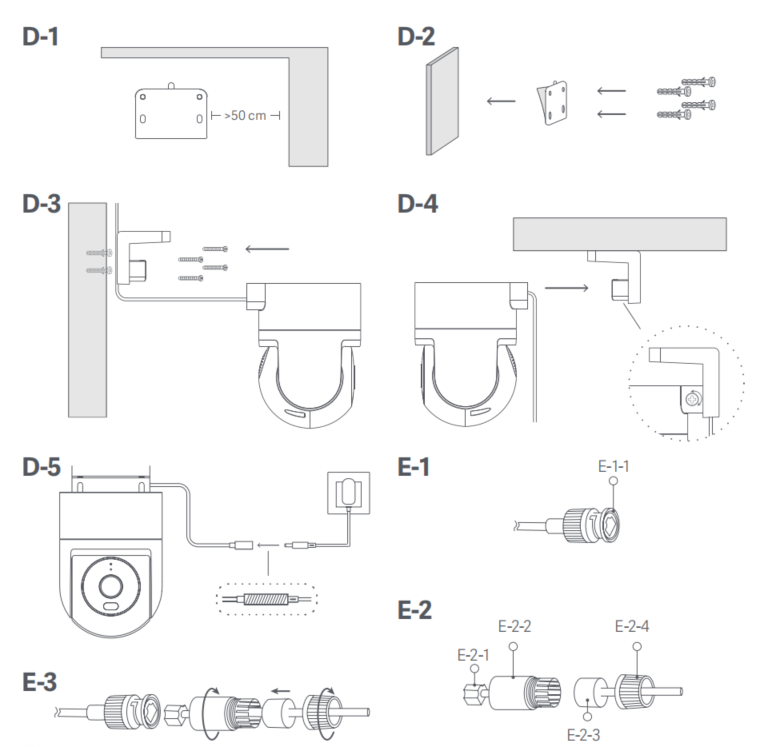
14. Q: How should the Xiaomi Outdoor Camera CW300 be installed on cement, brick, wood, tile and other materials?
A: 1. Cement, brick and concrete wall installation needs to be perforated and installed, and the installation steps can be said according to the instructions; (13Q Installation Steps)
2. Wooden walls do not need expansion bolts, and can be directly screwed;
3. It is not recommended to install the tile wall because there is a risk of tile cracking due to punching.
15. Q: Xiaomi Outdoor Camera CW300 Bracket Related Dimensions
A: The dimensions are as follows (unit: mm):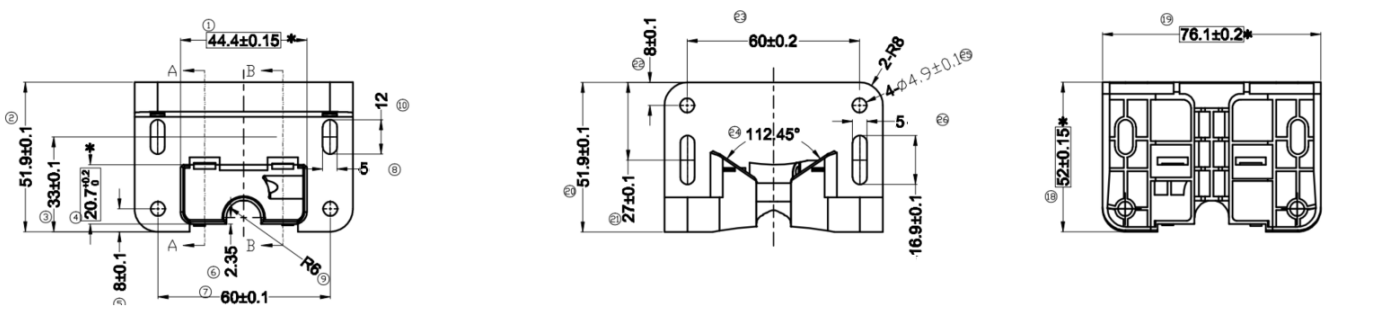
16. Q: How to install a waterproof kit for the Xiaomi Outdoor Camera CW300?
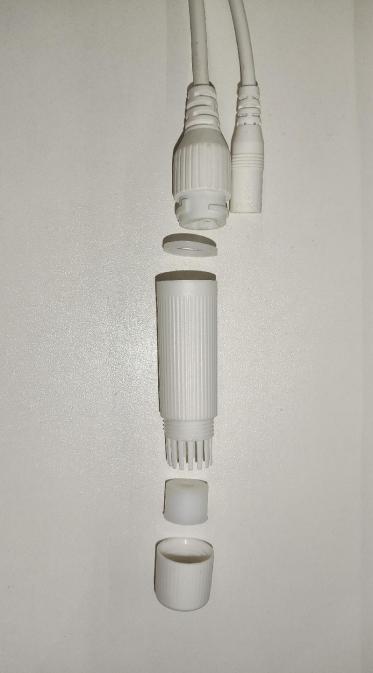
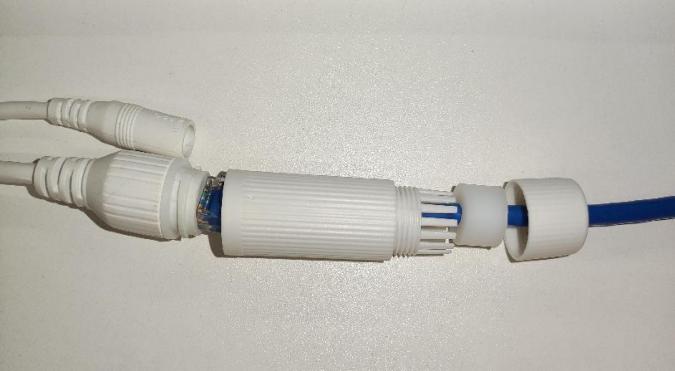
A: The mesh port waterproof kit includes a sealing ring, waterproof sleeve, sealing plug, and waterproof back cover. After installation, the waterproof performance of the network cable interface can be improved. Put the sealing ring on the network cable interface of the camera, pass the waterproof back cover, sealing plug and waterproof sleeve through the network cable in turn, connect the network cable with the network cable interface, tighten the waterproof sleeve and the sealing ring first, and then tighten the waterproof back cover and the waterproof sleeve. As shown below:
The waterproof network port accessories include a sealing ring, waterproof sleeve, stopper, and waterproof rear cover. Once installed, the network port’s waterproof performance will be improved. Place the sealing ring on the camera's network port (Fig. E-1).
Thread the waterproof rear cover, stopper, and waterproof sleeve over the network cable in order (Fig. E-2), then plug the network cable into the port.
Screw together the waterproof sleeve and sealing ring, then screw together the waterproof rear cover and waterproof sleeve (Fig. E-3).
When the network cable is not used, please still install the waterproof network port accessories. Please use a shielded network cable.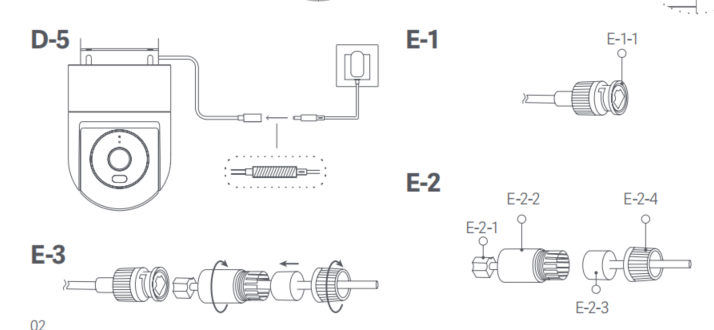
17. Q: Xiaomi Outdoor Camera CW300 Instructions for Network Cable Adaptation when selecting Network Cable Connection.
A: The width of the crystal head of the applicable network cable is 11.70mm, the height is 6.6mm, the diameter of the network cable is 5.4~6.0mm, and the longest length from the crystal head to the protective sleeve is not more than 45mm, and the six types of cables can be.
It is not suitable for flat cables, thin cables and network cables with push-on sheaths.
18. Q: How to turn on the Xiaomi Outdoor Camera CW300?
A: 1. Plug the power adapter cable into the DC power interface of the camera, turn on the power adapter, and the camera will automatically turn on;
2. The indicator light is solid orange, and you hear a voice prompt, which means that the boot is successful.
Tips:
Please be sure to use the original adapter power cord 12V1A to connect the camera, you can buy an extension cable, please do not cut the original adapter power cord, or external wires, to avoid abnormal work, cut the original adapter power cord, the device is no longer warranted. Once powered on, do not twist the lens of the camera to force it to rotate. If the lens positioning is not accurate, it can be calibrated through the Mi Home App.
19. Q: What are the status indicators of Xiaomi Outdoor Camera CW300 and what do they mean?
A: For your reference, the meaning of the indicator light is as follows:
If the indicator light is orange, it shows that the device is awaiting connection/ Reset successfully;
If the indicator light flashes in orange, it shows that the device is connecting to a network;
If the indicator light flashes in blue, it shows that the device is connecting to a server/OTA update in progress;
If the indicator light is blue, it shows that the device is connected successfully/working normally.
20. Q: How to install a microSD card for the Xiaomi Outdoor Camera CW300?
A: Make sure the camera is powered off, open the waterproof cover above the card slot to reveal the microSD card slot, and insert the microSD card with the contact side facing up into the card slot.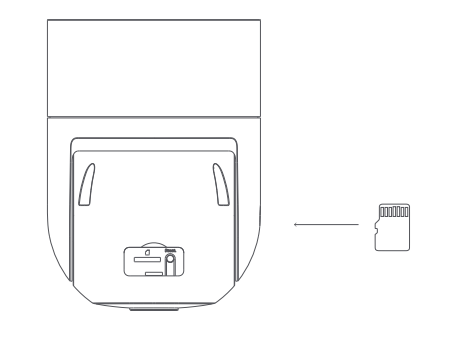
Note:
When installing or removing the microSD card, you need to cut off the power to the camera before operating. Please use a microSD card produced by a regular brand (the maximum supported capacity is 256GB, and only FAT32 format is supported, microSD cards of 8GB and above may need to enter the camera plug-in page in the Mi Home App, and format it to FAT32 format in [Settings] >> [Manage Storage] before use), it is recommended that the read and write speed of the microSD card should not be lower than U1/Class10.
Tip:
After installing or removing the microSD card, be sure to install the waterproof cover above the card slot in place to avoid water ingress into the product and affect normal use.
21. Q: What type of memory card should I use for Xiaomi Outdoor Camera CW300? How long can I store videos on a memory card with different capacities?
A: 1. Please use a high-speed microSD card if possible. It is recommended to select a card that is Class10 U1 or U3;
2. This camera supports microSD cards with a capacity range from 8GB to 256GB;
3. MicroSD cards with a capacity of 256GB or smaller are supported, while those with a capacity of 8GB or above may need to be formatted by the camera before use.
For your reference, here is the video storage duration:
The 8GB memory card is expected to store approximately 18 hours of video duration;
The 16GB memory card is expected to store approximately 36 hours of video duration;
The 32GB memory card is expected to store approximately 3 days of video duration;
The 64GB memory card is expected to store approximately 6 days of video duration;
The 128GB memory card is expected to store approximately 12 days of video duration;
The 256GB memory card is expected to store approximately 24 days of video duration.
22. Q: How should the Xiaomi Outdoor Camera CW300 be factory reset?
A: If you change the network or Mi Home App account connected to the camera, you need to delete the bound camera in the Mi Home App, press the reset button for about 7 seconds, and the reset will be successful when you hear the voice prompt. After the reset is successful, you can rebind it.
Tip:
Resetting the camera doesn't delete the contents of the microSD card.
23. Q: Where can I check the SN number of the Xiaomi Outdoor Camera CW300?
A: The SN number can be viewed from the back of product packaging as well as from the bottom of the camera.
24. Q: What are the applicable places for the Xiaomi Outdoor Camera CW300?
A: Villas/courtyards, terraces/gardens, streets in front of the house, home interiors. (Original adapter power cord is 3m)
25. Q: Does the Xiaomi Outdoor Camera CW300 need to be plugged in and powered by a battery?
A: It needs to be connected to the power supply. The camera does not contain batteries and must be plugged in to use it, please be sure to use the original 12V 1A adapter.
Note:
The standard power adapter is not waterproof and is for indoor use only.
26. Q: Does Xiaomi Outdoor Camera CW300 support continuous video shooting to memory cards without interrupting power outages?
A: Not supported.
27. Q: Is there any sound in the video recorded by the Xiaomi Outdoor Camera CW300 in the Surveillance, cloud storage, and microSD card?
A: The videos recorded in these forms of recording videos all have sound. However, if double-speed playback is enabled, it will be played silently by default, which is a normal phenomenon.
In addition, every time you enter the camera monitoring screen or enter the cloud storage or memory card, the video playback interface is muted by default, if you need to play the sound normally, please tap the mute button to restore the sound.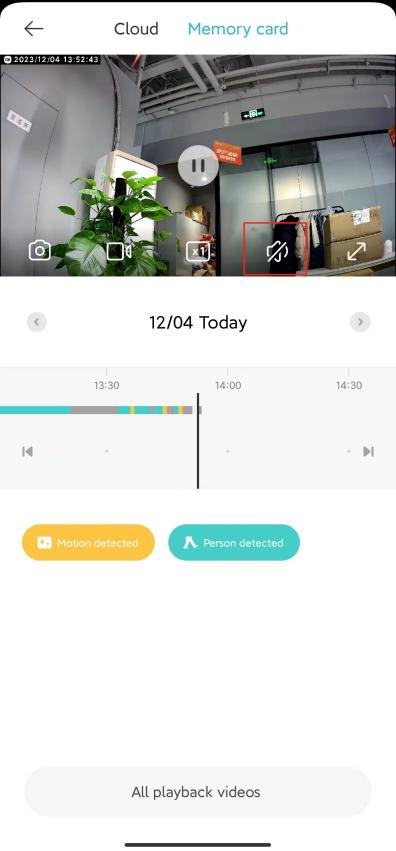
28. Q: What are the things that need to be paid attention to when using the Xiaomi Outdoor Camera CW300?
A: 1. The operating temperature range for this camera is -30°C to 60°C. Do not use this camera in environments with temperatures above or below the specified operating range;
2. This camera is a precision electronic product that has an IP66 dust-tight and water-resistant rating. To ensure normal use, do not use the camera in extremely humid environments or locations that may cause water ingress;
3. The power adapter that comes along with this product is not waterproof and is only for indoor use. Do not use the power adapter in extremely humid environments or locations that may cause water ingress. The operating temperature range for the power adapter is -30°C to 45°C. Do not use the camera in environments with temperatures above or below the specified range;
4. To improve the camera's performance, do not place it where its lens faces or is next to a reflective surface, such as glass windows or white walls, as this will cause the image to appear overly bright in areas close to the camera and darker in areas further away, or cause the camera to produce white images;
5. When using Wi-Fi, make sure the camera is installed in an area with a strong Wi-Fi signal. Do not install the camera near microwave ovens and other objects or places that may affect its Wi-Fi signal;
6. When enabling or disabling the night vision of the camera, the infrared cut-off filter will be switched and a slight clicking sound will be made, which is normal;
7. If the power cable gets damaged, please contact the after-sales service center for replacement.
29. Q: Xiaomi Outdoor Camera CW300 Warm tips before buying
A: 1. After installing or removing the MicroSD card, be sure to press the silicone waterproof cover tightly to avoid water ingress into the product and affect normal use;
2. No memory card as standard. For details about the specifications of memory cards, please refer to the relevant instructions;
3. The gimbal will cause a small amount of gimbal angle to shift during long-term rotation, and the offset can be corrected in [Settings] >> [Camera Settings] >> [Gimbal Calibration];
4. The locking screws of the main machine and the upper wall bracket are on the right side of the device, please make sure that the right side is more than 50cm away from the corner of the wall, to facilitate installation;
5. Support dual networking (Wi-Fi 2.4G frequency + network cable), do not support NAS, POE, Bluetooth connection function;
6. The standard power adapter is not waterproof, please wrap the power cord interface with waterproof tape, the length of the power cord is 3M, if you need an extension cable, you can check the comments below.
30. Q: Xiaomi Outdoor Camera CW300 specifications introduction
A: For your reference, here are the basic specifications:
Name: Xiaomi Outdoor Camera CW300
Mode: MBC21
Item Dimension: 168×100×123mm
Night Vision Light: 850nm infrared light ×2, white light ×2
Wireless Connectivity: Wi-Fi IEEE 802.11b/g/n 2.4GHz
Wi-Fi Operation Frequency: 2412-2472 MHz
Wi-Fi Maximum Output Power: <20dBm
Storage: MicroSD card (8GB-256GB supported)/ Cloud storage
Operating Temperature: -30℃ to 60℃
Video Codec: H.265
Rated Input: 12-1A
Net Weight: 487g
Resolution: 2560×1440
APP related
1. Q: How does the Xiaomi Outdoor Camera CW300 access the Mi Home App?
A: When Mi Home connects to the camera, you can choose to connect with WIFI or with a network cable.
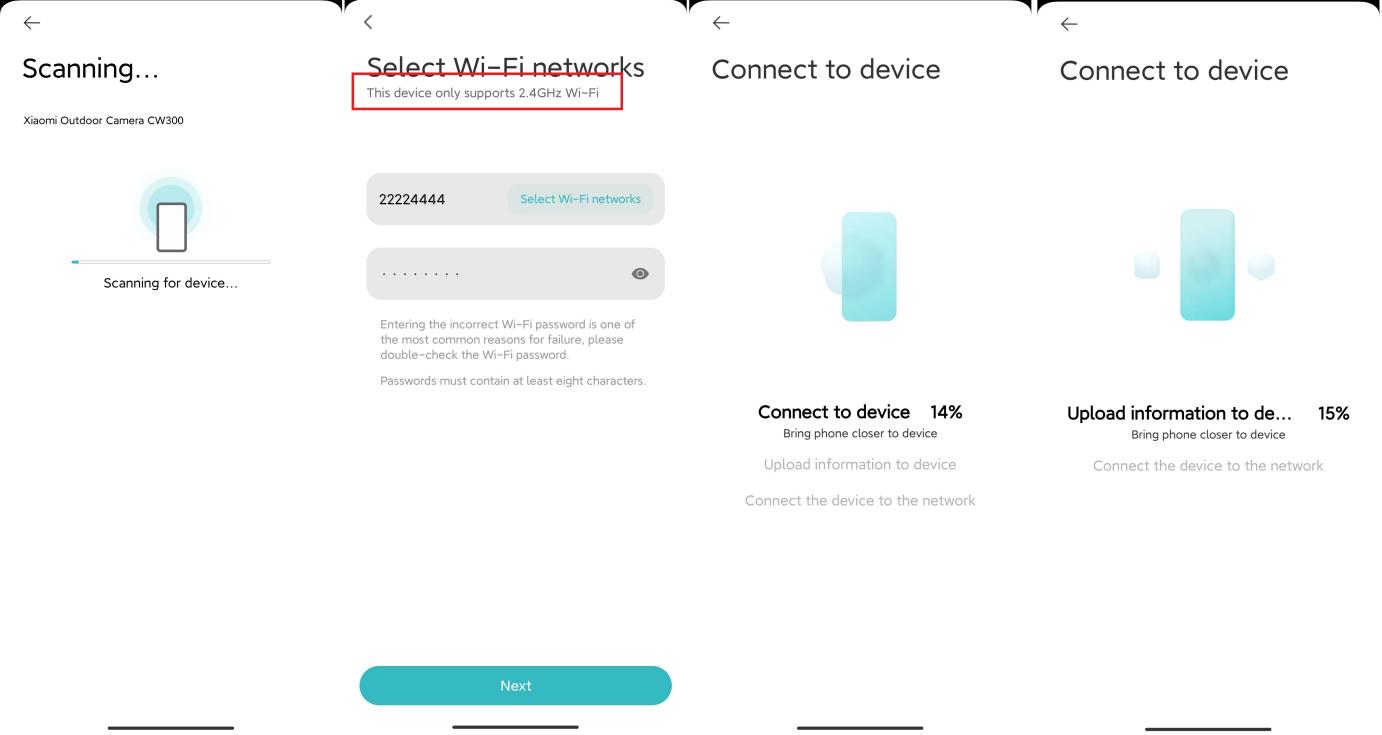
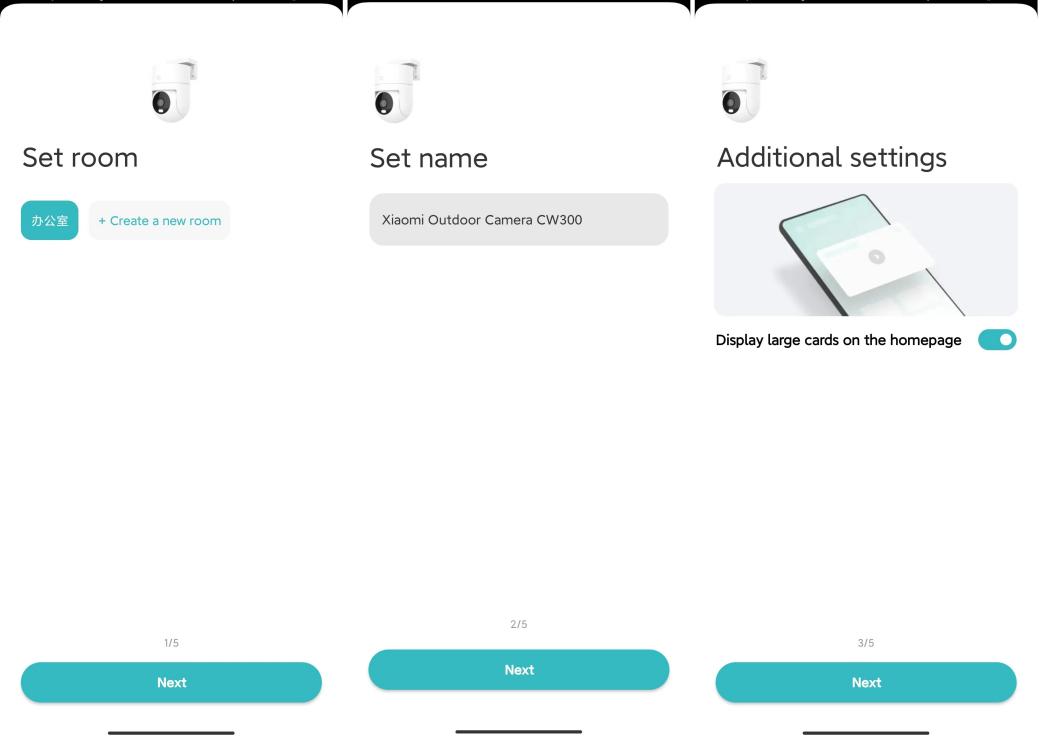
1. Use WiFi connection: Go to Mi Home >> Tap [+] at the upper right corner >> Select [Scan] >> [Device reset] (press and hold the reset button for about 7 seconds, and the reset will be successful when you hear the voice prompt) >> [Select wireless connection] >> Operate according to the prompts on the page >> Wait for the binding to be successful.
Android: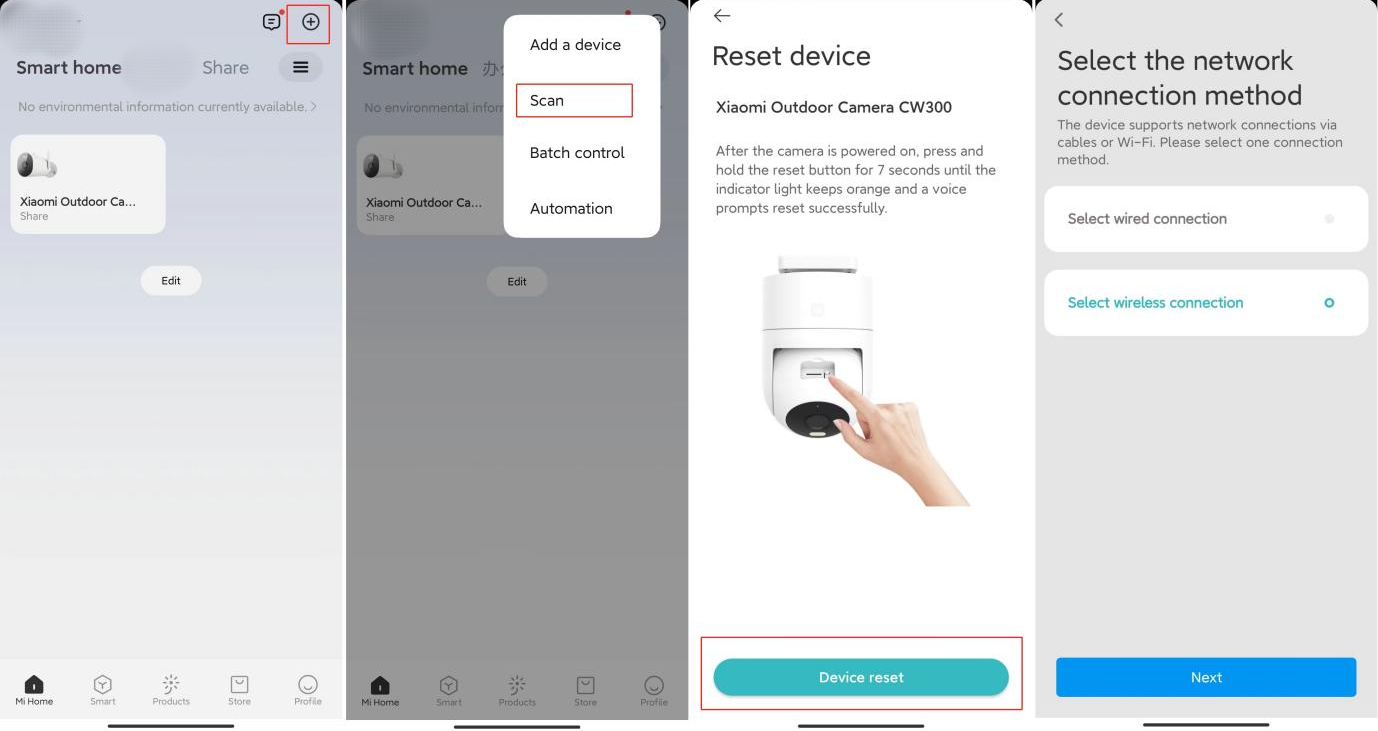
iPhone(IOS)system:
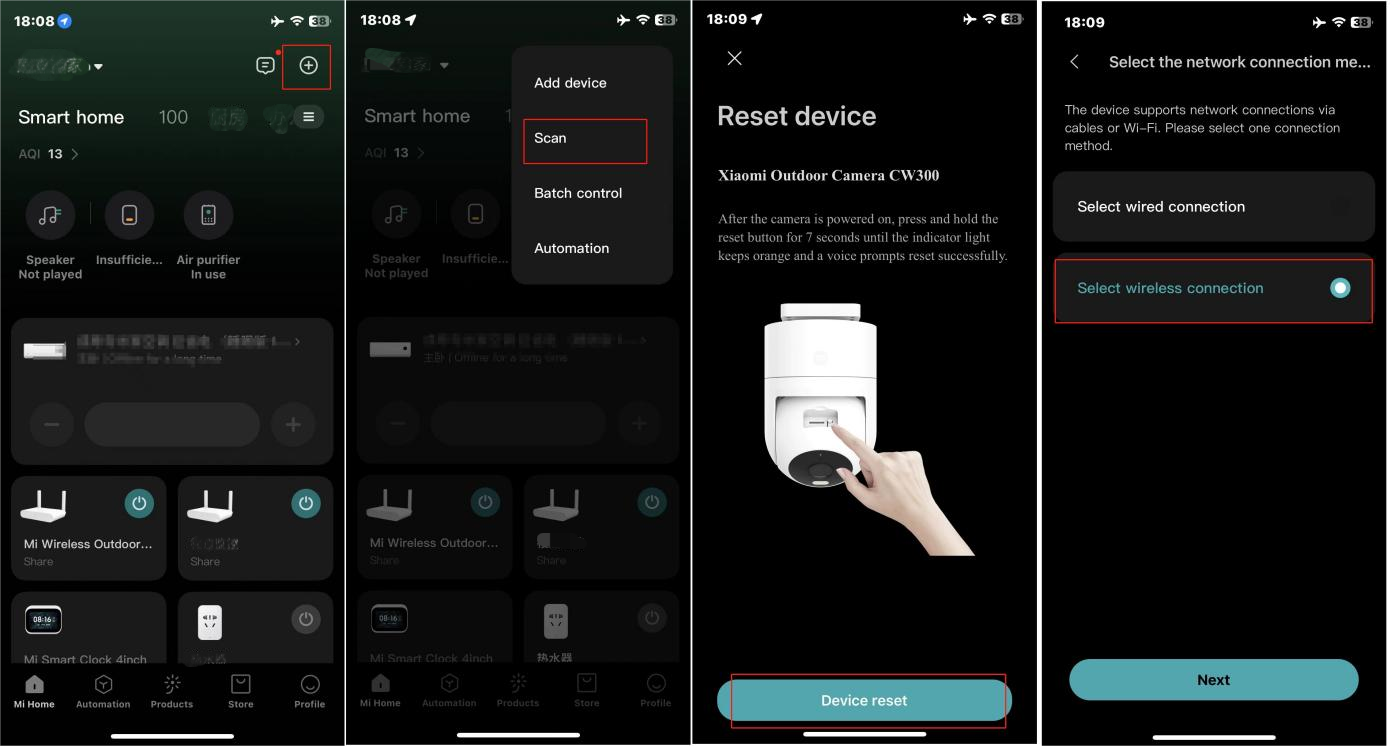
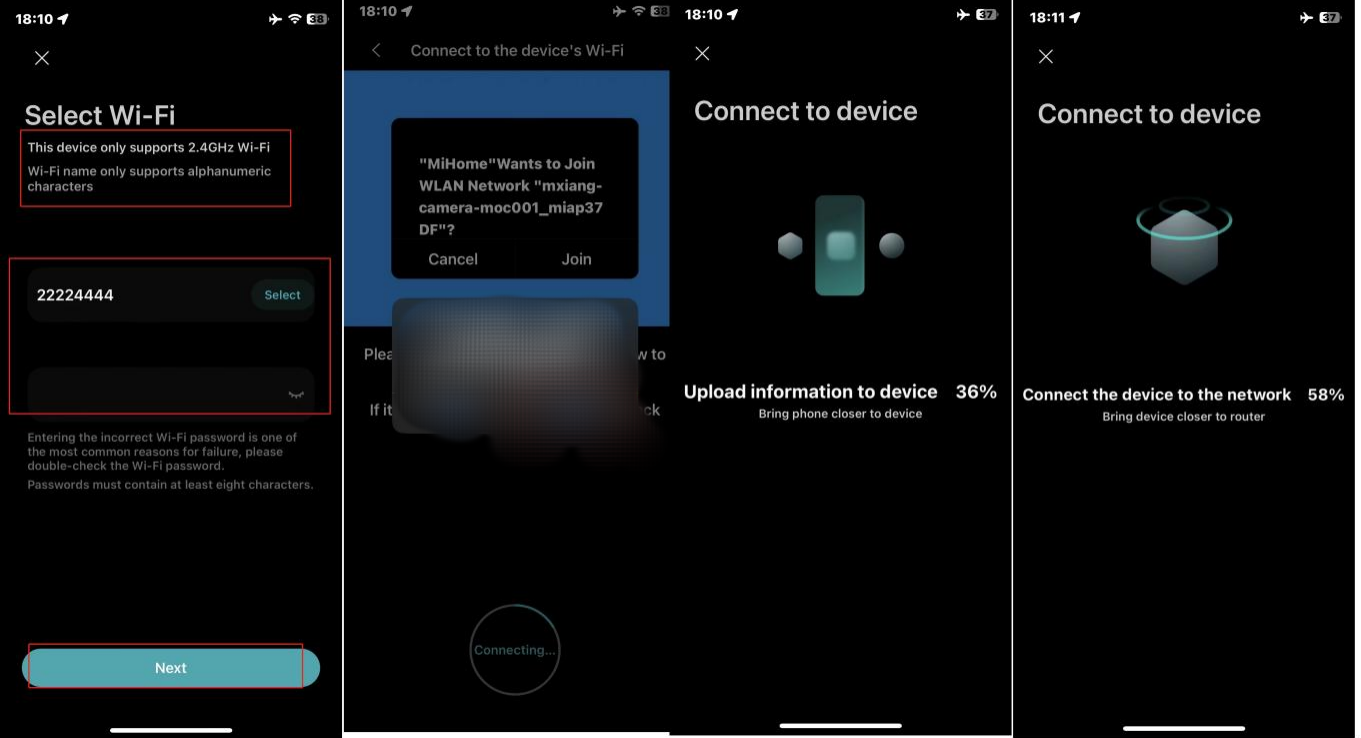
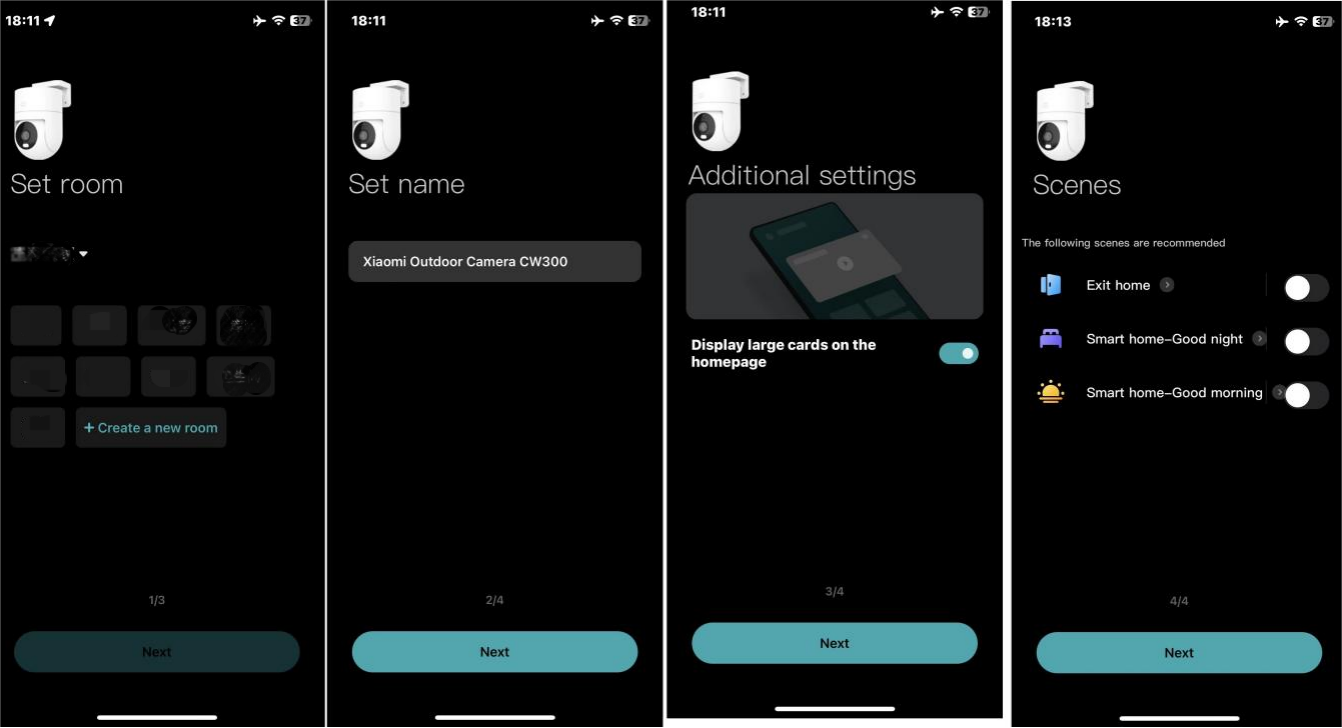
Note:
For the IOS system Mi Home App, please turn on the Wi-Fi and cellular data permissions. If the following permission setting interface pops up during the binding process, please turn on [Location] and [Local Network] of Mi Home, and the [Wireless Data] option is allowed to use wireless LAN and cellular data.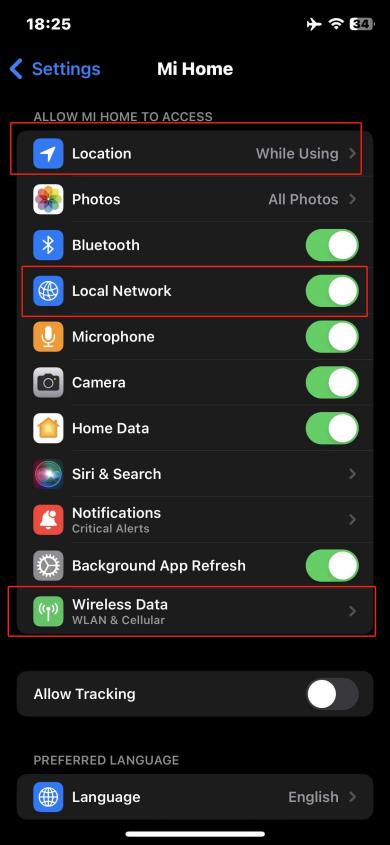
2. Connect with a network cable: Mi Home App >> tap [+] at the upper right corner >> select [Scan] >> [Device reset] (press and hold the reset button for about 7 seconds, and the reset will be successful when you hear the voice prompt) >> [Select wired connection] >> operate according to the prompts on the page >> wait for the binding to be successful.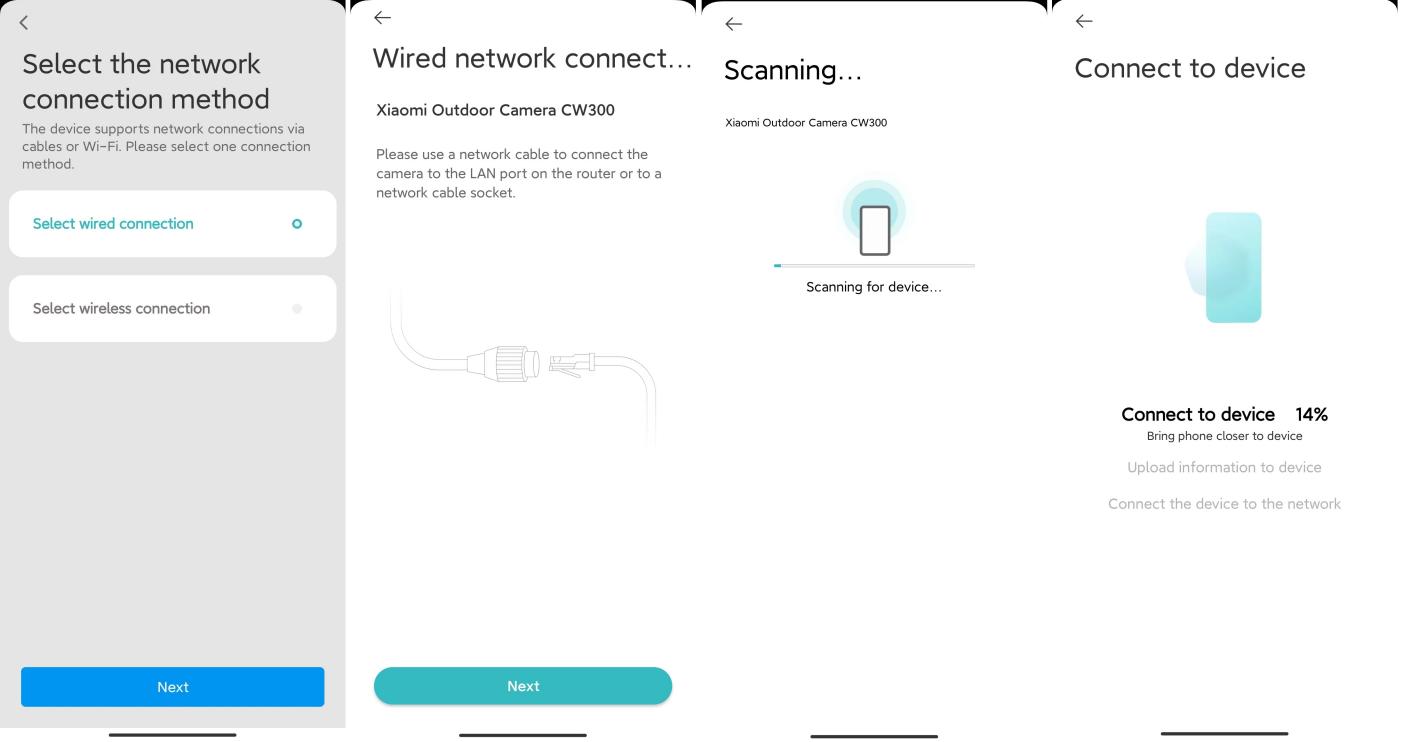
2. Q: Can the monitoring screen of the Xiaomi Outdoor Camera CW300 be magnified, and how many times can it be magnified?
A: The monitoring screen supports magnification, and the screen can be magnified up to 6 times. In the camera monitoring interface, pinch with two fingers to zoom in. The logo below is the magnification of the picture.
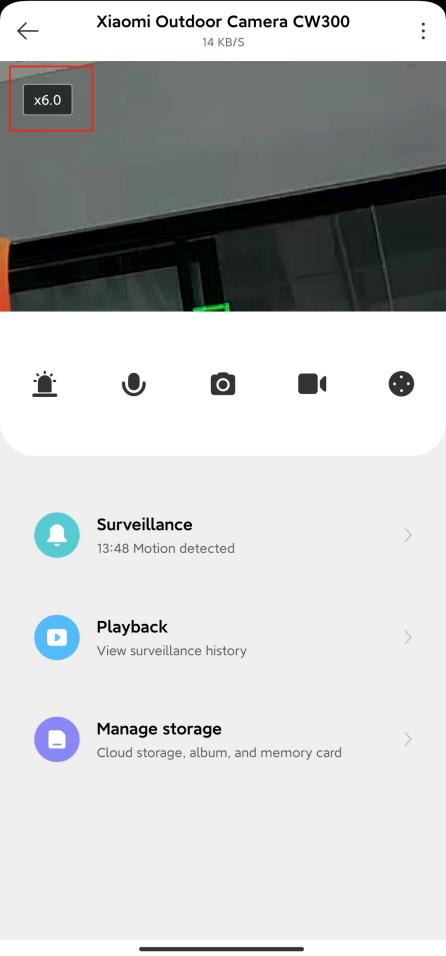
3. Q: How to set up the Xiaomi Outdoor Camera CW300 to sleep?
A: Method 1: Enter the camera monitoring screen, tap the [Sleep] button, and the device will immediately enter sleep mode.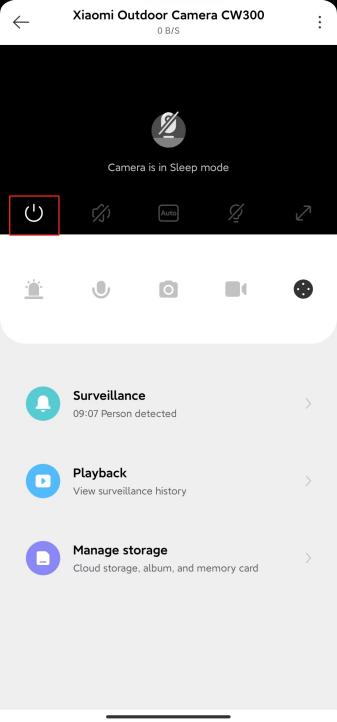
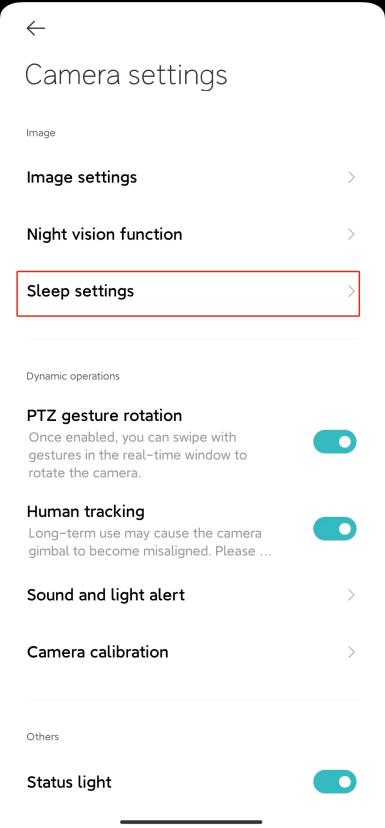
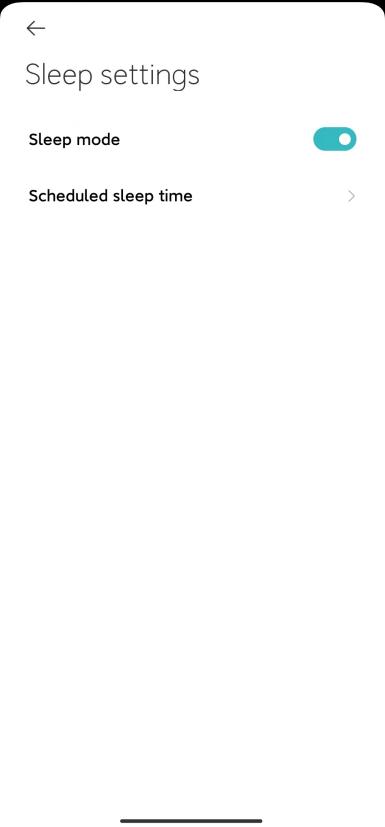
Method 2: Go to the Mi Home App >> select the camera >> tap [...] at the upper right corner >> select [Camera settings] >> tap [Sleep settings] >> to directly enable [Sleep mode] or [Scheduled sleep time].
If you want to set the timer period to sleep, you can set the timer to sleep automatically, no need to tap to sleep.
4. Q: How to set up the Xiaomi Outdoor Camera CW300?
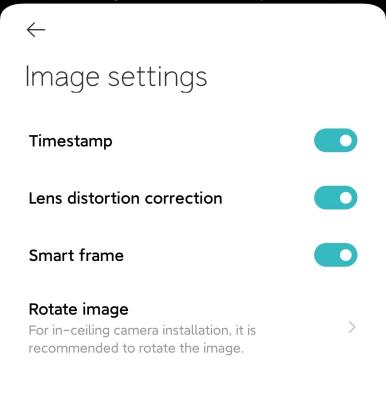
A: Go to the Mi Home App >> select the camera >> tap [...] at the upper right corner >> select [Camera settings] >> tap [Image settings] >> You can choose to turn on/off [Timestamp] on the monitoring screen, turn on [Lens distortion correction], turn on [Smart frame], or [Rotate image] (when the camera is placed on the desktop, it is recommended to rotate the picture).
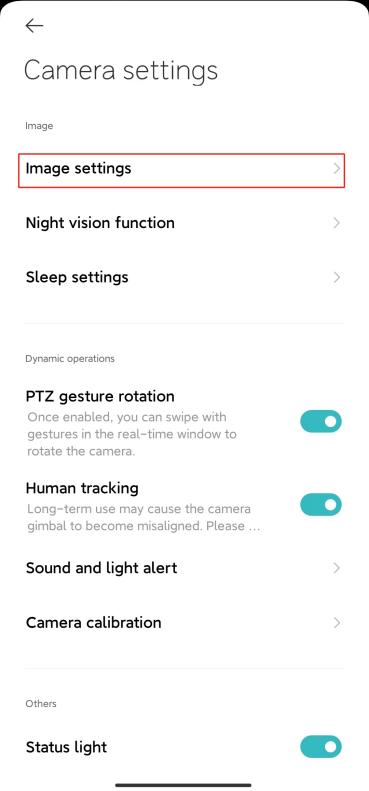
1. Timestamp, Lens distortion correction, Smart frame
2. Rotate image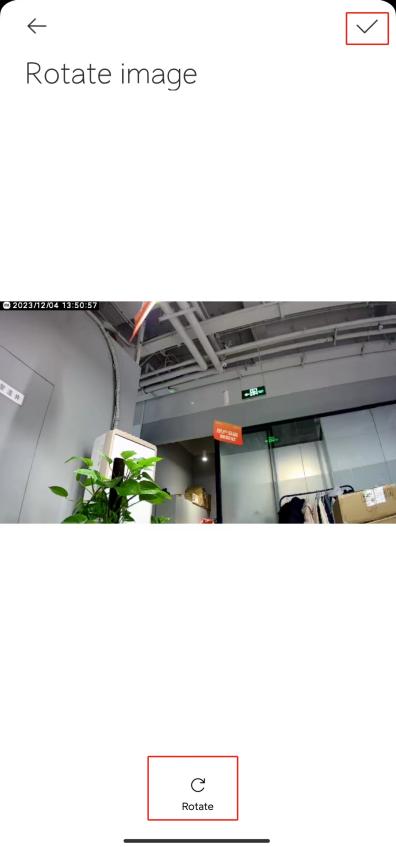
5. Q: How to calibrate the Xiaomi Outdoor Camera CW300?
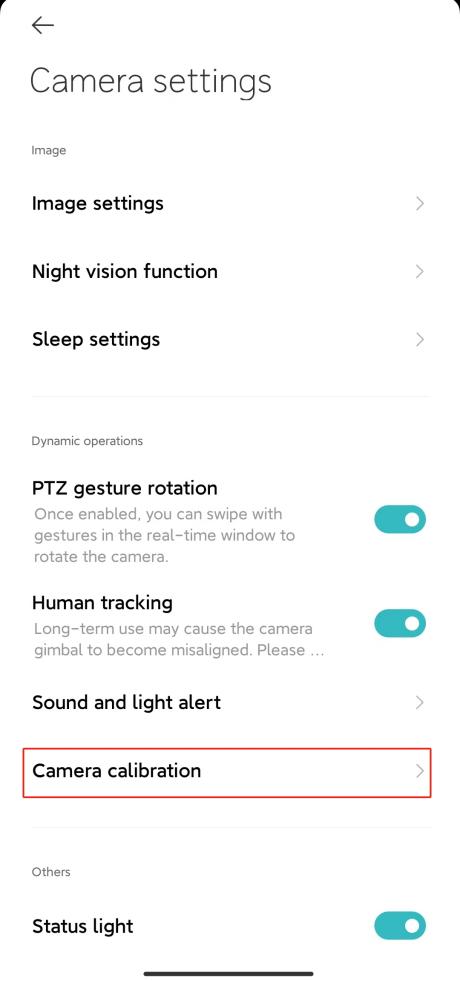
A: Go to the Mi Home App >> select the camera >> tap [...] at the upper right corner >> select [Camera settings] >> tap [Camera calibration], and wait for the device to be calibrated successfully.
This can be done when the device is unable to perform automatic lens return or the lens monitoring angle cannot be accurately adjusted.
6. Q: Does the Xiaomi Outdoor Camera CW300 support preset positions?
A: Not at this time. (Expected to be supported after the 2024Q1 update)
7. Q: How to reboot the Xiaomi outdoor camera CW300?
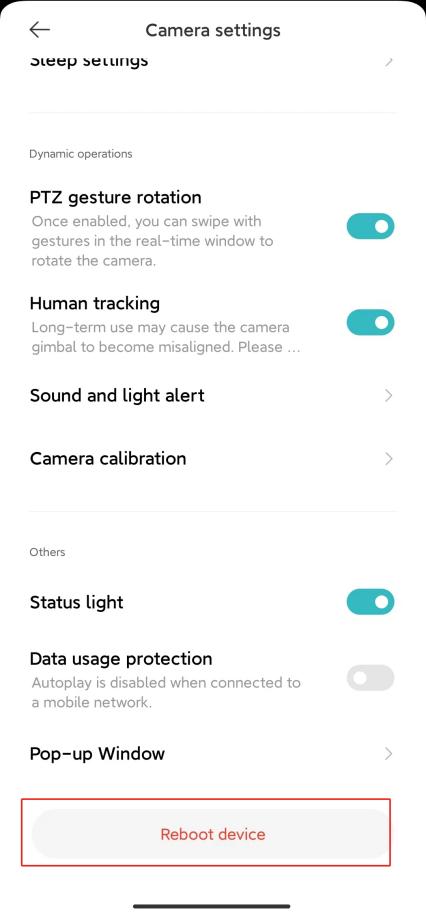
A: Go to the Mi Home App >> select the device >> tap [...] at the upper right corner >> select [Camera settings] >> [Reboot device].
If the device cannot record videos, does not upload videos from cloud storage, or other functions of the housekeeper assistant, you can choose to reboot the device.
8. Q: How to set up night vision related functions for Xiaomi Outdoor Camera CW300?
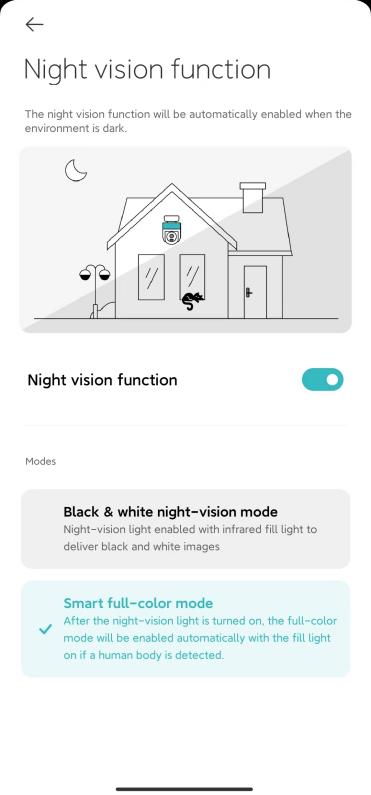
A: Go to the Mi Home App >> select the device >> tap [...] at the upper right corner >> select [Camera settings] >> tap [Night vision function] >> you can choose to turn on or off [Night vision function], [Black & white night-vision mode] or [Smart full-color mode].
Black & white night-vision mode: night vision lights are turned on, infrared fill light, and the image is black and white;
Smart full-color mode: the night vision light is turned on, and the full color is automatically turned on when a person is detected at night, and the fill light is turned on.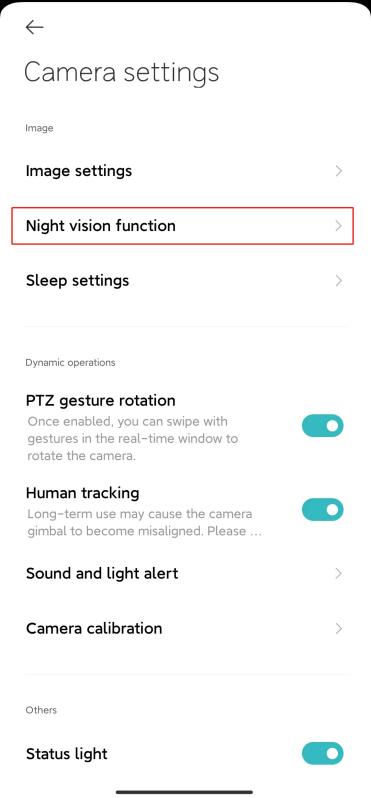
9. Q: How to turn on the Data usage protection of the Xiaomi Outdoor Camera CW300?
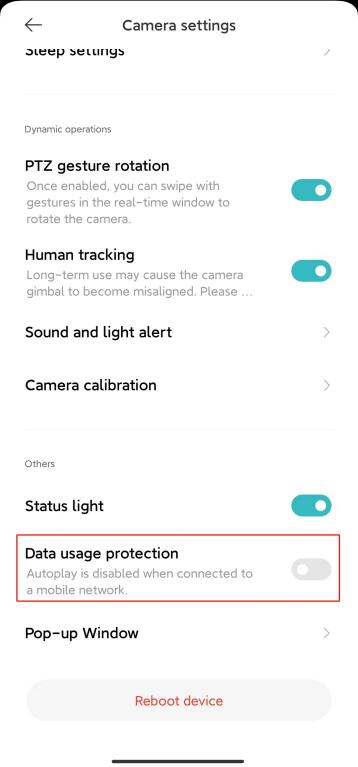
A: Go to the Mi Home App >> select the device >> tap [...] at the upper right corner >> select [Camera settings] >> turn on/off [Data usage protection].
When this feature is enabled, the monitoring screen will not play automatically under the mobile network.
Note:
Cloud storage and memory card recordings will play automatically and are not limited by the data protection function.
10. Q: What are the functions of the buttons of the Xiaomi Outdoor Camera CW300 real-time monitoring interface?
A: The buttons of the real-time monitoring interface are as follows: [Sleep], [Mute], [Clarity selection], [Fill light], and [Full-screen] buttons need to be tapped on the real-time monitoring screen to appear.

1. Sleep: Tap this button to directly enter the sleep mode. After the camera is put to sleep, it can no longer be used for any work such as monitoring and recording.
When you don't need to shoot, you can tap " " in the control interface of the Xiaomi Outdoor Camera CW300 in the Mi Home App to enter sleep mode;
2. Mute: Every time you enter the camera, the default monitoring interface is a mute interface, if you want to view the monitoring screen with sound, tap the [Mute] button to turn on the sound;
3. Clarity selection: The clarity of the monitoring screen can be adjusted here, you can choose: [Automatic], [480P smooth], [2.5K HD] (automatically means that the camera will automatically adjust the picture clarity according to the network environment in which it is located);
4. Fill light: Tap this button to turn on the fill light, the fill light will last for 1 minute, and you can tap it to turn it off again during the opening process;
5. Full screen: Tap this button, and the camera monitoring screen will enter the horizontal screen interface;
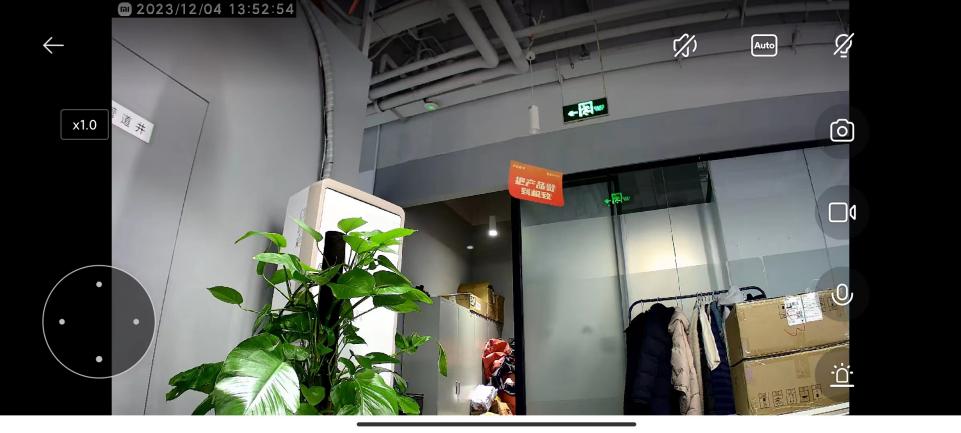
6. Sound and light alert: Tap the button to play the sound and light alert, the sound and light alert lasts for 30 seconds, and you can click again to cancel the playback when playing;
7. Call: Tap the [Microphone] button to make a remote call with the camera through the Mi Home App;
8. Take a photo: You can take a screenshot of the current monitoring screen, and a picture will be generated and saved to the local album and the Mi Home App;
9. Recording: Tap the screen recording button to record the current monitoring interface and save the video to the local album and the Mi Home App; (When recording, you need to keep it in the monitoring interface, you can't do other operations, you can't exit Mi Home; it will keep recording until the memory is exhausted.)
10. Gimbal: Tap the [Gimbal] button, and the gimbal control interface will pop up, and the camera can be controlled to rotate up and down, left and right.
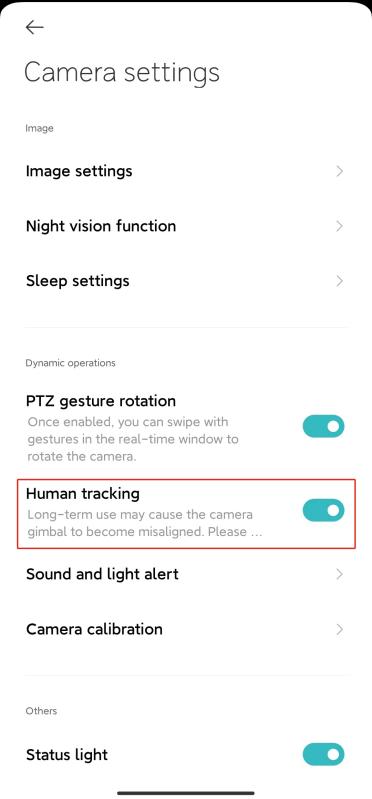
11. Q: How to set up the Xiaomi Outdoor Camera CW300 for human tracking?
A: Go to the Mi Home App >> select the device >> tap [...] at the upper right corner >> select [Camera settings] >> turn on/off [Human Tracking].
When turned off, the camera will not track the frame or the movement of the human.
Long-term rotation of the gimbal may cause displacement, so it is recommended to calibrate it regularly.
12. Q: How far does the Xiaomi Outdoor Camera CW300 humanoid recognition support?
A: Due to the different use environments and different recognition distances, humanoid recognition within 7 meters is more accurate.
13. Q: How to set up the Home monitoring for the Xiaomi outdoor camera CW300?
A: Go to the Mi Home App >> select the device >> tap [...] at the upper right corner >> select [Home monitoring] >> You can turn on/off [Home monitoring] >> You can set up [Home surveillance time period], [Partition sensitivity settings], [Push notification intervals], [Detection push notifications], [Event notification type] as you prefer.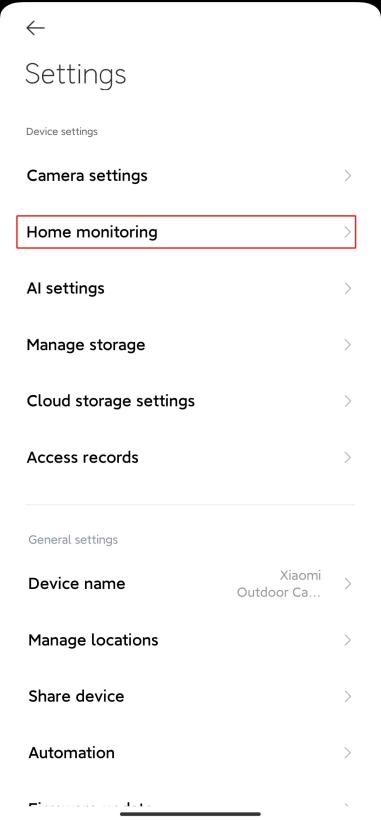
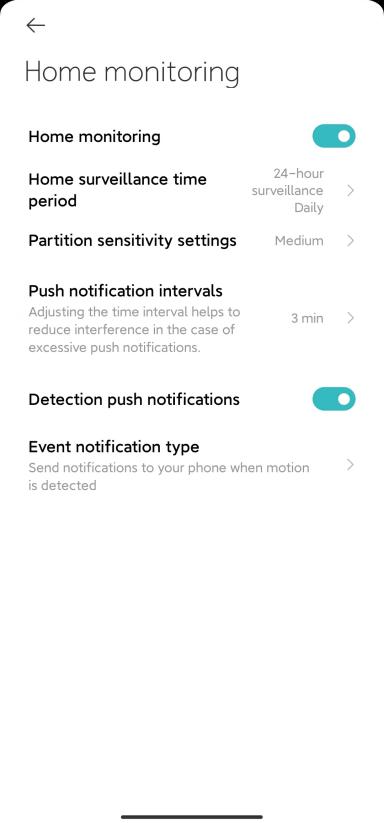
1. Home surveillance time period: you can set up full-day care or set up time-based care;
2. Partition sensitivity settings: divided into high sensitivity, medium sensitivity, and low sensitivity; (set to high: the screen changes little and can be recognized; Set to low: the screen changes greatly and can be recognized;)
3. Push notification intervals: The push time interval can be divided into 3/5/10/30 minutes for selection;
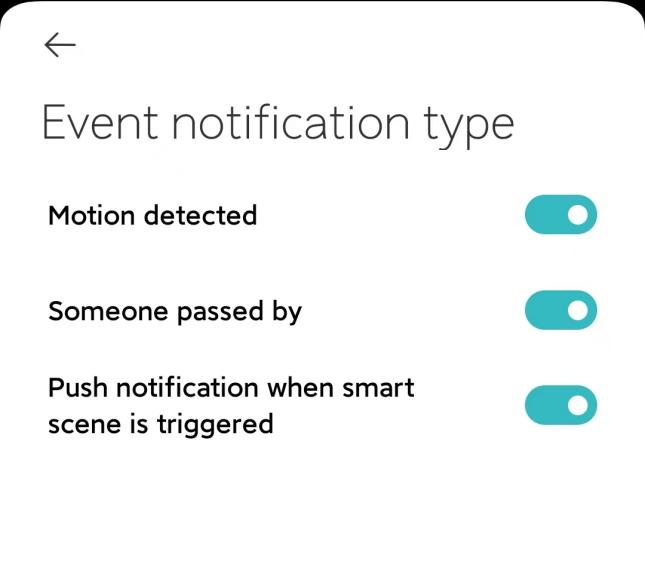
4. Event notification type: The push type notification into three types to choose from: [Motion detected], [Someone passed by], [Push notification when smart scene] is triggered. If you turn this push type off, you will no longer receive related push messages.
When the assistant is enabled, each mobile video can be recorded for about 9 seconds and stored in the cloud, and the video in the assistant will be covered by scrolling every 7 days.
Note:
Videos in the Guardian cannot be deleted in batches.
If you don't have a microSD card inserted or cloud storage enabled, you can also use the housekeeping assistant.
14. Q: How to set sound and light alerts for the Xiaomi Outdoor Camera CW300?
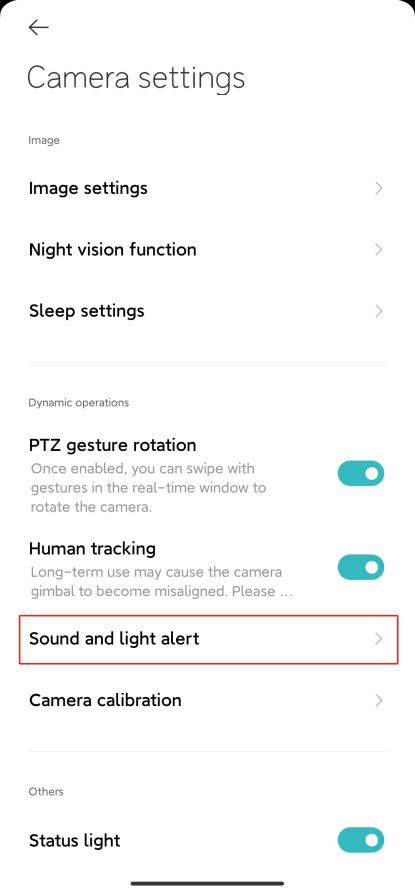
A: Go to the Mi Home App >> select the device >> tap [...] at the upper right corner >> select [Camera settings] >> tap [Sound and Light Alert] >> You can turn on/off [Sound and Light alert] >> select [Sound alert], [Light alert], [Effective time] as you prefer.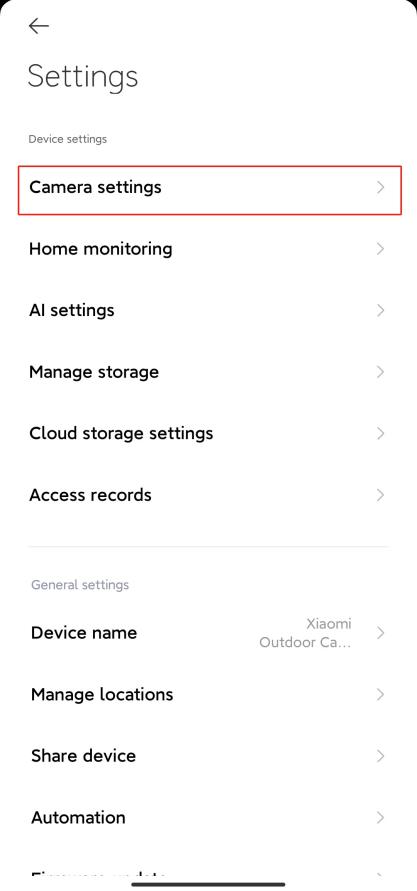
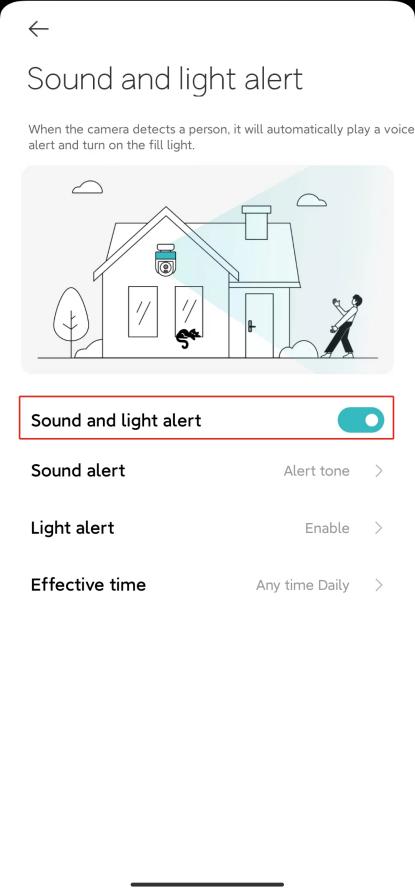
1. Sound alert: you can choose 3 sound effects such as [Alert tone], [Hello welcome], [Private area], please keep out, etc., or record your voice;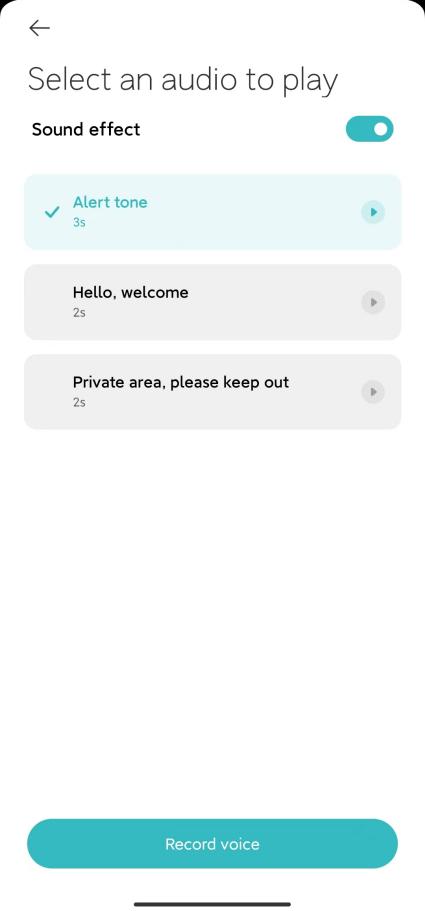
2. Light alert: can be set to turn on the light;(It is expected to be updated in mid-December, you can choose to keep the light on or flash)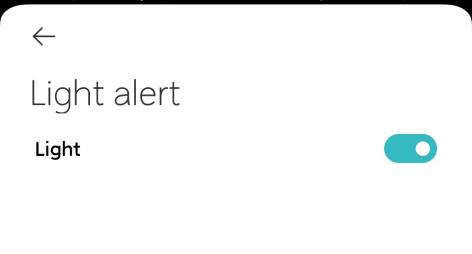
3. Effective time: [Any time] or [Custom schedule] can be set.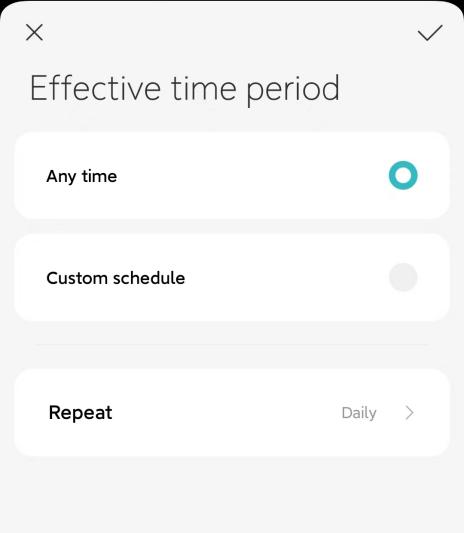
15. Q: How to playback videos from the memory card with the Xiaomi Outdoor Camera CW300?
A: Go to Mi Home >> select the camera >> tap [Playback] >> select [Memory card] >> view the video according to your needs.
If the camera is disconnected from the network/power, you can't play back the video on the memory card in the Mi Home App, you can take out the memory card and view the video on the memory card through the card reader.
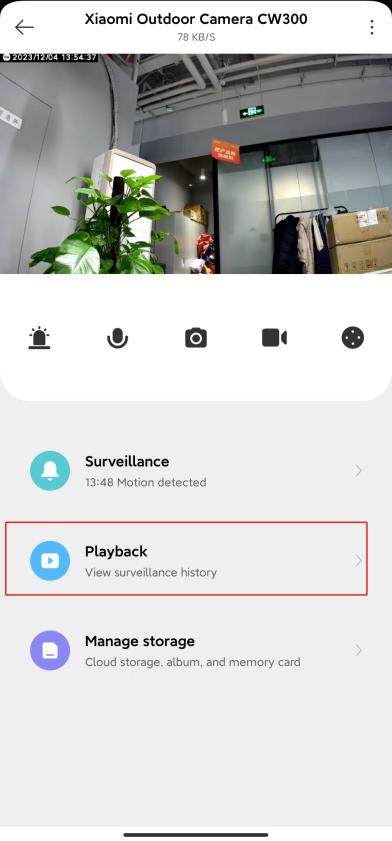
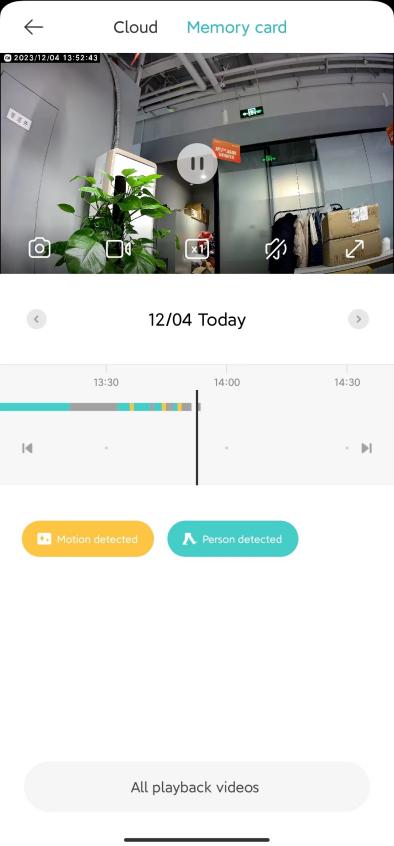
The different colors below represent different recording events, and you can directly drag the timeline to this color position to watch the recording events according to your needs. Gray indicates that no events occurred during this period.
Each video in the memory card is 1 minute, and you can delete it in batches. (See the figure below for deletion steps)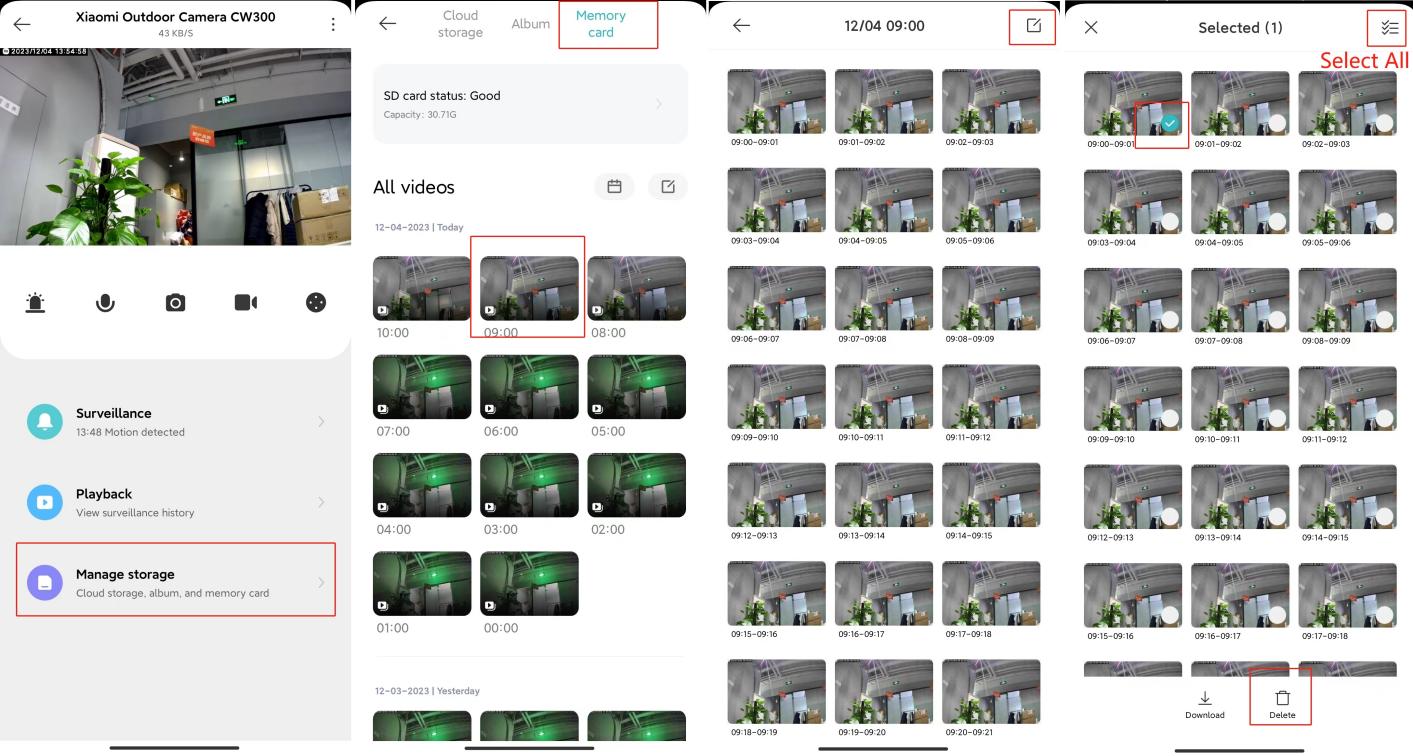
Functions of the corresponding buttons on the review page: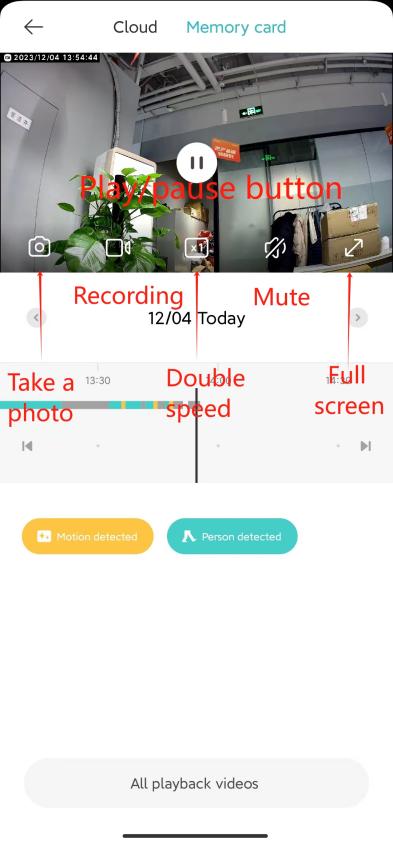
1. Play/pause button: You can pause and resume playback on the playback screen of the memory card, and the control button will appear when you tap the playback screen;
2. Take a photo: You can take a screenshot of the current monitoring screen, and a picture will be generated and saved to the local album and the Mi Home App;
3. Recording: Tap the [Recording] button to record the current monitoring interface and save the video to the local album and the Mi Home App;
4. Double speed: The video in the memory card supports 1x, 4x, and 16x speed playback in the camera. When you select [Double speed] playback, you will play muted by default;
5. Mute: Every time you enter the camera to watch back, the default memory card playback interface is mute, if you want to have sound when viewing the picture, tap the [Mute] button to turn on the sound;
6. Full screen: Tap this button, and the camera monitoring screen will enter the horizontal screen interface.
16. Q: How to format an SD card for the Xiaomi Outdoor Camera CW300?
A: Go to the Mi Home App >> Camera >> tap [...] at the upper right corner >> select [Manage storage] >> tap [SD card status] >> tap [Format SD card].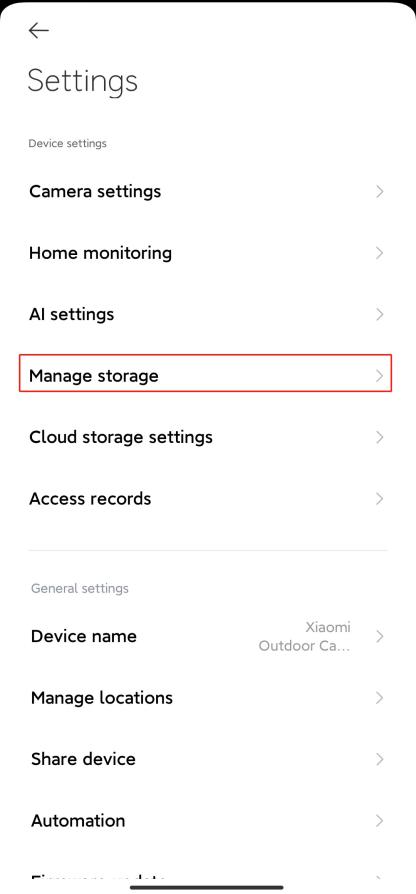

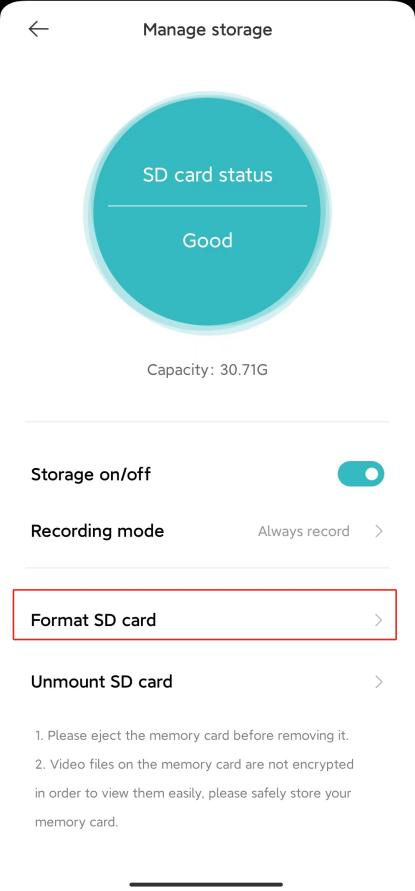
Note:
Format SD card will erase all the videos in the memory card, please be sure to save the videos first.
17. Q: What recording modes does the Xiaomi Outdoor Camera CW300 have? How do I set it up?
A:1. There are two recording modes: Always Record or Record video when motion is detected.
2. Go to the Mi Home App >> Camera >> tap [...] at the upper right corner >> select [Manage storage] >> [SD card status] >> [Recording Mode].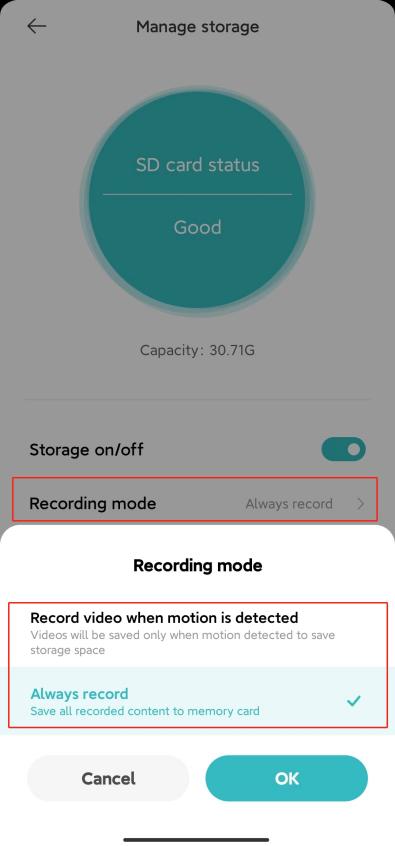
18. Q: How to update the firmware of the Xiaomi Outdoor Camera CW300?
A: Go to the Mi Home App >> Camera >> tap [...] at the upper right corner >> select [Firmware update] >> If there is an update, please update the firmware in time.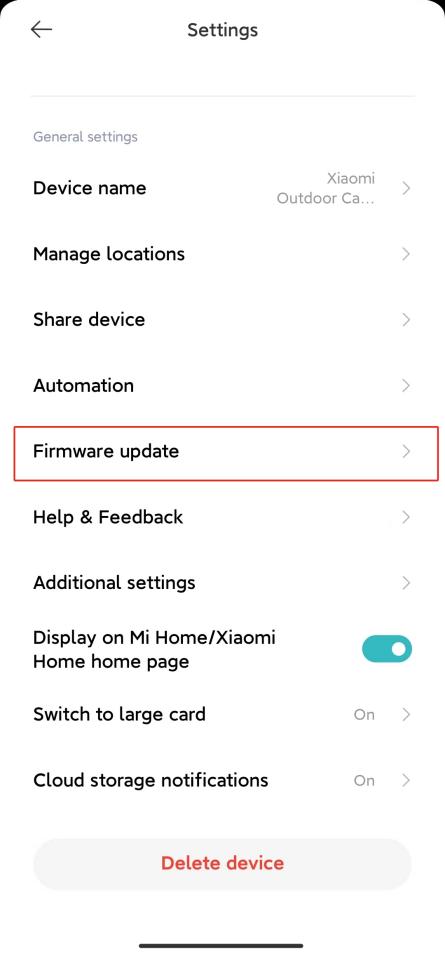
19. Q: What are the trigger conditions and actions for Xiaomi Outdoor Camera CW300 to create a smart scene?
A: 1. For your reference, the trigger conditions are as follows:
(1). Turn on night vision mode;
(2). Turn off night vision mode;
(3). Motion detected;
(4). Person detected;
(5). When the sound & light alert is executed.
2. For your reference, the execution action is as follows:
(1). Sleep mode;
(2). Wake;
(3). Restart camera;
(4). Turn off human tracking;
(5). Turn on human tracking;
(6). Disable voice alert;
(7). Enable voice alert;
(8). Play voice alert;
(9). Disable home surveillance assistant;
(10). Enable home surveillance assistant;
(11). Record and upload to the cloud storage.
For example, if the camera detects that someone is moving, it can execute [Enable voice alert] or other custom scenarios.
20. Q: How can I view the cloud storage video surveillance video of the Xiaomi Outdoor Camera CW300?
A: Go to the Mi Home App >> select the Camera >> select [Playback] >> select [Cloud] >> view the video according to your needs.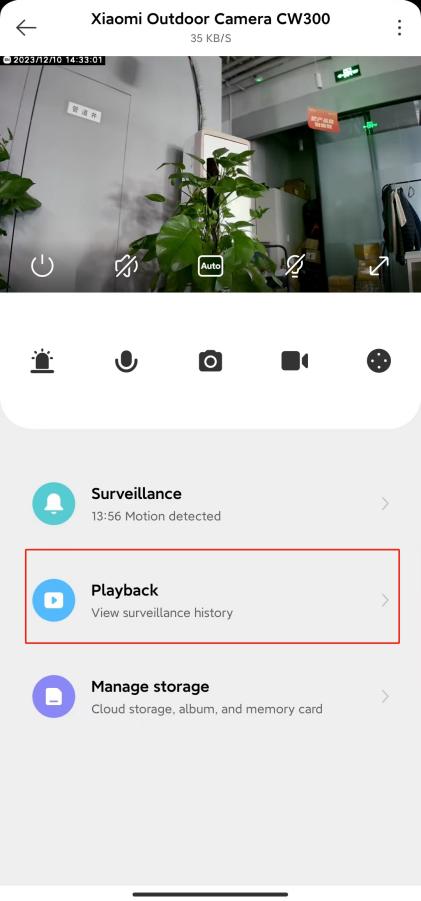
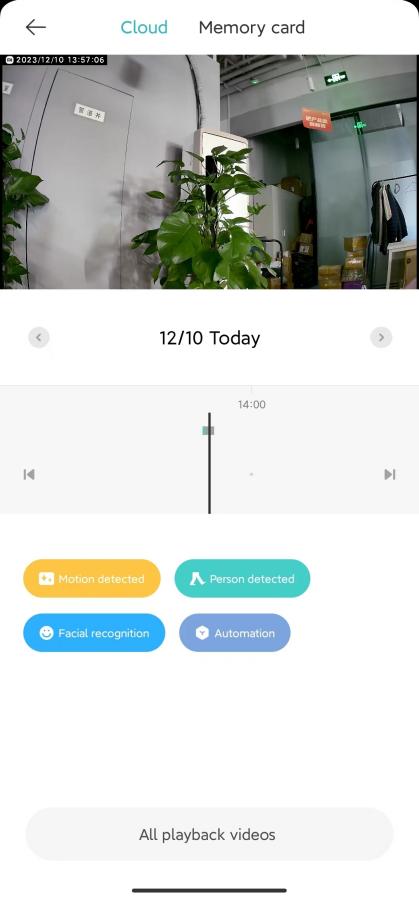
Note:
The different colors below represent different recording events, you can directly drag the timeline to the color position to watch the recording events according to your needs.
21. Q: Does the Xiaomi Outdoor Camera CW300 support the panoramic drawing function?
A: Not supported.
22. Q: Is the volume of the Xiaomi Outdoor Camera CW300 adjustable when making voice calls?
A: No. During voice calls, you cannot adjust the sound on the camera side, but only on the mobile phone by adjusting the volume of the mobile phone.
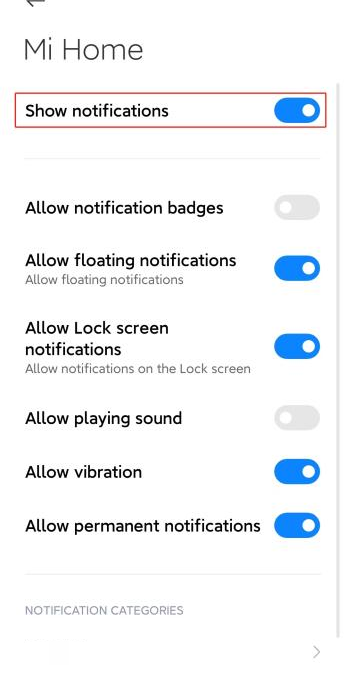
23. Q: What should I do if my Xiaomi Outdoor Camera CW300 phone can't receive alarm notifications or other messages from the housekeeper’s assistant?
A: 1. In the phone settings, turn on the notification permission of the app;
2. The switch in the message setting center of the Mi Home App remains on.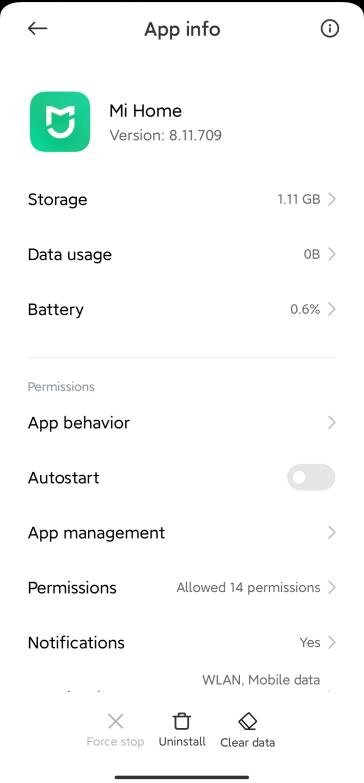
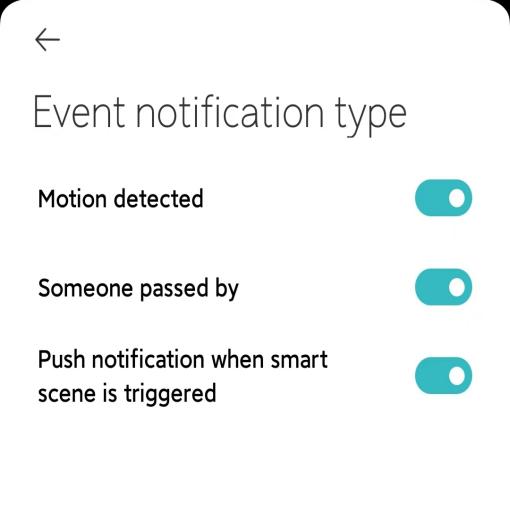
24. Q: What should I do if there is an alarm video in the Xiaomi Outdoor Camera CW300 Home monitoring alarm message but no notification message?
A: Confirm whether [Home monitoring] is turned on and whether the [Event notification type] switch is turned on.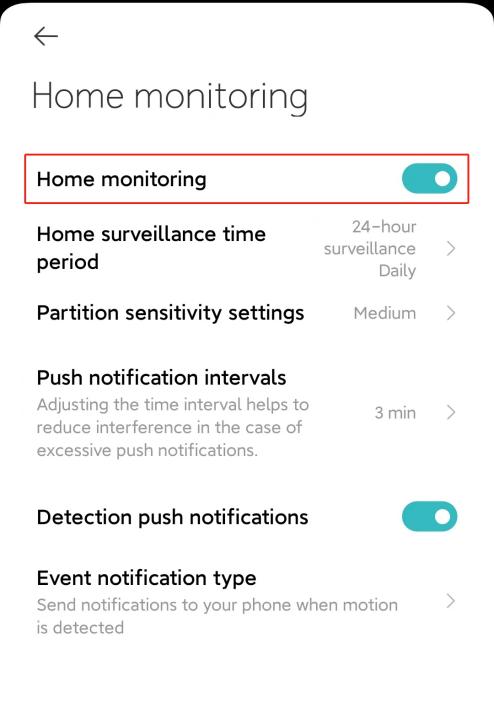
25. Q: How can I share the Xiaomi Outdoor Camera CW300 with others?
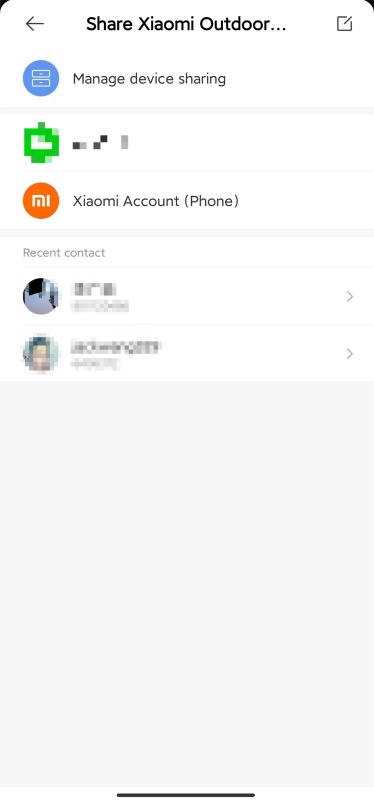
A: 1. On the homepage of the Mi Home App, press and hold the camera icon until the shortcut function pops up at the bottom of the page, select [Share], and share it with others according to the prompts;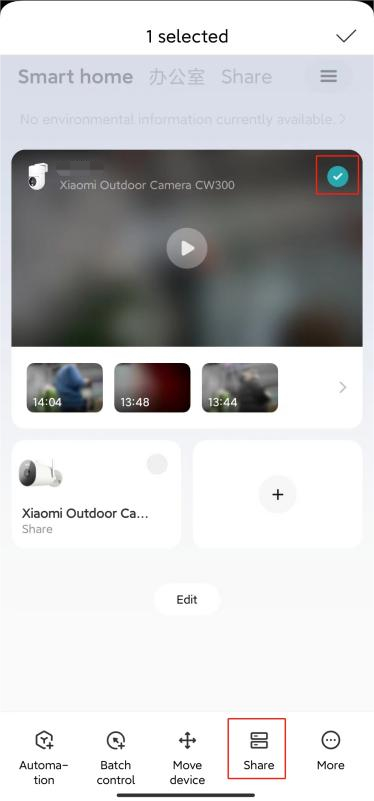
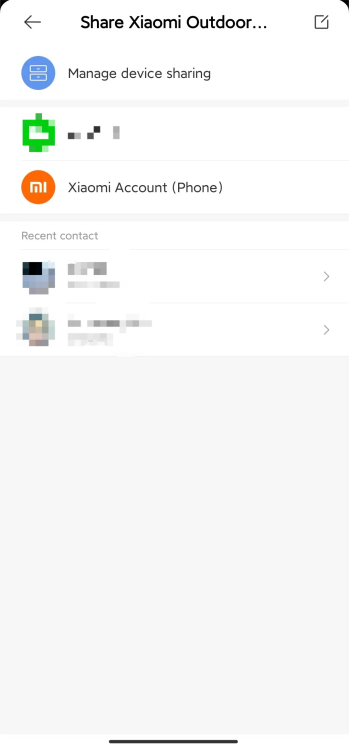
2. Go to Mi Home App >> Select the camera >> Tap [...] at the upper right corner >> [Share device] >> share with others according to the prompts. 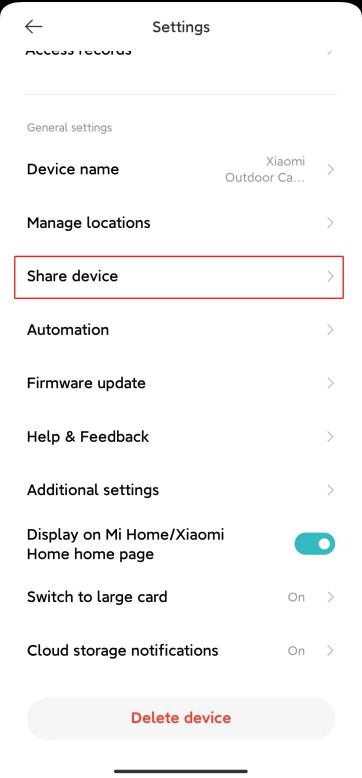
Note:
The Xiaomi Outdoor Camera CW300 can be shared with multiple persons in Mi Home, but it supports up to 2 persons to view the live feed at the same time.
26. Q: Xiaomi Outdoor Camera CW300 humanoid detection is not accurate, there is no movement in the picture, but what should I do if someone is moved?
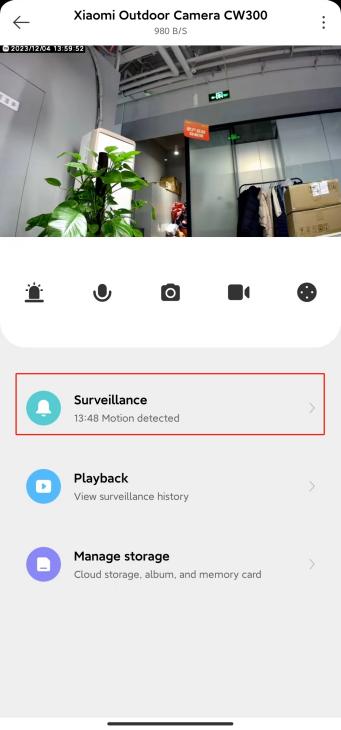
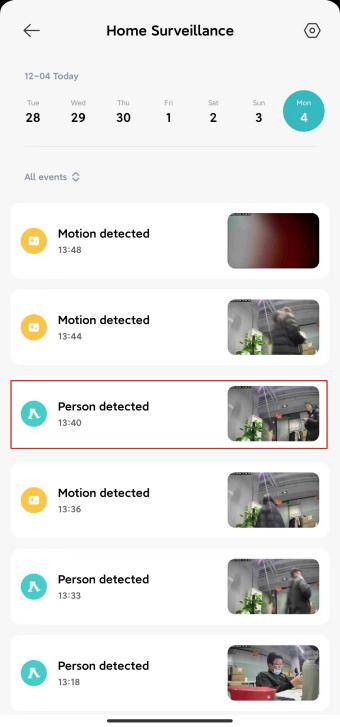
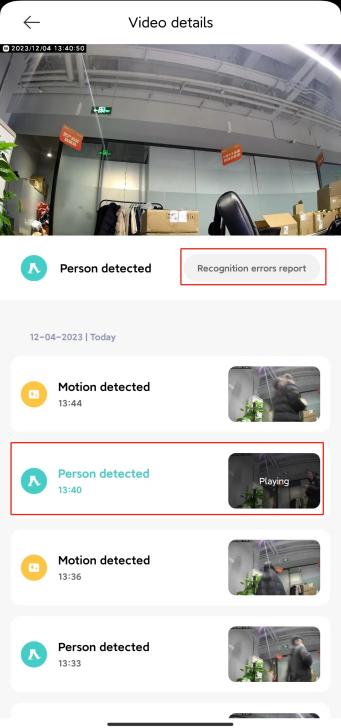
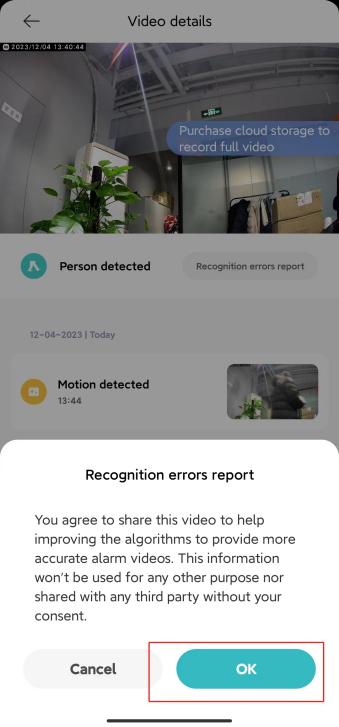
A: Enter [Surveillance], tap on the [Person detected] video, tap [Recognition errors report], and tap [OK] for feedback. We will continue to optimize this issue.
27. Q: Does the Xiaomi Outdoor Camera CW300 support viewing multiple cameras at the same time?
A: Download the Mi Home App and use your Mi Home account to bind your account to view multiple devices.
When multiple cameras are working at the same time, you can view the real-time shooting images of multiple cameras at the same time through the Mi Home App on mobile phones, TVs, tablets and other devices, and supports 4 channels of images to be viewed at the same time. (Four-split screen full-screen viewing is temporarily only supported on TV, and will be updated to support more devices.)
28. Q: Does the Xiaomi Outdoor Camera CW300 support multiple accounts to view at the same time?
A: You can add it to your Xiaomi account and share it with multiple other Mi Home accounts, but you can only have 2 accounts or devices to view the live video of the same camera at the same time (for example, a mobile phone or tablet can view the live video of the device at the same time).
29. Q: How does the Xiaomi Outdoor Camera CW300 enlarge the screen on the home page of Mi Home for preview?
A: 1. Go to Mi Home App >> Select the camera >> Tap [...] at the upper right corner >> [Switch to large card] >> You can turn on/off [Set card style as large] or [Show latest captured events on the card];
2. On the homepage of the Mi Home App, press and hold the camera icon until the shortcut function pops up at the bottom of the page, and select [More] >> tap [Switch to the large card];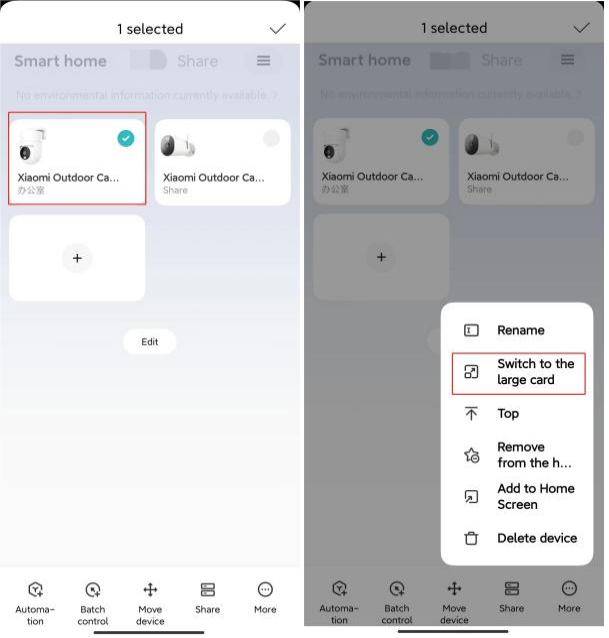
30. Q: How to set up a Shortcut card for the Xiaomi Outdoor Camera CW300?
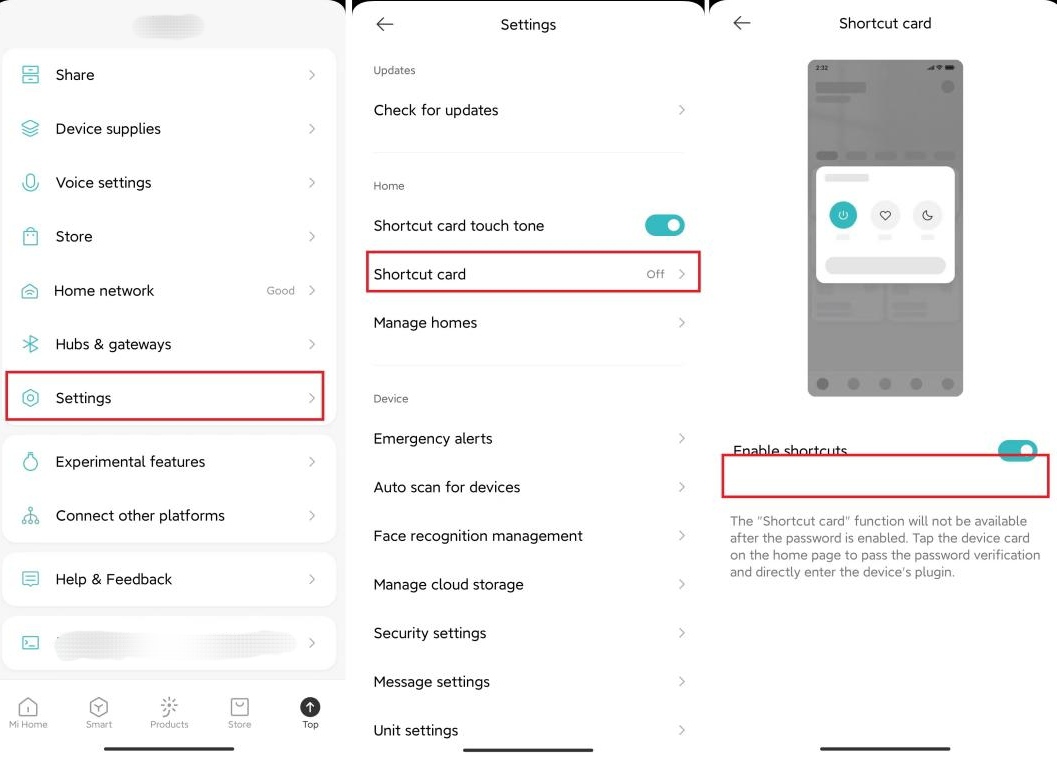
A: To open Quick Actions, you can tap the camera icon on the Mi Home homepage to enter the camera screen (as shown below), and you can open Quick Actions on the Mi Home App >> [Profile] >> [Settings] >> [Shortcut card] >> [Enable shortcuts].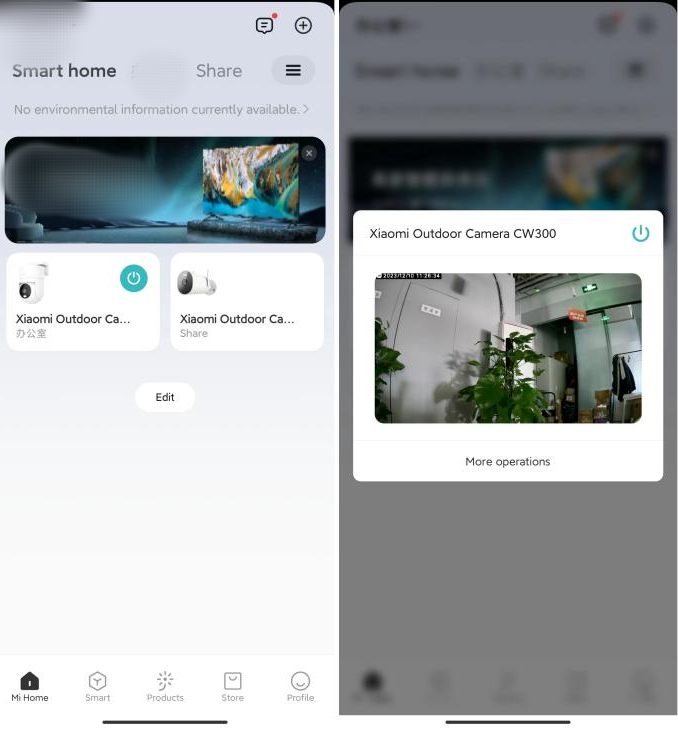
31. Q: What is the minimum supported version of Xiaomi Outdoor Camera CW300 system?
A: Supported system versions: Android 8.0 or IOS 12.0 and above.
Troubleshooting
1. Q: What to do if the Xiaomi Outdoor Camera CW300 camera cannot be turned on?
A: 1. Please make sure to use the original power cord and adapter, and turn on the power supply.
2. You can press and hold the reset button for 7 seconds to reset the device, and then try to reconnect.
2. Q: What to do if the indicator light of the Xiaomi Outdoor Camera CW300 does not light up?
A: 1. Check whether the camera is turned on normally, and make sure to use the original power cord and adapter;
2. Enter the main interface of the camera's real-time video from the Mi Home app, tap [...] at the upper right corner, enter [Camera settings], tap the [Status light] button, and turn on the status light.
3. Q: What to do if the Xiaomi Outdoor Camera CW300 flashes blue and the Mi Home app prompts that the device is offline?
A: 1. Check whether the router network is normal, if you have changed the Wi-Fi name, password or connection location, please reset the camera and bind the connection;
2. Restart the router and keep the camera close to the router;
3. If the distance is far away and there are many walls, the network cable connection can be replaced, and the network cable that can access the Internet is directly inserted into the network port of the device, and the device will switch the network cable connection without rebinding.
4. Q: What to do if the Xiaomi Outdoor Camera CW300 prompts that the APP connection fails or the connection times out?
A: 1. Please confirm whether the Wi-Fi account and password of the router you want to bind are correct;
2. Please check whether the mobile phone is connected to the network normally, you can use the mobile phone hotspot for a connection test, if the mobile phone hotspot can be connected, it may be a Wi-Fi failure, please contact the Wi-Fi network operator to solve;
3. Please try to restart the router or change the network cable connection.
4. Please try to reset the camera and connect it again.
5. Q: What to do if the camera cannot be used after Xiaomi Outdoor Camera CW300 changes the connection location or changes the Wi-Fi name or password?
A: 1. Change the location. If connected by an Ethernet cable, it can be used directly;
2. Replacement of Wi-Fi requires resetting the camera and reconnecting to the Mi Home App, deleting the bound camera, and then long-pressing the reset button for 7 seconds to rebind it from the new one;
3. Keep the camera as close to the router as possible to ensure network stability, or replace the network cable connection.
6. Q: What to do if Xiaomi Outdoor Camera CW300 can not connect to the Mi Home App?
A: 1. Reconnect to the Mi Home App after resetting the camera;
2. Reboot the router and bring the camera close to the router;
3. For cameras that have already been bound, if you need to re-bind them (e.g., changing to another residence, changing network environment, or gifting the camera to someone else), you need to unbind the camera (delete the camera on the Mi Home App) before the new person can re-bind it.
7. Q: What to do if the QR code is damaged and cannot be scanned on the Xiaomi Outdoor Camera CW300?
A: Mi Home App >> Tap [+] at the upper right corner >> Select [Add device] >> Select [Xiaomi Outdoor Camera CW300] or tap [magnifying glass] at the upper right corner to search "Xiaomi Outdoor Camera CW300" >> Select [Using Wi-Fi to connect] >> Select [Wi-Fi] >> [Keep the network connection] >> [Add manually if there is no QR code] >> Enter the 4-digit number broadcasted by the camera >> Wait for the binding to be successful.
8. Q: What to do if I cannot hear the sound or there are noises when viewing the live screen of the Xiaomi Outdoor Camera CW300?
A: 1. The volume of the real-time video is turned off by default on the Mi Home App, you can open the volume button in the video window. If the volume is low, you can turn up the volume of your phone;
2. If there is a noise on the live screen, please keep your phone away from the camera and avoid the camera near high-voltage power lines, microwave ovens and other equipment with strong electromagnetic interference.
9. Q: What to do if I cannot hear the sound on the camera side during a call on the Xiaomi Outdoor Camera CW300?
A: 1. Check if the Mi Home App has obtained permission to use the microphone (recording) of the mobile phone, if you have not obtained the permission, please turn on the relevant permissions in the settings of the mobile phone;
2. Check if the sound on the mobile phone is turned down too low resulting in no sound.
10. Q: How to view the videos recorded on the Xiaomi Outdoor Camera CW300?
A: 1. Enter the Mi Home App, tap the video screen to view the real-time video; tap [Home surveillance] to view the video of events recorded by the camera in the past;
2. If a microSD card is installed, you can view historical videos in [Review].
11. Q: What to do if the video lags and the image is not synchronized with the sound when viewing the camera screen on the Xiaomi Outdoor Camera CW300?
A: 1. Lagging video can be caused by insufficient network bandwidth. Tap the [2.5k] icon on the preview screen and set the [Video Quality Selection] option to [Auto];
2. The picture and sound are out of sync. It is recommended to check whether the network connected to the camera is normal, or exit Mi Home App and reopen it.
12. Q: What to do if the video image is not clear or dirty on Xiaomi Outdoor Camera CW300?
A: 1. Tear off the lens protective film before use;
2. Wipe the lens with a soft cloth to keep it clean.
13. Q: Do I have to install a microSD card to use Xiaomi Outdoor Camera CW300?
A: The camera can be used without a microSD card. If the microSD card is not installed, only the surveillance event video will be automatically saved in the cloud storage; if the microSD card is installed, it will store 7×24 hours of surveillance video on the microSD card at the same time.
14. Q: What are the precautions when using a microSD card on the Xiaomi Outdoor Camera CW300?
A: 1. The camera only supports FAT32 microSD cards, which must be formatted in the camera before they can be supported;
2. After the microSD card is full of videos, the camera will automatically delete the video with the earliest date and record it in a loop. To avoid file loss, please back up your microSD card files regularly;
3. Ensure that the camera is powered off, open the waterproof cover over the card slot to reveal the microSD card slot, and insert the microSD card into the slot with the contact side facing up.
15. Q: What to do if the Xiaomi Outdoor Camera CW300 with a microSD card cannot record videos, or delete videos for loop recording or format?
A: 1. Check if the memory card is inserted into the camera;
2. After installing the microSD card, the device prompts that the microSD card is not yet enabled and needs to be formatted in the Mi Home App before use;
3. If it cannot be formatted in the Mi Home App or the problem persists after formatting, it is recommended to purchase a regular brand of camera-specific memory card.
16. Q: How to save video on the Xiaomi Outdoor Camera CW300 memory card?
A: 1. After installing a memory card, recorded videos are always saved to the memory card by default. Once the storage is limited, the camera will automatically delete the oldest video and perform loop recording;
2. You can find the storage settings in the camera plugin on the Mi Home App and choose to record only moving images, which can save storage space;
3. When you don't need to watch back the history video, you can turn off the storage switch in the Mi Home App, and the camera will no longer record video to the memory card.
17. Q: What to do when tapping [>>] on the lower right corner of the card on the Mi Home App, but can not enter the Home Surveillance video list of Xiaomi Outdoor Camera CW300?
A: Tap [>>] at the lower right corner of the Mi Home App, and you can enter the homepage of the camera plug-in. Tap [Home Surveillance] to enter the surveillance video list.
18. Q: How to use the sound and light alarm function of the Xiaomi Outdoor Camera CW300?
A: 1. After turning on the sound and light alarm functions, when the camera detects someone on the screen, it will automatically play the voice and the fill light will flash;
2. Tap [...] at the upper right corner of the camera's live video homepage, tap [Sound and light alert] in the camera settings, and turn on the [Sound and light alert] option to use it.
19. Q: How to turn on the sound and light alert functions of the Xiaomi Outdoor Camera CW300?
A: 1. The sound and light alert is an active defence alarm option. When you find abnormal conditions, they can issue sound and light warnings in time;
2. Tap the [Sound and light alert] option on the real-time video page to turn on the function, the sound and light alert will last for 30 seconds, the device side will broadcast a section of the alarm sound and the fill light flash, you can tap again to cancel the playback.
20. Q: What to do if the historical videos are not continuous or smooth when watching on Xiaomi Outdoor Camera CW300?
A: 1. If the video in the memory card is not continuous, it can be enabled to record only the moving screen, after the function is turned on, the camera will record only when the screen changes; (if it is the cloud storage video is not continuous is a normal state, the cloud storage video is only recorded on the moving screen, it can't be recorded 24 hours a day);
2. If the video freezes, it can be due to the network. Check whether there are too many devices connected to the network the camera is connected to, or whether other devices are playing video at the same time. You can also replace the network cable to make the connection more stable.
21. Q: What to do if the memory card of Xiaomi Outdoor Camera CW300 is not working properly?
A: 1. Make sure the camera is powered off, open the waterproof cover above the card slot to expose the microSD card slot, and insert the microSD card into the card slot with the contact side facing up;
2. Please use a microSD card produced by a regular brand (The maximum supported capacity is 256GB and only supports FAT32 format. MicroSD cards of 64GB and above need to enter the camera plug-in page on the [Mi Home] App and format them in the FAT32 format in [Settings] >> [Manage Storage] before use). It is recommended to read and write speed of microSD cards is not lower than U1/Class10;
3. Please confirm that a memory card that meets the requirements is installed in the camera. Cameras without a memory card cannot store videos and review historical videos;
4. If the memory card does not record video, or the memory card cannot automatically delete files in a loop, you can format the memory card in the storage settings of the camera App plug-in;
5. If the memory card cannot be formatted in the App, you can format the memory card on the computer through a card reader. After formatting is completed, power off the camera and reinstall the memory card.
Note:
After formatting, the files in the memory card will be deleted.
22. Q: What to do if Xiaomi Outdoor Camera CW300 whistles during voice calls?
A: 1. When making a call, please do not place the mobile phone and the device in the same space, and keep it more than 10 meters away from the device. Echo and whistles caused by close calls are normal;
2. If there are many electronic products near the device, electromagnetic interference will be generated, which will cause whistles, noise, etc. during voice calls.
23. Q: What to do if the shooting image is blurred or no shooting image when the Xiaomi Outdoor Camera CW300 is in night vision?
A: 1. Make sure the camera's lens is clean and dust-free;
2. Please check whether the lens is covered by debris. You should avoid the front and side of the lens being close to reflective objects such as glass and white walls, which can cause the picture to be bright in the near distance and dark or whitish in the far distance.
24. Q: Why do the videos on the memory card of Xiaomi Outdoor Camera CW300 have sound when viewing on the phone, but no sound on the computer?
A: It is due to the incompatibility of the video player software on the computer. You can change the computer player.
25. Q: What to do if the video recorded in the memory card of Xiaomi Outdoor Camera CW300 is not continuous and the image is not synchronized with the sound?
A: 1. Restart the device to see if it returns to normal;
2. Check whether the memory card is hot-swapped frequently. The memory card needs to be operated when the camera is powered off. Frequent hot-swapping will cause the performance of the memory card to decrease, resulting in abnormal problems in the recorded video;
3. Check if the memory card reading rate is too low;
4. Change the memory card (ensure that using a memory card from a big brand meets the requirements, otherwise many abnormal problems will occur during use, such as incoherent recording, memory exceptions, etc.).
26. Q: What to do if the memory card of Xiaomi Outdoor Camera CW300 is not working properly?
A: 1. Restart the camera;
2. Check if the camera firmware and the version of [Mi Home] App need to be updated;
3. Clear the data of the Mi Home App (it will clear your downloaded cloud storage videos);
4. Change the memory card.
Note:
Memory cards have a service life, if you use a card for a long time, it can cause the memory card to be erased many times and can not be used again, be sure to ask the user to replace the brand memory card to use.
27. Q: What to do if the gimbal of the Xiaomi Outdoor Camera CW300 is stuck and not rotating?
A: 1. Power off the camera and restart it;
2. Mi Home App >> Find [Xiaomi Outdoor Camera CW300] >> Tap [...] at the upper right corner >> [Camera settings] >> [Reset the device];
If the camera still cannot rotate, please contact the after-sales service center.
28. Q: What to to do if the gimbal position of the Xiaomi Outdoor Camera CW300 is deviated?
A: If the gimbal is deviated and the lens positioning is inaccurate, do not twist the head of the camera to force it to rotate. You can calibrate the gimbal through the Mi Home App.
Note:
Long-term rotation of the gimbal can cause displacement, it is recommended to calibrate it regularly.
29. Q: What to do if the firmware upgrade of Xiaomi Outdoor Camera CW300 fails?
A: Upgrade failure is usually caused by poor network or server abnormality. Please change the network and try again; If the network is smooth and good, please change the period and try again.
30. Q: What to do if the Xiaomi Outdoor Camera CW300 always rotates by itself?
A: Mi Home App >> Select the Camera >> Tap [...] at the upper right corner >> [Camera settings] >> Turn off the [Human tracking] function.
After the human tracking function is turned on, the camera will follow the movement of the screen when it detects movement. It will return to the original position to continue monitoring after the rotation is completed.
31. Q: Why there is a rustling sound when shaking the Xiaomi Outdoor Camera CW300?
A: To prevent the camera from being damaged due to excessive humidity, a desiccant is placed in the camera. There will be a rustling sound when shaking, which is normal and will not affect the use of the product.
32. Q: What to do if the human face recognition is not sensitive on the Xiaomi Outdoor Camera CW300?
A: 1. The camera performs recognition and recording based on the human shape, ensuring that the camera remains installed horizontally. If it is installed upside down, rotate the screen to forward display on the Mi Home App screen settings. The horizontal display of the screen can improve the accuracy of humanoid recognition;
2. Go to Mi Home >> Tap [...] at the upper right corner >> select [Home Surveillance Settings] >> Tap [Partition Sensitivity settings] >> Select [High].
Does it help?