

Mi Robot Vacuum MOP FAQ
Overview
1.What is Mi Robot Vacuum MOP?
A: Mi Robot Vacuum MOP is a smart planning integrated sweeping and mopping robot. It can autonomously perform sweeping and mopping tasks in the household at the same time, and will automatically return to the charging station to charge after cleaning, which greatly helps users reduce the burden of household floor cleaning.
2.What are the characteristics of Mi Robot Vacuum MOP?
A: Mi Robot Vacuum MOP has a variety of high-precision motion sensors, equipped with visual positioning and navigation algorithms, accurately recording motion trajectories, and drawing cleaning maps. At the same time, it can adapt to the complex home environment, and has super-strong obstacle-climbing ability and the ability to escape difficulties. It will automatically recharge at the end of the work, saving worry to the last step. In terms of cleaning, the method of sweeping before and after mopping is adopted, and the super sweeping suction power is combined with the electronically controlled water tank mopping system to make the cleaning more thorough. You can view the cleaning map at any time through the Mijia APP, set timed cleaning, switch the cleaning mode, and master the cleaning of the entire home.
3.What is VSLAM/visual navigation technology?
A: VSLAM visual navigation technology is a new navigation technology that collects spatial features of the surrounding environment through camera sensors and performs software algorithm processing to complete its position determination and path recognition, and make navigation decisions. Mijia sweeping robot 1C is equipped with a professional OV vision sensor and a 166° wide-angle lens. It collects 30,000 feature points per second, extracts complex spatial features, and is equipped with 50 times per second path calculations to achieve rapid and accurate mapping and navigation.
4.What are the advantages of VSLAM/visual navigation compared to LDS laser navigation?
A: The visual navigation technology adopted by the Mi Robot Vacuum MOP, due to the use of embedded visual sensors, makes the body height only 8.2cm. Compared with LDS laser navigation products, the body is lower and it is easier to enter the bottom of the bed, cabinet, etc. The bottom of the furniture, thereby improving the cleaning coverage.
Product introduction and use
1.What is the function of the (Switch/Clean) button of Mi Robot Vacuum MOP? how to use?
A: As shown in the table below
| Functions | use |
| on/off | Long press for 3 seconds to turn on or off |
| clean | After turn on, short press to start cleaning |
| Status Indicator | Steady white: in work or completed White blinking: work is suspended Blinking blue: network connection Orange flashing: fault status |
A: As shown in the table below
| Function | use |
| recharge | Short press to start |
| Spot cleaning | Long press for 2 seconds to start spot cleaning |
| Status Indicator | White flashing: Recharging is not in low battery Orange flashing: Recharging when the battery is low White breath: charging when not low battery Orange breath: charging when the battery is low Steady white: charging is complete |
A: After starting, the main unit will use a S-shaped cleaning method to complete the cleaning of the room in order. After all areas are covered, the main unit will clean along the wall, orderly, efficient and full coverage. After the cleaning, the main unit will automatically return to the charging station to charge.
4.Can Mi Robot Vacuum MOP always connect to the charger? Is there overcharge protection?
A: Mi Robot Vacuum MOP supports overcharge protection, and it will automatically power off when the battery is full.
5.How does Mi Robot Vacuum MOP dump garbage? How to clean the dust bin and filter?
A:
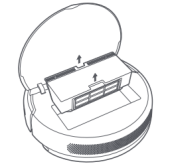
- Open the top cover of the robot, press the buckle of the dust bin and take out the dust bin upwards.
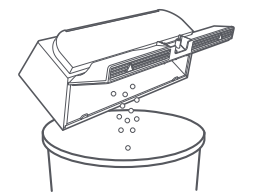
- Open the dust bin cover from the arrow position of the dust bin and dump the garbage.
- Pour clean water into the dust bin, close the dust bin cover, shake the dust bin left and right, pour out the dirty water, repeat this step several times.
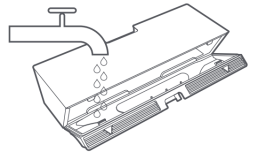
Tip: Please wash with clean water, do not add any detergent. Please do not use brushes or fingers to clean the filter.
- Please remove the filter as shown in the picture, shake the water drops vigorously, and dry the filter before putting it back in for use.
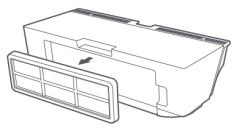
Tips: Please be sure to dry before use (at least 24 hours in the sun)
6.Is the Mi Robot Vacuum MOP suitable for cleaning the area under the bed?
A: The height of the Mi Robot Vacuum MOP is only 8.2cm, and the bottom of the furniture higher than this height can be easily handled.
7.How long does it take to fully charge Mi Robot Vacuum MOP?
A: It takes about 3-4 hours to charge from 0 to 100%.
8.How long is the Mijia Vacuum-mop battery life?
A: It can work for 80-90 minutes in the standard mode. Under the influence of different temperature, clean surface and other factors, the above data is for reference only.
9.Does Mi Robot Vacuum MOP support connecting to App?
A: The Mi Robot Vacuum MOP has been connected to Mijia, can be controlled through the Mijia APP, and interconnected with other products.
10.What battery does the Mi Robot Vacuum MOP use?
A: Mi Robot Vacuum MOP uses 2600mAh high-performance lithium-ion rechargeable battery pack.
11.Does Mi Robot Vacuum MOP have a motor overload protection function?
A: All motors on the Mi Robot Vacuum MOP have overload protection, including the vacuum fan, main brush motor, side brush motor, and main wheel motor. When foreign matter enters, the blockage is serious and the overload is caused, the protection will automatically start.
12.Does the Mi Robot Vacuum MOP accessory need to be replaced regularly?
A:
| Accessory | Maintenance recommendations |
| Main Brush | It is recommended to clean up every week and replace the main brush every 6-12 months to ensure cleaning |
| Filter | It is recommended to clean up weekly and replace the filter element every 3-6 months. |
| Side Brush | It is recommended to clean up once a month and replace the side brush every 3-6 months to ensure the cleaning effect. |
| Mop | Be sure to remove the mop for cleaning to prevent sewage from flowing back and blocking the water outlet; if the mop is too dirty, it will affect the mopping effect, please clean it before using it; it is recommended to replace the mop within 3-6 months to ensure the cleaning effect. |
Installation and maintenance
1.How to use the charge dock?
A: Place the charging dock on a level ground against the wall, ensure that there is more than 0.5 meters of space on both sides of the charging dock, and connect the plug to the power outlet. In order to get a better mobile client experience, please place the charging base within the Wi-Fi coverage area.
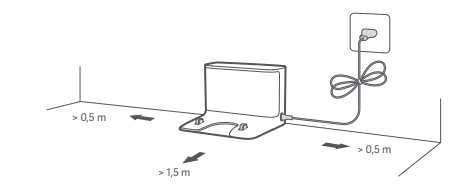
Tip: Do not place the charging stand in direct sunlight or use any objects to cover the recognition area of the charging stand, otherwise it may cause the main unit to fail to return to the charging stand automatically.
2.How to charge Mi Robot Vacuum MOP?
A: Long press the power button, wait for the power indicator to be on, and then put the robot on the charging base to charge.
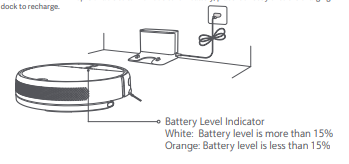
Tip: You may not be able to turn on when the battery is low, please put the robot directly on the charging base.
3.How to connect 1C to Mi Home APP?
A: This product has been connected to Mijia, can be controlled through Mijia APP, and interconnected with other products. Scan the QR code, download and install the Mijia APP. Users who have installed the Mijia APP will directly enter the device connection page. Or search for "Mijia" in the app store, download and install the Mijia APP. Open the Mijia APP homepage, click "+" in the upper right corner of the page, and add devices according to the APP prompts.
Tip: Due to the upgrade and update of the Mijia APP, the actual operation may be slightly different from the above description. Please follow the instructions in the current APP.
4.How to reset the Wi-Fi of Mi Robot Vacuum MOP?
A: When the router configuration modification, forgotten password or other reasons make the mobile phone unable to connect to the robot, please open the top cover to reveal the Wi-Fi indicator, and press and hold the power button and recharge button at the same time until the voice prompt "Waiting to configure the network", wait for Wi-Fi indicator light starts to flash slowly again to indicate a successful reset.

5.How to use the mopping function of Mi Robot Vacuum MOP?
- Install the mop: Wet the mop and wring it out until it does not drip. Insert it along the slot of the water tank to the end, and stick it firmly.
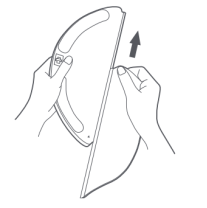
- Filling the water tank: open the water tank cover, fill it with tap water and plug it back into the water tank cover.
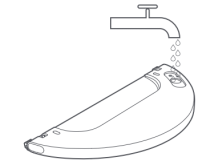
- Install the module: push it in along the alignment mark plane on the mopping module at the rear of the robot, and it will make a "click" sound when it is installed in place.
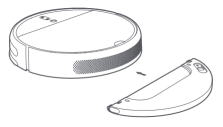
- Start mopping: short press the power button to start mopping.
6.How does Mi Robot Vacuum MOP take out the mopping module?
A: When the robot has finished its work and returns to the charging dock, press the buckles on both sides inward with your hands, drag backwards and remove the mopping module.
Tip: Please remove the mopping module when charging or not in use, pour out the remaining water in the water tank and clean the mop to avoid mold or odor.
7.How to turn on and turn off Mi Robot Vacuum MOP?
A: Long press the key to turn on, the power indicator will be steady white, and the robot will enter the standby state. When the robot is at rest, press and hold the key to shut down, and the cleaning will end after shutting down.
Tip: The Vacuum-mop cannot be turned off during charging.
8.How to start the cleaning of Mi Robot Vacuum MOP?
A: Short press the key to start cleaning. Press any key to pause during cleaning.
Tip: If the battery is too low, the cleaning cannot be started, please charge first before starting the cleaning.
When the power is insufficient during the cleaning process, the Vacuum-mop will automatically return to the charging dock to charge, and automatically return to the interruption point to continue cleaning when the power is sufficient.
Please tidy up all kinds of wires on the ground (including the power cord of the charging stand) before cleaning to avoid the power failure of electrical appliances and damage to objects or wires caused by dragging the main unit during cleaning.
If the cleaning time is less than 10 minutes, it will be cleaned twice by default.
9.How to return the Mi Robot Vacuum MOP to charge?
A: Automatic method: After cleaning, the robot will automatically return to the charging base to charge. Manual mode: In the paused state, short press the key to start recharging.
When the robot is charging, the button breathes and flashes.
Electricity <15% flashes orange, and electricity ≥15% flashes white.
Tip: If the Vacuum-mop does not find the charging dock, it will automatically return to the starting point of cleaning. Please manually put the Vacuum-mop back into the charging dock to charge.
10.How to maintain the main brush of Mi Robot Vacuum MOP?
- With the bottom of the robot facing up, press the buckle to remove the main brush cover.
- Take out the main brush upwards and clean the main brush bearing.
- Use the matching main brush cleaning tool to cut off the entangled hair on the main brush.
- Replace the main brush and press the main brush cover fixing buckle.
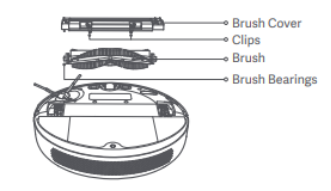
11.How to maintain the dust bin and filter of the Mi Robot Vacuum MOP?
A:
(1)Open the robot cover, then press the dust bin clip to remove the dust bin.
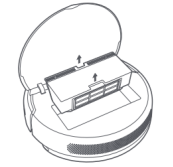
(2) Open the dust bin cover as indicated by the diagram.
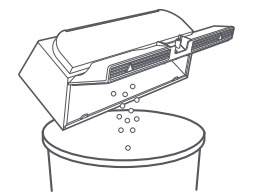
(3)Pour clean water into the dust bin, close the dust bin cover, shake the dust bin left and right, pour out the dirty water, repeat this step several times.
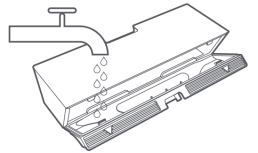
Tip: Please wash with clean water, do not add any detergent. Please do not use brushes or fingers to clean the filter.
(4)Please remove the filter as shown in the figure, shake the water drops vigorously, and dry the filter before putting it back in for use.
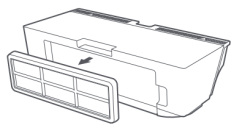
Keep it in a well-ventilated or cool place for at least 24 hours.
12.How does Mi Robot Vacuum MOP maintain the omnidirectional wheel?
A:
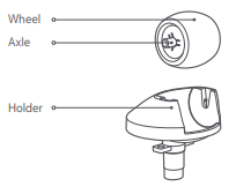
- Turn the robot over and pull out the omnidirectional wheel upwards.
- Clean the hair and dirt on the wheel body and axle.
- Reinstall the wheel body and press it firmly.
13.How to maintain the side brush of Mi Robot Vacuum MOP?
A:
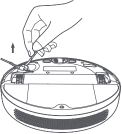
- Turn the robot over, pull out the side brush and clean it up according to the following figure.
- Install back side brush.
14.How to maintain the mop of Mi Robot Vacuum MOP?
A:
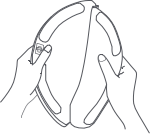
- Remove the mop from the mopping module.
- Clean the mop and dry it.
15.How to maintain the cliff sensor of Mi Robot Vacuum MOP?
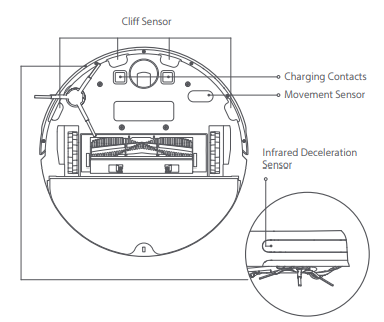
A: Wipe and clean each sensor of the robot with a soft dry cloth, including:
- Four cliff sensors at the bottom of the robot.
- The infrared deceleration sensor in front of the robot.
- The charging contact on the bottom of the robot.
- The motion tracking sensor at the bottom of the robot.
16.How to maintain the battery of Mi Robot Vacuum MOP?
A : Mi Robot Vacuum MOP contains a high-performance lithium-ion rechargeable battery pack. In order to maintain battery performance, please keep the main unit charged in daily use.
Tip: If you don't use it for a long time, please turn it off and store it, and charge it at least once every three months to avoid damage to the battery due to over-discharge.
17.How to upgrade the firmware of Mi Robot Vacuum MOP?
A: Use the Mijia APP to upgrade the robot firmware, please ensure that the robot is on the charging stand and the battery level is greater than 15% before upgrading.
When the firmware is upgraded, the power indicator is flashing white and orange at intervals.
18.How to restore factory settings of Mi Robot Vacuum MOP?
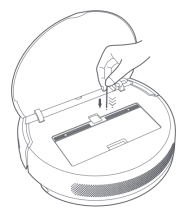
A: If the system still cannot be used normally after restarting the system, please use the tool to press and hold the reset button until the voice prompt "Start to restore factory settings", the robot will be restored to the factory state.
FAQ
1.What are the possible reasons for the failure of network distribution and how to deal with it?
The robot configuration only supports 2.4G Wi-Fi networks, not 5G Wi-Fi networks.
Please make sure that the robot and mobile phone are close to the router to ensure a good Wi-Fi signal.
When connecting to the hotspot released by the robot, after hearing the robot announce the voice, return to the App and wait for the network configuration result. Before configuring the network, please make sure to open the location permission of the App.
Failure to open the permission will cause the network configuration to fail.
If the network configuration still fails, please try to restart the robot and router.
2.What to do if the main unit is abnormally charged?
Please check whether the charging dock and the charging contacts are stained with dust. When dust is stained, abnormal charging will occur. Please wipe it before use.
3.What to do if the water tank does not come out or the water volume is low when mopping the floor?
Please check whether there is water in the water tank, please install the mop according to the instructions, please clean the mop in time.
Before mopping the floor, please dampen the mop first to ensure the mopping experience before the water tank comes out.
4.What to do if there is a water leak at the top cover of the water tank?
There are vent holes on the upper cover of the water tank to balance the air pressure inside and outside the water tank. After the water tank is filled with water, please take it horizontally. When it is tilted, there will be slight water leakage, which is normal.
5.Can I add a cleaning solution or disinfectant to the water tank?
Please add clean water to use, do not add cleaning liquid or disinfectant.
6.How to use zone cleaning and virtual wall functions?
Turn on the switch in the application "Settings-Experimental Function-Map Save Mode" of Mi Robot Vacuum MOP. After the map is learned successfully, you can use the area cleaning and virtual wall functions.
7.What is the reason why the map cannot be saved and how to solve it?
The robot needs to complete several complete cleanings in different light environments before saving the map.
Complete cleaning means that the robot completes the whole house cleaning and automatically returns to the charging dock. During the cleaning process, manual control of recharging, low-power recharging, and manual removal of the robot back to the charging dock are not considered complete cleaning.
8.Can the map be updated after it is saved?
When the cleaning path changes significantly from the original map, the user will be prompted "the cleaning path does not match" and the user can choose whether to update the map. When studying the map, please open all the doors in your home to ensure that you can suggest a complete family map.
9.What should I do if the charging stand is changed after the map is saved?
If the home map is saved and the charging dock changes its position, please let the robot return to the charging dock automatically after cleaning, and the position of the charging dock will be updated.
10.What to do if the map partition is inaccurate?
After the map is saved, the room will be partitioned automatically. If the partition is inaccurate, you can reset the map and learn again. Please keep the sweeper working under sufficient light during the learning process.
11.Why is there a change in the display mode of the cleaning track?
Before the map is saved, the cleaning trajectory is presented as a smearing trajectory, after the map is saved, the cleaning trajectory is presented as a trajectory line.
12.What is the reason for the failure of the virtual wall in APP?
After the robot is moved, the relocation fails, the current map is invalid, and the virtual wall on the current map will be invalid at the same time. Please move the robot to the charging station to restore the map. When the robot is cleaning in a low-light environment, the positioning may be shifted, and the robot may cross the virtual wall for a certain distance to clean. Please try to keep the robot in a well-lit environment for cleaning.
13.What are the precautions before cleaning?
Please try to fully charge the robot and start cleaning from the charging stand.
Please tidy up the home furniture environment before cleaning, and put away fragile items, debris and cables on the floor in advance.
Keep the robot camera clean.
Please keep proper light in the room when cleaning.
14.Do you need to charge for 16 hours for the first three uses?
Lithium batteries can be charged as you use them, without memory effect, and you don’t need to wait until 16 hours for full use.
15.What is the battery life of the robot?
Quiet mode: 110-120 minutes
Standard mode: 80-90 minutes
Strong mode: about 60 minutes
Turbo mode: about 50 minutes
16.Do I need to upgrade if a new firmware version is found?
The first version of the new firmware version contains optimized content. Please try to find the new firmware version and upgrade it in time to ensure the best cleaning experience.
17.Why does the robot have missed or repeated cleaning?
Please check whether the robot camera is dusty, if there is dust, please clean it up. Please try to keep the indoor environment light as bright as possible during the cleaning process.
18.The robot will go to another room to clean before one room is cleaned?
The robot has a specific cleaning path plan. It is normal for one room to go to another room to clean before the cleaning is completed. The previously uncleaned area will be cleaned behind.
19.The cleaning path of the robot has repeated back and forth phenomenon?
The robot will clean according to the planned path, and will navigate to the uncleaned area during cleaning. There will be some repeated back and forth visually, but the actual cleaning is not repeated.
20.The robot has a phenomenon that some narrow areas cannot be entered during cleaning?
The minimum distance for the robot to pass is 38cm, and areas less than this distance may not pass.
21.The cleaning efficiency of the robot in a complex environment will be reduced?
In order to ensure the cleaning coverage, the robot will clean all corners. In a complex environment, turning and edge movements will be increased, and the cleaning efficiency may be reduced.
22.The sound of the robot is louder when cleaning?
In order to ensure the cleaning effect, the robot adopts a fan with a larger suction power, which has a stronger dust suction effect and a relatively louder sound. When cleaning, you can use a quieter gear with a quieter sound to work.
23.The robot has a strange sound when cleaning?
When the robot is working on a smooth tiled floor and wooden floor, a slight sound may be produced when the bottom scraper rubs against the ground.
When the robot passes through the joint between the tile and the floor, it will touch and clean the seam, and may produce a slight "click" sound. The above sound does not affect the normal use of the machine.
24.What to do if the robot encounters a stuck during cleaning?
When the robot is cleaning, it may get stuck in slippers, plastic bags and other sundries in the home. Please try to place the robot in a cleaned area nearby to continue cleaning after handling the card failure.
Please try to clean up the sundries in your home before cleaning to avoid the robot from getting stuck during cleaning.
25.What to do if the upper surface of the robot is stuck when the robot is cleaning?
When the robot is cleaning, it may get stuck on the top surface when it encounters the bottom of furniture that is close to the height of it. Please purchase a magnetic stripe virtual wall to prevent the machine from entering again. If you have not purchased a magnetic stripe virtual wall, please block the bottom of the furniture with obstacles to prevent the robot from entering again.
26.How to deal with the entanglement of side brush and main brush when the robot is cleaning?
When the robot is cleaning, the side brush and rolling brush may entangle the power cord, charging cable, etc. at home. Please try to place the robot in a cleaned area nearby to continue cleaning after handling the winding fault.
Please try your best to clean up the sundries in your home before cleaning to avoid entanglement of the robot during cleaning.
27.What to do if the power cord of the charging dock is wound when the robot is cleaning? Before cleaning, please tie the excess power cord of the charging dock with a cable tie, and do not put it on the floor.
28.When the robot is cleaning, it will go to the cleaned area and repeat the cleaning after it is moved. What is the reason?
After the robot is moved, it will perform repositioning. If the repositioning is successful, the cleaning will continue, and if the repositioning fails, the cleaning will restart.
29.What is the reason for the failure of robot relocation?
If the robot is moved to an area that has not been cleaned before, the relocation will fail. Please try to move it to the area that has been cleaned before.
When the robot was relocated, someone was standing next to the robot. Please try to ensure that you do not stand next to the robot, and that the camera can fully capture the feature points at the top of the room.
When the robot is relocating, the light is dark, please ensure that the relocation is performed under sufficient light.
30.What is the height of the obstacle that the robot can pass through?
The robot can pass 20mm high obstacles, and the obstacle height will be slightly reduced after installing the water tank.
On a slippery ground, the obstacle height of the robot will be reduced.
31.What is the reason why the robot encounters obstacles and does not decelerate and collide when cleaning?
There is an infrared sensor on the front impact plate of the robot, which can detect obstacles and decelerate in advance. However, it is normal for some tables and chairs legs with darker colors or smaller volumes to fail to detect collisions.
32.What is the reason why the robot hits the wall when cleaning along the edge?
When the robot is cleaning along the edge, it will keep a certain distance from the wall. However, when encountering some dark walls, the infrared sensor cannot detect and will collide with the wall, which is normal.
33.What to do if the robot behaves abnormally?
Press and hold the cleaning button for 6 seconds to shut down and then restart.
34.What to do if you can't turn the robot on?
The battery is low, please charge it by the charging base before using it. The ambient temperature is too low (below 0°C) or too high (above 50°C), please use it in an environment of 0-40°C.
35.What to do if you can't charge?
The charging dock is not powered on, please make sure that both ends of the charging cradle's power cord are plugged in. Poor contact, please clean the charging base shrapnel and the main unit charging contacts.
36.What is the reason for the fast power consumption when the robot is cleaning?
After the robot is charged and left for a long time, the battery may drop rapidly a few minutes before cleaning. This is a normal phenomenon. After a few minutes, the battery consumption will return to the normal state. When using a strong mode for cleaning, the power consumption of the robot will be faster.
37.Does the robot consume electricity all the time?
When the robot is always in the charging base, the charging base supplies power to the robot, and the power consumption is low in the dormant state, and the battery enters the dormant state to maintain the best performance.
38.What could be the reason for the failure to recharge?
There are too many obstacles near the charging base. Please place the charging base in an open area to ensure that there are no obstacles within 0.5 meters on both sides of the charging base and 1.5 meters in front.
The robot did not start from the charging dock before cleaning, and no charging dock was found during the cleaning process. Please try to make the robot clean from the charging dock.
The robot was moved during the cleaning process, and it failed to relocate when the cleaning continued, and a new task was started.
39.What is the reason for the repeated docking of the charging dock during recharging?
Please check whether the charging cradle and the robot's charging contacts are stained with dust. When dust is stained, repeated docking may occur. Please wipe it before use.
40.What should I do if it is difficult to open the dust bin?
Please pay attention to the mark of the opening of the dust bin on the dust bin, open the dust bin correctly, and do not open it by removing the filter element of the dust bin.
41.What to do if the water tank falls off when mopping the floor?
If the water tank is not installed in place, starting to work will cause the water tank to fall off. Please pay attention to the correct way of installing the water tank. You need to hear a "click" sound when installing the buckles on both sides of the water tank.
42.What to do if stubborn stains cannot be removed when mopping the floor ?
When the vacuum is mopping the floor, some stubborn stains cannot be removed, so manual assistance is required for cleaning.
43.What should I do if the ground gets dirty when mopping?
When the floor is too dirty, please clean the mop regularly when mopping the floor.
44.What could be the reason for the uneven installation of the mop ?
There is a slot design on the front of the mop. Please pay attention to the correct installation method of the mop to ensure that the mop is installed correctly.
45.What could be the cause of the peculiar smell of mops and dust bins?
If the mop is not cleaned in time after the mopping is completed, it may produce peculiar smell after a long time. Please clean the mop in time after the mopping is completed.
The vacuum inhales liquid during cleaning, if the dust bin is not cleaned in time, it may produce peculiar smell. Please clean the dust bin in time after the work is completed.
46.Why does the scheduled cleanup not take effect?
It may be that the power is insufficient, and the remaining power is more than 15% before the scheduled cleanup will be started.
47.What is the reason why the battery is insufficient during cleaning and recharge but the resuming cleaning is not continued?
Please make sure that the vacuum is not in the DND mode, and the scan will not continue during the DND time period; manual recharging or putting the robot back into the charging dock will not continue resuming cleaning.
48.What is the reason for the decrease of cleaning ability or the phenomenon of dust leakage?
The dust bin is full, please clean the dust bin; the filter is clogged, please clean the filter; the main brush is entangled with things, please clean the main brush.
49.Can the robot run in a low-light environment?
It can run. To ensure the best cleaning experience, please keep the ambient light as bright as possible.
50.What could be the reason for the firmware upgrade failure?
When the firmware is upgraded, the vacuum must have a power more than 15% in the charging dock at the same time to upgrade.
Check the home network situation.
51.Does the camera violate privacy?
No, the robot camera is only used for its positioning and navigation, and will not infringe on personal privacy.
52.What to do if the data cannot be loaded when using the App ?
Please check whether the home network is normal.
Exit the App and try again.
Does it help?
Yes
No