

Mi Smart Band 5 FAQ
Parameters:
| Parameter | Item | Mi Smart Band 5 |
| Screen size | 1.1" | |
| Screen type | Color AMOLED | |
| Screen resolution | 126x294 | |
| Screen color quantity | 16bit RGB | |
| Screen backlight | Maximum (adjustable) brightness >= 450 nit | |
| Cover plate material | 2.5D reinforced glass+AF coating film | |
| Strap type | Detachable strap, made from thermoplastic elastomer | |
| Strap dimensions | Adjustable length | |
| Weight | 12 g, excluding strap | |
| Force sensing button | 1 touch button, used to wake the band and return to the previous screen | |
| Interaction | Interaction mode | On Cell single-point mutual capacitance |
| Vibration motor | Vibration motor | Rotor motor |
| Charging and battery life | Charging method | 2Pin Pogo Pin, special charging cable with magnetic suction |
| Battery capacity | 125 mAh (typical) | |
| Battery type | Lithium polymer | |
| Charging duration | <= 2 hours | |
| Battery life | About 15 days under the following conditions: (1) Automatic heart rate detection with a 30-minute frequency is enabled. (2) The band receives and displays 100 notifications every day. (3) Two alarms are set every day, and the band vibrates for 5 seconds when each alarm is triggered. (4) The touch button is pressed 10 times per day to display the current time. (5) The app synchronizes data once per day. In actual use, the battery life is related to various factors such as settings, operations, and use environments, so it may be different from lab data. | |
| IP rating | Waterproofing | 50-meter waterproofing, swimming supported |
| Bluetooth and sensor | Sensor | Low-power triaxial accelerometer + Triaxial gyroscope PPG heart rate sensor, without infrared |
| Bluetooth | Bluetooth 5.0 BLE | |
| System requirements | System requirements | Android 5.0 and later; iOS 10 and later |
| CPU | CPU | Dialog DA14697 |
| Memory | Memory | 16MB |
| Standard configuration | Standard configuration | Special charging cable |
| APP | App | Zepp Life app |
| Price | Price | TBD |
| Feature | NFC | Unsupported |
| Workout features | ||
| Workout modes | Outdoor running, outdoor cycling, treadmill, indoor cycling, walking, pool swimming, rowing machine, elliptical trainer, yoga, jump rope, and freestyle (11 workout modes) | |
| Workout screen | Supported | |
| Workout monitoring | Supported | |
| In-workout alert | Supported | |
| Health features | ||
| PAI | Supported | |
| Step Count | Supported | |
| Reached goal alert | Supported | |
| Goal setting | Supported | |
| Sleep monitoring | Supported | |
| Infrared heart rate measurement at night | Unsupported | |
| Manual heart rate measurement | Supported | |
| All Day Heart Rate | Supported | |
| Resting Heart Rate | Supported | |
| Heart rate curve | Supported | |
| Stress Test | Supported | |
| Female Health | Supported | |
| Long-sit reminder | Supported | |
2.Q: Does the Mi Smart Band 5 generate harmful Bluetooth signals?
A: The Mi Smart Band 5 uses low-power Bluetooth 5.0 technology, with radiation far lower than that of a Bluetooth headset and less than one thousandth of a mobile phone's signal strength. After more than 10 years of research and surveys by the World Health Organization, it has not been found that Bluetooth signals cause any impact on the human body. There is no need to worry.
3. Q: What is the standard configuration of the Mi Smart Band 5 and what is the strap color?
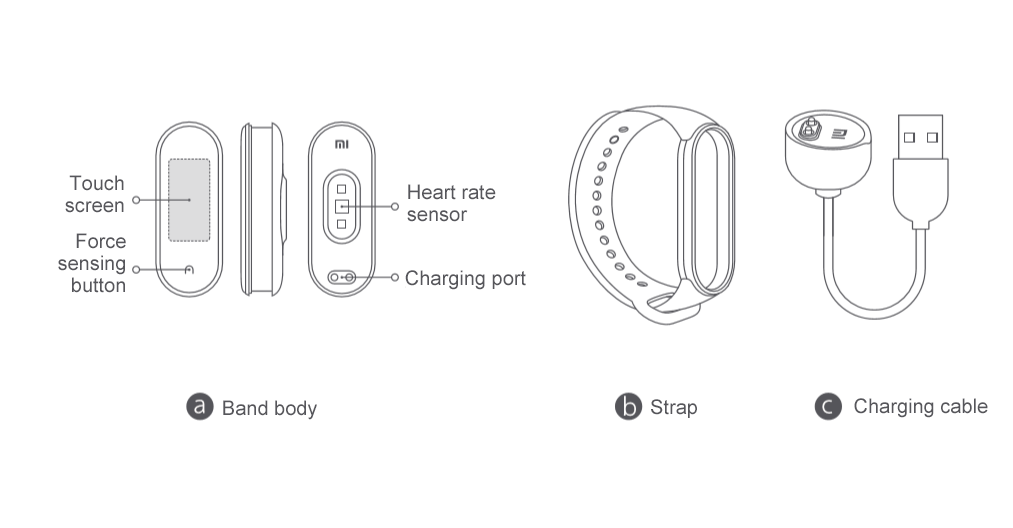
A: In its standard configuration, the Mi Smart Band 5 is equipped with the band body, strap, charging base, and user guide, which includes a warranty card. The strap color depends on the product actually sold.
4.Q: What is the operating logic of the Mi Smart Band 5?
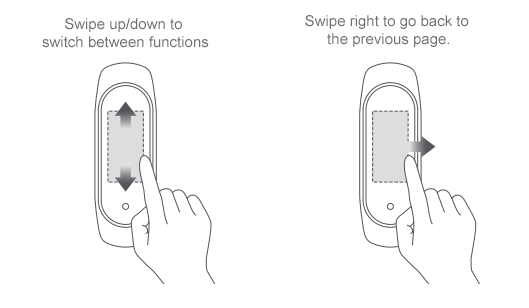
A: Swipe up and down on the screen to switch between different features, such as the band display, status, PAI, notifications, heart rate, stress, breathing weather, event reminder, weather, workouts, and more. Tap a feature button to enter the feature screen. Swipe right to exit the feature screen. Press the circular touch button to return to the previous screen.
- Q: What is the appearance of the Mi Smart Band 5?
6.Q: How to change the band display of the Mi Smart Band 5?
A: 1. Change the band display on the Mi Smart Band 5: Choose More > Band Display, tap Enter, select the desired band display, and tap OK.
2. Change the band display in an app: Start the Zepp Life app, choose Profile > Mi Smart Band 5, and tap Watch Face Settings. In the band display center, download and synchronize the desired band display.
3. Change the band display on the Band Display screen: Tap and hold the Band Display screen to enter preview mode. Swipe up and down on the screen to select the desired band display preview, and tap it to change to the current band display.
Note: It supports to synchronize up to three band displays from the Zepp Life app to the Mi Smart Band 5. When synchronizing the fourth band display, a message appears indicating the band has reached its maximum number of displays. When this happens, delete some band displays before synchronizing more band displays.
7.Q: How to use the editable band display?
A: Tap and hold on the Band Display screen to enter preview mode. An editable band display is marked with a Set icon. Tap this icon to change the elements displayed on the Band Display screen. Swipe up and down on the screen to change between different elements, select the desired elements, and tap and hold on the screen to complete settings.
8.Q: What is the Workout sub screen and what is its use?
A: After binding the Mi Smart Band 5 to the Zepp Life app, open the Zepp Life app and enable outdoor running, treadmill, cycling, or walking in workout mode. Then, simply raise wrist to check the key workout data on the screen, including the time, mileage, pace, heart rate, heart rate zone, average pace, and current time.
9.Q: Is the strap of the Mi Smart Band 5 interchangeable with other straps?
A: The strap of the Mi Smart Band 5 and that of the NFC version are not interchangeable with the straps of other Mi Smart Band series, such as 1, 2, 3, and 4.
10.Q: How to attach and detach the strap of the Mi Smart Band 5?
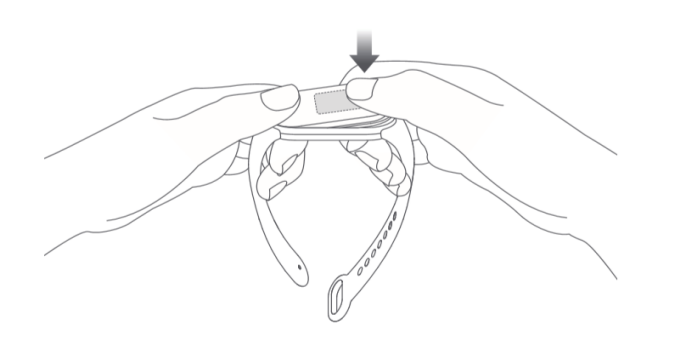
A: How to attach:
(1) Install one end of the band body into a slot on the front side of the strap.
(2) Press the other end of the band body with thumb so that the entire band body is locked into the slots of the strap.
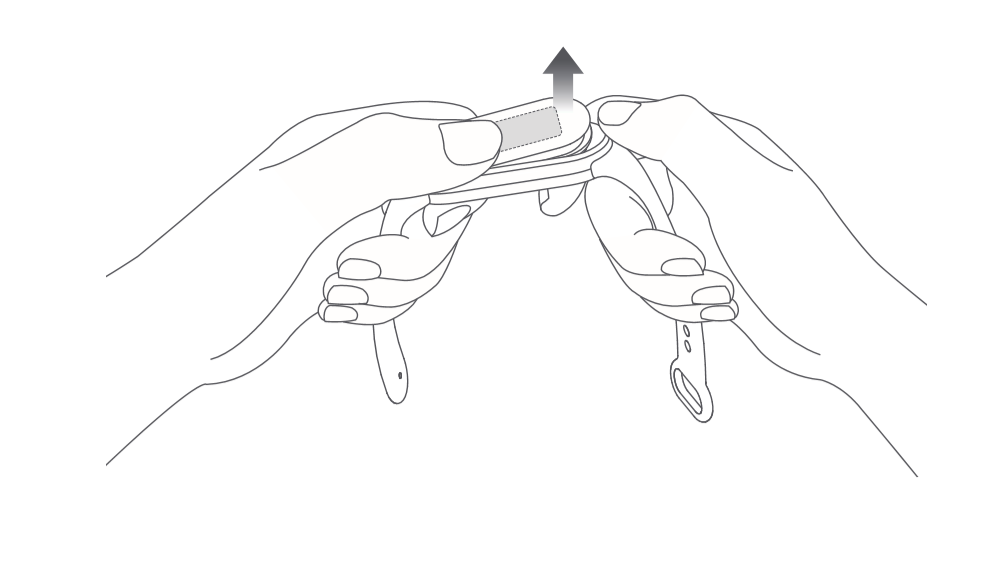
How to detach:
Take off the band, grip both ends of the strap with hands and pull forcefully until there is a small gap between the band body and the strap slots, then use finger to push the band body out of the front side of the strap.
11.Q: What does 50-meter waterproofing (5ATM) mean?
A: 5ATM refers to the band's waterproof depth under standard circumstances. This means the band provides a certain water pressure resistance in the static state. This pressure resistance value is not obtained through testing under water, but through conversion of the atmospheric pressure resistance value.
5ATM indicates the band can bear the pressure of 50-meter deep water in the static state.
12.Q: Does it support to take a bath or swim while wearing the Mi Smart Band 5?
A: Yes, because the Mi Smart Band 5 provides 5ATM waterproofing.
13.Q: How to charge the Mi Smart Band 5?
A: Use the provided special charging base to charge the Mi Smart Band 5. Take off the band body, then insert the end with two metal contacts into the special charging base as shown in the following figure. Then, connect the charging cable to a PC's USB interface or a mobile phone charger with 5 V voltage. Ensure that the output current is more than 250 mAh. The band is able to limit the input current, so don't worry about damage to the band.

14.Q: How to view the charging progress on the Mi Smart Band 5?
A: After the Mi Smart Band 5 is connected to the charging base, an icon appears to indicate charging progress, which is not expressed as a percent. The screen turns off after about 10 seconds. To view the charging progress again, press the touch button to turn on the charging screen.
15.Q: What are the battery capacity, charging duration, and battery life of the Mi Smart Band 5?
A: The battery capacity is 125 mAh, and the charging duration is about 2 hours. The touch button can be pressed to view the charging progress. When fully charged, the battery life is about 15 days under the following conditions:
(1) Automatic heart rate detection with a 30-minute frequency is enabled.
(2) The band receives and displays 100 notifications every day.
(3) Two alarms are set every day, and the band vibrates for 5 seconds when each alarm is triggered.
(4) The touch button is pressed 10 times per day to display the current time.
(5) The app synchronizes data once per day. In actual use, the battery life is related to various factors such as settings, operations, and use environments, so it may be different from lab data.
16.Q: Does it support to charge the Mi Smart Band 5 by using a mobile power supply?
A: The Mi Smart Band 5 can be charged by using a low-current mobile power supply. However, do not use a low-current mobile power supply to charge mobile phones whose charging current is about 1 A. When fully charged, these mobile phones enter the trickle charging state, in which the charging current becomes extremely low. When this happens, the mobile power supply may be shut down to save power. The charging current for the Mi Smart Band 5 is relatively low, which may cause a shutdown of the mobile power supply due to the misjudgment that the fully charged state is reached, which in turn causes charging of the band to stop.
17.Q: Does it need to keep Bluetooth on while using the Mi Smart Band 5?
A: No need to always keep Bluetooth on while using the step counting, sleep monitoring, heart rate detection, stopwatch, alarm, and idle alert features. Wear the band during workout, and after workout, connect the band to phone to synchronize and view related data.
When using the incoming call alert, screen unlocking, app notifications, find my phone, and find my band features, turn on phone's Bluetooth so that it can connect to the Mi Smart Band 5 to properly facilitate these features.
18.Q: Does the Mi Smart Band 5 record data without a connection to the phone?
A: The Mi Smart Band 5 can store data independently. No need to connect it to the phone while running or sleeping. When synchronizing data, turn on phone's Bluetooth and place it nearby the Mi Smart Band 5 to set up a connection between them.
The Mi Smart Band 5 (band body) can retain workout data for about up to 7 days (to be verified). Data that has been synchronized to the Zepp Life app is automatically uploaded to the cloud for storage. If change the phone, please bind Mi account to the band on the new phone to synchronize historical data from the cloud to the new phone.
19.Q: Why doesn't the step count increase while walking with the Mi Smart Band 5 on?
A: The Mi Smart Band 5 sets an initial step count of 10 to reduce the error rate. Step counting starts only after step count is greater than 10, and the real-time step count on the app screen adds from 10.
The Mi Smart Band 5 supports sleep monitoring. When wearing the band, it automatically recognizes and monitors nighttime sleep and daytime naps. However, no records are generated for daytime naps.
The sleep distribution chart can be viewed by opening the app, which displays the total sleep duration, wakeup duration, light sleep duration, and deep sleep duration.
- The Mi Smart Band 5 supports daytime nap monitoring, but does not generate related records.
A: Swipe down on the band display screen and tap More. Swipe down until there is Settings and tap Settings. Then, Swipe down until there is Factory Reset. Press and hold the band's touch button. Factory reset the band based on onscreen instructions. Tap Confirm to reset all data of band. After a factory reset, the band MAC address changes, it needs to rebind.
21.Q: How to view the PAI data on the Mi Smart Band 5?
A: (1) Go to the PAI Details screen to view the current PAI value.
(2) Swipe up on the PAI Details screen to view the PAI trend over the past 7 days.
(3) Open the Zepp Life app and choose Workout > Status > PAI to view PAI details.
Note: To use the PAI feature, enable automatic heart rate detection. To do this, open the Zepp Life app, choose Profile > Mi Smart Band 5 > Heart Rate Detection, turn on Automatic Heart Rate Detection, and set Detection Frequency to 1 minute.
22.Q: What is the maximum number of PAI values can I get?
A: It allows to get up to 75 PAI values every day. In theory, the owner can get up to 525 PAI values in 7 days. The greater the PAI value, the more difficult it is to get.
PAI research shows that after workout frequency has reached a certain level, more workouts do not contribute much to improving heart and lung health. Therefore, the most effortless way to improve heart and lung health is to maintain a PAI value greater than 100.
23.Q: Why do two persons completing the same workout distance get two different PAI values?
A: The PAI value is calculated based on the age, gender, resting heart rate (RHR), and heart rate data from the past 7 days. Therefore, the PAI value varies depending on the vital signs of different people, such as age, gender, and RHR. It is not calculated by using an algorithm.
24.Q: Why does the PAI value vary under the same workout intensity?
A: As the PAI score increases, it becomes increasingly difficult to get a higher PAI value. The workout amount required to increase the PAI value from 100 to 110 is much greater than that required to increase the PAI value from 0 to 10. Even given the same workout intensity, the PAI score varies depending on the initial PAI score when starting the workout.
25.Q: What mobile phones does the Mi Smart Band 5 support?
A: The Mi Smart Band 5 supports mobile phones with Android 5.0 and later or iOS 10.0 and later that support Bluetooth 4.0.
26.Q: What app should be used to connect to the Mi Smart Band 5?
A: It supports to connect and bind the Zepp Life app to Mi Smart Band 5.
27.Q: How to bind an app to the Mi Smart Band 5?
A: Open the Zepp Life app, choose Profile > Add Device > Band, and bring phone close to the Mi Smart Band 5. When phone successfully searches for the Mi Smart Band 5, a tick symbol (√) appears next to the band. Tap the tick to bind the app to the Mi Smart Band 5.
28.Q: What is band screen unlocking?
A: After binding phone to the Mi Smart Band 5 in one-to-one mode, please use the band as identity to unlock phone within a safe distance, without having to enter the unlock password or draw the unlock pattern. This significantly simplifies operations while ensuring security.
Note: This feature applies to the MIUI models of Android 5.0 and later and the models of Android 5.0 and later that support the Smart Lock feature. This feature may not be supported in mobile phones of Chinese brands that make many modifications to the Android system.
29.Q: How to set a custom vibration mode on the Mi Smart Band 5?
A: The Mi Smart Band 5 allows to edit the vibration mode as needed. The following status alerts are provided: incoming call alert, idle alert, reached goal alert, phone alarm reminder, event reminder, email alert, SMS alert, app notifications, and find my band.
Open the app, go to the Mi Smart Band 5 screen, and enter vibration mode. Select a status alert and set a custom vibration mode. In the vibration mode list, tap Edit to delete a custom vibration mode, or tap Add to add a custom vibration mode. When an alert is triggered on the band, the band vibrates in the selected custom vibration mode.
Note: It allows to set a maximum of 50 custom vibration modes.
30.Q: Does the Mi Smart Band 5 support event reminders?
A: Yes. Use the event reminder feature to remind yourself of events in daily life and at work. After setting an event reminder, the band automatically vibrates at the set time. It also allows to set a reminder cycle, such as once, daily, monthly, yearly, and a specific day of the week. After an event reminder is successfully set, it is stored on the band, and the band vibrates at the set time even when it is not connected to Bluetooth or phone.
How to set an event reminder: Open the Zepp Life app and choose Profile > Mi Smart Band 5 > Event Reminder.
31.Q: Does the Mi Smart Band 5 support the alarm feature?
A: Yes. Enable this feature to set alarms. Up to 10 alarms can be set.
32.Q: How to set incoming call alert push?
A: Open the Zepp Life app, choose Profile > Mi Smart Band 5 > Incoming Call Alert, and tap to go to the screen to set incoming call alert push.
33.Q: Does the Mi Smart Band 5 support the idle alert feature?
A: Yes. When the Mi Smart Band 5 detects no motion for 1 hour, it vibrates to alert the owner. The reminder time and the "do not disturb for nap" feature can be set.
34.Q: Does the Mi Smart Band 5 support the find my band feature?
A: Yes. After tapping Find My Band, The band vibrates so that it can be located easily. To use this feature, ensure that the band is connected to Bluetooth.
35.Q: Does it support to set an effective period for the "turn wrist to wake screen" feature of my Mi Smart Band 5?
A: Yes. It supports to use this feature to disable screen wake during a certain period of time. The sensitivity of wrist turning awareness can also be set as needed.
36.Q: Does it support to switch between different heart rate detection modes on the Mi Smart Band 5?
A: Yes. It supports to switch between the following four heart rate detection modes: Disable Detection (Only Active Detection), Assisted Sleep Monitoring, Automatic Heart Rate Detection, and Automatic Heart Rate Detection + Assisted Sleep Monitoring. The band's battery life varies in different modes.
37.Q: Does the Mi Smart Band 5 support the find my phone feature?
A: Yes. When the phone can't be found, swipe the band screen to the find my phone feature.
To use this feature, ensure that the band is connected to Bluetooth. Please select the default ringtone or incoming call ringtone for this feature, but cannot add a custom ringtone for the moment.
38.Q: Does it support to set a lock screen for my Mi Smart Band 5?
A: Yes. To avoid accidental tapping or misoperation on band, enable the lock screen on the Mi Smart Band 5 by choosing More > Settings > Lock Screen.
After the lock screen is enabled, swipe up on the screen to unlock and turn on the screen when waking the band. The screen and buttons are operable only after the screen is unlocked.
39.Q: How to complete weather settings on my Mi Smart Band 5?
A: The Mi Smart Band 5 allows to manually specify a city or automatically locate the city through phone's GPS. To use this feature, ensure that the Zepp Life app has positioning permission and the phone has enabled GPS. It also supports to set the temperature unit to Celsius or Fahrenheit and set weather alerts push.
40.Q: How to set contacts in the Zepp Life app?
A: In the Zepp Life app, choose Profile > Contacts. scan QR codes or enter IDs to add contacts, and set some contacts as special contacts, as well as view information about contacts. When tapping Set as Special Contact, this contact's band vibrates to alert the contact. Currently,it supports to add an unlimited number of contacts, including users who register and use the Zepp Life app outside China.
41.Q: How to use the music control feature?
A: To use the Mi Smart Band 5 to control music playback on phone appropriately, ensure that:
(1) The band stays connected to phone and the Zepp Life app keeps running in the background so that it is not killed or intercepted by the one-tap memory cleanup function or phone manager software installed in Android system.
(2) The Zepp Life app has notifications read permission. To enable this permission, choose Profile > Mi Smart Band 5 > Band Application Settings in the Zepp Life app.
(3) The phone's music player has been opened. The Mi Smart Band 5 automatically retrieves the information and status of the song that is being played.
(4) Go to the Music Control screen through the Mi Smart Band 5's music portal, pause the song being played, play a specific song, and play the next or previous song.
42.Q: How to use the Mi Smart Band 5 to control my phone's camera?
A: (1) Pair the band with the phone before use as follows:
For Android systems, open the Zepp Life app, choose Profile > Mi Smart Band 5 > Lab > Camera Settings, and complete settings based on the onscreen instructions.
For iOS system, tap “Pair” in the pairing pop-up that appears after the devices are bound, or enter the band’s camera page, and then open Zepp Life and tap the pair button in the pairing request pop-up.
(2) Before using the band to control phone to take pictures, open phone's camera. When the band is connected to the phone, go to the band's camera screen and tap the camera button to take a picture.
43.Q: How to turn on and off activity detection?
A: On the Mi Smart Band 5, choose More > Settings > Detect Activity to turn activity detection on or off. By default, activity detection is turned on.
With activity detection turned on, the band prompts to enter the corresponding activity mode after continue walking or running for more than 5 minutes.
44.Q: What is Off Wrist Lock?
A: After the Off Wrist Lock feature is enabled, the Mi Smart Band 5 enables password screen lock once it detects that it is not on wrist. This ensures information security.
Set the Off Wrist Lock feature as follows:
(1) Open the Zepp Life app, choose Profile > Mi Smart Band 5 > Lab, and tap Off Wrist Lock to go to the Settings screen.
(2) Set an unlock password based on the onscreen instructions.
(3) The Off Wrist Lock feature is enabled after an unlock password is successfully set.
If the password has been forgotten, please reset it in settings.
45.Q: How to set laptop unlock on the Mi Smart Band 5?
A: 1)Open the Zepp Life app, choose Profile > Mi Smart Band 5 > Lab > Mi Laptop Unlock, and tap On.
2)Install the Mi Induction Key app on PC. This app can be downloaded from the Microsoft Store.
3)Open the Mi Induction Key app, turn on Bluetooth on PC, and pair the band with Bluetooth based on the onscreen instructions. After successful pairing, tap the tick symbol (√) on the band for confirmation.
4)Bring the band close to the Mi laptop and press the Space key to unlock.
5)If you do not want to use the laptop unlock feature, unbind the band on the PC.
46.Q: What music players can the Mi Smart Band 5 control?
A: In China: native music players, KuGou, QQMusic, NetEase Cloud Music, Kuwo & Kuwo HD, Xiami Music, Lizhi, and Dragonfly FM
Outside China: iOS/Android native music player, Apple Music, Spotify, Pandora, SoundCloud, GoMusic, Google Play Music, AudioMack, iHeartRadio, Samsung Music, and SirusXM
Note: The experience using the Mi Smart Band 5 to control music players varies depending on the degree of openness and app versions of specific music players.
47.Q: Does the Mi Smart Band 5 support stress monitoring?
A: Yes. After having been wearing the Mi Smart Band 5 for a certain period of time, the band calculates stress using an algorithm based on current heart rate and other sensor parameters.
Then, the band displays the calculated stress value and continuously monitors stress changes during the day.
Stress value description:
| Stress score | Stress rating |
| 80-100 | High |
| 60-79 | Medium |
| 40-59 | Normal |
| 0-39 | Relaxed |
48.Q: How to conduct stress detection?
A: (1) the current stress can be measured on the Mi Smart Band 5's Stress Details screen. When measurement is successful, the band displays the current stress value. When measurement fails, the message "Couldn't measure" appears. Wear the band properly and remain still to ensure that the measurement is successful. If the stress measurement screen displays measurement data, please swipe down to view stress value.
(2) Stress detection can be enabled on the app's heart rate detection screen. After stress detection is enabled, the band automatically measures stress when remaining still. To enable stress detection, first enable all day heart rate detection.
49.Q: How to view my historical stress records?
A: To view historical stress records, open the Zepp Life app and choose Workout > My Status > Stress.
50.Q: How to set a cycles alert?
A: It allows to access initial cycles settings in My Status > Cycles in the bound app. After selecting setting items, it supports to view and save the selected menstruation status on the detail page that appears. Tap the editing button below the calendar to add menstruations or tap the settings button in the upper right corner to enable menstruation alerts.
After completing settings in the app, go to the Cycles screen on the band to view menstrual status on the current date and get to know the start time of menstrual period.
After settings are completed in the app, the band records menstrual period and displays the end date.
51.Q: Why is the body of the Mi Smart Band 5 skewed after installation?
A: The strap of the Mi Smart Band 5 is made from thermoplastic elastomer. It is resilient and can be twisted. If the band body is skewed after installation, slightly twist the skewed position or reinstall the band body.
Do not pull the band forcefully during installation. Skew is usually due to excessive twisting during installation rather than a product problem.
52.Q: Why can't find the Mi Smart Band 5 during connection?
A: Fix this problem as follows:
(1) Check whether the band has sufficient battery. If battery is low or depleted, charge the band and retry later.
(2) Check whether the band is far away from phone. Move the band as close to phone as possible.
(3) Turn on phone's Bluetooth again or restart the phone.
(4) Check whether there are many devices with Bluetooth or Wi-Fi turned on in the surrounding environment. If yes, retry in another environment.
(5) If binding fails multiple times, restore the band's factory settings based on the app's instructions and try again.
53.Q: Why can't upgrade the firmware of the Mi Smart Band 5?
A: Fix this problem as follows:
(1) When app upgrade fails, tap Again to retry the upgrade.
(2) After the band is connected to the app, pull down the status bar to synchronize data. Then, the band's firmware is upgraded again.
(3) Turn on phone's Bluetooth again and re-open the app to upgrade.
(4) Check whether the band's battery is lower than 10%. If yes, upgrade will fail. In this case, recharge the band and try again.
54.Q: Why can't charge or fully charge my Mi Smart Band 5?
A: Fix this problem as follows:
(1)It is suggested to charge the Mi Smart Band 5 using the standard charging cable.
(2) Check whether the band body's metal contacts and the charging cable's metal contacts are dirty. If yes, wipe them with a tissue. Ensure proper connection between the band body and the charging cable.
(3) Check whether the charging adapter works properly. Connect another charging adapter to the band's charging cable and check whether the band can be charged.
(4) Use a spare charging cable or the charging cable of a band of the same series if available.
(5) Charge the band in an environment with a temperature above 10°C.
(6) If the band remains unresponsive after being charged for a long time, contact our after-sales personnel for testing.
The Mi Smart Band 5 reaches the fully charged state in about 2 hours. If there is a failure to fully charge, please check the charging duration, that is, check whether the band has only charged for a short time.
55. Q: Why is the Mi Smart Band 5's battery draining so fast?
A: Fix this problem as follows:
(1) The Mi Smart Band 5's battery capacity is 125 mAh, with a charging duration of about 2 hours. Check whether band is fully charged.
(2) After being fully charged, the Mi Smart Band 5's battery life is about 15 days under the following conditions:
(a) Automatic heart rate detection with a 30-minute frequency is enabled.
(b) The band receives and displays 100 notifications every day.
(c) Two alarms are set every day, and the band vibrates for 5 seconds when each alarm is triggered.
(d) The touch button is pressed 10 times per day to display the current time.
(e) The app synchronizes data once per day. In actual use, the battery life is related to various factors such as settings, operations, and use environments, so it may be different from lab data.
(3) Check band use habits. Battery life is reduced under the following conditions:
(a) Many notifications are received.
(b) There are many workout time segments.
(c) All day heart rate detection with a 1-minute frequency is enabled.
(d) Stress detection is enabled. If the number of notifications or workout time segments is not high, set the Turn Wrist to Wake Screen mode to standard mode, change the heart rate detection frequency to 30 minutes, and disable stress detection. Then, check the battery drain status.
(4) If none of the preceding conditions apply to band, check whether band is fully charged, turn off alarms, Bluetooth, and automatic heart rate detection, and keep band still for 24 hours to check battery draining. Normal battery drain is no more than 3%.
If it is more than 3%, contact our after-sales personnel for testing.
56.Q: Why doesn't the Mi Smart Band 5 display the caller ID of an incoming call?
A: Fix this problem as follows:
(1) Open the Zepp Life app and choose Profile > Mi Smart Band 5 > Incoming Call Alert > Show Contact Names and check whether Show Contact Info is turned on. If it is turned off, contact names are not displayed for incoming calls.
(2) Check whether the Zepp Life app is authorized to read contacts. If not, grant this permission in the Zepp Life app.
(3) Check whether any third-party security software is installed on phone. If yes, disable the software and try again, or authorize the Zepp Life app to read contacts in the permission management of the third-party security software.
57.Q: Why doesn't the Mi Smart Band 5 display weather?
A: The Mi Smart Band 5 does not automatically update weather data. Please connect band to the Zepp Life app to synchronization weather data.
(1) Open the Zepp Life app and choose Profile > Mi Smart Band 5 > Weather Settings to check whether the city setting is correct.
(2) Open the Zepp Life app, manually synchronize data to the band, and check whether the band contains the synchronized data.
After turning on the positioning permission in the Zepp Life app, the app automatically identifies current location. When the band is connected to the Zepp Life app, the band updates weather data through the app.
58.Q: Why doesn't the Mi Smart Band 5 app send any notifications?
A: Fix this problem as follows:
To use the notification feature, it needs to enable App Notification Alert in the bound app and keep the connection between the band and the phone active.
(1) For the iOS system, pair the band with the phone's Bluetooth. If they are not paired, the pairing request prompt appears when turning on App Notifications and Alerts. When this happens, tap Agree.
(2) For the Android system, set the Zepp Life app to the phone's background whitelist or autorun list when using the band to keep the app running in the background at all times. If the background process is cleared by the phone, it causes the band to disconnect from the app and fail to receive app alerts. To set the Zepp Life app to background running mode, choose Profile > Mi Smart Band 5 > Background Running. This applies to both iOS and Android.
(3) For the Android system, check that the Zepp Life app is authorized to read notifications.
(4) Exit power saving mode on phone, and disable the power saving or process optimization feature in any third-party security software.
Does it help?