

Mi Sphere Camera FAQ
Overview
1、Q:What are the package contents of Mi Sphere Camera Kit?
A:Mi Sphere Camera*1,USB cable*1,Tripod*1,Pouch*1,User manual*1, Warranty card*1
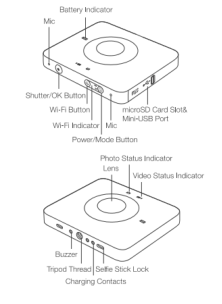
2、Q:What about the Mi Sphere Camera appearance and function buttons?
A:
3、Q:Does Mi Sphere Camera have internal storage?
A:Mi Sphere Camera doesn’t have internal storage and needs to insert Micro SD card to save files.
4、Q:What is the requirement of Micro SD card?
A: For the card requirement, it needs Micro SD cards up to 128GB with at least Class10 standard.
5、Q:What is the charging port type of Mi Sphere Camera?
A:Mi Sphere Camera charging port is Micro USB 2.0. Some third-party cable may not charge it, please use standard cable.
6、Q:What are the meaning of status lights?
A:Lights have different meanings in different modes:
Photo light steady blue: Photo Mode
Video light steady blue: Video Mode
Video light flashing red: Video Recording
Battery light steady red: charging
Battery light flashing red: low battery
Battery light steady blue: fully charged
Wi-Fi light flashing blue: Wi-Fi on
Wi-Fi light blue: Wi-Fi connected successful
7、Q:What is the requirement to the phone system for Mi Sphere Camera App?
A: Android 5.0 / iPhone 8.0 or later.
8、Q:What about the Wireless connectivity?
A:Mi Sphere Camera supports WiFi IEEE802.11b/g/n (2.4 GHz). The photo and video download speed is 30Mbps(Maximum) without interference theoretically.
9、Q:What’s the maximum WiFi range of the camera?
A:The max WiFi range of the camera is 50 meters in a wide environment without interference theoretically.
10、Q:What kind of power adapter can work for the camera?
A:Input voltage 100-240V 50/60Hz;output current 5V 2A/9V 2A/12V 1.5A;Support QC2.0,USB-A port.
For QC2.0 charging status, it can be 50% for 30 mins, 80% for 50 mins, and fully charged for 1 hour. For general adapter it needs 2 hours to be fully charged.
11、Q:How many devices can be connected by Mi Sphere Camera?
A:Mi Sphere Camera can only connect one device at one time.
12、Q:How long of the video that camera can take?
A:3.5k video has 45Mbps bit rate and needs about 300MB per minute video, which means a 16GB SD card can take about 50min video.
13、Q:What is the format and resolution of video?
A:The video taken by Mi Sphere Camera is H.264@mp4 format with resolutions of 3456x1728@30fp, 2304x1152@60 fps, and 2304x1152@30 fps.
14、Q:What is the format and resolution of photo?
A:The photo taken by Mi Sphere Camera is JPEG format with resolutions of 6912x3456.
15、Q:Is the camera water-proof?
A:Mi Sphere Camera fulfill IP67 standard which can immerse in 1.5m deep water for 30mins, but not suggest doing that.
16、Q:What is the temperature requirement for camera working?
A:-20 – 45°C . Temperature lower than -20°C (-4°F) may cause problem.
Instruction
1、Q:How to install the App?
A:Search for “Mi Sphere Camera” in APP store or scan the QR code in the user manual.
* “Mi Home” APP is not available for Mi Sphere Camera.
2、Q:How to connect the camera?
A:1.Download and install the App.
2. Press the WiFi button on your camera. WiFi indicator will start flashing blue.
3. Open the APP and tap the camera button. WiFi indicator will stop flashing when the connection is ok.
4. The default WiFi password is 12345678. Wait for the success.
3、Q:How to do if the camera connection fails?
A:1.Download and install the latest version APP.
2.Check the Wi-Fi status light is in flashing blue for several times which means Wi-Fi turned on.
3.Check if the APP connect to wrong hotspot.
4.Check if user input right password which is 12345678
5.Check if there’s already another device connect to the camera.
6.Make sure the distance between APP and camera is under 50 meters (164ft).
7.If all above checked, quit the APP, restart the camera, then re-try the connection
steps.
4、Q:How to do if the camera light and video light alternatively flash during using?
A:It means SD card error (full, format wrong, no card, card broken, card busy), try to re-format the card and install again.
5、Q:How to reset Wi-Fi for the camera?
A:Press and hold Wi-Fi button for 5s during normal booting status, then light flashing with beep means Wi-Fi reset successful.
6、Q:Why my phone fails to connect to the internet after it is connected with Mi Sphere Camera APP?
A:When the phone is connected with camera APP, the WiFi channel will be occupied for controlling the camera and downloading the videos. Under this condition, some brand phones can connect the internet via data. Some brand phones can only connect to the internet via Wi Fi.
7、Q:How to take pictures and videos by Mi Sphere Camera?
A:After switching on the camera, shortly press power button to switch between the photo and video modes. Video mode is set as factory default. User can set several advanced settings in APP.
8、Q:How to check the videos and pictures taken by camera?
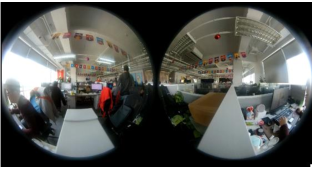
A:User needs to check the videos and photos via Mi Sphere Camera App to see all 360 degrees. If user see from PC or another device, he will see the following picture:
9、Q:How to do if Mi Sphere Camera fails to take photos and videos?
A:1.Check if SD card installed (Mi Sphere Camera can only preview the environment but cannot take photo or video without card)
2.Check if SD card has enough storage
3.Check if SD card is normal working
4.Try re-format SD card
5.Try change a SD card
10、Q:Why Mi Sphere Camera cannot take pictures or record video while connecting to PC?
A:When connecting Mi Sphere Camera with PC via USB cable,the camera will
automatically get into U disk mode that can only check files or charge. So under
such condition, Mi Sphere Camera cannot take pictures or record video.
11、Q:Why Mi Sphere camera cannot read my SD card?
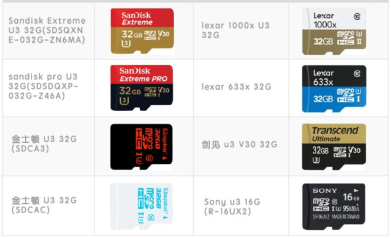
A:Currently Mi Sphere Camera only supports certified SD card as following picture
shows:
12、Q:Why does the photo and video look so obscure?
A:To protect fluency, the APP will play the photo and video under low resolution without downloading them to device. For clearer media resource, please download to the device firstly.
13、Q:Why the camera can turn on, but all lights are off?
A:1.Check on APP to see if set “turn off the LED light”
2.Restore to factory on APP
3.Upgrade to the newest firmware
14、Q:How to delete the connected camera?
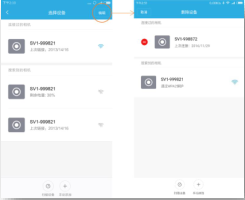
A:In Mi Sphere Camera APP, select edit on top-right corner then select the camera and delete it.
15、Q:How to reconnect the Mi Sphere Camera when it is standby mode?
A:The camera will go to standby mode if user doesn’t use it for 2 mins. Battery indicator will turn blue and start blinking. Press any button to wake up the camera.
16、Q:How to upgrade the firmware version?
A:Connect the Mi Sphere Camera APP, it will detect and prompt the latest firmware version automatically. After upgrading the firmware, the camera will reboot.
17、Q:How to edit recorded video?
A:User can only edit videos that already downloaded to device for cut, filter, add music, or hold sharing angle. User can press top-right save button after finish edit, it will create a copy of video that won’t cover the original video, but some cellphone can only export 1920*960 video due to performance limit.
18、Q:How to restore to factory?
A:Go to settings after connection, then select restore to factory under very bottom page to restore. It can only clear settings of the camera. But it won’t reset Wi-Fi nor delete the files in SD card.
1、Q:What are the package contents of Mi Sphere Camera Kit?
A:Mi Sphere Camera*1,USB cable*1,Tripod*1,Pouch*1,User manual*1, Warranty card*1
2、Q:What about the Mi Sphere Camera appearance and function buttons?
A:
3、Q:Does Mi Sphere Camera have internal storage?
A:Mi Sphere Camera doesn’t have internal storage and needs to insert Micro SD card to save files.
4、Q:What is the requirement of Micro SD card?
A: For the card requirement, it needs Micro SD cards up to 128GB with at least Class10 standard.
5、Q:What is the charging port type of Mi Sphere Camera?
A:Mi Sphere Camera charging port is Micro USB 2.0. Some third-party cable may not charge it, please use standard cable.
6、Q:What are the meaning of status lights?
A:Lights have different meanings in different modes:
Photo light steady blue: Photo Mode
Video light steady blue: Video Mode
Video light flashing red: Video Recording
Battery light steady red: charging
Battery light flashing red: low battery
Battery light steady blue: fully charged
Wi-Fi light flashing blue: Wi-Fi on
Wi-Fi light blue: Wi-Fi connected successful
7、Q:What is the requirement to the phone system for Mi Sphere Camera App?
A: Android 5.0 / iPhone 8.0 or later.
8、Q:What about the Wireless connectivity?
A:Mi Sphere Camera supports WiFi IEEE802.11b/g/n (2.4 GHz). The photo and video download speed is 30Mbps(Maximum) without interference theoretically.
9、Q:What’s the maximum WiFi range of the camera?
A:The max WiFi range of the camera is 50 meters in a wide environment without interference theoretically.
10、Q:What kind of power adapter can work for the camera?
A:Input voltage 100-240V 50/60Hz;output current 5V 2A/9V 2A/12V 1.5A;Support QC2.0,USB-A port.
For QC2.0 charging status, it can be 50% for 30 mins, 80% for 50 mins, and fully charged for 1 hour. For general adapter it needs 2 hours to be fully charged.
11、Q:How many devices can be connected by Mi Sphere Camera?
A:Mi Sphere Camera can only connect one device at one time.
12、Q:How long of the video that camera can take?
A:3.5k video has 45Mbps bit rate and needs about 300MB per minute video, which means a 16GB SD card can take about 50min video.
13、Q:What is the format and resolution of video?
A:The video taken by Mi Sphere Camera is H.264@mp4 format with resolutions of 3456x1728@30fp, 2304x1152@60 fps, and 2304x1152@30 fps.
14、Q:What is the format and resolution of photo?
A:The photo taken by Mi Sphere Camera is JPEG format with resolutions of 6912x3456.
15、Q:Is the camera water-proof?
A:Mi Sphere Camera fulfill IP67 standard which can immerse in 1.5m deep water for 30mins, but not suggest doing that.
16、Q:What is the temperature requirement for camera working?
A:-20 – 45°C . Temperature lower than -20°C (-4°F) may cause problem.
Instruction
1、Q:How to install the App?
A:Search for “Mi Sphere Camera” in APP store or scan the QR code in the user manual.
* “Mi Home” APP is not available for Mi Sphere Camera.
2、Q:How to connect the camera?
A:1.Download and install the App.
2. Press the WiFi button on your camera. WiFi indicator will start flashing blue.
3. Open the APP and tap the camera button. WiFi indicator will stop flashing when the connection is ok.
4. The default WiFi password is 12345678. Wait for the success.
3、Q:How to do if the camera connection fails?
A:1.Download and install the latest version APP.
2.Check the Wi-Fi status light is in flashing blue for several times which means Wi-Fi turned on.
3.Check if the APP connect to wrong hotspot.
4.Check if user input right password which is 12345678
5.Check if there’s already another device connect to the camera.
6.Make sure the distance between APP and camera is under 50 meters (164ft).
7.If all above checked, quit the APP, restart the camera, then re-try the connection
steps.
4、Q:How to do if the camera light and video light alternatively flash during using?
A:It means SD card error (full, format wrong, no card, card broken, card busy), try to re-format the card and install again.
5、Q:How to reset Wi-Fi for the camera?
A:Press and hold Wi-Fi button for 5s during normal booting status, then light flashing with beep means Wi-Fi reset successful.
6、Q:Why my phone fails to connect to the internet after it is connected with Mi Sphere Camera APP?
A:When the phone is connected with camera APP, the WiFi channel will be occupied for controlling the camera and downloading the videos. Under this condition, some brand phones can connect the internet via data. Some brand phones can only connect to the internet via Wi Fi.
7、Q:How to take pictures and videos by Mi Sphere Camera?
A:After switching on the camera, shortly press power button to switch between the photo and video modes. Video mode is set as factory default. User can set several advanced settings in APP.
8、Q:How to check the videos and pictures taken by camera?
A:User needs to check the videos and photos via Mi Sphere Camera App to see all 360 degrees. If user see from PC or another device, he will see the following picture:
9、Q:How to do if Mi Sphere Camera fails to take photos and videos?
A:1.Check if SD card installed (Mi Sphere Camera can only preview the environment but cannot take photo or video without card)
2.Check if SD card has enough storage
3.Check if SD card is normal working
4.Try re-format SD card
5.Try change a SD card
10、Q:Why Mi Sphere Camera cannot take pictures or record video while connecting to PC?
A:When connecting Mi Sphere Camera with PC via USB cable,the camera will
automatically get into U disk mode that can only check files or charge. So under
such condition, Mi Sphere Camera cannot take pictures or record video.
11、Q:Why Mi Sphere camera cannot read my SD card?
A:Currently Mi Sphere Camera only supports certified SD card as following picture
shows:
12、Q:Why does the photo and video look so obscure?
A:To protect fluency, the APP will play the photo and video under low resolution without downloading them to device. For clearer media resource, please download to the device firstly.
13、Q:Why the camera can turn on, but all lights are off?
A:1.Check on APP to see if set “turn off the LED light”
2.Restore to factory on APP
3.Upgrade to the newest firmware
14、Q:How to delete the connected camera?
A:In Mi Sphere Camera APP, select edit on top-right corner then select the camera and delete it.
15、Q:How to reconnect the Mi Sphere Camera when it is standby mode?
A:The camera will go to standby mode if user doesn’t use it for 2 mins. Battery indicator will turn blue and start blinking. Press any button to wake up the camera.
16、Q:How to upgrade the firmware version?
A:Connect the Mi Sphere Camera APP, it will detect and prompt the latest firmware version automatically. After upgrading the firmware, the camera will reboot.
17、Q:How to edit recorded video?
A:User can only edit videos that already downloaded to device for cut, filter, add music, or hold sharing angle. User can press top-right save button after finish edit, it will create a copy of video that won’t cover the original video, but some cellphone can only export 1920*960 video due to performance limit.
18、Q:How to restore to factory?
A:Go to settings after connection, then select restore to factory under very bottom page to restore. It can only clear settings of the camera. But it won’t reset Wi-Fi nor delete the files in SD card.
Does it help?
Yes
No