

Mi Smart Projector 2 Pro FAQ
| Product model | Mi Smart Projector 2 Pro |
|
|
| Product Specifications | Product Name:Mi Smart Projector 2 Pro |
| Dimensions:215×201×143mm | |
| Weight:3.7kg | |
| Lens Focuses:Non-inductive focus | |
| Power Input:100-240V~2.5A 50/60Hz | |
| Power Consumption:<220W | |
| Display Technology:0.47" DMD | |
| Light Source Technology:4-channel LED | |
| Standard Resolution:1920×1080 | |
| Projection Ratio:1.1: 1 (* Please refer to actual projection ratio) | |
| Projected Screen Size:40-200", 60-120" (recommended) | |
| Keystone Correction:±40° vertical, ±40° horizontal | |
| RAM:2GB DDR3 | |
| Built-in Storage:16GB eMMC high-speed flash memory | |
| Operating System:Android TV 9.0 | |
| Apps:Third-party apps are pre-installed | |
| Brightness Mode:Office and movie | |
| Bluetooth:Bluetooth 4.2/BLE low power | |
| Audio:Dolby Audio, dts-HD | |
| Internal Power Supply:Built-in AC-DC | |
| Speaker Audio System:Dual 10W full-frequency | |
| Noise:≤ 28dB(A) viewing mode @ 25℃ (ambient temperature) | |
| Smart Temperature Control:Automatically switches between brightness modes and adjusts fan speed | |
| Indicator Light:White LED | |
| Remote Control:Bluetooth remote voice control | |
| Working Temperature:0°C to 40°C | |
| Storage Temperature:-20°C to 55°C | |
| Operating Humidity:20% to 80% | |
| Package Contents* | Projector × 1 |
| Remote Control × 1 | |
| Power Cord × 1 | |
| User Manual × 1 | |
| Warranty Notice × 1 | |
| Cleaning Cloth × 1 |
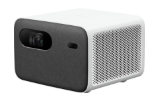
Hardware related Specification:
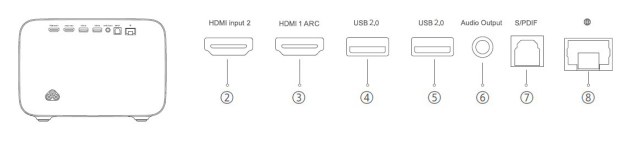
1. Q: What interface does Mi Smart Projector 2 Pro have?
A:
2. Q: Does remote control support motion-sensing function?
A: No, It's bluetooth voice remote control, you can control the projection by voice.
3. Q: Does Mi Smart Projector 2 Pro have temperature control function?
A: Mi Smart Projector 2 Pro features intelligent temperature control. When the warning temperature is reached, the over-temperature warning window will automatically pop up and prompt to lower the brightness mode. Once the temperature exceeds the upper limit, the high temperature warning window will automatically pop out, prompting automatic shutdown.
When the temperature of the projector is too high, the warning pop-up window will pop out automatically.
If the temperature is too high, it will automatically shut down, check whether there are obstacles blocking the inlet and outlet, and ensure smooth air flow after removing the obstacles. After the projector cools down, it can be restarted for normal use.
Use related
1. Q: How to turn on and turn off Mi Smart Projector 2 Pro?
A: Mi Smart Projector 2 Pro can be turned on or off by pressing the power button on the top cover of the machine or via the power button of the remote control (A paired Bluetooth remote control).
2. Q: Does the Mi Smart Projector 2 Pro require a screen?
A: Mi Smart Projector 2 Pro doesn't require a screen and can render images on any medium. Of course, in order to better imaging effect, please choose a special screen, the imaging effect will be significantly improved.
3. Q: Does Mi Smart Projector 2 Pro support Bluetooth keyboards, joypads and other devices?
A: Mi Smart Projector 2 Pro supports Bluetooth keyboards, joypads and other devices.
4. Q: Does Mi Smart Projector 2 Pro support PPPOE dial-up?
A: Mi Smart Projector 2 Pro doesn't support PPPOE dialing. Please use your router to dial PPPOE and then connect to your router either wirelessly (2.4GHz and 5GHz) or wired.
5. Q: Does Mi Smart Projector 2 Pro support 3D?
A: MI Smart Projector 2 Pro currently doesn't support 3D functionality. It will be supported through a software update, which will be available on a practical basis.
6. Q: Will the picture quality be affected after the projector adjusts the picture by zooming?
A: Since the zooming function compresses the picture through the software function, the picture quality will be affected a little.
7. Q: How to pair Mi Smart Projector 2 Pro and bluetooth remote control?
A: 1. After installing the battery of the remote control, press the power button on the projector to power it up, and press the "OK" button on the remote control.
2. Put the remote control near the projector, press and hold the "Home" and "Menu" keys at the same time, and it connects after hearing the "drip" sound. After the connection is successful, the interface of the projector displays "Connected Successfully".
Note: Please keep the distance between the remote control and the projector no more than 20cm during the connection.
8. Q: Does Mi Smart Projector 2 Pro support waterproof?
A: Mi Smart Projector 2 Pro doesn't support waterproof. Please don't seep liquid into the Projector. If you want to wipe the machine, wipe the body and lens after power off.
9.Q: Does Mi Smart Projector 2 Pro support HDCP2.2 or HDCP1.4 protocol?
A: Yes, support.
10.Q: What is the status of the indicator light for the Mi Smart Projector 2 Pro?
A: There is a white indicator light on the top of the Mi Smart Projector 2. You can determine the working status of the projection by the indicator light.
1. The indicator light flashes during the boot process;
2. After entering the system, the indicator light will turn off;
3. After the screen is turned off, the indicator light will be long on;
4. Indicator light is off when the system is in standby mode;
5. When the voice is awakened, the indicator light will be long on;
6. In semantic understanding, the indicator light flashes slowly;
7. When the voice is answered, the indicator light will be long on.
11.Q: Why can the volume adjustment of the Mi Smart Projector 2 Pro only be increased or decreased by an even number (2-4-6-8 variations)?
A: Considering the convenience of operation, the current operation logic is designed like this.
12.Q: Why can't Mi Smart Projector 2 Pro access the system when powered on? How to clear data?
A: 1. After power off, hold down the OK button and return button of the remote control, and reconnect the power. After entering the Recovery mode, release the button of the remote control.
- Select wipe data/factory reset.
- Select yes.
- Clear the data and select reboot system now.
Troubleshooting:
1.Q: What if Mi Smart Projector 2Pro can't connect to WiFi?
A: 1.Check whether there are special characters in the WIFI name. Change the WIFI name and password of the router into English/number, and then try to connect.
2.Please check whether the WiFi password is correct.Select the name of WiFi, and press the remote control and select "Ignore this network", and then re-enter the password.
3.Check whether the router has enabled the router DHCP function.If DHCP is turned off, the TV cannot automatically acquire the IP address.
4.Check whether the router restricts more terminal access. If the router only allows whitelist devices to access WiFi, whitelist the TV's MAC address and try connecting again.
5.Check whether the TV can connect to other WiFi (such as mobile hotspot) ; if so, please restart or reset the router.
6.If the connection failed, please restore the TV to factory Settings and try to connect WIFI again.
2.Q: What about playing video jam?
A: 1. Confirm whether it appears while playing an online video or a local USB drive.
2. If online video is played, it may be caused by the low bandwidth of the user's home, so it is suggested to switch the definition of the video, such as: switch to 720p, standard definition whether the video is stuck; if the low definition of the stream is not stuck, it indicates the user's home network problem. It is suggested to improve the network speed or restart the router. If other videos are normal, then the source of the video is wrong. It is suggested to change the time period and try. If other videos are also slow, it indicates that the user's home network is wrong
3. If the local USB video is played and there is a jam, please replace the peripheral U disk or hard disk or the chip source to try. If there is only one video jam and all the others are normal, it may be that the video bit rate is high, which leads to the play jam, and the other chip source can be replaced. If all the videos are stuck, it could be a peripheral problem, such as trying to switch to a USB3.0 device that reads faster.
3.Q: What to do if the system operation is stuck?
A: 1. Check whether have installed too many third-party software. If so, try to uninstall.
2. Update the system: guide the user to check whether the system version is the latest version, and judge according to the update prompt in the system.
3. Enter the background interface of the projection, clear the background program, or enter the TV housekeeper to clean up the memory and garbage.
4. Please confirm whether the heat dissipation is normal. If the heat dissipation is not smooth, it may cause the internal temperature of the machine to rise, thus leading to the system stagnation.
5. Restore the projection to factory Settings, or enter the system recovery mode to clear all data.
6. If none of the above methods can solve the problem, it is suggested to after-sale for testing, and the specific situation shall be subject to the after-sale testing results.
4.Q: What if there is an abnormity in wireless projection?
A: 1. Projection TV cannot be searched in the same LAN for screen projection. If no devices in the LAN can be searched, the following ideas can be referred to:
① Click "Rescanning" on the interface, and the software will scan the projection equipment that can be connected in the LAN again;
② Instruct the user to check whether the screen projection function is turned off in the system Settings;
③ Restarting the router and projection device to check whether the phone and TV are connected to the same WIFI. If not, the device cannot be searched;
④ Verify whether it is a router problem by changing the mobile phone hotspot/other routers;
⑤The above can not connect, need to change the phone /pad to try.
2. Wireless display projection screen cannot search for projection TV (Miracast protocol)
Currently, Miracast projection is only supported by some Android phones (the name in mobile phone Settings is generally: Wireless Display/ Miracast/Wi-Fi Direct/Mirroring/ WiFi Display/Wireless Display, etc.) and Win10 or above systems.
① Turn on the Miracast function.
② Find the corresponding function in the mobile phone/Win10 system, and open the switch to search.
③ Make sure the projection and the phone are within 5m with no shielding between them.
④ Mobile phone/Win10 search to the projection equipment, if the prompt cannot connect, please confirm the state of the projection TV, mobile phone /win10 connect again according to the above steps
3. it can be connected normally, but use abnormal, such as: stalled, splashed screen, playing some video content when the screen is small, etc.
① After successful screen projection, the operation right is basically in the mobile phone and the computer. If there is a lag, flower screen, etc., generally the network is not smooth, the latter is far away from the result, it is suggested that the user disconnect and restart the router to reconnect
② When playing some video content, the screen is small because some video software is not suitable for playing, so it is suggested to replace other software to try.
5.Q: How to deal with the bright and dark spots in the projected picture?
A: 1. First check whether all the interfaces have, if there is a certain interface or A certain scene, it may be related to the scene.
2. If there are all interfaces, confirm the location and size, and change the projection environment. For example, move the projection location, check whether the point moves with the optical machine, and eliminate environmental problems.
3. If none of the above methods can solve the problem, it is suggested to after-sale for testing, and the specific situation shall be subject to the after-sale testing results.
6.Q: How to deal with the blurring of projected images?
A: ① If all the interfaces (including font, image and software interface) appear blur problem, please adjust the sharpness of the picture by setting - image - picture focus.
② If the individual page is fuzzy, it may be the page UI problem, it is recommended to view other pages.
③ If the video appears blurred, you can try to switch the video resolution, or the video itself is of poor picture quality;
④ If the projection is blurred after switched to the set top box or the external HDMI device, please check the relevant Settings of the set top box or the external HDMI device (such as output resolution).
7.Q: How to deal with the color bias and distortion of the projected picture?
A: ① Switch to the movie viewing mode, and restore the image parameters to the default value;
② Upgrade the system version;
③ If the color problem occurs after the TV is switched to the interface of the set-top box or the external HDMI device, please check whether the TV is in good contact with the set-top box or whether the color problem exists in the picture of the set-top box;
④ If the issue persists, it is suggested to after-sales for testing, the specific situation to after-sales testing results shall prevail.
8.Q: What to do if the projection cannot be turned on?
A: ① Click whether the indicator light is on after power on. If not, replace other sockets and check whether it is socket problem;
② Try unplugging the power cord and reconnecting the power supply after 2 minutes.Click the power button of the projection remote control. If the indicator is still unable to turn on at this time, it is suggested to after-sales for testing;
③ If the indicator lights up after clicking, brightness changes will occur on the projected object but it cannot enter the system. Try to enter the system recovery mode to clear the data and restart. The access method is as follows:
Turn off the laser projection and unplug the power button. After the power off, press the OK button and return button of the remote control to hold on, then insert the power button (no need to click the power button of the projection host and the remote control), and release the key of the remote control when the projector enters the system recovery mode.
④ If the above methods are unable to enter, it is suggested to after-sales for testing
Does it help?