

Mi Home Security Camera FAQ
Mi Home Security Camera FAQ
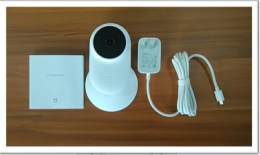
1.Q:What’s the package contents of Mi Home Security Camera?
A: Camera body *1, Power adapter *1, Manual (with Warranty card) *1.
2.Q:What are the environment requirements to use Mi Home Security Camera?
A :The environment conditions for Mi Home Security Camera are below :
1. Wide open area where no metal stuff.
2. Keep away from the back of furniture, and get rid of high electrical-interference products like microwave oven.
3. Avoid directly irradiate by light sources.
4. Avoid be tangled by cables, like electric cable.
5. Be sure to have good Wi-Fi connectivity.
3.Q:What’s the network requirement of Mi Home Security Camera?
A: Mi Home Security Camera supports WiFi at 2.4/5GHZ dual frequency with IEEE802.11b/g/n protocol and use WPA/WPA2 as encryption. To use the camera, the wireless router must open the DHCP service and cannot turn on wireless access control.
4.Q:What are the requirements of Micro SD card for Mi Home Security Camera?
A:If user wants to save the recorded video for review, please insert a SD card into the camera in advance. Mi Home Security Camera supports MicroSD card with FAT32/exFAT format up to 4G. To fulfill the speed requirement, class10 and above standard card is advised.
5.Q:What are the requirement of the device system to connect Mi Home Security Camera?
A:Mi Home Security Camera is compatible with devices of Android 4.0(and later) or iOS 8.0(and later).
6.Q:Is it possible to save the video taken by Mi Home Security Camera to other devices?
A:Yes. Mi Home Security Camera can save the recorded video to Mi Router or NAS with following requirements:
1. The router/NAS must in same LAN with Mi Home Security Camera;
2. Mi Home Security Camera must import MicroSD card;
3. Mi router must turn on Samba extension or NAS must support SMB protocol.
7.Q:How to reset Mi Home Security Camera?
A: Stick pin in the reset hole (see the following picture) about 5-8 seconds until the succeed voice prompt. then release to finish the reset.

8.Q:How to connect Mi Home Security Camera?
A:User can connect the camera in the following two ways:
1. Scan QR Code:
Turn on the Mi Home Security Camera and wait for the status light become flashing orange. Then use cellphone with Mi Home App to connect WiFi and log in Mi Home App. Notification will be shown once user log into Mi Home. Conduct as instruction shown in App to finish each step. At the Wi-Fi connection page, select the Wi-Fi which user want the camera to be connected and input valid password then press “Next”, the QR Code will be show up.
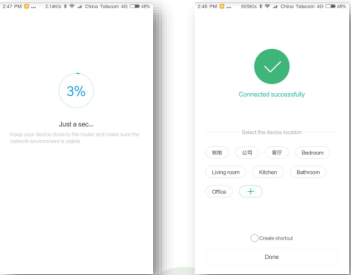
After finish connection, user can select Mi Home Security Camera in Mi Home App to monitor current video live stream.
2. Bluetooth Connection:
Same steps as the above until QR Code pop-up, select from other methods to choose Bluetooth.

9.Q:What is the function of Wide Dynamic Range(WDR)?
A: Camera under WDR mode can keep more graphical details, especially under too dark or excessive exposure conditions. WDR is not working at night mode and will affect the color of time watermark.
10.Q:Does Mi Home Security Camera support multiple devices monitoring at the same time?
A:Yes. Maximum of 5 devices can watch the monitoring video together, which should log in same Mi account.
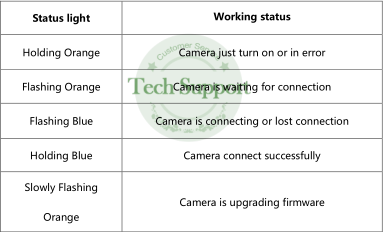
11.Q:What’re the meaning of different colors of Mi Home Security Camera’s status light?
A:
12.Q: How to do if Mi Home Security Camera in flashing blue?
A:1. If the camera is flashing in blue during initialization connecting process, it means the camera cannot access the WiFi or there is something wrong with network.
In this case, please do as below:
① Check if the password is correct.
② Check if the camera is in the same Wi-Fi with user’s cellphone.
③ Check if the camera is too far away from the router, then try to get closer.
④ Check if the DHCP service of the router is on.
⑤ Close the MAC address filter for the router, and also close anti-rub network for Mi Router.
⑥ Check if it’s due to network limit, try to connect with other networks like cellphone hotspot with 3G or upper.
2. If the camera is flashing in blue during using after initialization, it means there is something wrong with network. In this case, please do as below:
① Check if other devices in this W-Fi network has connection issue, if yes, try to solve the network or router problem.
② If other devices have good connection, check if the signal level near the camera is bad or be interference, move the camera closer to the router.
③ If still flashing blue, try shut down the camera and restart it.
④ If still not working after repeat step 2 and 3 for several times, then reset the camera and re-connect to the network.
13.Q:Why does my Mi Home Security Camera show offline in Mi Home App?
A: Mi Home App will shows device offline if the device cannot be detected through network:
1. Check if camera is off or not connected with power.
2. Check if the router is well working, Wi-Fi name or password is not changed.
3. If the above two steps are checked without problem then do follow steps:
① Check if other devices in this W-Fi network has connection issue, if yes, try to solve the network or router problem.
② If other devices have good connection, check if the signal level near the camera is bad or be interference, move the camera closer to the router.
③ If still flashing blue, try shut down the camera and restart it.
④ If still not working, then reset the camera and re-connect to the network.
14.Q:Why is the video black and white even at daytime?
A:1. Mi Home Security Camera will automatically adjust the brightness based on environment light, check if the environment brightness is dark.
2. Mi Home Security Camera can manually switch modes, check if “Infrared imaging” option inside Mi Home App keeps turning on. If yes, the camera will keep in black & white even the environment brightness is high.
15.Q:What to do if the video is unclear at night vision mode?
A:1.Check the position and using environment of the camera, keep it widely open without obscure for infrared reach to the monitor area.
2. Location will affect infrared as well, like uneven table. Please keep the camera at the edge of surface for best night vision quality.
16.Q:Why is the sound and picture not synchronized?
A:The reason why sound and picture are not synchronized is due to internet jam. Try to close the App and re-enter, get closer to the router, restart the router, restart the camera, switch the wireless channel and bandwidth of the router. If all of the solutions above are not working, check if it’s due to network limit, try to connect with other networks like cellphone hotspot with 3G or upper.
17.Q:What to do if the monitoring video is freezing?
A:Mi Home Security Camera has 2 resolution options which are HD and SD that can set in Mi Home App. Since it has higher network requirement for HD mode, ot os suggested to switch to auto mode which can switch between HD and SD based on network status. If the camera already in auto mode but still freeze, it may due to network status is bad, try to solve it in the following steps:
① Wi-Fi signal is inferenced badly, try to change the wireless channel and bandwidth of the router.
② Reduce the connected devices number if there are too many devices, which may cause massive load for the router and less bandwidth for each device.
③ Camera is too far to the router or the signal level is bad.
18.Q:Why my Mi Home Security Camera cannot read my SD card?
A: If the camera cannot detect SD card, check if the file format of SD card is FAT32/exFAT with Class 10 or higher standard. Then can format the SD card inside Mi Home App if the file format isn’t correct. If still cannot be detected after format, it’s SD card problem and try to insert another one.
19.Q:What occurs if the SD card is full?
A:1. Mi Home Security Camera will automatically cover the earliest video once SD card is full.
2. User can choose “Permanent Save” while watching the saved video if he doesn’t want some part of video be covered. After select, this part of video won’t be covered.
If the SD card is full of Permanent Save video, please transfer the storage to NAS.
20.Q:Can Mi Home Security Camera work without SD card inserted?
A:Mi Home Security Camera can only watch the live monitoring stream when no SD card inserted but cannot record the video and save it into NAS.
21.Q:What is the format of recorded video?
A:After insert SD card into Mi Home Security Camera, it will create 2 folders, which are log (record operation log for the camera) and MIJIA_RECORD_VIDEO(save the video record in SD card).

In MIJIA_RECORD_VIDEO folder, the sub-folders inside are named in year, month, and day. In the sub-folder, a video and a picture will be created per minute. For each of the video, it will be a 60s long MP4@1080P format video.
22.Q:What is the monitoring range of Mi Home Security Camera?
A: Mi Home Security Camera can clearly catch human face in the range about 5-6m (16-20ft). The lens’ monitor angle of the camera is 130 degree. So the effective monitor area for Mi Home Security Camera is about 30-40.
23.Q:Can Mi Home Security Camera work without Internet?
A:Mi Home Security Camera must connect to the internet while initialization to sync with server for some key data. It is not advised user to use the camera without interwork. And motion detection function is not available while the camera is offline.
24.Q:How to watch monitoring video on PC?
A:It is suggested to watch the monitoring video only via Mi Home App, which means it cannot be watched on PC.
25.Q:How to fix the issue of firmware update failed?
A:It might be internet issue for this problem, try to solve it by following steps:
1. Restart and re-check the update
2. Reset the camera and re-check the update if step 1 is not working.
3. If still not working, try to switch to another network and re-check.
26.Q:Why Mi Home Security Camera cannot boot?
A:If Mi Home Security Camera cannot boot up, the status light will be holding yellow, try to solve it by following steps:
1. Shut down and reboot, it’s better to change power cable.
2. Reset the camera.
3. If the light is still holding yellow after reset, it might be camera firmware issue, try to flash the firmware through SD card.
APP and smart part QA
1.Q:How to use the camera and APP?
A:The camera and mobile APP terminal need to be connected to the Internet, and when connected to the Internet, follow the instructions.
2.Q:How is the camera connected to the Internet?
A:1. Power the camera with the original adapter (the product has no built-in battery and needs power);
2.Open the smart home, click "+" on the "my device" page, select "add device", and select "mijia smart camera";
3. Long press the "Reset" button of the camera with the thimble for 5 seconds until "Reset succeeded" is prompted. After the voice prompt "waiting for connection", click next;
4. Select the WiFi the camera needs to connect to, type the password and proceed to the next step;
5. Scan the qr code on the screen with the camera (the two are about 10cm apart, and the screen of the phone is facing the camera lens, if there is no response, slightly move the phone forward and back), and continue to operate after hearing "the qr code scan is successful";
6. Wait for the camera to prompt voice prompt "connection successful, you can start using!"
3.Q:Camera bluetooth transfer select camera "nothing"?
A:1. Make sure you can hear the "wait for connection" prompt from the camera and that the phone is close to the camera.
4.Q:How to turn on motion detection alarm?
A:Click into the bound camera and click "... "in the upper right corner., enter the "Settings" menu, and select "detected mobile alarm" to enable the function.
5.Q:How do I use it with my family?
A:1. Click into the bound camera and click "... "in the upper right corner.", select "general Settings", select "device sharing", select "share to xiaomi account", enter your family's xiaomi account to confirm. 2. Open family's mijia client, click "personal center", click the envelope in the upper right corner, select "device share" and agree to share the device.
6.Q:Memory card full,what to do?
A:1. The camera will save the recorded video in the memory card. Once it is full, it will delete the old video and record it in a loop;
2. If there are precious images in the memory card, you can reuse them and choose "save forever".Permanently saved videos will not be deleted by looping recordings.
7.Q:Blue light flashing during use?
A:1. During the networking process, the blue light will keep flashing, indicating that the camera cannot connect to the wireless network or cannot bind to the account.There may be errors for the network information, check that the WiFi information you typed is correct.
2.If the blue light flashes during normal use, there is a problem with the network. Please check whether the WiFi network connected by the camera is normal.
8.Q:Why is the APP display device offline?
A:1. Please check whether the power supply of your camera is normal.
2.Check the status indicator of the camera: Orange light: turn on Orange flash: wait for connection Blue light flashing: in connection Blue light: connection successful Orange light: software update in progress If something goes wrong with the network, the blue light keeps flashing.Please check whether the WiFi network is normal.If there are any other problems, please try to reset the machine and reconnect the camera.
9.Q:Which TF card should be used?
A:TF memory CARDS are recommended for CLASS10 and above.
The hardware part QA
1.Q:What kind of power adapter does the camera need?
A:The maximum operating current of the camera may reach 1A (rated operating voltage 5V), so use the original adapter for stable operation of the camera.
2.Q:What is the status of the camera when the indicator light is different?
A:Through the camera look at the current state of the state of lamp: Orange lights: boot ;Orange light flash: waiting for the connection; Blue lights flashing: connection; Blue light normally on: the connection is successful; Orange light slow flash: software upgrades In addition to "m" mobile phone APP, the connected state, closed or open camera long bright blue light.
3.Q:What are the WiFi and network requirements for the camera connection?
A:The camera supports 2.4g and 5G dual-frequency WiFi, and the router needs to connect to the Internet, but it does not support enterprise-class certified WiFi, so it needs to ensure good Internet access bandwidth.
4.Q:What if the connected camera then USES the APP to display offline?
A:Check whether the router is connected to the network normally or whether the SSID and password of WiFi have been changed. In addition, please try to place the camera near the router.
5.Q:How do I reset the camera?
A:Under normal connection state, delete the corresponding device at the APP end of mobile phone, and the camera voice prompt "reset successfully", or press the "Reset" button of the camera with the thimble until the voice prompt "Reset successfully.
6.Q:Why is the video sometimes not clear?
A:The camera has two clear modes (hd and fluent), and the corresponding mode can be set at the APP end of the mobile phone. Under the automatic mode, it will switch automatically according to the network environment. Please ensure that the network environment is good.Choose smooth mode on mobile network to save traffic.
7.Q:Video and sound delay, out of sync is the reason?
A:1. This is mainly caused by the network. Please check whether the network environment connected by the camera and mobile phone is good. 2. Try to exit the video, open it again and try again.
8.Q:Under night vision picture not clear how to do?
A:1. In this case, it is necessary to check the position of the camera and the surrounding environment. It is necessary to keep the camera open and close without shielding, so as to avoid the infrared light from fully illuminating the monitored area. 2. Notice that the table top will also block the infrared light. The camera can be placed on the edge of the bearing object to obtain the best night vision effect.
9.Q:Why does the phone scream when it's close to the camera?
A:1. Because in the same environment, the camera microphone repeatedly picks up the sound output from the mobile phone end, amplifies the circuit feedback, and generates the noise, which is a normal phenomenon. 2. When the video of the camera is turned on, the distance between the two is more than 1m to avoid screaming.
10.Q:What is the reason why daytime pictures are always in black and white?
A:1. The camera will automatically judge the light intensity of the environment, and automatically switch the corresponding mode. In the night vision mode, it will be black and white. 2. In addition, the camera has the function of manual switching. Check whether the setting of "infrared night vision" at the APP end of the phone is in the state of "always on".
11.Q:Why doesn't the bluetooth near sleep function work?
A:1. After this function is turned on, make sure that the "bluetooth broadcast" of the bluetooth device is always on. At this time, please check whether the "bluetooth broadcast" of the corresponding device is on. 2. Currently supported devices are mi band 2 and iPhone.
12.Q:Why insert "TF card ", the camera does not recognize?
A:The camera supports MicroSD card (support products above CLASS4 or above, Max support 128G), first check whether the unrecognized card meets the requirements, if it meets the requirements above, please insert the card into the computer to check whether it is damaged, and try again after repair.
1.Q:What’s the package contents of Mi Home Security Camera?
A: Camera body *1, Power adapter *1, Manual (with Warranty card) *1.
2.Q:What are the environment requirements to use Mi Home Security Camera?
A :The environment conditions for Mi Home Security Camera are below :
1. Wide open area where no metal stuff.
2. Keep away from the back of furniture, and get rid of high electrical-interference products like microwave oven.
3. Avoid directly irradiate by light sources.
4. Avoid be tangled by cables, like electric cable.
5. Be sure to have good Wi-Fi connectivity.
3.Q:What’s the network requirement of Mi Home Security Camera?
A: Mi Home Security Camera supports WiFi at 2.4/5GHZ dual frequency with IEEE802.11b/g/n protocol and use WPA/WPA2 as encryption. To use the camera, the wireless router must open the DHCP service and cannot turn on wireless access control.
4.Q:What are the requirements of Micro SD card for Mi Home Security Camera?
A:If user wants to save the recorded video for review, please insert a SD card into the camera in advance. Mi Home Security Camera supports MicroSD card with FAT32/exFAT format up to 4G. To fulfill the speed requirement, class10 and above standard card is advised.
5.Q:What are the requirement of the device system to connect Mi Home Security Camera?
A:Mi Home Security Camera is compatible with devices of Android 4.0(and later) or iOS 8.0(and later).
6.Q:Is it possible to save the video taken by Mi Home Security Camera to other devices?
A:Yes. Mi Home Security Camera can save the recorded video to Mi Router or NAS with following requirements:
1. The router/NAS must in same LAN with Mi Home Security Camera;
2. Mi Home Security Camera must import MicroSD card;
3. Mi router must turn on Samba extension or NAS must support SMB protocol.
7.Q:How to reset Mi Home Security Camera?
A: Stick pin in the reset hole (see the following picture) about 5-8 seconds until the succeed voice prompt. then release to finish the reset.
8.Q:How to connect Mi Home Security Camera?
A:User can connect the camera in the following two ways:
1. Scan QR Code:
Turn on the Mi Home Security Camera and wait for the status light become flashing orange. Then use cellphone with Mi Home App to connect WiFi and log in Mi Home App. Notification will be shown once user log into Mi Home. Conduct as instruction shown in App to finish each step. At the Wi-Fi connection page, select the Wi-Fi which user want the camera to be connected and input valid password then press “Next”, the QR Code will be show up.
After finish connection, user can select Mi Home Security Camera in Mi Home App to monitor current video live stream.
2. Bluetooth Connection:
Same steps as the above until QR Code pop-up, select from other methods to choose Bluetooth.
9.Q:What is the function of Wide Dynamic Range(WDR)?
A: Camera under WDR mode can keep more graphical details, especially under too dark or excessive exposure conditions. WDR is not working at night mode and will affect the color of time watermark.
10.Q:Does Mi Home Security Camera support multiple devices monitoring at the same time?
A:Yes. Maximum of 5 devices can watch the monitoring video together, which should log in same Mi account.
11.Q:What’re the meaning of different colors of Mi Home Security Camera’s status light?
A:
12.Q: How to do if Mi Home Security Camera in flashing blue?
A:1. If the camera is flashing in blue during initialization connecting process, it means the camera cannot access the WiFi or there is something wrong with network.
In this case, please do as below:
① Check if the password is correct.
② Check if the camera is in the same Wi-Fi with user’s cellphone.
③ Check if the camera is too far away from the router, then try to get closer.
④ Check if the DHCP service of the router is on.
⑤ Close the MAC address filter for the router, and also close anti-rub network for Mi Router.
⑥ Check if it’s due to network limit, try to connect with other networks like cellphone hotspot with 3G or upper.
2. If the camera is flashing in blue during using after initialization, it means there is something wrong with network. In this case, please do as below:
① Check if other devices in this W-Fi network has connection issue, if yes, try to solve the network or router problem.
② If other devices have good connection, check if the signal level near the camera is bad or be interference, move the camera closer to the router.
③ If still flashing blue, try shut down the camera and restart it.
④ If still not working after repeat step 2 and 3 for several times, then reset the camera and re-connect to the network.
13.Q:Why does my Mi Home Security Camera show offline in Mi Home App?
A: Mi Home App will shows device offline if the device cannot be detected through network:
1. Check if camera is off or not connected with power.
2. Check if the router is well working, Wi-Fi name or password is not changed.
3. If the above two steps are checked without problem then do follow steps:
① Check if other devices in this W-Fi network has connection issue, if yes, try to solve the network or router problem.
② If other devices have good connection, check if the signal level near the camera is bad or be interference, move the camera closer to the router.
③ If still flashing blue, try shut down the camera and restart it.
④ If still not working, then reset the camera and re-connect to the network.
14.Q:Why is the video black and white even at daytime?
A:1. Mi Home Security Camera will automatically adjust the brightness based on environment light, check if the environment brightness is dark.
2. Mi Home Security Camera can manually switch modes, check if “Infrared imaging” option inside Mi Home App keeps turning on. If yes, the camera will keep in black & white even the environment brightness is high.
15.Q:What to do if the video is unclear at night vision mode?
A:1.Check the position and using environment of the camera, keep it widely open without obscure for infrared reach to the monitor area.
2. Location will affect infrared as well, like uneven table. Please keep the camera at the edge of surface for best night vision quality.
16.Q:Why is the sound and picture not synchronized?
A:The reason why sound and picture are not synchronized is due to internet jam. Try to close the App and re-enter, get closer to the router, restart the router, restart the camera, switch the wireless channel and bandwidth of the router. If all of the solutions above are not working, check if it’s due to network limit, try to connect with other networks like cellphone hotspot with 3G or upper.
17.Q:What to do if the monitoring video is freezing?
A:Mi Home Security Camera has 2 resolution options which are HD and SD that can set in Mi Home App. Since it has higher network requirement for HD mode, ot os suggested to switch to auto mode which can switch between HD and SD based on network status. If the camera already in auto mode but still freeze, it may due to network status is bad, try to solve it in the following steps:
① Wi-Fi signal is inferenced badly, try to change the wireless channel and bandwidth of the router.
② Reduce the connected devices number if there are too many devices, which may cause massive load for the router and less bandwidth for each device.
③ Camera is too far to the router or the signal level is bad.
18.Q:Why my Mi Home Security Camera cannot read my SD card?
A: If the camera cannot detect SD card, check if the file format of SD card is FAT32/exFAT with Class 10 or higher standard. Then can format the SD card inside Mi Home App if the file format isn’t correct. If still cannot be detected after format, it’s SD card problem and try to insert another one.
19.Q:What occurs if the SD card is full?
A:1. Mi Home Security Camera will automatically cover the earliest video once SD card is full.
2. User can choose “Permanent Save” while watching the saved video if he doesn’t want some part of video be covered. After select, this part of video won’t be covered.
If the SD card is full of Permanent Save video, please transfer the storage to NAS.
20.Q:Can Mi Home Security Camera work without SD card inserted?
A:Mi Home Security Camera can only watch the live monitoring stream when no SD card inserted but cannot record the video and save it into NAS.
21.Q:What is the format of recorded video?
A:After insert SD card into Mi Home Security Camera, it will create 2 folders, which are log (record operation log for the camera) and MIJIA_RECORD_VIDEO(save the video record in SD card).
In MIJIA_RECORD_VIDEO folder, the sub-folders inside are named in year, month, and day. In the sub-folder, a video and a picture will be created per minute. For each of the video, it will be a 60s long MP4@1080P format video.
22.Q:What is the monitoring range of Mi Home Security Camera?
A: Mi Home Security Camera can clearly catch human face in the range about 5-6m (16-20ft). The lens’ monitor angle of the camera is 130 degree. So the effective monitor area for Mi Home Security Camera is about 30-40.
23.Q:Can Mi Home Security Camera work without Internet?
A:Mi Home Security Camera must connect to the internet while initialization to sync with server for some key data. It is not advised user to use the camera without interwork. And motion detection function is not available while the camera is offline.
24.Q:How to watch monitoring video on PC?
A:It is suggested to watch the monitoring video only via Mi Home App, which means it cannot be watched on PC.
25.Q:How to fix the issue of firmware update failed?
A:It might be internet issue for this problem, try to solve it by following steps:
1. Restart and re-check the update
2. Reset the camera and re-check the update if step 1 is not working.
3. If still not working, try to switch to another network and re-check.
26.Q:Why Mi Home Security Camera cannot boot?
A:If Mi Home Security Camera cannot boot up, the status light will be holding yellow, try to solve it by following steps:
1. Shut down and reboot, it’s better to change power cable.
2. Reset the camera.
3. If the light is still holding yellow after reset, it might be camera firmware issue, try to flash the firmware through SD card.
APP and smart part QA
1.Q:How to use the camera and APP?
A:The camera and mobile APP terminal need to be connected to the Internet, and when connected to the Internet, follow the instructions.
2.Q:How is the camera connected to the Internet?
A:1. Power the camera with the original adapter (the product has no built-in battery and needs power);
2.Open the smart home, click "+" on the "my device" page, select "add device", and select "mijia smart camera";
3. Long press the "Reset" button of the camera with the thimble for 5 seconds until "Reset succeeded" is prompted. After the voice prompt "waiting for connection", click next;
4. Select the WiFi the camera needs to connect to, type the password and proceed to the next step;
5. Scan the qr code on the screen with the camera (the two are about 10cm apart, and the screen of the phone is facing the camera lens, if there is no response, slightly move the phone forward and back), and continue to operate after hearing "the qr code scan is successful";
6. Wait for the camera to prompt voice prompt "connection successful, you can start using!"
3.Q:Camera bluetooth transfer select camera "nothing"?
A:1. Make sure you can hear the "wait for connection" prompt from the camera and that the phone is close to the camera.
- Make sure the bluetooth function of the phone is normal and turned on.
4.Q:How to turn on motion detection alarm?
A:Click into the bound camera and click "... "in the upper right corner., enter the "Settings" menu, and select "detected mobile alarm" to enable the function.
5.Q:How do I use it with my family?
A:1. Click into the bound camera and click "... "in the upper right corner.", select "general Settings", select "device sharing", select "share to xiaomi account", enter your family's xiaomi account to confirm. 2. Open family's mijia client, click "personal center", click the envelope in the upper right corner, select "device share" and agree to share the device.
6.Q:Memory card full,what to do?
A:1. The camera will save the recorded video in the memory card. Once it is full, it will delete the old video and record it in a loop;
2. If there are precious images in the memory card, you can reuse them and choose "save forever".Permanently saved videos will not be deleted by looping recordings.
7.Q:Blue light flashing during use?
A:1. During the networking process, the blue light will keep flashing, indicating that the camera cannot connect to the wireless network or cannot bind to the account.There may be errors for the network information, check that the WiFi information you typed is correct.
2.If the blue light flashes during normal use, there is a problem with the network. Please check whether the WiFi network connected by the camera is normal.
8.Q:Why is the APP display device offline?
A:1. Please check whether the power supply of your camera is normal.
2.Check the status indicator of the camera: Orange light: turn on Orange flash: wait for connection Blue light flashing: in connection Blue light: connection successful Orange light: software update in progress If something goes wrong with the network, the blue light keeps flashing.Please check whether the WiFi network is normal.If there are any other problems, please try to reset the machine and reconnect the camera.
9.Q:Which TF card should be used?
A:TF memory CARDS are recommended for CLASS10 and above.
The hardware part QA
1.Q:What kind of power adapter does the camera need?
A:The maximum operating current of the camera may reach 1A (rated operating voltage 5V), so use the original adapter for stable operation of the camera.
2.Q:What is the status of the camera when the indicator light is different?
A:Through the camera look at the current state of the state of lamp: Orange lights: boot ;Orange light flash: waiting for the connection; Blue lights flashing: connection; Blue light normally on: the connection is successful; Orange light slow flash: software upgrades In addition to "m" mobile phone APP, the connected state, closed or open camera long bright blue light.
3.Q:What are the WiFi and network requirements for the camera connection?
A:The camera supports 2.4g and 5G dual-frequency WiFi, and the router needs to connect to the Internet, but it does not support enterprise-class certified WiFi, so it needs to ensure good Internet access bandwidth.
4.Q:What if the connected camera then USES the APP to display offline?
A:Check whether the router is connected to the network normally or whether the SSID and password of WiFi have been changed. In addition, please try to place the camera near the router.
5.Q:How do I reset the camera?
A:Under normal connection state, delete the corresponding device at the APP end of mobile phone, and the camera voice prompt "reset successfully", or press the "Reset" button of the camera with the thimble until the voice prompt "Reset successfully.
6.Q:Why is the video sometimes not clear?
A:The camera has two clear modes (hd and fluent), and the corresponding mode can be set at the APP end of the mobile phone. Under the automatic mode, it will switch automatically according to the network environment. Please ensure that the network environment is good.Choose smooth mode on mobile network to save traffic.
7.Q:Video and sound delay, out of sync is the reason?
A:1. This is mainly caused by the network. Please check whether the network environment connected by the camera and mobile phone is good. 2. Try to exit the video, open it again and try again.
8.Q:Under night vision picture not clear how to do?
A:1. In this case, it is necessary to check the position of the camera and the surrounding environment. It is necessary to keep the camera open and close without shielding, so as to avoid the infrared light from fully illuminating the monitored area. 2. Notice that the table top will also block the infrared light. The camera can be placed on the edge of the bearing object to obtain the best night vision effect.
9.Q:Why does the phone scream when it's close to the camera?
A:1. Because in the same environment, the camera microphone repeatedly picks up the sound output from the mobile phone end, amplifies the circuit feedback, and generates the noise, which is a normal phenomenon. 2. When the video of the camera is turned on, the distance between the two is more than 1m to avoid screaming.
10.Q:What is the reason why daytime pictures are always in black and white?
A:1. The camera will automatically judge the light intensity of the environment, and automatically switch the corresponding mode. In the night vision mode, it will be black and white. 2. In addition, the camera has the function of manual switching. Check whether the setting of "infrared night vision" at the APP end of the phone is in the state of "always on".
11.Q:Why doesn't the bluetooth near sleep function work?
A:1. After this function is turned on, make sure that the "bluetooth broadcast" of the bluetooth device is always on. At this time, please check whether the "bluetooth broadcast" of the corresponding device is on. 2. Currently supported devices are mi band 2 and iPhone.
12.Q:Why insert "TF card ", the camera does not recognize?
A:The camera supports MicroSD card (support products above CLASS4 or above, Max support 128G), first check whether the unrecognized card meets the requirements, if it meets the requirements above, please insert the card into the computer to check whether it is damaged, and try again after repair.
Does it help?
Yes
No