

The Xiaomi Curved Gaming Monitor G34WQi supports adjusting the color space to sRGB (Standard Red Green Blue), allowing you to achieve more accurate and consistent color reproduction. This feature is especially useful for tasks that require precise color representation, such as photo editing, content creation, and gaming with realistic visuals, enhancing the overall viewing experience.
To enable sRGB of the monitor, please refer to the following steps:
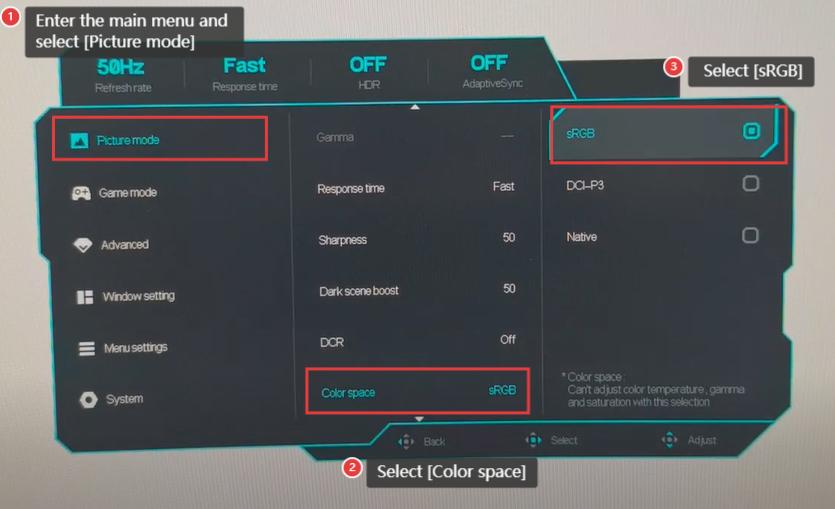
1. Press the power button at the back of the monitor to the right to enter the main menu and select [Picture mode];
2. Press the power button to the right, press the power button down to find and press the middle of the power button to select [Color space];
3. Press the power button to the right and press the middle of the power button to select [sRGB].
Note:
Color temperature, gamma, and saturation can’t be adjusted with the color space selection.
To enable sRGB of the monitor, please refer to the following steps:
1. Press the power button at the back of the monitor to the right to enter the main menu and select [Picture mode];
2. Press the power button to the right, press the power button down to find and press the middle of the power button to select [Color space];
3. Press the power button to the right and press the middle of the power button to select [sRGB].
Note:
Color temperature, gamma, and saturation can’t be adjusted with the color space selection.