

Select Light mode or Dark mode
Light mode adjusts the phone to fit in strong-light environments. Dark Mode
applies a dark color scheme to the phone to fit in low-light environments.
1. Go to Settings > Display.
2. Select Light mode or Dark mode to apply to the system.
Schedule Dark mode
You can schedule Dark mode to turn on at night.
1. Go to Settings > Display > Schedule Dark mode.
2. Tap to enable Schedule Dark mode.
3. Choose Sunset to sunrise or Custom.
• Tap Sunset to sunrise. Dark mode applies to your phone at sunset and is
turned off at sunrise.
• Tap Custom. You can turn Dark mode on and off at scheduled time.
Enable Automatic brightness
The phone automatically adjusts the brightness when in different light conditions.
1. Go to Settings > Display > Brightness level.
2. Tap to enable Automatic brightness.
Note
Screen brightness is optimized according to ambient light. You can still make minor adjustments manually.
Tip
You can also swipe down from the upper-right corner of the phone to enable Auto
brightness on the Control center.
Adjust screen brightness level manually
You can adjust the brightness level to make the phone dimmer or brighter.
Tip
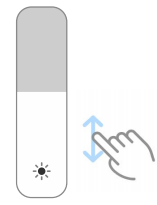
You can also swipe down from the upper-right corner of the phone to drag the slider in
the brightness level bar on the Control center
Choose a color scheme
You can adjust the color of the screen.
1. Go to Settings > Display > Color scheme.
2. Select a color scheme from Vivid , Saturated , Original color , or Advanced
settings for more color scheme options.
Enable Adaptive colors
Adaptive colors adjust colors to ambient light.
1. Go to Settings > Display > Color scheme.
2. Tap to enable Adaptive colors.
Note
You can adjust the color temperature in COLOR TEMPERATURE.
Choose a refresh rate
You can change the refresh rate to get a high-performance gaming experience.
1. Go to Settings > Display > Refresh rate.
2. Choose Default or Custom.
• Tap Default to adjust fresh rate dynamically based on scenarios to balance performance with power consumption.
• Tap Custom to select a refresh rate.
Note
Higher refresh rate makes viewing experience smoother but consumes more power
Light mode adjusts the phone to fit in strong-light environments. Dark Mode
applies a dark color scheme to the phone to fit in low-light environments.
1. Go to Settings > Display.
2. Select Light mode or Dark mode to apply to the system.
Schedule Dark mode
You can schedule Dark mode to turn on at night.
1. Go to Settings > Display > Schedule Dark mode.
2. Tap to enable Schedule Dark mode.
3. Choose Sunset to sunrise or Custom.
• Tap Sunset to sunrise. Dark mode applies to your phone at sunset and is
turned off at sunrise.
• Tap Custom. You can turn Dark mode on and off at scheduled time.
Enable Automatic brightness
The phone automatically adjusts the brightness when in different light conditions.
1. Go to Settings > Display > Brightness level.
2. Tap to enable Automatic brightness.
Note
Screen brightness is optimized according to ambient light. You can still make minor adjustments manually.
Tip
You can also swipe down from the upper-right corner of the phone to enable Auto
brightness on the Control center.
Adjust screen brightness level manually
You can adjust the brightness level to make the phone dimmer or brighter.
1.Go to Settings > Display > Brightness level.
2. Drag the slider of Screen brightness to adjust the screen brightness manually.Tip
You can also swipe down from the upper-right corner of the phone to drag the slider in
the brightness level bar on the Control center
Choose a color scheme
You can adjust the color of the screen.
1. Go to Settings >
Display > Color scheme.2. Select a color scheme from Vivid , Saturated , Original color , or Advanced
settings for more color scheme options.
Enable Adaptive colors
Adaptive colors adjust colors to ambient light.
1. Go to Settings > Display > Color scheme.
2. Tap to enable Adaptive colors.
Note
You can adjust the color temperature in COLOR TEMPERATURE.
Choose a refresh rate
You can change the refresh rate to get a high-performance gaming experience.
1. Go to Settings > Display > Refresh rate.
2. Choose Default or Custom.
• Tap Default to adjust fresh rate dynamically based on scenarios to balance performance with power consumption.
• Tap Custom to select a refresh rate.
Note
Higher refresh rate makes viewing experience smoother but consumes more power