

Mi box 3 international functional check instruction V01
Mi box 3 international functional check instruction V01
Functional check
1 . Electrical performace check
1.1 Power on check
1.2 Sleep / reboot test
2 USB functional check
3 WiFi functional check
4 Audio Functional check
5 Speech functional check
6 Bluetooth connection check
7 Add controler
Online upgrade
1 Check and upgrade
2 Confirm firmware version
Android recovery
1 Start recovery screen with bluetooth control
Functional check
1 . Electrical performace check
1.1 Power on check
Connect power adapter and box, use Bluetooth control to open the box.(Use HDMI cable to connect Monitor/TV and box)
The machine can be turned on normally and the LED lights up in white
Follow the guidance interface to pair the Bluetooth remote control with box
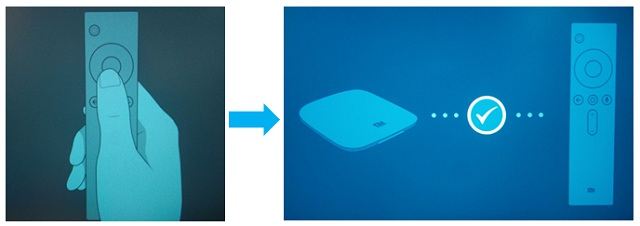
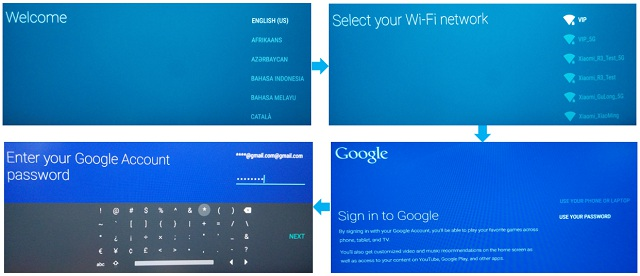
Follow the boot screen settings:
Select language in welcome screen-->Select your Wifi network-->Enter your Google Account password to sign in.
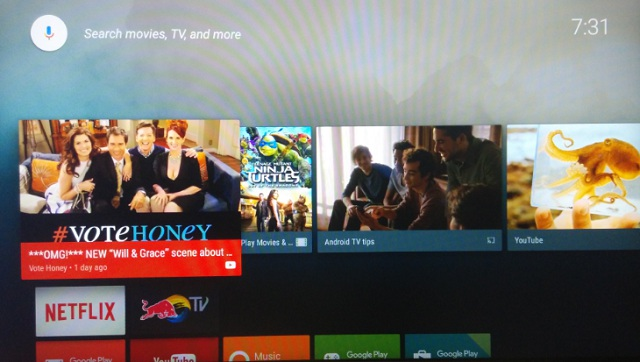
Set to enter the main interface, check the boot screen display is normal, can not have a screen flash, crash, snow points etc.
Rotate the adapter clockwise and counterclockwise 180 ° back and forth 2 times to check if the power connection is stable.
1.2 Sleep / reboot test
Under the boot state, short press the remote control power button to enter the sleep mode, then press the remote control power button to recover the machine
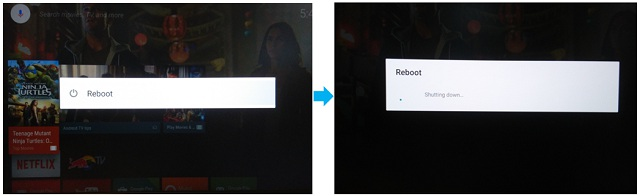
Under the boot state, long press the power button to enter the remote control to reboot, select reboot option then the machine will shut down and reboot
2 USB functional check
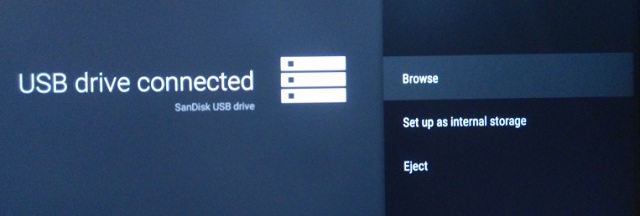
Plug in U disk to check if the U disk can be detected.
3 WiFi functional check
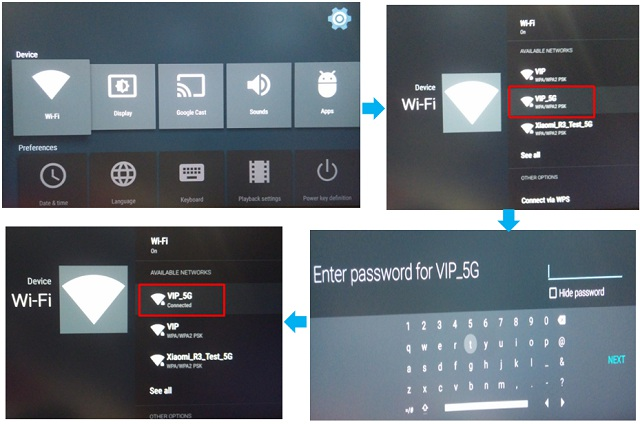
Wifi network should be detected and can be connected
Path:Settings-->Wi-Fi-->choose the wifi hotspot-->Input password-->Wifi connected
Youtube video play should be clear and sound quality is normal after Wifi connected。
4 Audio Functional check
Use 3.5mm audio cable to connect box with , ensure the audio out normal. (Same specification headphone also is fine)
5 Speech functional check
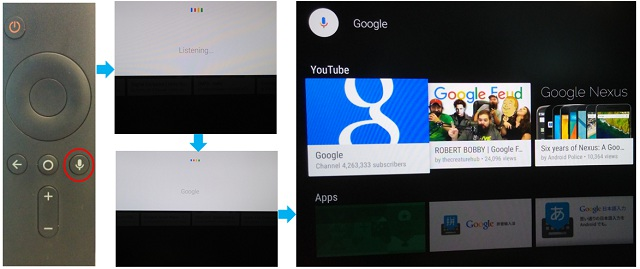
Keep pressing the speech button on the Bluetooth control-->Speak into the control MIC(For example:google)-->check search result(check if the correct response from screen)
6 Bluetooth connection check
Settings-->Remote&accessories-->Add accessory-->Bluetooth device can be searched and connected smoothly.
Play music or video to check if the sound from Bluetooth loudspeaker is normal.
7 Add controler
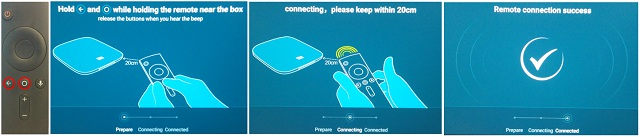
Under the boot state, keep in the 20CM between the remote control and infrared receiver, pressing down the "←" + "O" two buttons to confirm the success of remote control connection
Online upgrade1 Check and upgrade
Setting-->About-->System update-->System will check if your firmware is the latest version, if newer version can be detected, update information will pop up, then please follow instruction to update.
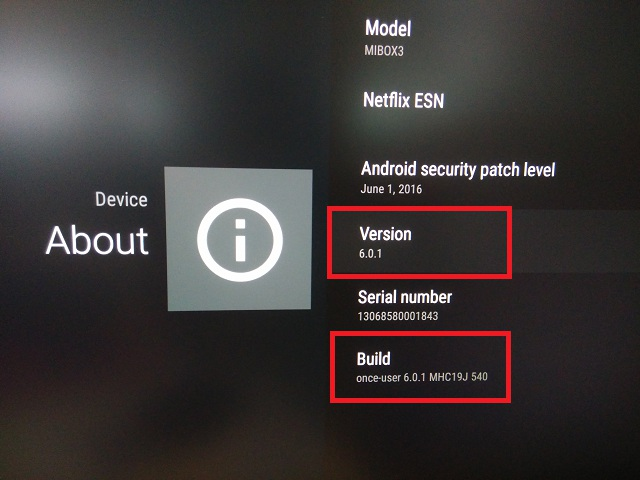
2 Confirm firmware version
Settings-->About-->Check and confirm the internal firmware version
Android recovery
1 Start recovery screen with bluetooth control
Face to the infrared receiver and keep pressing “←” and “Enter” button, then plug in the power adapter, until "Android Recovery" showed on the screen slide down to select“Wipe data / factory reset”,then select “ Yes ”,to clean the data, then it will back to "Android Recovery" main interface, select " Power off"
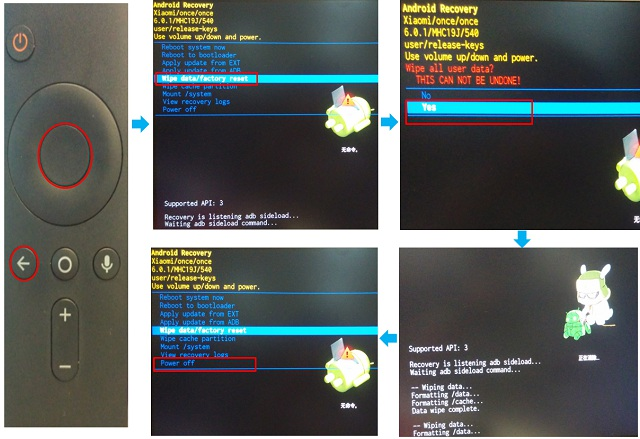
**Note: all boxes need to do the android recovery after functional check, and then power off. **