

Touchpad is an input device that uses the sliding operation of a finger to move a cursor on a smooth touchpad. When the user's finger approaches the touchpad, the capacitance will change, and the touchpad itself will detect the capacitance change and convert it into coordinates. This device is used in Xiaomi notebook.
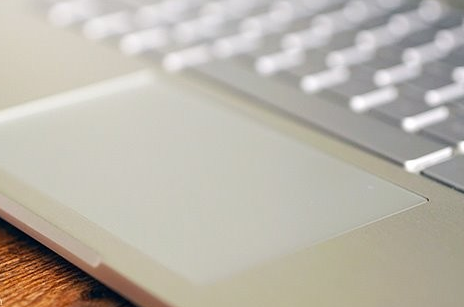
Description
Touchpad uses capacitive sensing to learn the movement of the finger and is not sensitive to the heat of the finger. The advantage is that it has a wide range of use, and is suitable for all built-in and ultra-thin notebooks, and it consumes less power and can provide handwriting input functions; because it is a non-movable mechanical component, it can be used to ensure durability and reliability.
Structure function
1. Touchpad move pointer: select or activate an item on the screen;
2. Touchpad left button: The function is similar to the left button of an external mouse;
3. Touchpad scroll area: scroll up or down;
4. Touchpad right button: The function is similar to the right button of an external mouse.
Working principle
Touchpad is made of printed circuit board into an array of rows and columns; the printed board and the surface plastic film are bonded with strong double-sided bonding, and the sensing detection principle is capacitive sensing. A special integrated circuit board under the surface of the touchpad continuously measures and reports this trajectory, thereby detecting the movement and position of the finger.
Touchpad is an input device that can move a cursor by sliding a finger on a smooth touchpad. Easy to use for novices. The touchpad is so thin that it can be used in ultra-thin notebook computers or keyboards. And it is not a mechanical design, so it is very easy to maintain. Its working principle is that when the user's hand approaches the touchpad, the capacitance will be changed, and the touchpad's control IC will detect the capacitance change and convert it into coordinates. The touchpad uses capacitive sensing to learn the movement of the finger and is not sensitive to the heat of the finger. When a finger touches the board, the electrostatic field on the board changes. Touchpad sensor is just a conductive trace of the finger printed on the surface of the board.
Use skills
1. To move the cursor, gently move your finger on the smooth sensing area;
2. To select an object, tap once on the surface of the touchpad;
3. To select and move (or drag) an object, position the cursor over the object and tap the touchpad twice in succession. On the second tap on the touchpad, rest your finger on the touchpad and swipe across the surface to move the selected object;
4. To double-click an object, position the cursor on the object and tap twice.
Use caution
Touchpads are pressure-sensitive devices that can be easily damaged if not properly protected. So pay attention to the following points when using:
1. Do not let the touchpad get dirty, liquid or grease;
2. If your fingers are not clean, do not touch the touchpad;
3. Do not put heavy objects on the touchpad or other buttons;
4. Please make sure that there is no excessive sweat or moisture on your hands, because excessive humidity will cause short circuit of the indicator device, and the surface of the touchpad should be kept clean and dry during daily use;
5. When typing or using the touchpad, do not rest your hands or wrists on the touchpad. Since the touchpad can sense any movement of the fingertip, placing your hand on the touchpad will cause the touchpad to react poorly or move slowly;
6. Only use one finger to operate, multiple fingers will make the touchpad generate confusing information at the same time.
Function realization
The components in the computer are different from other electronic products, because all its hardware must communicate with the operating system to function properly, and the association between the device and the core of the operating system is mainly through the driver.
The premise that the system can recognize the touchpad is that the driver has been installed. In the newly installed operating system, the touchpad already has some basic functions, but if you want to explore its full potential, you must install the latest dedicated driver, and also Only a dedicated application can make the most of its performance and functions. These programs should already be available in the driver CD that comes with the machine, but it is best to download the latest and Microsoft-certified drivers from the device manufacturer's website to ensure maximum performance and stability.
Description
Touchpad uses capacitive sensing to learn the movement of the finger and is not sensitive to the heat of the finger. The advantage is that it has a wide range of use, and is suitable for all built-in and ultra-thin notebooks, and it consumes less power and can provide handwriting input functions; because it is a non-movable mechanical component, it can be used to ensure durability and reliability.
Structure function
1. Touchpad move pointer: select or activate an item on the screen;
2. Touchpad left button: The function is similar to the left button of an external mouse;
3. Touchpad scroll area: scroll up or down;
4. Touchpad right button: The function is similar to the right button of an external mouse.
Working principle
Touchpad is made of printed circuit board into an array of rows and columns; the printed board and the surface plastic film are bonded with strong double-sided bonding, and the sensing detection principle is capacitive sensing. A special integrated circuit board under the surface of the touchpad continuously measures and reports this trajectory, thereby detecting the movement and position of the finger.
Touchpad is an input device that can move a cursor by sliding a finger on a smooth touchpad. Easy to use for novices. The touchpad is so thin that it can be used in ultra-thin notebook computers or keyboards. And it is not a mechanical design, so it is very easy to maintain. Its working principle is that when the user's hand approaches the touchpad, the capacitance will be changed, and the touchpad's control IC will detect the capacitance change and convert it into coordinates. The touchpad uses capacitive sensing to learn the movement of the finger and is not sensitive to the heat of the finger. When a finger touches the board, the electrostatic field on the board changes. Touchpad sensor is just a conductive trace of the finger printed on the surface of the board.
Use skills
1. To move the cursor, gently move your finger on the smooth sensing area;
2. To select an object, tap once on the surface of the touchpad;
3. To select and move (or drag) an object, position the cursor over the object and tap the touchpad twice in succession. On the second tap on the touchpad, rest your finger on the touchpad and swipe across the surface to move the selected object;
4. To double-click an object, position the cursor on the object and tap twice.
Use caution
Touchpads are pressure-sensitive devices that can be easily damaged if not properly protected. So pay attention to the following points when using:
1. Do not let the touchpad get dirty, liquid or grease;
2. If your fingers are not clean, do not touch the touchpad;
3. Do not put heavy objects on the touchpad or other buttons;
4. Please make sure that there is no excessive sweat or moisture on your hands, because excessive humidity will cause short circuit of the indicator device, and the surface of the touchpad should be kept clean and dry during daily use;
5. When typing or using the touchpad, do not rest your hands or wrists on the touchpad. Since the touchpad can sense any movement of the fingertip, placing your hand on the touchpad will cause the touchpad to react poorly or move slowly;
6. Only use one finger to operate, multiple fingers will make the touchpad generate confusing information at the same time.
Function realization
The components in the computer are different from other electronic products, because all its hardware must communicate with the operating system to function properly, and the association between the device and the core of the operating system is mainly through the driver.
The premise that the system can recognize the touchpad is that the driver has been installed. In the newly installed operating system, the touchpad already has some basic functions, but if you want to explore its full potential, you must install the latest dedicated driver, and also Only a dedicated application can make the most of its performance and functions. These programs should already be available in the driver CD that comes with the machine, but it is best to download the latest and Microsoft-certified drivers from the device manufacturer's website to ensure maximum performance and stability.