Mi LED Smart Bulb
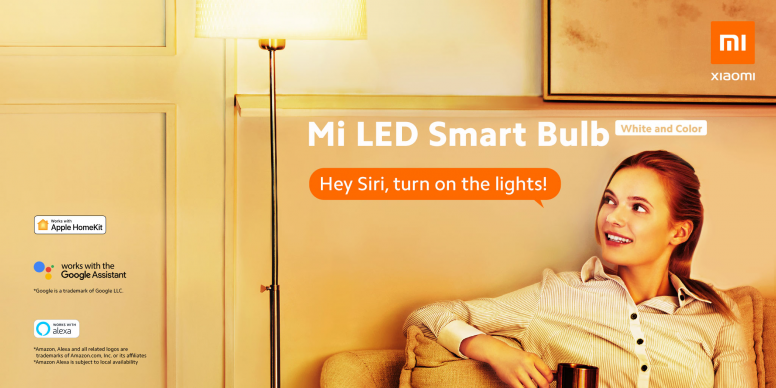
Lighting is not just about improving visibility in the darkness but it defines ambience and even has the power to lift your mood. As Xiaomi constantly improves, we remain dedicated to bringing the best smart lighting experience to our global users. We are happy to announce that our Mi LED Smart Bulb officially supports Apple HomeKit. Users will now be able to turn on/off, and adjust the color and brightness of their Mi LED Smart Bulbs remotely using Siri voice control, or Siri on their iPhone, iPad, or iPod touch.
Mi LED Smart Bulb (White&Color)
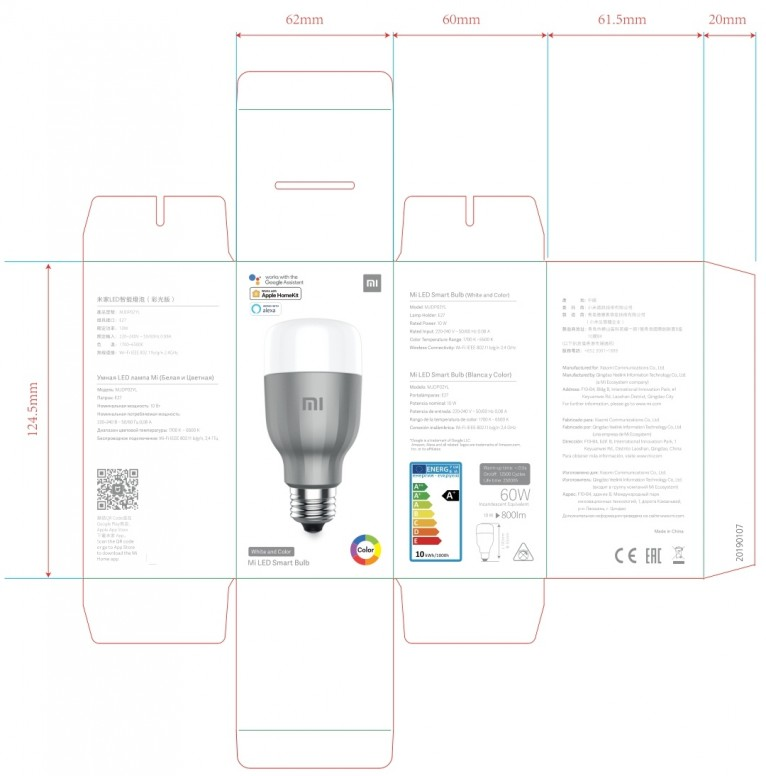
Mi LED Smart Bulb (White & Color is the world's first softauth support for HomeKit. Before you can use the Mi LED Smart Bulb accessory, please check the following:
Guidelines of adding HomeKit Accessories
-: Make sure the lamp has been upgraded to HomeKit firmware (version number: 2.0.6 and above).
(How to check the lamp version number and upgrade to the latest?)
-: Make sure The iOS device is on the same Wi-Fi network as the light bulb.
(How to check the network where the light bulb is located?)
There are two ways to add a light bulb to a HomeKit accessory:
1. The device has been linked to the Mi Home/Xiaomi Home app.
2. For the first time (or after resetting the lamp), use the Mi Home/Xiaomi Home app.
Check the lamp firmware version number and upgrade to the latest version
1) Go to the light bulb control page and click on the "..." icon in the upper right corner.
2) Click “check for firmware updates” to view the current version. Version 2.0.6 and above supports HomeKit.
3) If prompted to upgrade, click update to start the upgrade.
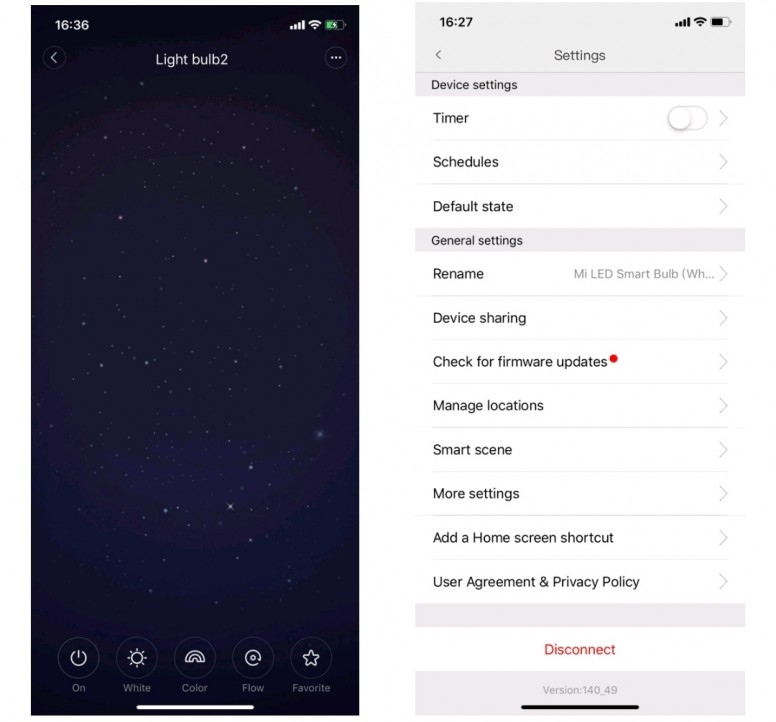
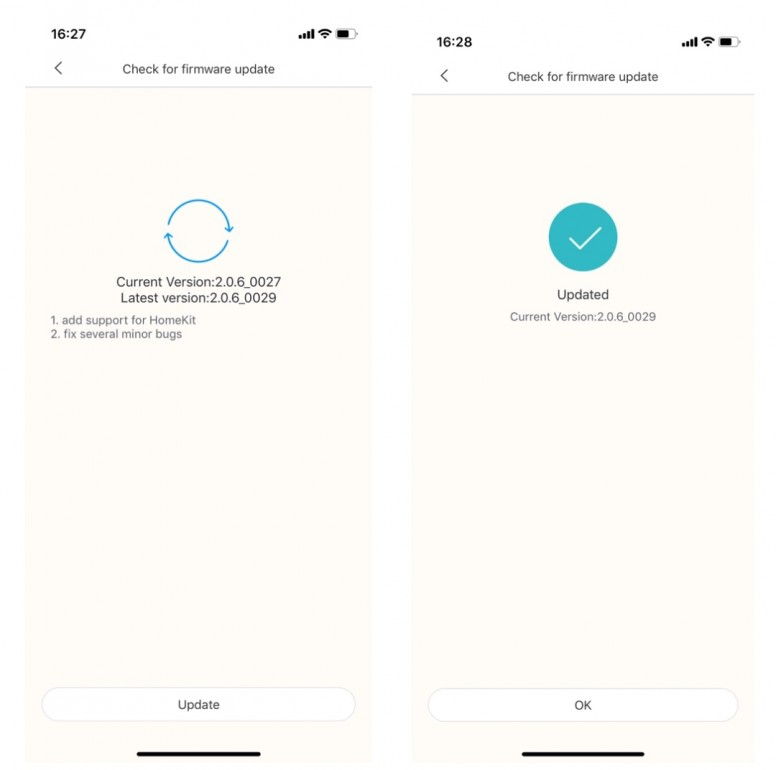
Check the network where the bulb is located.
1) Go to the light bulb control page and click on the "..." icon in the upper right corner.
2) Click on "Manage Locations" to view the WiFi route connected to the light bulb.
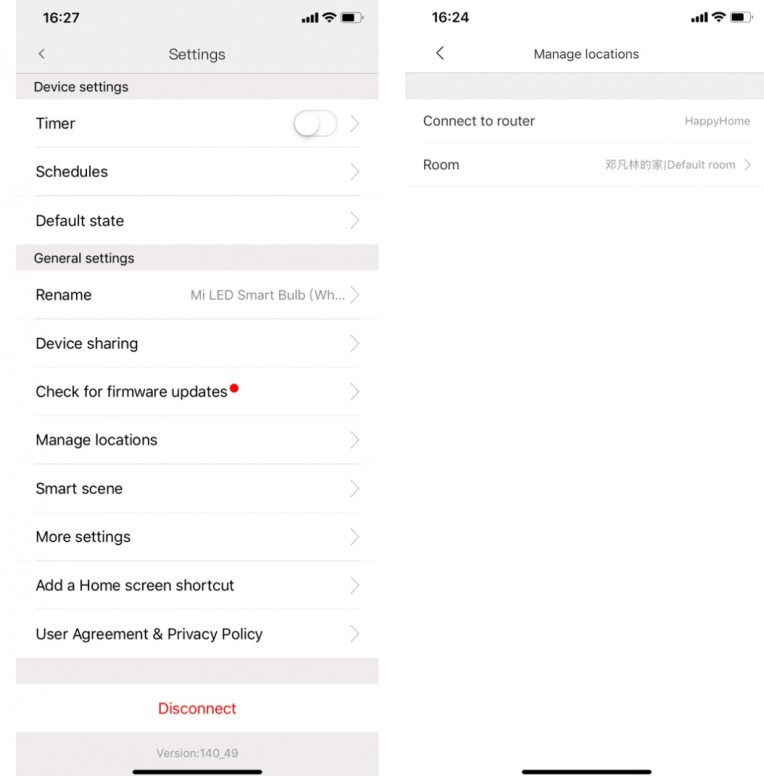
The device has been linked to the Mi Home/Xiaomi Home app.
At this time, Mi LED Smart Bulb (White&Color) has been connected to the Internet through the Mijia app, follow the steps below to add HomeKit accessories:
-: Upgrade the lamp firmware to the latest firmware version that supports HomeKit.
-: After upgrading the lamp firmware to the HomeKit firmware version, return to the main iOS Mi Home/Xiaomi Home app interface.
1) Check to make sure the iOS device is on the same WiFi network as the light bulb, otherwise the iOS device will not be able to discover the HomeKit accessory device.
Note: Make sure that the iOS device is on the same Wi-Fi network as the light bulb at this time.
2) Long press the bulb icon of HomeKit accessory, the icon shown below appears, click “HomeKit”.
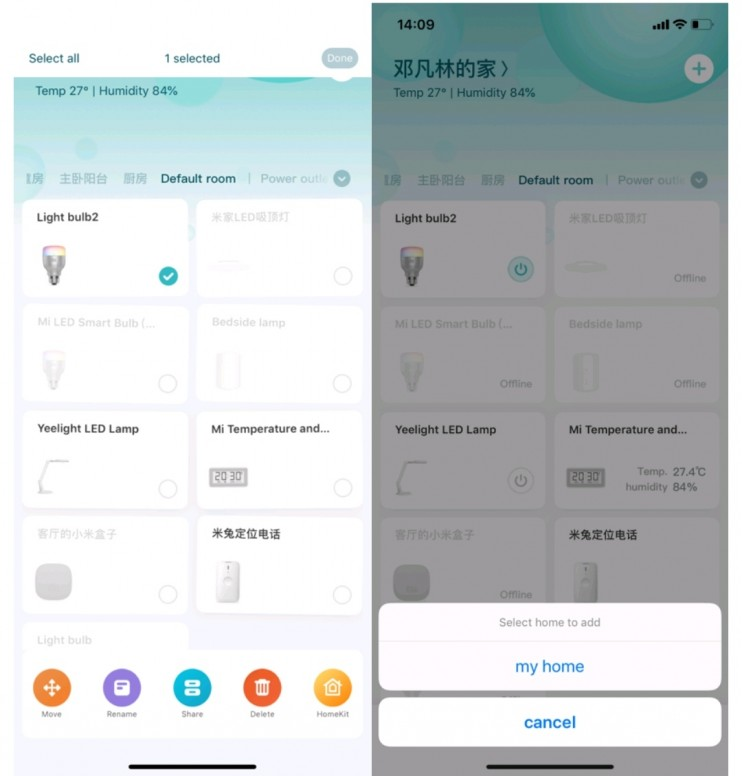
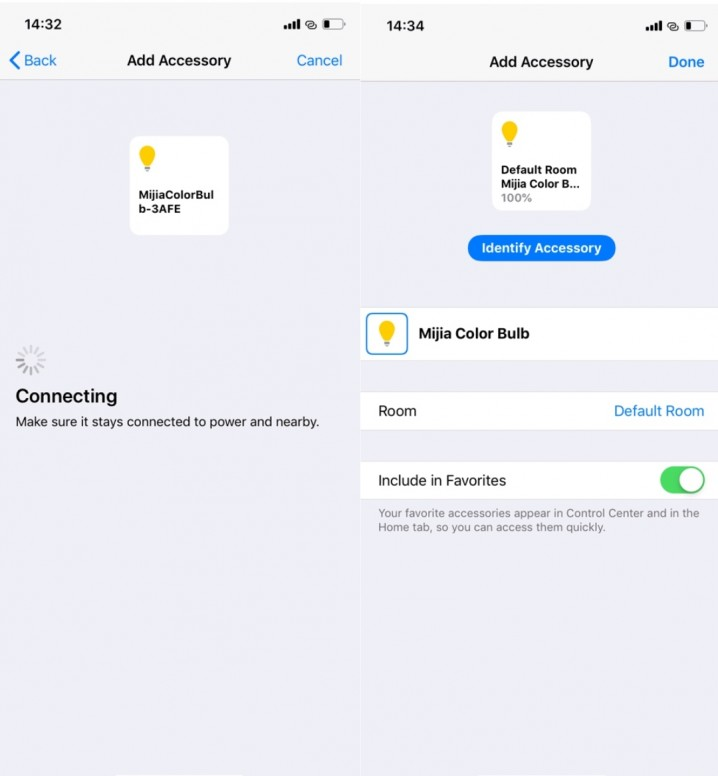
3) Select the family you want to join, as shown in the picture “My Home”, click “Continue” to start scanning, and the device will be automatically configured and added to the Home accessory.
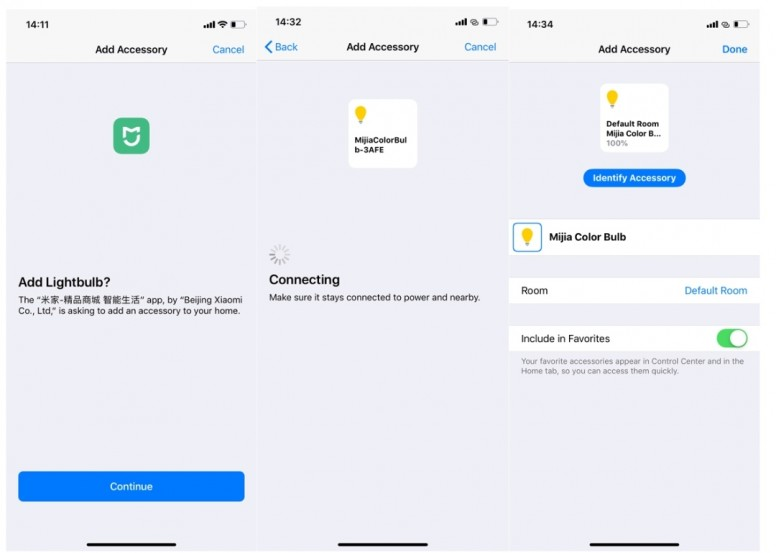
For the first time (or after resetting the lamp), use the Mi Home/Xiaomi Home app.
1) Go to Mi Home/Xiaomi Home and click on the “+” in the upper right corner to start adding devices.
2) Select “Lighting” to find the corresponding device, click to enter the device quick link interface.
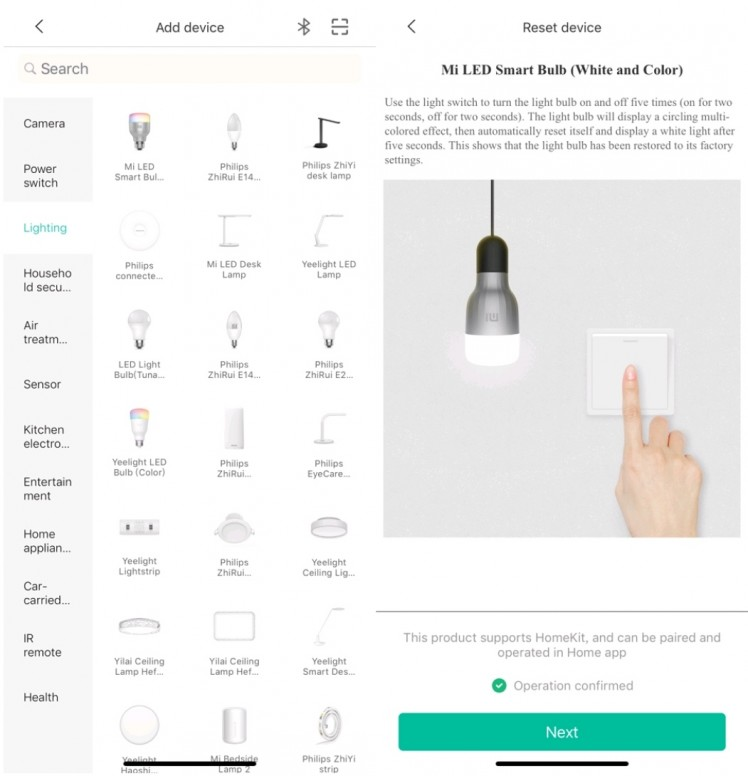
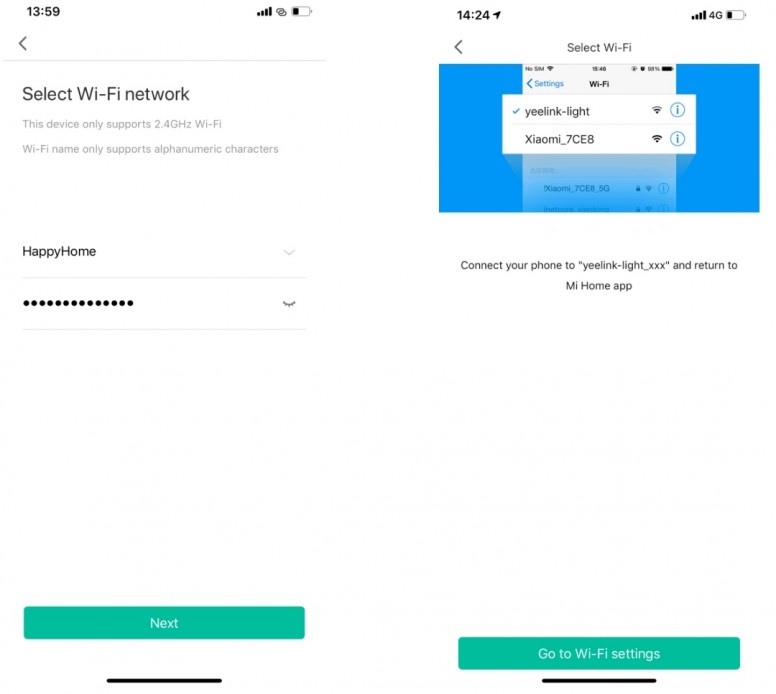
3) Select the 2.4G network, enter the WiFi connection password, and click Next.
4) Click “Go to Wi-Fi setting” to jump to the WIFI settings, click on the “yeelight-light_xxx” name hotspot and connect, switch back to Mi Home/Xiaomi Home, and start the quick connection.
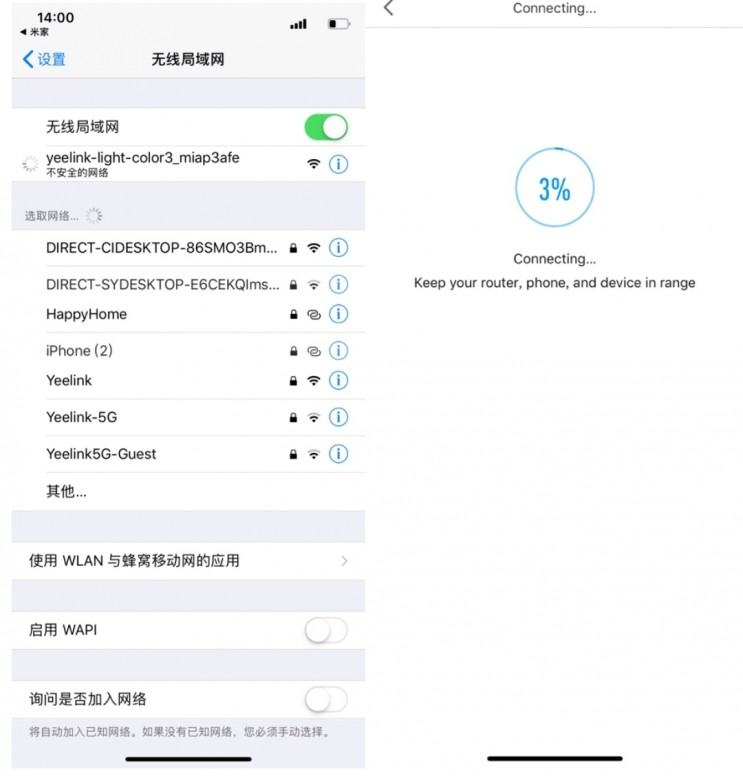
5) After the quick connection succeeds, enter the device naming page, click “Next” to enter the final page, “Pair with Homekit” appears below, click to continue to complete the HomeKit configuration.
6) Select the name of the family to be added from the list, as shown in the figure below “My Home”, enter the device scan page.
Note: At this point, check to make sure the iOS device is on the same WiFi network as the light bulb, otherwise the iOS device will not be able to discover the HomeKit accessory device.
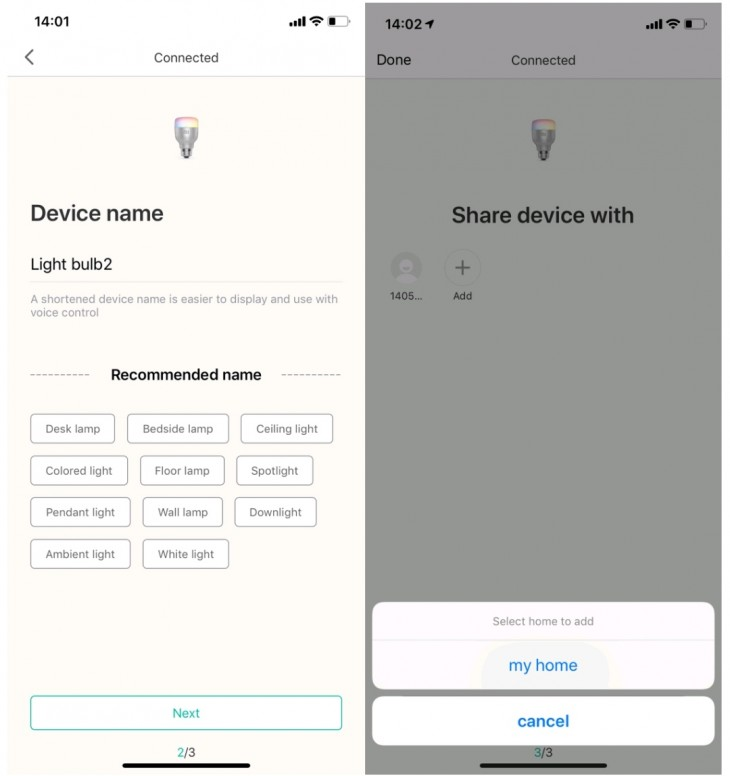
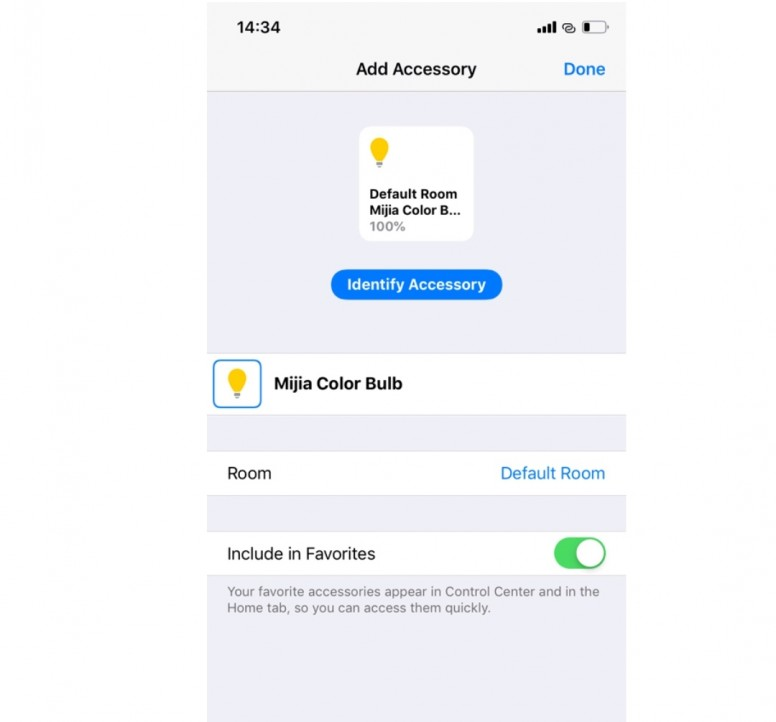
7) After the device is discovered, the automatic configuration is added to the Home accessory.